If you opened Microsoft Edge recently and found that Collections – the panel you used to clip pages, images, and notes into tidy visual boards – had simply vanished, you’re not imagining it. So what happened to Collections in Edge? Microsoft removed it as part of a broader browser redesign. There is, however, an unofficial workaround to getting it back and a few ways to rescue the content you saved before it’s gone for good.
What Happened to Collections in Edge
Microsoft confirmed that Collections would no longer be available starting with Microsoft Edge version 149, which was first released on June 4, 2026. The main reason is Microsoft’s push to rebuild Edge around Copilot. To their credit, Microsoft had been warning users about the change for months, with a notice inside the Collections pane telling users that the feature was being retired.
The catch is that if you update straight to that version of Edge without backing anything up, your saved collections become inaccessible, although some users may still be able to recover synced content through Bing Saves. That’s why the steps below focus first on getting the feature back temporarily, and then on saving your content while you still can.
Option 1 – A Workaround on How to Access Collections in Edge After the Update
Although Microsoft retired Collections, the underlying feature is still there in the code. You can use a command line to tell Edge to ignore the retirement and show the feature again. Note that this is unofficial; it doesn’t work on every machine (Microsoft appears to be rolling out a permanent block in stages), and Microsoft can remove the loophole entirely at any time.
Step 1. Close Edge completely, then right-click your Microsoft Edge desktop shortcut and select “Properties.”

Step 2. Go to the “Shortcut” tab and click into the “Target” field.
Step 3. Move your cursor to the very end of the existing text, add a single space, and paste this flag exactly as written: –disable-features=msEdgeCollectionsUnship.
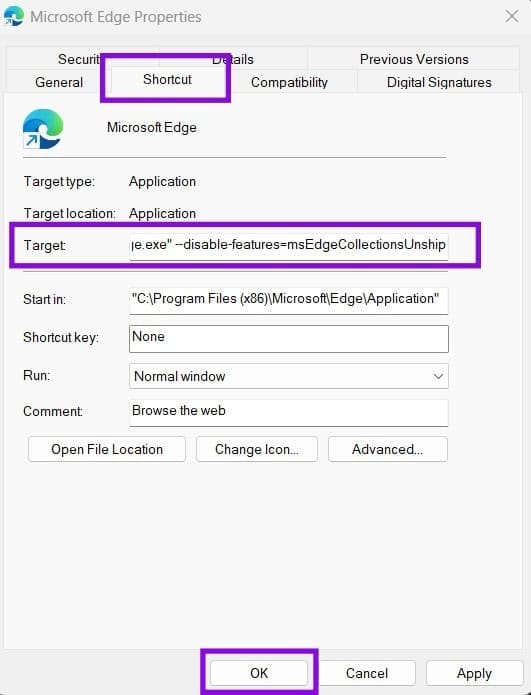
Step 4. Click on “Apply,” then on “OK.”
Step 5. Relaunch Edge using that shortcut. If it worked, the Collections button should reappear.
To bring back the Sidebar app list at the same time, use the following argument instead: –disable-features=msHubAppsSidebarRetirement,msEdgeCollectionsUnship.
Option 2 – Get Your Collections Data Before It’s Gone
Make sure to export your saved content as soon as you can if you haven’t updated to Edge 149 yet, or because the workaround temporarily restored it. Exporting to OneNote or Office keeps the most detail; the other options trade richness for convenience.
Step 1. Open Collections with “Ctrl + Shift + Y” (or the toolbar button if it’s showing).
Step 2. Select a collection, click the “Sharing and more” (…) menu, and choose one of the options “Send to OneNote,” “Send to Word,” or “Send to Excel.” This produces an editable copy that preserves your pages, images, and notes far better than a plain export.
Step 3. You can also use “Export your data” to save a CSV file to your Documents folder.
Step 4. Use “Move to Favorites” as a fallback. This moves the content to a Favorites folder but keeps just the links.
Option 3 – Set Up Alternatives to Collections
Since Collections isn’t coming back officially, it’s worth moving your workflow somewhere stable.
For simple link saving, use Edge’s built-in Favorites (“Ctrl + D” to add, “Ctrl + Shift + O” to manage). It’s fast and syncs across devices, but it’s links only.
For the closest match to the old Collections experience, you can use OneNote. It handles pages, images, and notes in a free-form notebook and ties into your Microsoft account.
For dedicated research and read-it-later workflows, consider third-party tools, but make sure you research them beforehand.
Was this helpful?
Last updated on 30 June, 2026
Read Next
 4 Ways to Fix “Something Happened on Our End” Error on Microsoft Store
Try Basic Fixes Reset Microsoft Store cache: Outdated or corrupted Microsoft Store cache data could trigger such errors.
4 Ways to Fix “Something Happened on Our End” Error on Microsoft Store
Try Basic Fixes Reset Microsoft Store cache: Outdated or corrupted Microsoft Store cache data could trigger such errors.
 How to Use Collections in Microsoft Edge
Information is power – but too much of it is just a headache.
How to Use Collections in Microsoft Edge
Information is power – but too much of it is just a headache.
 How to Use Collaborative Collections on Instagram
Instagram has a variety of content for every type of person in the form of Reels, images, and videos.
How to Use Collaborative Collections on Instagram
Instagram has a variety of content for every type of person in the form of Reels, images, and videos.
 How to Create and Manage Collections on Amazon Kindle
How to Set Up Collections on Your Kindle Having a Collection helps you manage titles from different genres or subjects stored on your Kindle.
How to Create and Manage Collections on Amazon Kindle
How to Set Up Collections on Your Kindle Having a Collection helps you manage titles from different genres or subjects stored on your Kindle.
 How to Use the Edge Bar in Microsoft Edge on Windows 11
How to Enable Edge Bar in Microsoft Edge Step 1: Launch Microsoft Edge on your PC > click the three-dot menu icon at the top right > select Settings.
How to Use the Edge Bar in Microsoft Edge on Windows 11
How to Enable Edge Bar in Microsoft Edge Step 1: Launch Microsoft Edge on your PC > click the three-dot menu icon at the top right > select Settings.
 How to Install Chrome Extensions in Microsoft Edge
Method 1: Getting Extensions Straight From the Chrome Store You may install extensions straight from the Chrome Store after installing Microsoft Edge on your computer.
How to Install Chrome Extensions in Microsoft Edge
Method 1: Getting Extensions Straight From the Chrome Store You may install extensions straight from the Chrome Store after installing Microsoft Edge on your computer.
 How to Stop Microsoft Edge From Asking to Save Passwords on Windows
Microsoft Edge comes with a lot of features, including a password manager.
How to Stop Microsoft Edge From Asking to Save Passwords on Windows
Microsoft Edge comes with a lot of features, including a password manager.
 How to Remove Copilot From Microsoft Edge
Method 1.
How to Remove Copilot From Microsoft Edge
Method 1.
The article above may contain affiliate links which help support Guiding Tech. The content remains unbiased and authentic and will never affect our editorial integrity.