Method 1: Watch YouTube While on Another Tab on Desktop
This method lets you open any website in a different tab, and your video will play on top of your current tab. Here are the steps:
Step 1: Launch Youtube in Chrome and play a video.
Step 2: Right-click anywhere on the video. You will get the following menu. Don’t click on anything.

Step 3: Right-click again on the video. You will get a different menu now. Click on Picture in picture.
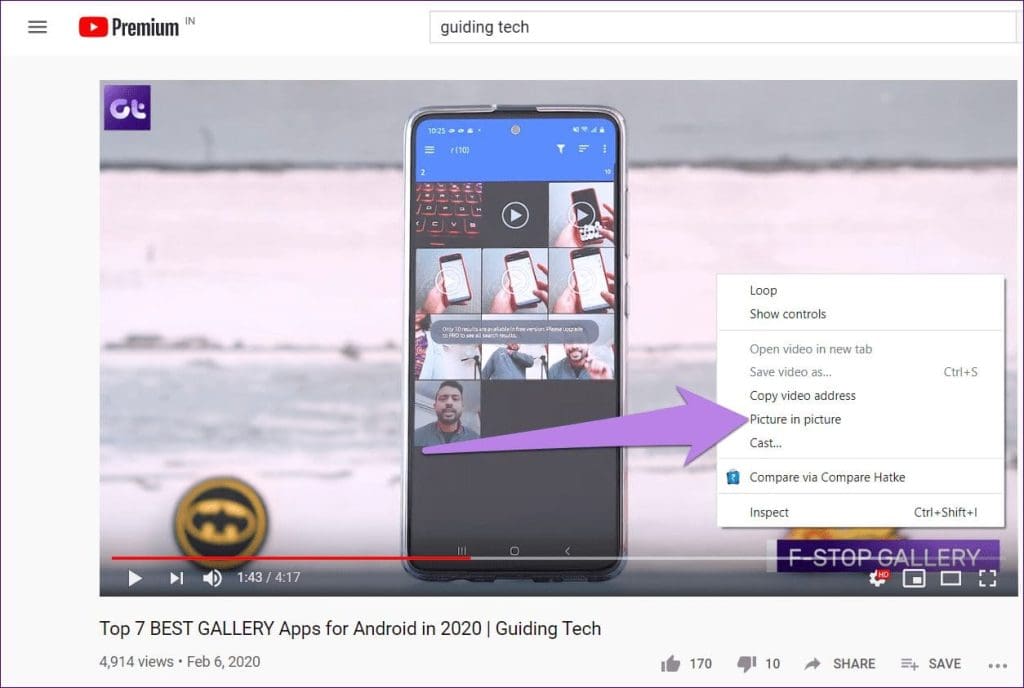
Step 4: Now, you will see a floating video player at the bottom right. Change its location by dragging it and even increase or decrease its size using its borders.
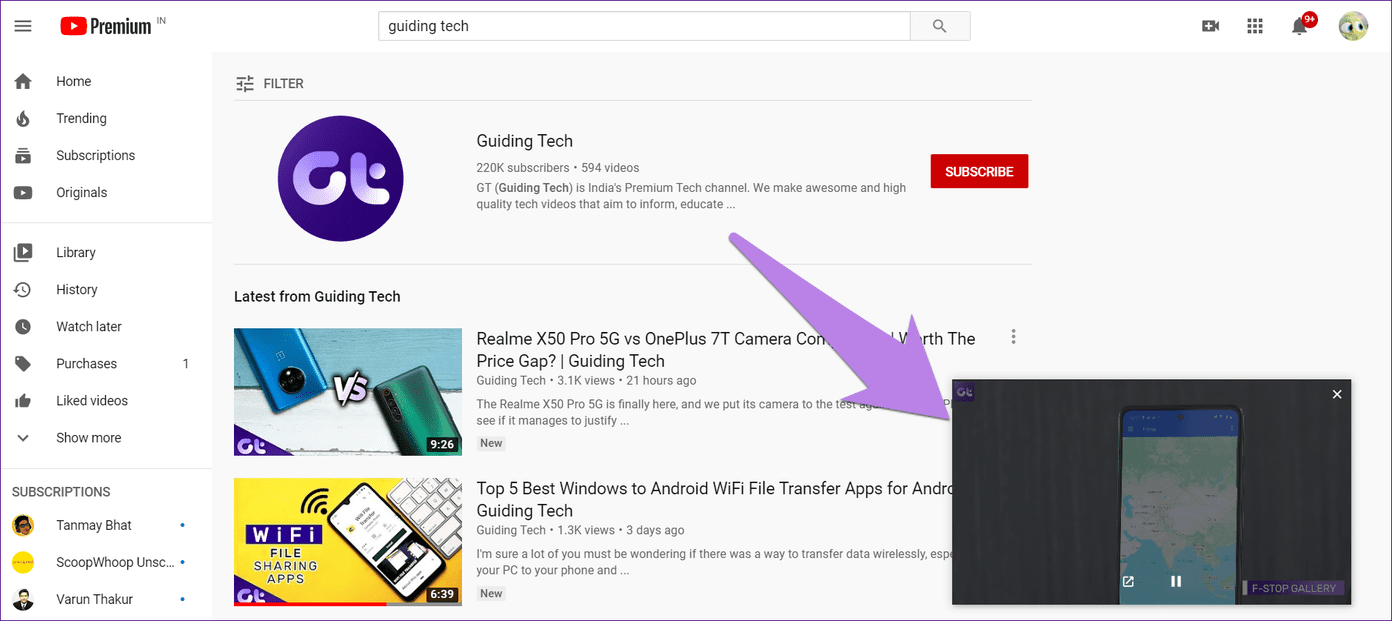
Step 5: Optionally, if you want to open the full video at any point, hover over the small video and click on the Back to tab icon.

Method 2: Use Mini Player When Browsing YouTube on Desktop
This method lets you watch a YouTube video while only checking out the content on the YouTube site. You must remain in the same tab. To activate the Mini player, follow the steps below:
Step 1: Open the YouTube video you want to watch.
Step 2: Click on the Mini player icon. You can also press the i button on your keyboard to launch the Mini player.

Step 3: Now, navigate to any YouTube page, and the video will continue to play.
Method 3: Using Split Screen on Android
In this method, you must use the split-screen feature. When enabled, YouTube allows video to be played in the second half of the split screen. Thus, you can use the first area to browse other Chrome tabs. Let’s see how to do it in detail.
Step 1: Launch m.youtube.com on the Chrome browser on your Android phone and play a video.
Step 2: Open the Recent Apps screen > long-tap the Chrome icon > select Split screen. Depending on your phone’s support, open the Recent Apps screen by using the navigation button at the bottom or making a gesture.


Step 3: Chrome will stick to one-half of the screen. You will see two three-dot icons at the top. Now, tap on the three-dot icon of Chrome and not YouTube. Select Move to other window.


When you do that, you will notice the tab playing the YouTube window shifts to the other half of the screen, and you can use Chrome tabs normally in that half.
Tip: The border in the middle can be used to increase or decrease the size of the windows in the split screen.
Method 4: Using Desktop Mode on Android and iOS
If you only want to listen to the YouTube video in the background while using other Chrome tabs, open a new tab, and the video will run in the background. To guarantee this works, you must do so with the help of the Desktop site feature.
Desktop Mode on Android
Step 1: Open m.youtube.com on the Chrome browser and play the video of your choice.
Step 2: Tap on the three-dot icon of Chrome at the top > select Desktop site.
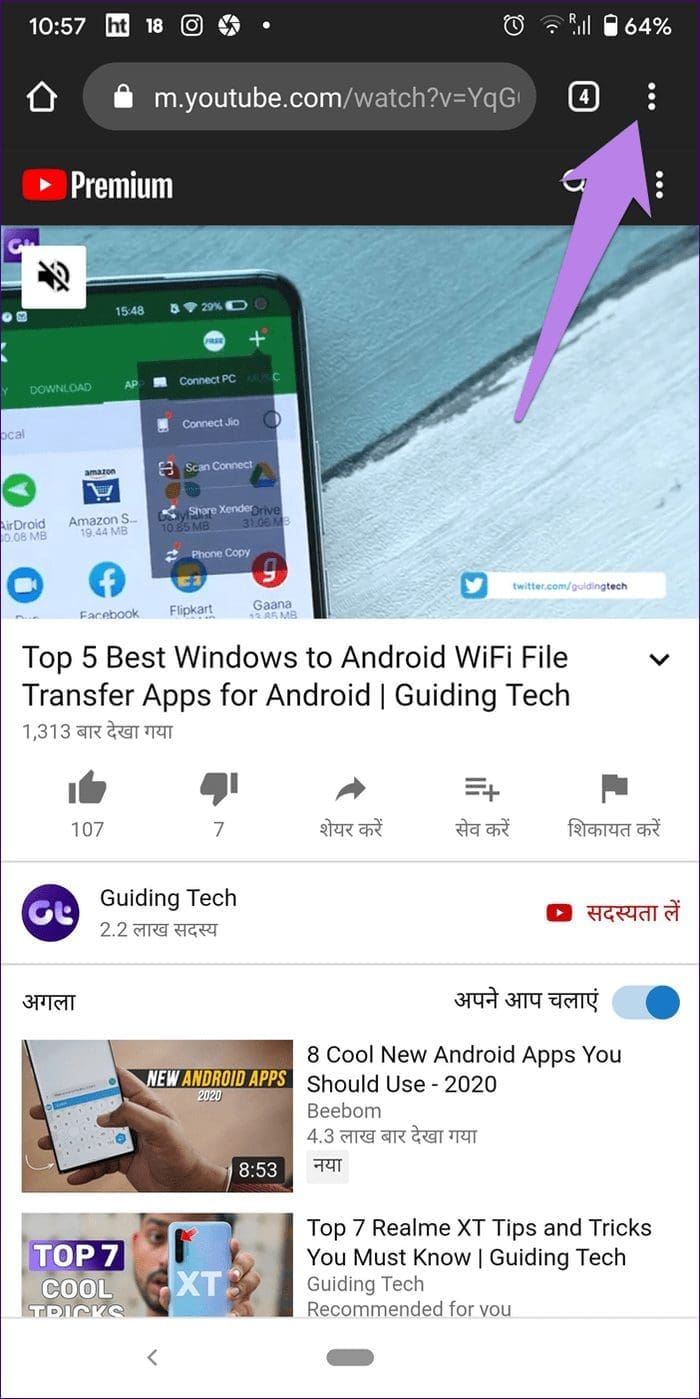

Step 3: If the video is paused, press the Play button. Then, switch to a new tab or press the home button to play the video in the background.
Note: If the video doesn’t play in the background, enable Chrome notifications and Reset app preferences.
Desktop Mode on iOS
Step 1: Open m.youtube.com on the Chrome browser and play the video of your choice.
Step 2: Tap the Share icon when a video is playing > select Request desktop site. Then, open a new app or a new tab.


FAQ
Can I get a YouTube Mini Player or PiP Mode Outside the Browser?
Yes, on Android and iOS YouTube applications, you may also experience the PiP or mini-player experience. You need to play the video, then swipe up or navigate home.
Was this helpful?
Last updated on 28 May, 2024
Read Next
 4 Cool Sites to Watch YouTube Videos Without YouTube
1.
4 Cool Sites to Watch YouTube Videos Without YouTube
1.
 3 Ways to Change Tab Color in Google Chrome on PC
Method 1: Change Tab Colors With a Chrome Theme When you change Chrome’s theme, the color of its toolbar and the top bar change along with the tabs, the search
3 Ways to Change Tab Color in Google Chrome on PC
Method 1: Change Tab Colors With a Chrome Theme When you change Chrome’s theme, the color of its toolbar and the top bar change along with the tabs, the search
 11 Tips to Customize Chrome Homepage or New Tab Page
1.
11 Tips to Customize Chrome Homepage or New Tab Page
1.
 How to Restore Tabs & Save Tab Groups In Google Chrome
Usually when Google Chrome crashes, it gives you a restore tabs option when you open the chrome browser again.
How to Restore Tabs & Save Tab Groups In Google Chrome
Usually when Google Chrome crashes, it gives you a restore tabs option when you open the chrome browser again.
 5 Ways to Fix YouTube Watch History Not Working
Fix 1: Turn on Watch History A common reason YouTube might not save or update your watch history is if you have paused it.
5 Ways to Fix YouTube Watch History Not Working
Fix 1: Turn on Watch History A common reason YouTube might not save or update your watch history is if you have paused it.
 2 Ways to Watch YouTube Videos Not Available in Your Country
Basic Fixes: Clear YouTube Cache: You may not be able to watch a video on YouTube due to corrupt cache files.
2 Ways to Watch YouTube Videos Not Available in Your Country
Basic Fixes: Clear YouTube Cache: You may not be able to watch a video on YouTube due to corrupt cache files.
 4 Best YouTube Subtitle Translator Chrome Extensions
Recommended: Use Built-In Captions Translator If you don't want to install an extension, you can use the built-in subtitle translation tool on YouTube.
4 Best YouTube Subtitle Translator Chrome Extensions
Recommended: Use Built-In Captions Translator If you don't want to install an extension, you can use the built-in subtitle translation tool on YouTube.
 5 Ways to Fix YouTube Shorts Not Playing in Google Chrome
Fix 1: Turn Off Hardware Acceleration When you enable hardware acceleration in Google Chrome, the browser uses your GPU instead of your CPU to perform specific graphic-intensive tasks.
5 Ways to Fix YouTube Shorts Not Playing in Google Chrome
Fix 1: Turn Off Hardware Acceleration When you enable hardware acceleration in Google Chrome, the browser uses your GPU instead of your CPU to perform specific graphic-intensive tasks.
The article above may contain affiliate links which help support Guiding Tech. The content remains unbiased and authentic and will never affect our editorial integrity.