Set Up iCloud Keychain Two-Factor Authentication
In the example below, we will set up two-factor authentication for an Instagram account in the iCloud Keychain app on iPhone.
Instagram offers support for 2FA for personal and business accounts. We highly recommend setting 2FA for Google, Facebook, Amazon, Microsoft, and other popular services that you use and interact with frequently.
Before we get started, make sure to update your iPhone or iPad to the latest software version.
Step 1: Open Settings > Passwords > Authenticate yourself and then open the Passwords menu. You will see the list of services that you have added.
Step 2: Tap on the app name to which you wish to add the 2FA. We are using Instagram as an example.
Step 3: Open details for instagram.com and you will see your Username, Password, and then an option to Set Up Verification Code.

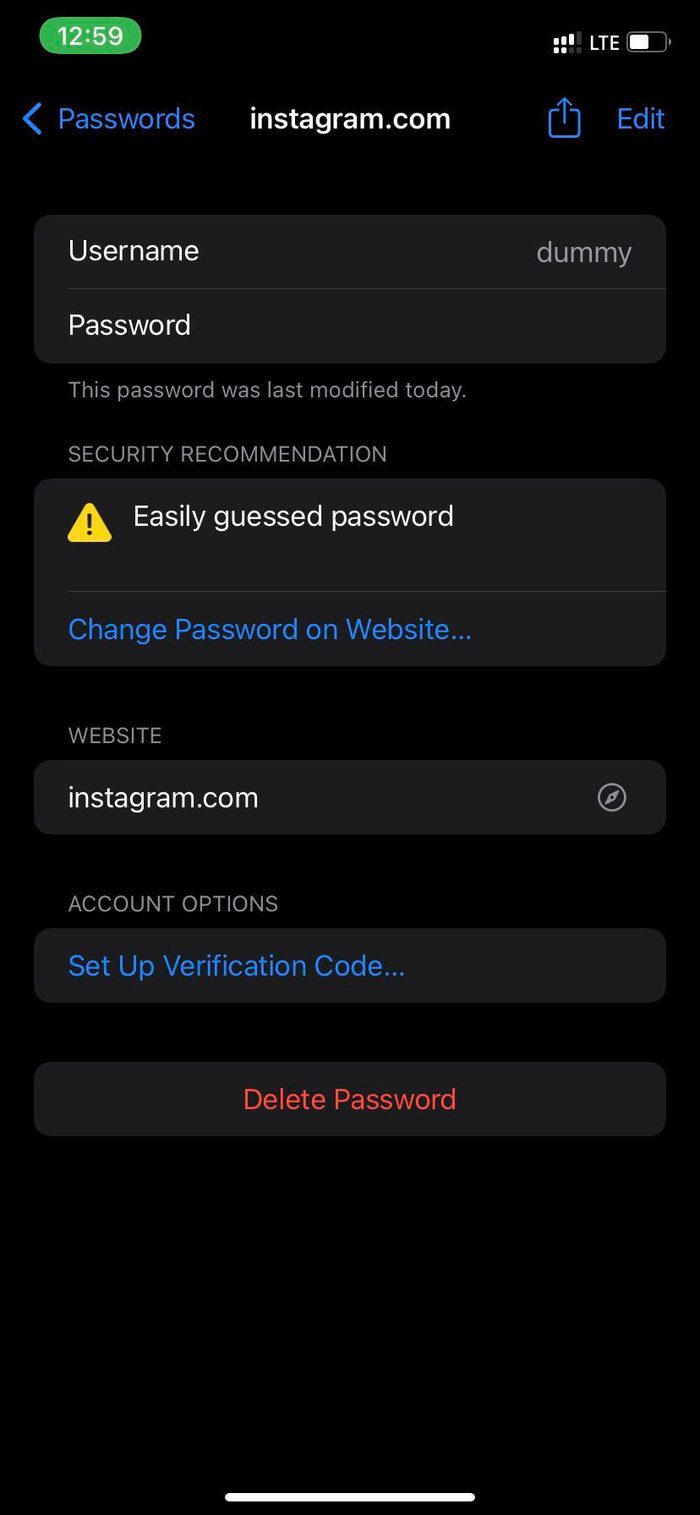
Now we will use the Instagram mobile app to set up 2FA in iCloud Keychain.
Step 4: Open Instagram on your mobile and then go to Settings.
Step 5: Select Security > Two-factor authentication.
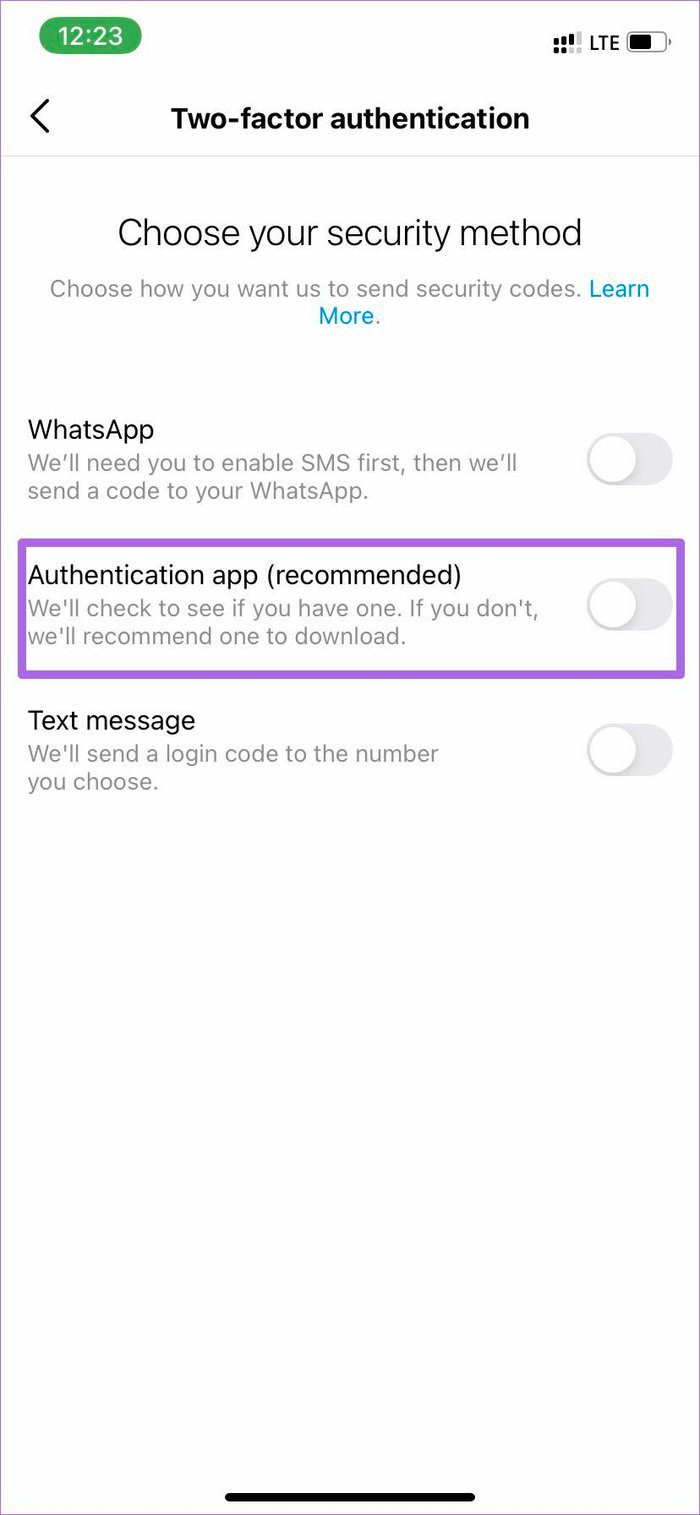
Step 6: Tap on Get Started and then enable Authentication app toggle. It’s a recommended method by Instagram.
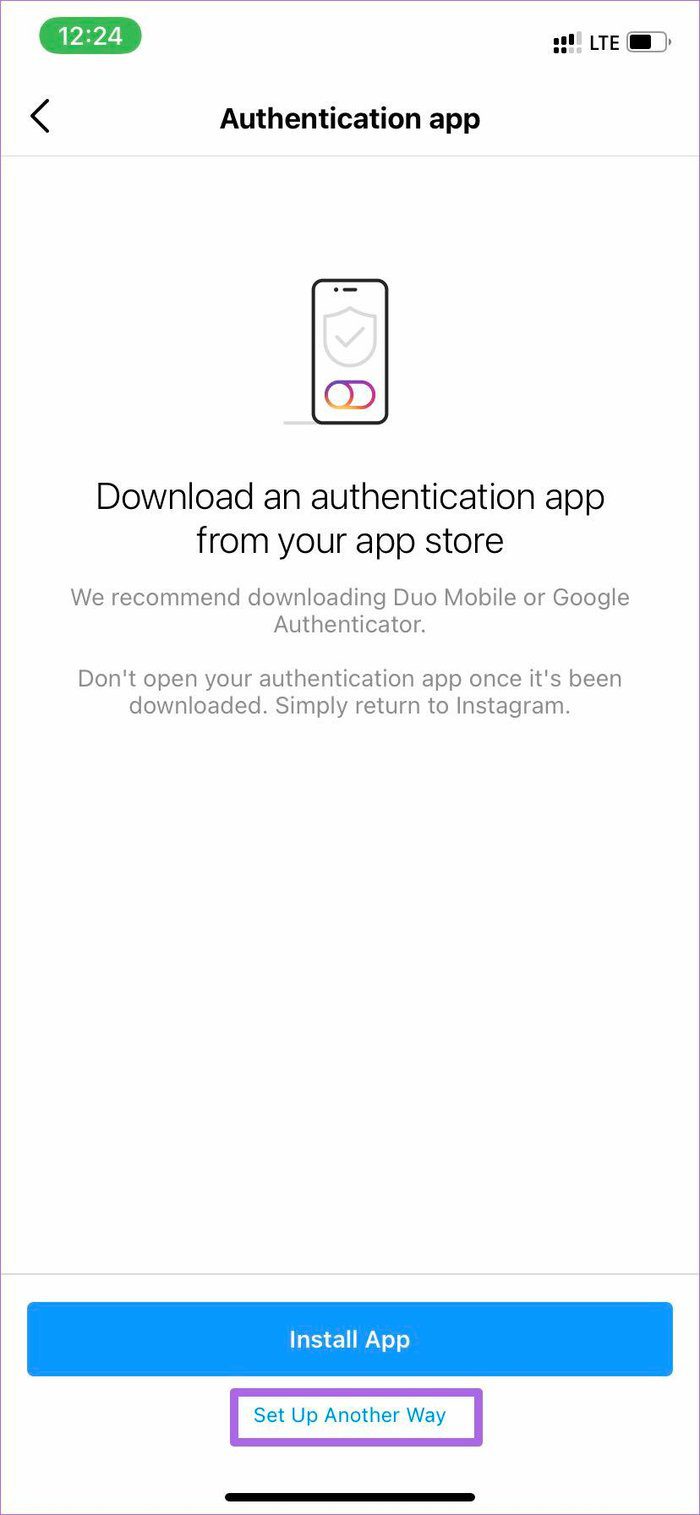
Step 7: Instagram will ask you to download an authenticator app on your phone. Don’t worry. We already have that in the iCloud Keychain. Select Set up another way at the bottom.
Step 8: Instagram will showcase a key to set up two-factor authentication > Copy key > Hit Next.
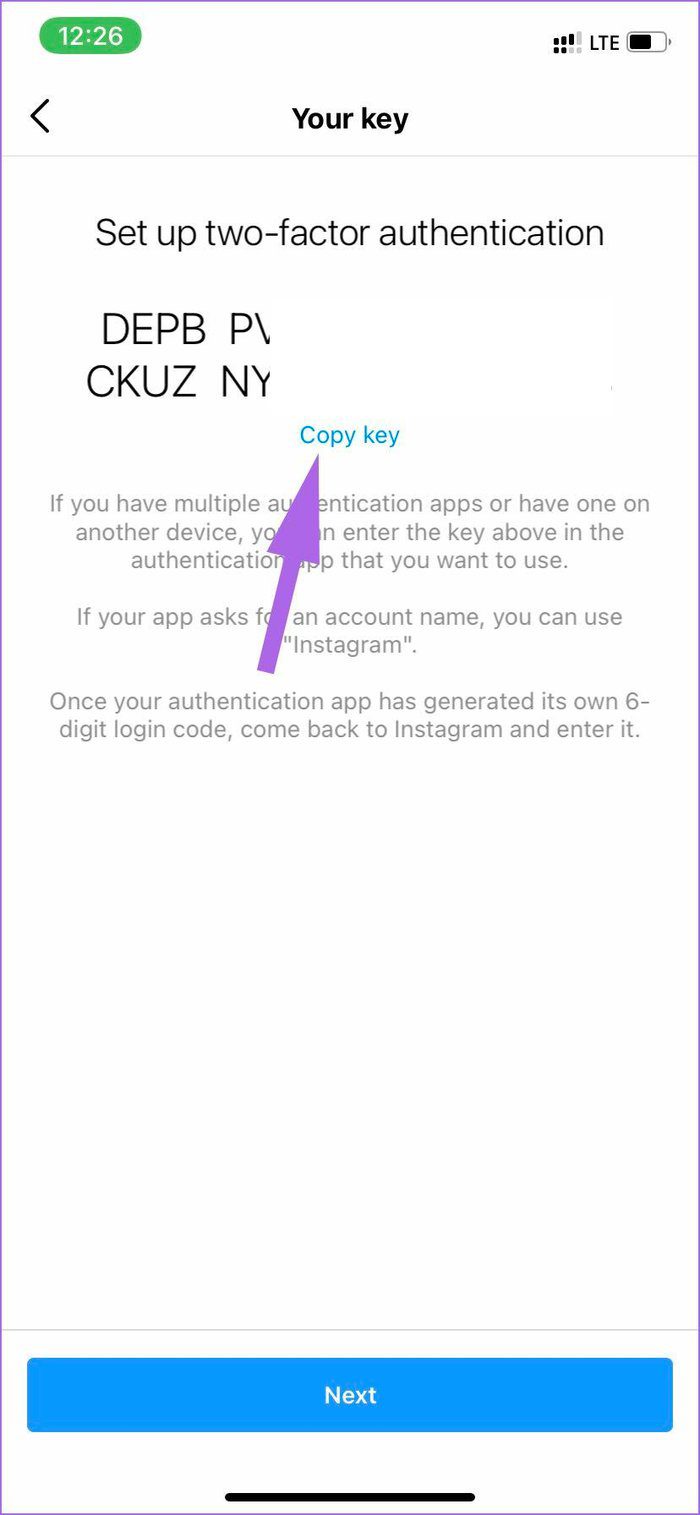
Step 9: Minimize the app and then go back to the Instagram menu in the Password section.
Step 10: Tap on Set Up Verification Code and then select Enter Setup Key.
Step 11: You will see the Verification Code in the same menu. Enter the same code in the Instagram app now.
That’s it. You have successfully set up 2FA on Instagram using the iCloud Keychain. On the next screen, Instagram will showcase backup codes for emergency use.
You can use the code only once. You can always ask Instagram for new codes to authenticate your account. Write down those codes somewhere and keep them safe.
Repeat the steps for all the major accounts on your iPhone and set up a verification method in the iCloud Keychain on iPhone or iPad. Some services such as Google or Microsoft do offer a way to enable 2FA via text message. It’s a less secure method, and we would advise against using it.
Was this helpful?
Last updated on 31 July, 2024
Read Next
 Top 3 Windows 10 Apps to Generate 2-Factor Authentication Codes
Two-factor authentication (2FA) is a method of bumping up user account security by requiring two means of identity verification.Typically when you're logging into your account, you will have to provide
Top 3 Windows 10 Apps to Generate 2-Factor Authentication Codes
Two-factor authentication (2FA) is a method of bumping up user account security by requiring two means of identity verification.Typically when you're logging into your account, you will have to provide
 How to Enable and Disable Two-Factor Authentication (2FA) on Discord
Discord is a fantastic platform to hang out with friends and like-minded people.
How to Enable and Disable Two-Factor Authentication (2FA) on Discord
Discord is a fantastic platform to hang out with friends and like-minded people.
 How to Enable Two-Factor Authentication on Steam
 Step 1: Open Steam on your PC and ensure your account is in use.
How to Enable Two-Factor Authentication on Steam
How to Enable Two-Factor Authentication on Steam Step 1: Open Steam on your PC and ensure your account is in use.
 How to Fix the iCloud Keychain Not Syncing
Enable iCloud Keychain Again If iCloud Keychain doesn’t sync your data between your devices, there’s a simple fix to solve the problem.
How to Fix the iCloud Keychain Not Syncing
Enable iCloud Keychain Again If iCloud Keychain doesn’t sync your data between your devices, there’s a simple fix to solve the problem.
 12 Best Ways to Fix Wi-Fi Authentication Problems on Android
If you are an Android user, you might have occasionally encountered an authentication error when connecting to Wi-Fi.
12 Best Ways to Fix Wi-Fi Authentication Problems on Android
If you are an Android user, you might have occasionally encountered an authentication error when connecting to Wi-Fi.
 4 Fixes for Remote Desktop Authentication Error on Windows 11
Preliminary Fixes Check remote if the desktop is enabled: The Remote Desktop authentication error often occurs because your Windows 11 PC cannot establish a remote connection without the Remote Desktop
4 Fixes for Remote Desktop Authentication Error on Windows 11
Preliminary Fixes Check remote if the desktop is enabled: The Remote Desktop authentication error often occurs because your Windows 11 PC cannot establish a remote connection without the Remote Desktop
 How to Change the iCloud Drive Folder Location on Windows
Changing the iCloud Drive folder location on your Windows PC can help you manage storage more efficiently, especially if your primary drive is running out of space.
How to Change the iCloud Drive Folder Location on Windows
Changing the iCloud Drive folder location on your Windows PC can help you manage storage more efficiently, especially if your primary drive is running out of space.
 5 Ways to Fix iCloud on Windows 10 Keeps Asking for Password Issue
Basic Fixes: Check iCloud Server Status: As a starting point, you should check whether iCloud's servers are running normally.
5 Ways to Fix iCloud on Windows 10 Keeps Asking for Password Issue
Basic Fixes: Check iCloud Server Status: As a starting point, you should check whether iCloud's servers are running normally.
The article above may contain affiliate links which help support Guiding Tech. The content remains unbiased and authentic and will never affect our editorial integrity.