How to Enable & Disable Silent Mode on iPhone 15 Pro and Pro Max
iPhone 15 Pro and 15 Pro Max not only have an Action Button instead of the ringer switch, but they also have some exclusive ways to silence their device. So if you’re Action Button isn’t working or you’ve set other shortcuts to it, you can use the following methods to turn on and off the Silent mode.
Method 1. Mute Unmute iPhone Via Control Center
Open the Control Center → tap the Silent mode (bell) icon to enable it. When enabled, tap it again to disable it.
Sadly, even with the very customizable Control Center in iOS 18, other devices did not get a Silent mode icon. Only the iPhone 15 Pro and Pro Max have that privilege.
Method 2. Turn Silent Mode On or Off via Settings
Go to iPhone Settings app → Sounds & Haptics → toggle on/off Silent mode.
Method 3. Silence iPhone Without Switch via AssistiveTouch
You can program the floating AssistiveTouch to turn on or off the Silent mode with just some taps.
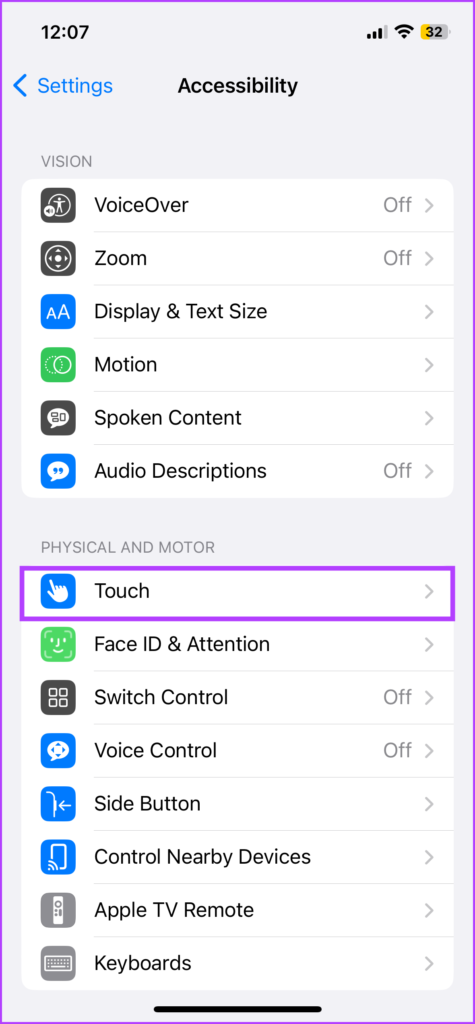
Step 1: Launch Settings. Go to Accessibility and select Touch.
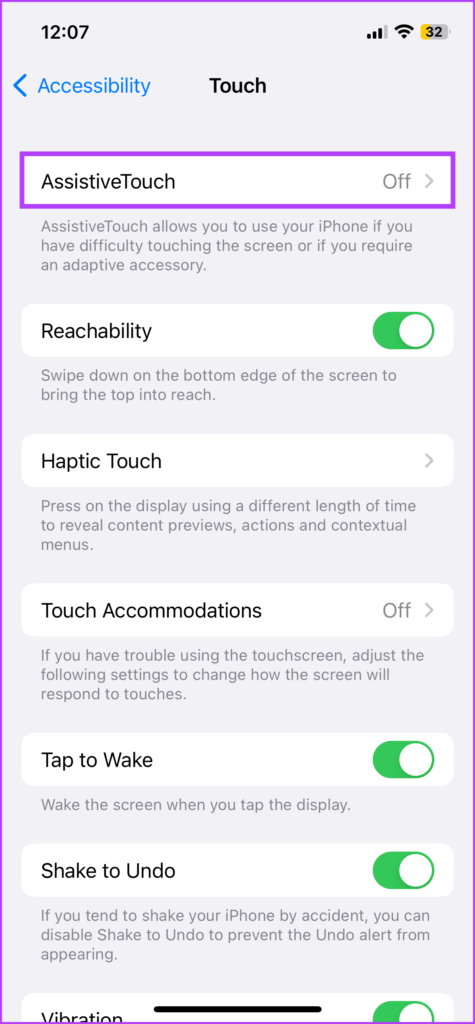
Step 2: Tap AssistiveTouch and toggle on AssitiveTouch.
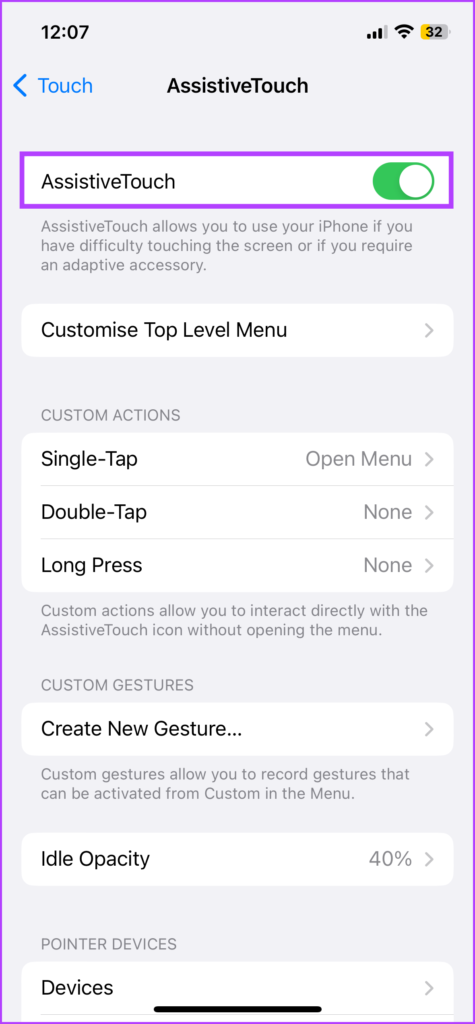
Step 3: Here, you can select the method to mute/unmute iPhone. Either select,
- ‘Customize Top Level Menu‘ → select any action and replace it with Mute → Tap Done.
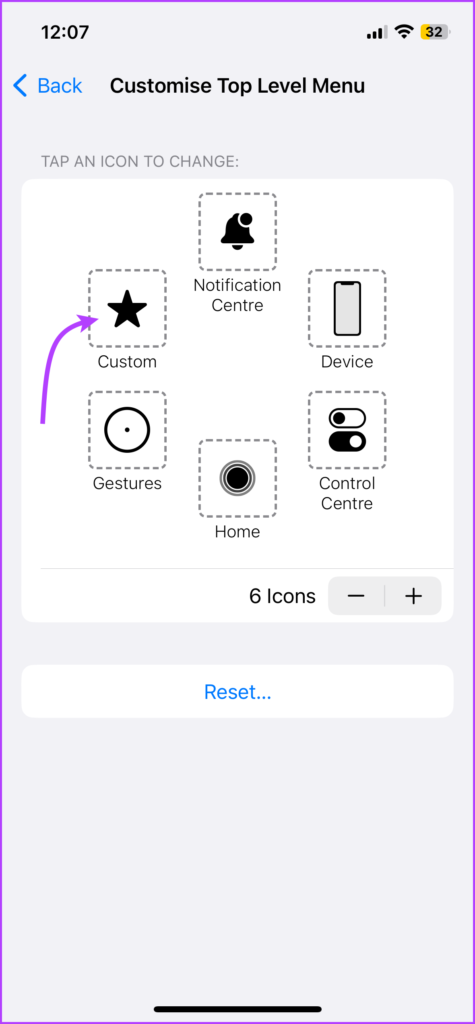
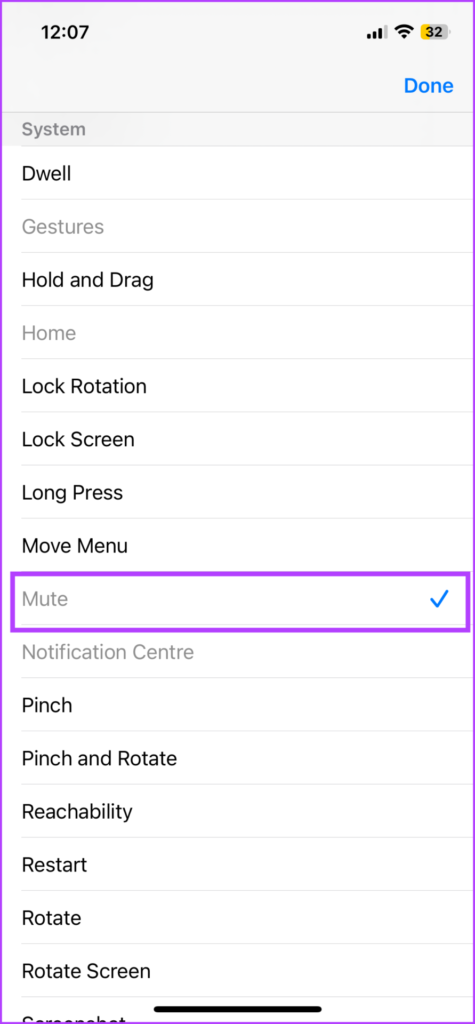
- Single-Tap/ Double-Tap/ Long Press under Custom Actions → select Mute → return to the main menu.
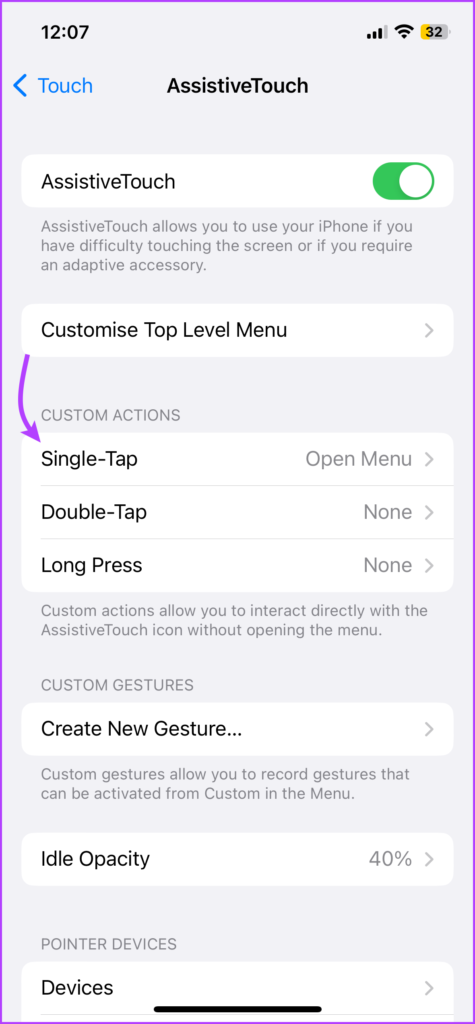

Step 4: Now, depending on your choice above, you can tap the AssistiveTouch button to select Mute.

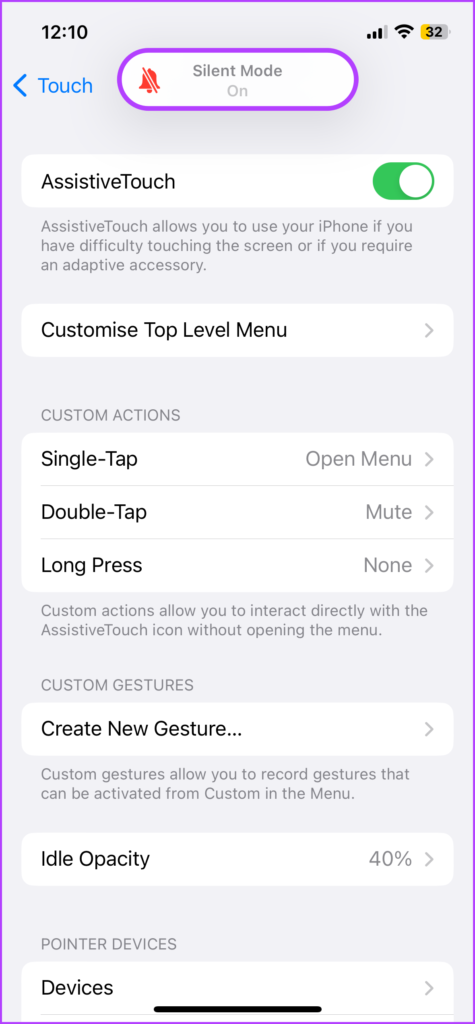
Contrary to its usefulness, most users (including us) don’t like the floating AssistiveTouch on their screen all the time. It especially interrupts our viewing experience. Thankfully, you can enable/disable AssistiveTouch as and when you need it.
Tip: While Siri can’t help you turn on/off the silent mode on an iPhone, it can enable and disable AssistiveTouch with just one command.
Method 4. Use Back Tap to Enable or Disable Silent Mode on iPhone
Introduced with iOS 14, Back Tap is another great accessibility feature to trigger a predefined task, including putting your iPhone on silent mode without a button.
However, before we proceed, do note that the feature is only available for iPhone 8 and later.
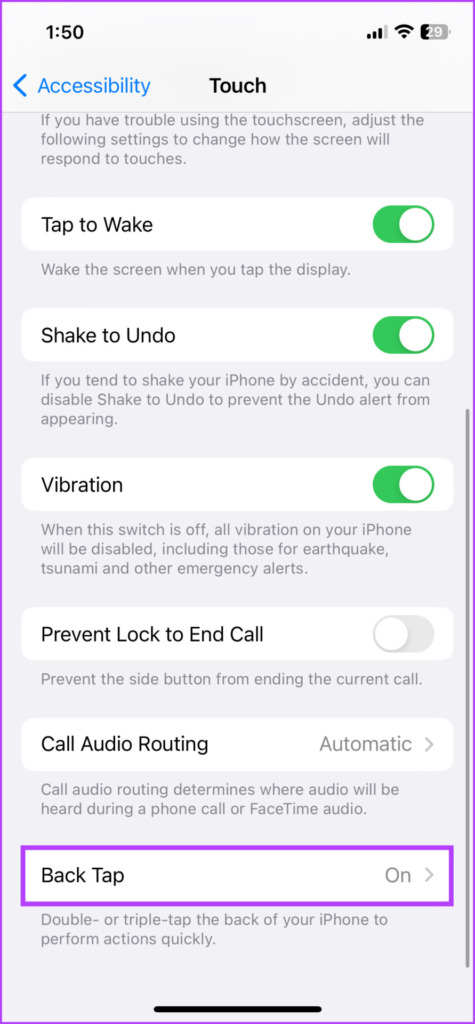
Step 1: Launch Settings → Accessibility → Touch. Scroll down and select Back Tap.
Step 2: Select either Double Tap or Triple Tap.
Step 4: From the options choose Mute.

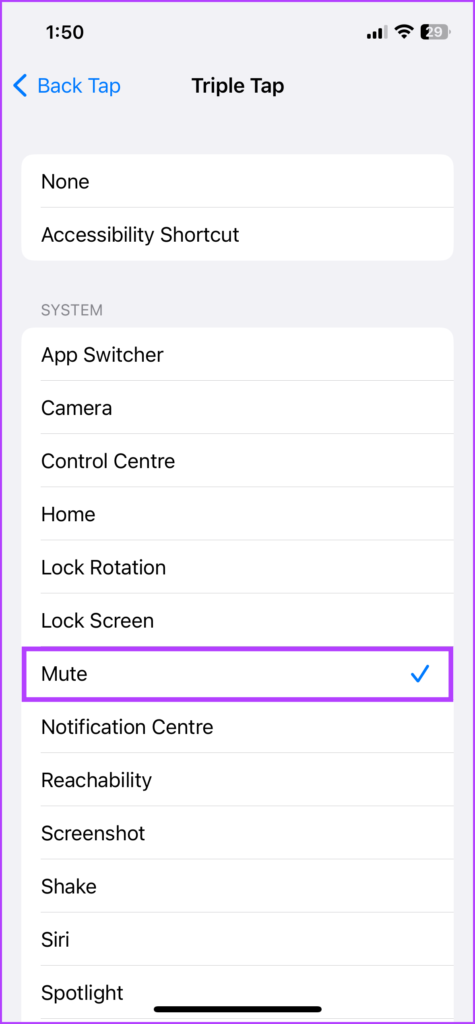
Once the action is set, double or triple tap at the back of your iPhone (around the Apple icon).
Markedly, you can even use Back Tap as a trigger for Accessibility Shortcut and turn on/off the iPhone ringer using AssistiveTouch. If for some reason, your Back Tap isn’t performing as it is supposed to, check out our guide to fixing Back Tap.
Method 5. Use Focus to Put iPhone On Silent Mode
Although Focus doesn’t directly mute the iPhone, it can mute all notifications. So for all instances and purposes, you can invoke a mute-like mode with a custom Focus.
However, Focus will silence all notifications, i.e., your iPhone won’t vibrate. So, there’s a chance you’ll miss the notifications. Overall, it might be great for a meeting or me-time, but not suitable for an all-day scenario.
Set up a Mute Focus Mode
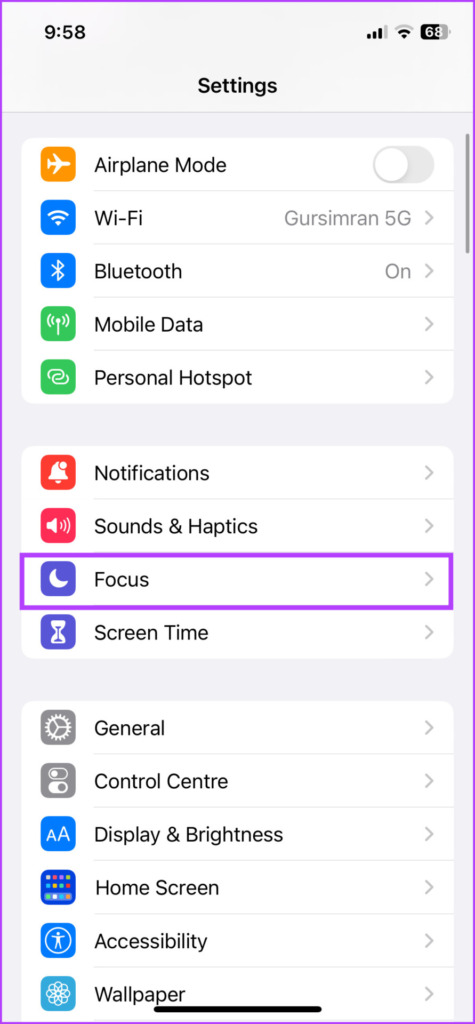
Step 1: Launch Settings → Focus.
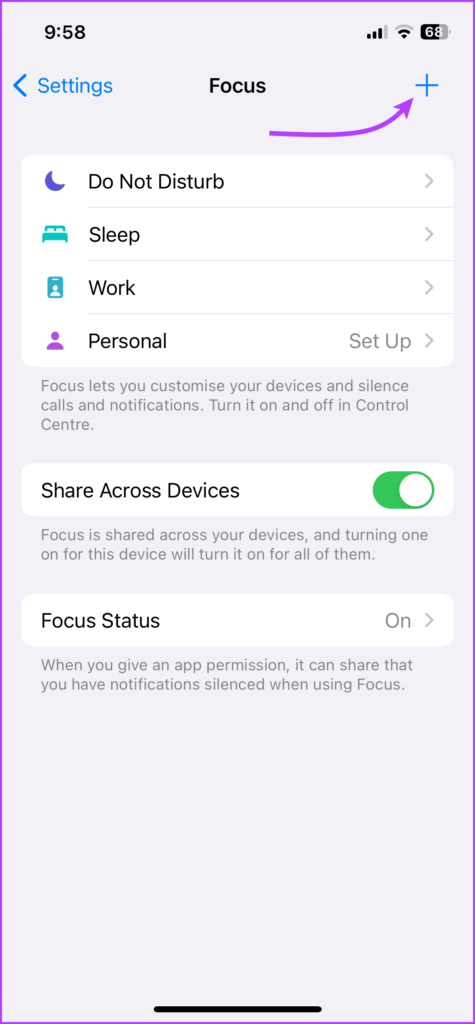
Step 2: Tap + and then any Focus. We’re choosing Custom for this tutorial.

Step 3: Follow the onscreen instructions to set up the focus. (Type in the Focus name → tap Customize Focus.)
Step 4: In the next window, select Allow Notification From → deselect all existing contacts → tap Next. Choose Allowed People Only and then Done.
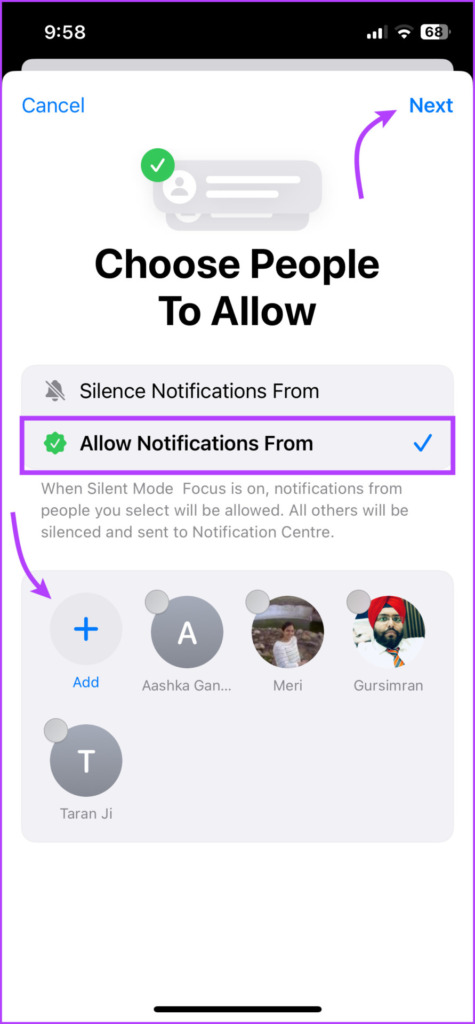
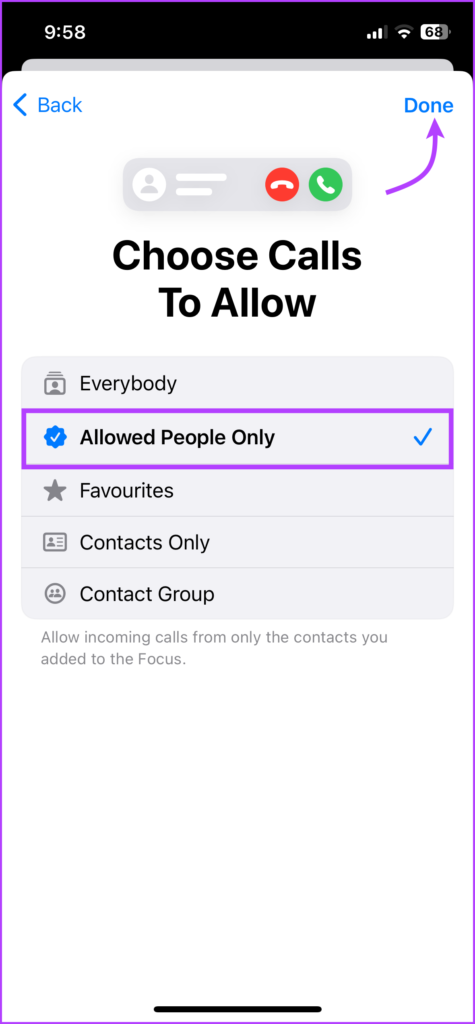
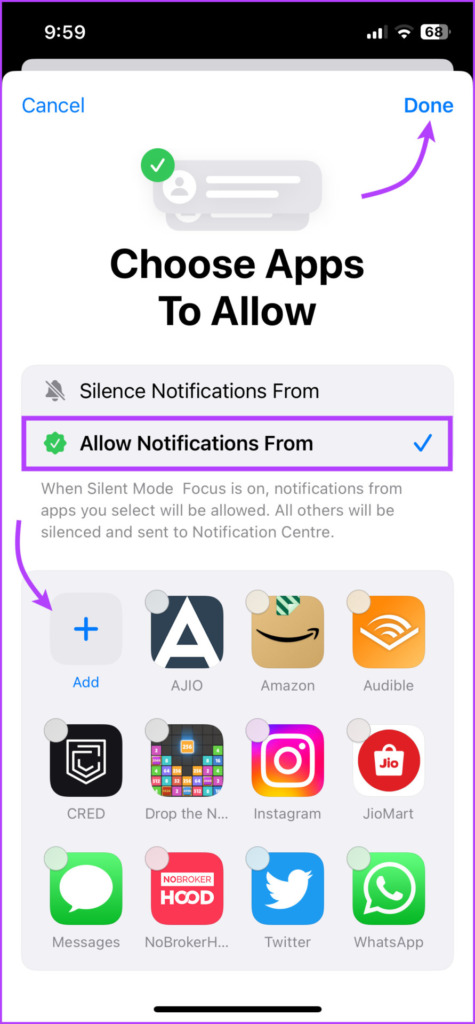
Step 5: In the apps section, check Allow Notification From, deselect all existing apps, and tap Done.
Step 6: On the Focus Page, ensure that the People and Apps sections say None Allowed.
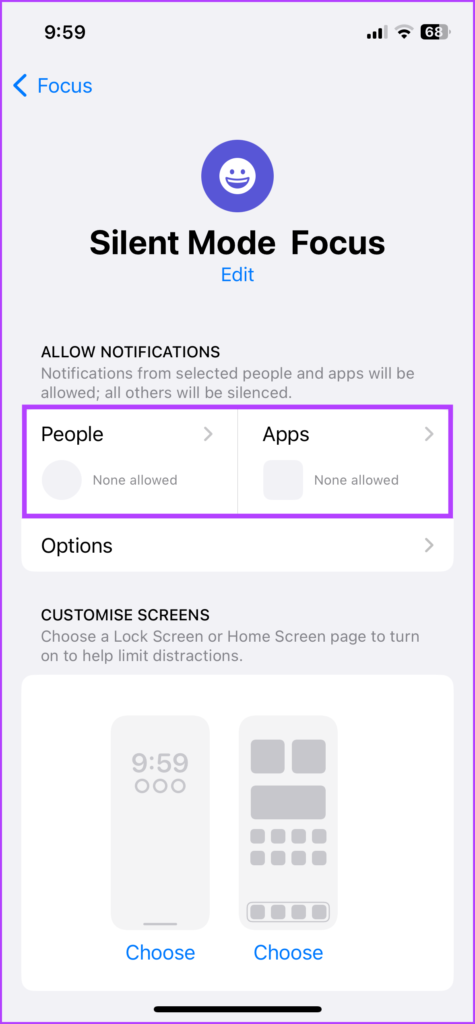
Step 7: To completely silence the phone using Focus,
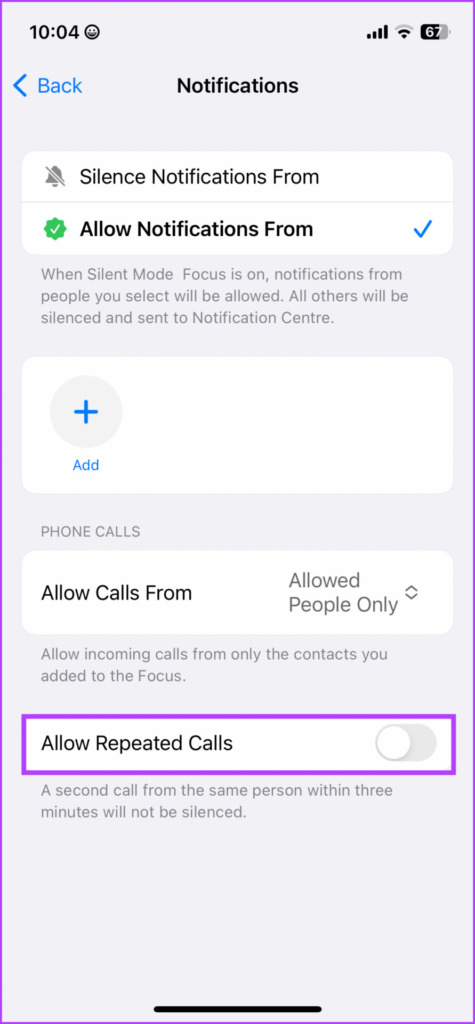
- Tap People and toggle off Allow Repeated Calls.
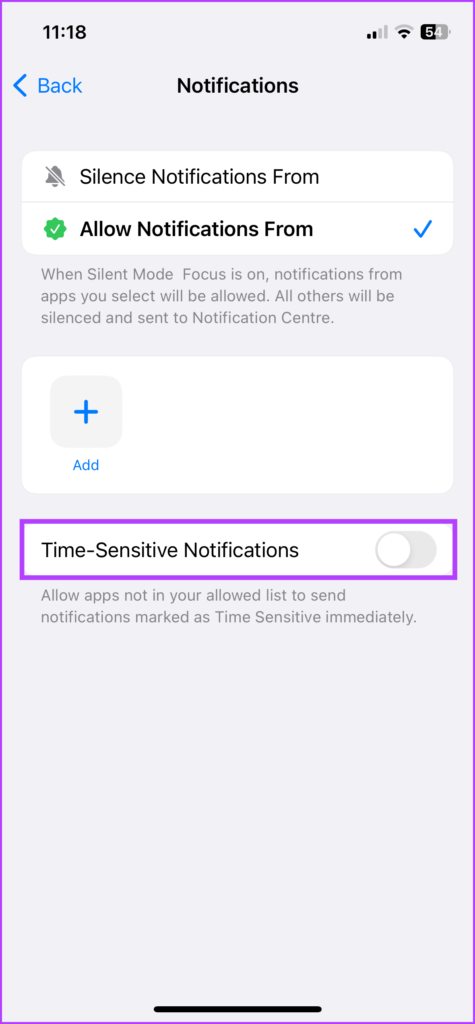
- Tap Apps and toggle off Time-Sensitive Notifications.
Turn on the Mute Focus Mode
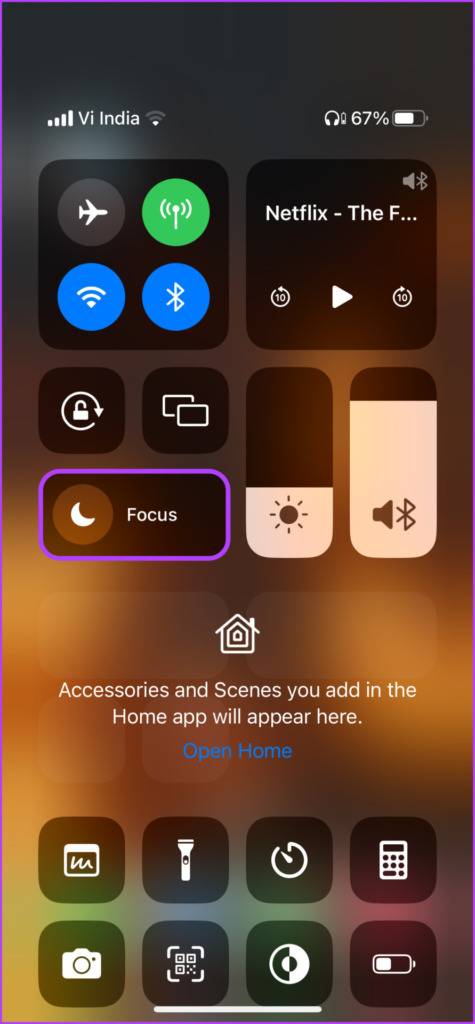
Launch Control Center and long-press Focus to open the Focus menu. Select the Silent mode Focus you have created.
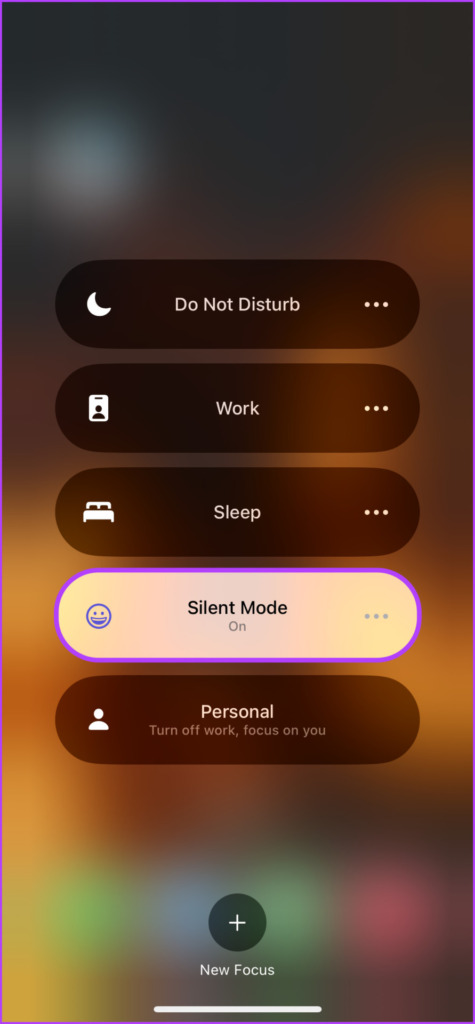
To Unmute your iPhone, repeat the above steps to turn off the Focus mode. Remember, as long as the Focus is active, you won’t be able to unmute notifications and in turn the iPhone with any other method.
And while there are some cons to using Focus to mute your iPhone, there are some pros as well. For instance, you can auto-enable a Focus, depending on time, location, and app.
Moreover, you can also use Focus Status to keep your friends, family and other callers informed that you’ve silenced all notifications.
Frequently Asked Questions
Thankfully yes, the AssistiveTouch and Back Tap methods can turn off silent mode on an iPhone even when the mute switch is on or stuck/broken at the mute setting.
Unfortunately no, the down volume button or volume slider in Settings → Sound & Haptics, can’t mute or unmute the iPhone. However, if you only need to lower the volume, it works like a charm as the feature can lower the volume to the minimum.
Launch Settings → Sounds & Haptics → scroll down to Ring/Silent Mode switch. Here toggle off ‘Play Haptics in Silent Mode’) to turn off vibration when the iPhone is silent.
Was this helpful?
Last updated on 29 July, 2024
Read Next
 How to Fix Silent Switch Not Working on iPhone
Fixes for Silent Button Not Working on iPhone Clean the area around the button: If there is dust and lint accumulation inside the region of the silent switch, it will
How to Fix Silent Switch Not Working on iPhone
Fixes for Silent Button Not Working on iPhone Clean the area around the button: If there is dust and lint accumulation inside the region of the silent switch, it will
 What’s the Difference Between Do Not Disturb, Airplane, and Silent Mode on iPhone
What Is Silent Mode on iPhone?
What’s the Difference Between Do Not Disturb, Airplane, and Silent Mode on iPhone
What Is Silent Mode on iPhone?
 6 Ways to Fix iPhone Automatically Goes to Silent Mode
Basic Fixes: Check sound settings: First, check the ringer and alert volume on your iPhone.
6 Ways to Fix iPhone Automatically Goes to Silent Mode
Basic Fixes: Check sound settings: First, check the ringer and alert volume on your iPhone.
 15 Best Shortcuts for Action Button on iPhone 15 Pro
1.
15 Best Shortcuts for Action Button on iPhone 15 Pro
1.
 Top 7 Ways to Fix Action Button Not Working on iPhone 15 Pro
Apple's iPhone 15 Pro has been upgraded with a brand-new Action button and a USB-C port.
Top 7 Ways to Fix Action Button Not Working on iPhone 15 Pro
Apple's iPhone 15 Pro has been upgraded with a brand-new Action button and a USB-C port.
 5 Ways to Find Your Android When it’s in Silent Mode
Method 1: Use the Find My Device App on Another Phone If you have enabled Find My Device on your Android phone, you can play a sound to find it
5 Ways to Find Your Android When it’s in Silent Mode
Method 1: Use the Find My Device App on Another Phone If you have enabled Find My Device on your Android phone, you can play a sound to find it
 4 Ways to Fix Android Phone Automatically Goes into Silent Mode
Basic Fixes Restart device: Restart your Android device to fix temporary bugs and glitches.
4 Ways to Fix Android Phone Automatically Goes into Silent Mode
Basic Fixes Restart device: Restart your Android device to fix temporary bugs and glitches.
 Do Not Disturb vs. Silent vs. Airplane Mode on Android: Know the Difference
What Is Silent Mode on Android When you enable silent mode, you will not hear call alerts or notifications.
Do Not Disturb vs. Silent vs. Airplane Mode on Android: Know the Difference
What Is Silent Mode on Android When you enable silent mode, you will not hear call alerts or notifications.
The article above may contain affiliate links which help support Guiding Tech. The content remains unbiased and authentic and will never affect our editorial integrity.