


How Does Google Assistant Know When Your Bills Are Due
Before starting, you must be wondering how Google gets all that information regarding your flights, packages, and bills. Don’t worry. Your details aren’t compromised.
The way it works is that Google scans your emails. Only emails in your Gmail account and not other email accounts. So if the Google account that is signed in your phone has emails from your credit card companies, travel agents, and more, Google will extract the relevant information from them and show it to you. That’s how Google gets information about your upcoming bills.
How to Turn off Google Assistant Bill Notifications
Now that you know how Google gets access to this information, disabling the Bill Notifications feature is quite easy. Here’s how.
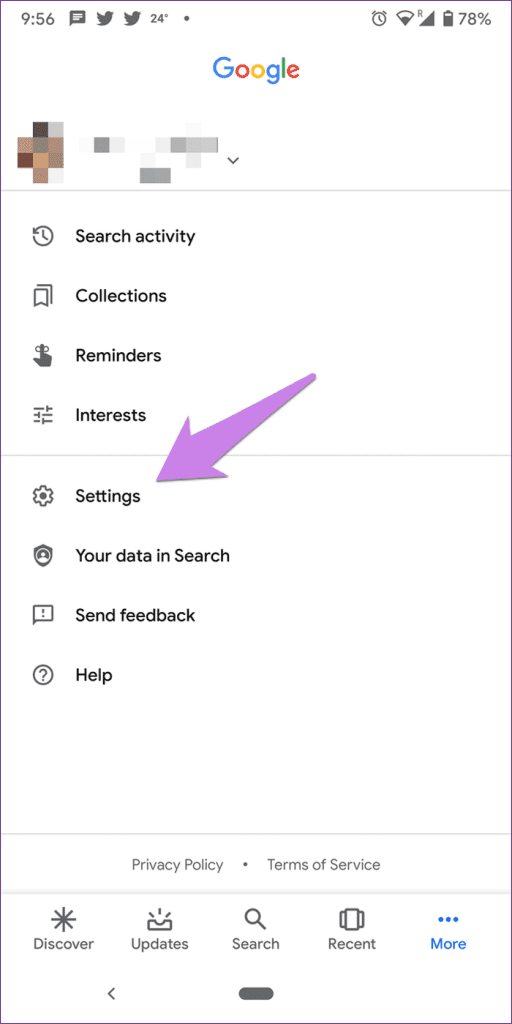
Step 1: On the Google app on your phone, tap on the More tab at the bottom and select Settings on the next screen.
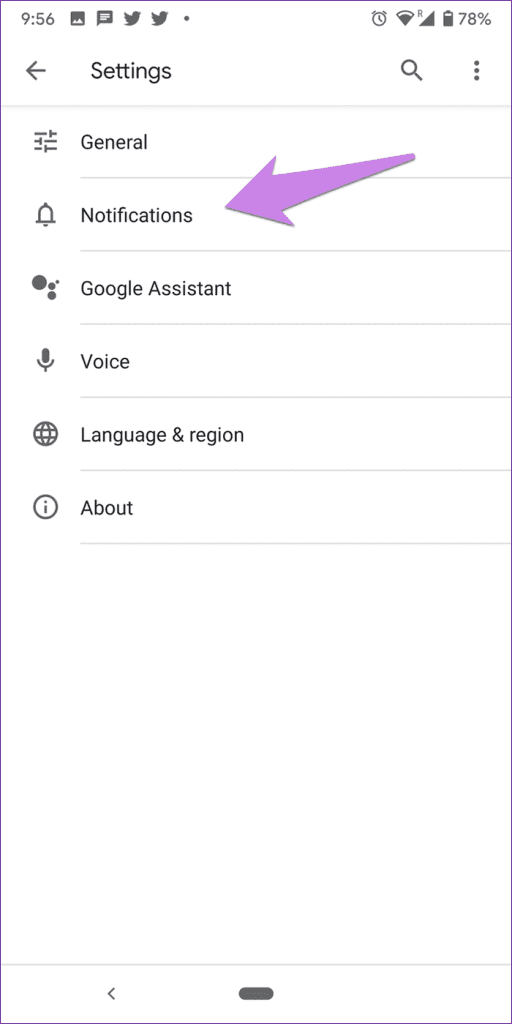
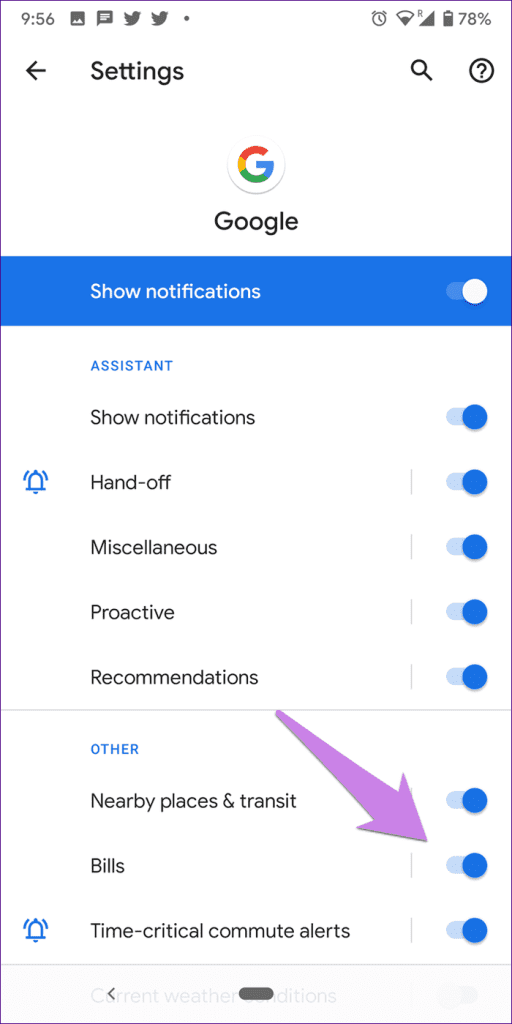
Step 2: Tap on Notifications. On the next screen, turn off the toggle for Bills.
And that’s it. This will stop Google from reminding you about upcoming bills. However, it won’t stop Google from scanning your bills.
How to Stop Google From Tracking All Data
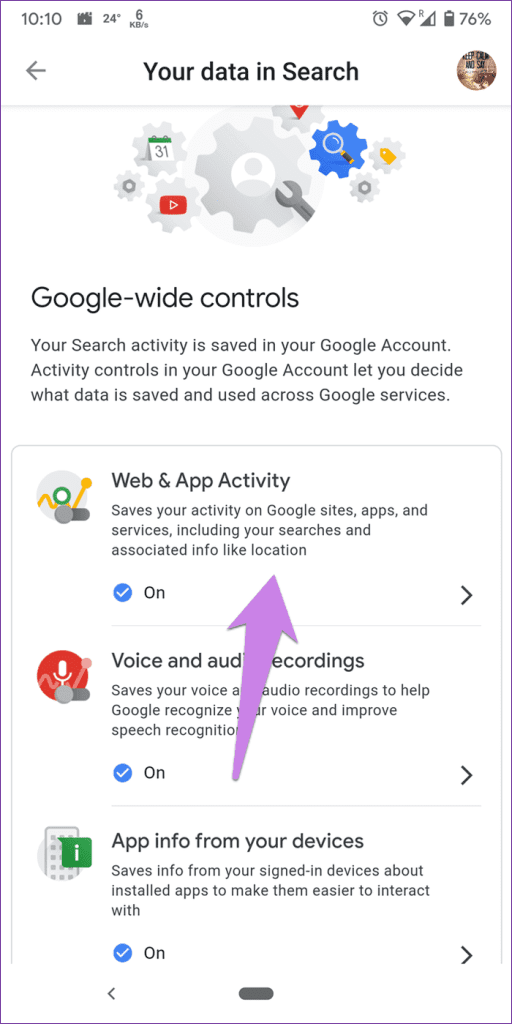
In case you want to stop Google from tracking your data completely, you will have to disable web and app activity. For that, follow these steps:
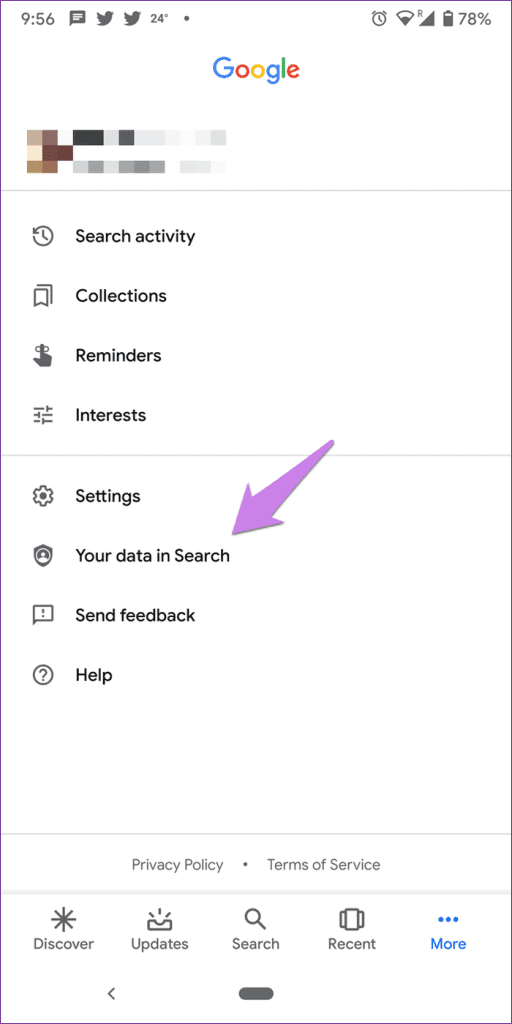
Step 1: Open the Google app and tap on More at the bottom. Then, tap on Your data in Search.
Step 2: Scroll down and tap on Web & App Activity under Google-wide controls. Finally, toggle the switch for Web & App Activity.

FAQs
Even though you get the Pay option under the bill, you will be taken to the service provider’s site. You cannot directly pay on the Google app.
Besides reminding you about the due date of your bills, you can check your daily personalized updates from Google in two places — Assistant and Google app.
You will see the bill reminders on the phones that are connected to your Google account. No other phone or account can have access to your bills.
Was this helpful?
Last updated on 04 September, 2024
1 Comment
Leave a Reply
Read Next
 6 Ways to Turn Off Voice Assistant or Guide on Samsung TV
1.
6 Ways to Turn Off Voice Assistant or Guide on Samsung TV
1.
 12 Hidden Google Games You Can Play on Chrome, Android, Earth, Search, and Assistant
Google is a company like no other.
12 Hidden Google Games You Can Play on Chrome, Android, Earth, Search, and Assistant
Google is a company like no other.
 How to Open Google Assistant Settings
On Android Method 1: Use the "Hey Google, open Assistant Settings" Command The easiest way to open Google Assistant settings is to ask the Assistant itself to open the settings
How to Open Google Assistant Settings
On Android Method 1: Use the "Hey Google, open Assistant Settings" Command The easiest way to open Google Assistant settings is to ask the Assistant itself to open the settings
 How to Solve It Looks like That Device Hasn’t Been Setup yet Error in Google Assistant
Google Assistant is smart, like really smart.
How to Solve It Looks like That Device Hasn’t Been Setup yet Error in Google Assistant
Google Assistant is smart, like really smart.
 How to Add Reminders for Instagram Posts and Stories on Mobile App
Who Can Create Reminders for Events on Instagram Reminders are a great way to ensure you remind your followers about any of your plans and events, and they are quite
How to Add Reminders for Instagram Posts and Stories on Mobile App
Who Can Create Reminders for Events on Instagram Reminders are a great way to ensure you remind your followers about any of your plans and events, and they are quite
 4 Fixes for Google Assistant Not Working on Android TV
Basic Fixes Check your internet connection: The Google Assistant will display search results using your internet connection.
4 Fixes for Google Assistant Not Working on Android TV
Basic Fixes Check your internet connection: The Google Assistant will display search results using your internet connection.
 How to Open Google Assistant on Samsung and Other Android Phones
Google Assistant is designed to make our lives easy.
How to Open Google Assistant on Samsung and Other Android Phones
Google Assistant is designed to make our lives easy.
 4 Ways to Switch Back to Google Assistant From Gemini
Method 1: Using Google App Step 1: Open the Google app on your Android phone.
4 Ways to Switch Back to Google Assistant From Gemini
Method 1: Using Google App Step 1: Open the Google app on your Android phone.
The article above may contain affiliate links which help support Guiding Tech. The content remains unbiased and authentic and will never affect our editorial integrity.
Unfortunately these instructions are out of date. That’s almost always the case for such articles because the companies in question like Google or Samsung or Apple don’t want you to easily disable these things and they go and change their whole menu format and put things in a variety of different places and even change the names on them. It would be super helpful if you would update this page with the current manner of doing this. For example I cannot find anywhere my data in search it is not where it shows in these pictures actually nothing is for the most part. Thank you for the article but until it’s updated it’s not hopeful anymore I’m afraid.