Method 1: Use Optimized Battery Charging
Most MacBook Air and MacBook Pro models come with 1000 charging cycles. Every time your MacBook charges 100%, macOS counts it as one cycle. Once your MacBook reaches 1000 cycles, you will notice a shorter battery life. Apple introduced an optimized battery charging function on Mac to reduce battery cycles. Here’s how you can use it.
Open Settings > Battery > Battery Health > enable Optimized Battery Charging.
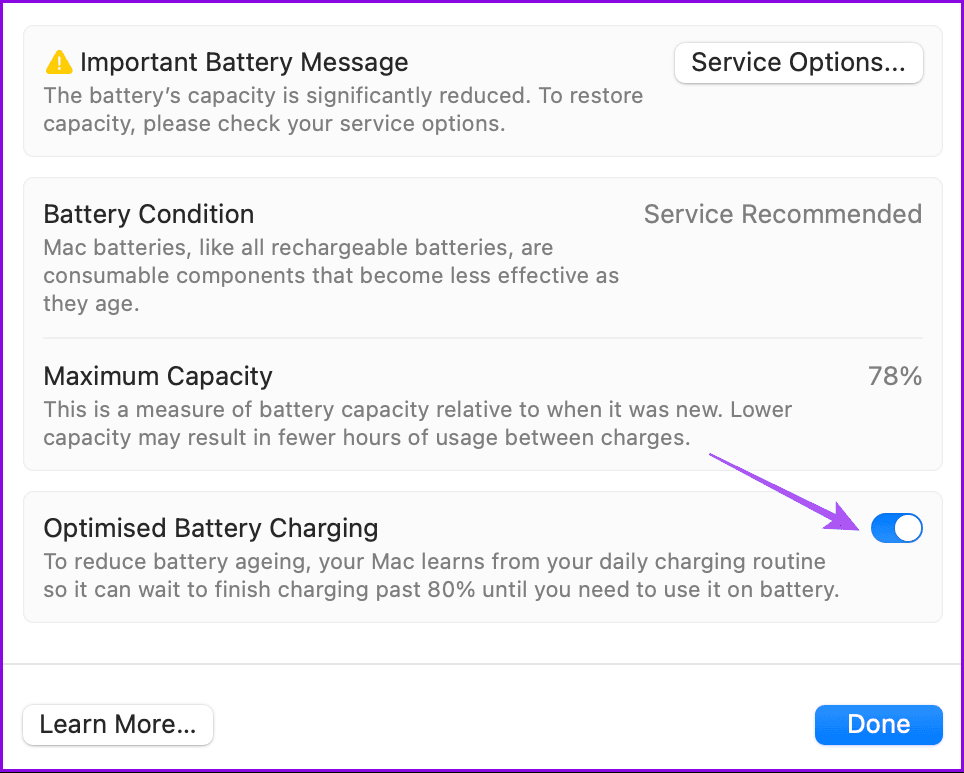
Your Mac learns from your daily charging routine and can wait to finish charging past 80 percent. This practice is helpful for those who keep their MacBook connected to an external monitor all the time. Optimized battery charging will activate and limit the charge to 80 percent, reducing the battery cell’s wear and tear.
Method 2: Use Aldente App
Apple’s optimized battery charging function is limiting in many ways. For example, you can’t restrict battery charge to 60% or 70%. Also, optimized battery charging takes time to learn your usage and kicks in after two or three weeks. Here’s where Aldente comes in to offer several features and improve your MacBook’s battery health.
Aldente is one of the best battery charge limiter apps for MacBooks. It prevents your MacBook from charging above a certain percentage to decrease battery wear and increase its longevity. Follow the steps below to check Aldente in action.
Step 1: Download and install Aldente.
Step 2: Go to the Appearance menu > enable relevant menu bar icons.
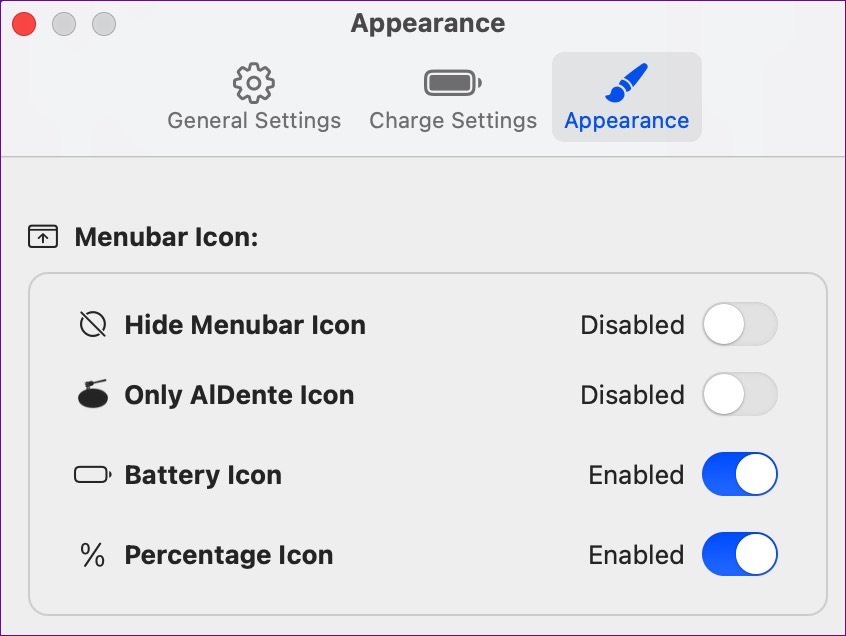
Step 3: Select the Aldente icon in the menu bar > specify the charge limit on your MacBook.
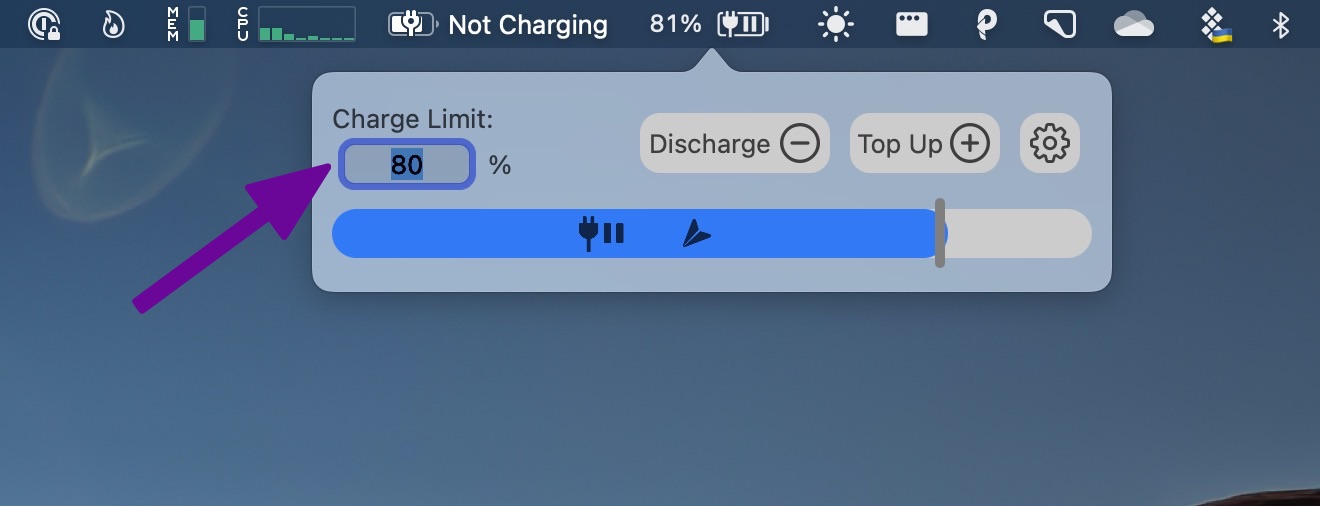
Aldente has many other functions apart from limiting the battery charge on a MacBook. Let’s quickly examine them.
Heat protection: Charging your MacBook at a high temperature can be hazardous. Aldente detects if your MacBook hits high temperature and disables charging to keep it safe.
Calibration mode: You shouldn’t keep your MacBook battery limited to 70% – 80% all the time. This can disturb the battery calibration. Aldente’s calibration mode will charge the MacBook battery to 100% monthly.

Aldente also displays hardware battery percentage, has live status icons in the menu bar, allows charging to stop in sleep mode, and supports dark themes.
Price: Free, Aldente Pro: $14 per year or $29 as a one-time purchase.
Method 3: Use BatteryStatusShow App
BatteryStatusShow is an open-source Mac app that limits battery charge on a MacBook. It allows you to check battery temperature, cycle, and battery life based on your workflow and battery health and restrict the charge level.
Step 1: Download and install BatteryStatusShow and open it on your MacBook. BatteryStatusShow will appear in the Mac menu bar.
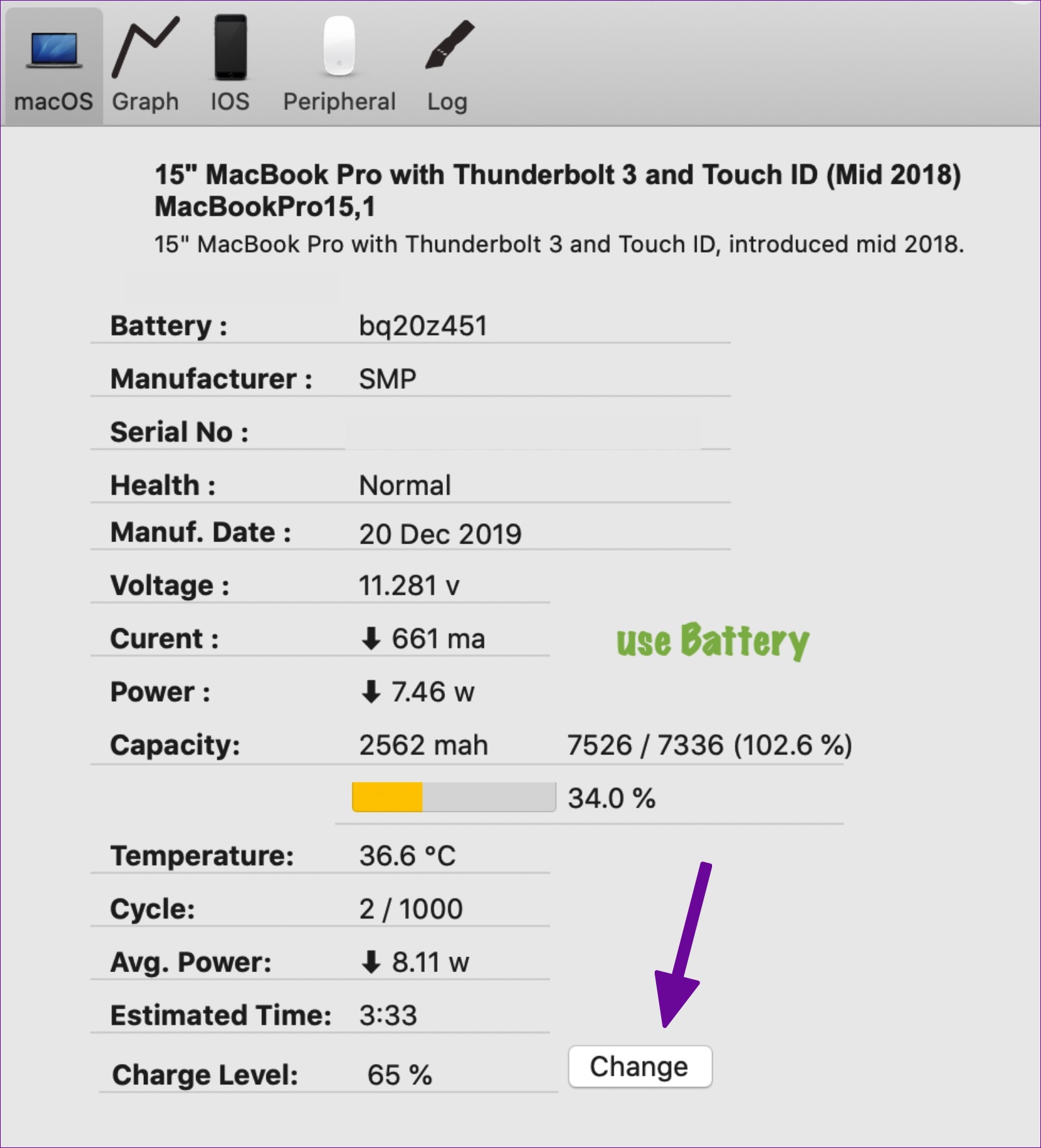
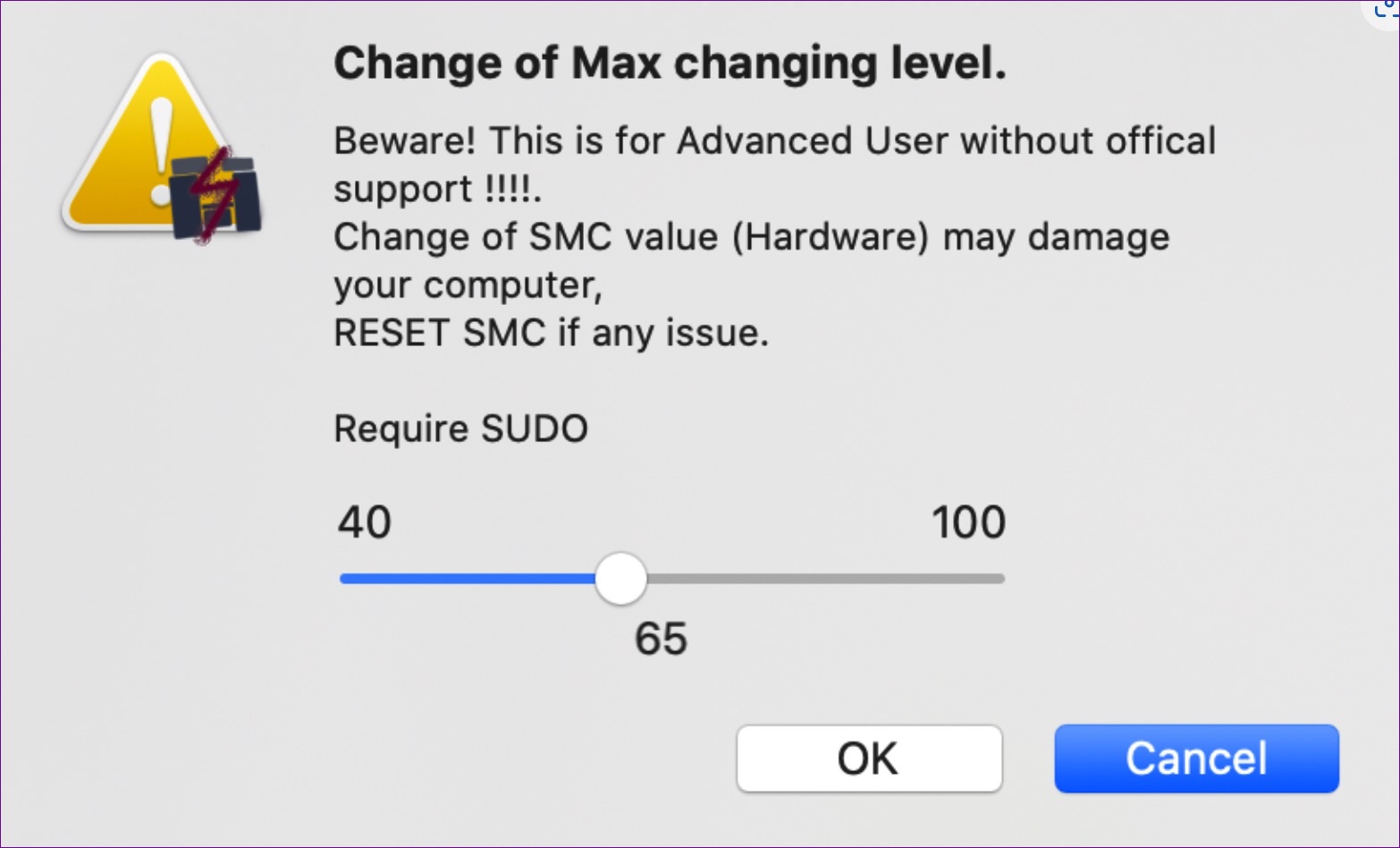
Step 2: Select the Change button beside the charge level and set the battery charge limit.
Step 3: Hit the Ok button to confirm.
Tip: Learn more about what is the Cycle Count (battery) on Mac and how to check it
Was this helpful?
Last updated on 28 August, 2024
Read Next
 4 Ways to Fix MacBook Draining Battery When Closed
https://youtu.be/fkXYhA950FQ Preliminary Fixes Disable the background process: If you are downloading a large file or installing an app from the Mac App Store, pause the process first and close the
4 Ways to Fix MacBook Draining Battery When Closed
https://youtu.be/fkXYhA950FQ Preliminary Fixes Disable the background process: If you are downloading a large file or installing an app from the Mac App Store, pause the process first and close the
 5 Fixes for Your MacBook Battery Charging Issues
Basic Fixes Check your charger connection with the power source: If the adapter is loose or the wall socket doesn't have proper grounding, we recommend you to plug the charger
5 Fixes for Your MacBook Battery Charging Issues
Basic Fixes Check your charger connection with the power source: If the adapter is loose or the wall socket doesn't have proper grounding, we recommend you to plug the charger
 12 Tips to Charge Your iPhone Correctly
Tip 1.
12 Tips to Charge Your iPhone Correctly
Tip 1.
 USB Power Delivery vs Qualcomm Quick Charge: What’s the Difference
It's 2020, and the smartphone market is buzzing with fast charging standards such as Qualcomm Quick Charge, USB Power Delivery, Samsung Adaptive Fast Charge, and OnePlus Warp Charge.
USB Power Delivery vs Qualcomm Quick Charge: What’s the Difference
It's 2020, and the smartphone market is buzzing with fast charging standards such as Qualcomm Quick Charge, USB Power Delivery, Samsung Adaptive Fast Charge, and OnePlus Warp Charge.
 10 Ways to Limit Cellular Data Usage on iPhone
Method 1: Uninstall Apps Consuming Excessive Cellular Data iOS offers a detailed breakdown of mobile data consumption to track apps demanding excessive data.
10 Ways to Limit Cellular Data Usage on iPhone
Method 1: Uninstall Apps Consuming Excessive Cellular Data iOS offers a detailed breakdown of mobile data consumption to track apps demanding excessive data.
 9 Ways to Limit RAM Usage in Opera GX
https://youtu.be/OqVMVrGSoRY Method 1: Enable Opera GX’s Built-in RAM Limiter Enabling the built-in RAM limiter in Opera GX should be your first solution since this feature will manage how much memory
9 Ways to Limit RAM Usage in Opera GX
https://youtu.be/OqVMVrGSoRY Method 1: Enable Opera GX’s Built-in RAM Limiter Enabling the built-in RAM limiter in Opera GX should be your first solution since this feature will manage how much memory
 5 Ways to Limit Mobile Data Usage on Android
You can use Mobile Data on your Android phone especially while being outdoors to cater to your needs.
5 Ways to Limit Mobile Data Usage on Android
You can use Mobile Data on your Android phone especially while being outdoors to cater to your needs.
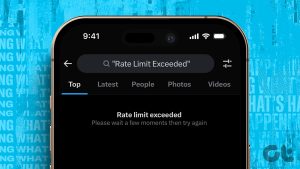 4 Ways to Fix “Rate Limit Exceeded” on X
What Does “Rate Limit Exceeded” Mean on X Recently, X/Twitter introduced usage limits to prevent data scraping on the platform.
4 Ways to Fix “Rate Limit Exceeded” on X
What Does “Rate Limit Exceeded” Mean on X Recently, X/Twitter introduced usage limits to prevent data scraping on the platform.
The article above may contain affiliate links which help support Guiding Tech. The content remains unbiased and authentic and will never affect our editorial integrity.