Fix 1: Run the Hardware and Devices Troubleshooter
Windows offers several troubleshooters for diagnosing and fixing common issues with your system. In this case, you can try running the hardware and devices troubleshooter to get the touchpad to work on Windows 11.
Step 1: Press the Windows key + R to open the Run dialog box. Type msdt.exe -id DeviceDiagnostic in the box and hit Enter.
Step 2: In the Hardware and Devices window that appears, hit Next to allow it to scan for any issues and fix them.

Fix 2: Repair Touchpad Driver
If the troubleshooter fails to identify any issues with the touchpad, you can try repairing the OEM’s touchpad app on your PC. Here’s how:
Step 1: Press the Windows key + I to launch the Settings app and head to Apps > Installed apps.
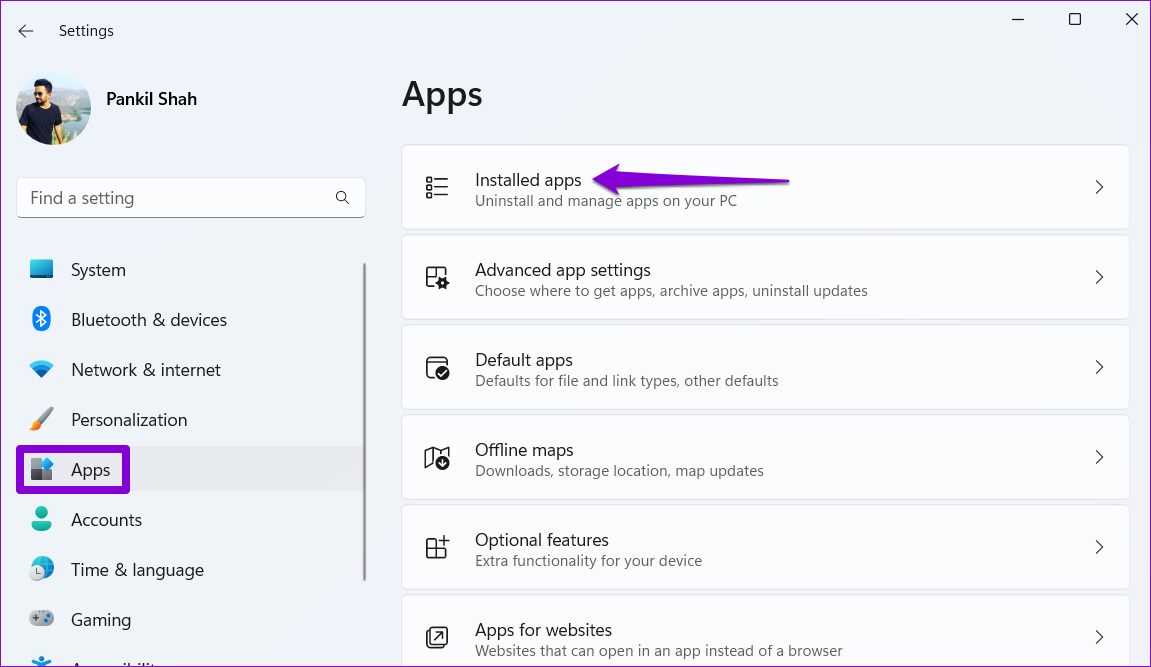
Step 2: Look for your touchpad app, click the three-dot menu next to it, and select Modify.

Step 3: Follow the on-screen instructions to complete the restoration process.

Fix 3: Update or Reinstall the Touchpad Driver
Windows updates typically handle driver updates automatically. However, if you’ve disabled automatic updates on Windows, the touchpad drivers on your laptop may be outdated. You can try manually updating the drivers by following the steps below.
Step 1: Right-click on the Start icon and select Device Manager from the list.

Step 2: Expand Mice and other pointing devices, right-click on your touchpad, and select the Update driver option.

If the problem persists, the touchpad drivers may be corrupted. In that case, uninstall the problematic driver and restart your PC. Windows will automatically reinstall the missing driver during boot.
Fix 4: Use System Restore
A recent system-level change may have caused the touchpad to stop working in Windows 11. You can use System Restore to revert your system to a point when the touchpad was working fine.
Step 1: Click the search icon on the taskbar, type in create a restore point, and press Enter.

Step 2: Under the System Protection tab, click on the System Restore button.

Step 3: Click Next.
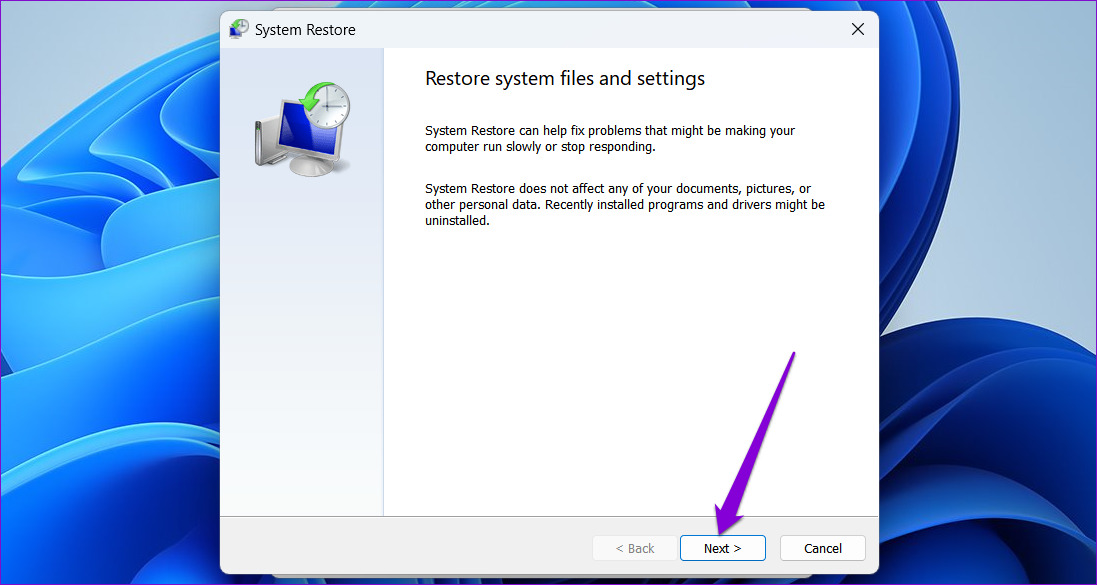
Step 4: Select the Recommended restore option and hit Next.

Step 5: Review all the details and click Finish.

Was this helpful?
Last updated on 19 May, 2024
Read Next
 Top 9 Ways to Fix Touchpad Gestures Not Working in Windows 10
Windows 10 supports various touchpad (trackpad) gestures.
Top 9 Ways to Fix Touchpad Gestures Not Working in Windows 10
Windows 10 supports various touchpad (trackpad) gestures.
 5 Ways to Fix Touchpad Gestures Not Working on Windows 11
Fix 1: Enable Touchpad Gestures The first thing you need to do is review the touchpad settings on your PC and ensure that gesture controls are enabled.
5 Ways to Fix Touchpad Gestures Not Working on Windows 11
Fix 1: Enable Touchpad Gestures The first thing you need to do is review the touchpad settings on your PC and ensure that gesture controls are enabled.
 4 Ways to Disable Touchpad on Windows 11 Laptops
Method 1: Disable Touchpad From Settings The Windows 11 Settings app offers nifty features for modifying touchpad gestures, sensitivity, cursor, and more.
4 Ways to Disable Touchpad on Windows 11 Laptops
Method 1: Disable Touchpad From Settings The Windows 11 Settings app offers nifty features for modifying touchpad gestures, sensitivity, cursor, and more.
 3 Ways to Increase or Decrease Touchpad Sensitivity on Windows 11 Laptops
Method 1: Increase or Decrease Touchpad Sensitivity via the Settings App The Settings app in Windows makes it simple to adjust touchpad-related settings on your laptop.
3 Ways to Increase or Decrease Touchpad Sensitivity on Windows 11 Laptops
Method 1: Increase or Decrease Touchpad Sensitivity via the Settings App The Settings app in Windows makes it simple to adjust touchpad-related settings on your laptop.
 How to Fix Synaptics TouchPad Settings Missing in Windows
If you use a Windows-based laptop, there’s a good chance your laptop uses Synaptics TouchPad — the reason you are here too.
How to Fix Synaptics TouchPad Settings Missing in Windows
If you use a Windows-based laptop, there’s a good chance your laptop uses Synaptics TouchPad — the reason you are here too.
 6 Ways to Fix Windows Security Not Opening or Working on Windows 11
Try Basic Fixes Uninstall any third-party antivirus program: Third-party antivirus programs can sometimes interfere with the Windows Security app and prevent it from opening on your Windows 11 PC.
6 Ways to Fix Windows Security Not Opening or Working on Windows 11
Try Basic Fixes Uninstall any third-party antivirus program: Third-party antivirus programs can sometimes interfere with the Windows Security app and prevent it from opening on your Windows 11 PC.
 4 Ways to Fix Telegram Notifications Not Working on Windows 10 and Windows 11
Try Basic Fixes Disable Do Not Disturb mode: The Telegram app may not be showing notifications due to the Do Not Disturb mode on your Windows PC.
4 Ways to Fix Telegram Notifications Not Working on Windows 10 and Windows 11
Try Basic Fixes Disable Do Not Disturb mode: The Telegram app may not be showing notifications due to the Do Not Disturb mode on your Windows PC.
 3 Best Ways to Fix Keyboard Backlight Not Working on Windows 10 and Windows 11
Try Basic Fixes Toggle the keyboard backlight using the hotkey: You can use a key combination to quickly enable or disable the keyboard backlight on your Windows 11 PC.
3 Best Ways to Fix Keyboard Backlight Not Working on Windows 10 and Windows 11
Try Basic Fixes Toggle the keyboard backlight using the hotkey: You can use a key combination to quickly enable or disable the keyboard backlight on your Windows 11 PC.
The article above may contain affiliate links which help support Guiding Tech. The content remains unbiased and authentic and will never affect our editorial integrity.