

Fix 1: Enable Notification Badges on Your Phone
First up, you need to go through the notification settings on your phone and ensure that app icon badges are enabled. Here are the steps for the same.
Step 1: Open the Settings app on your phone and tap on Notifications.
Step 2: Tap on Advanced settings and enable the toggle next to App icon badges.


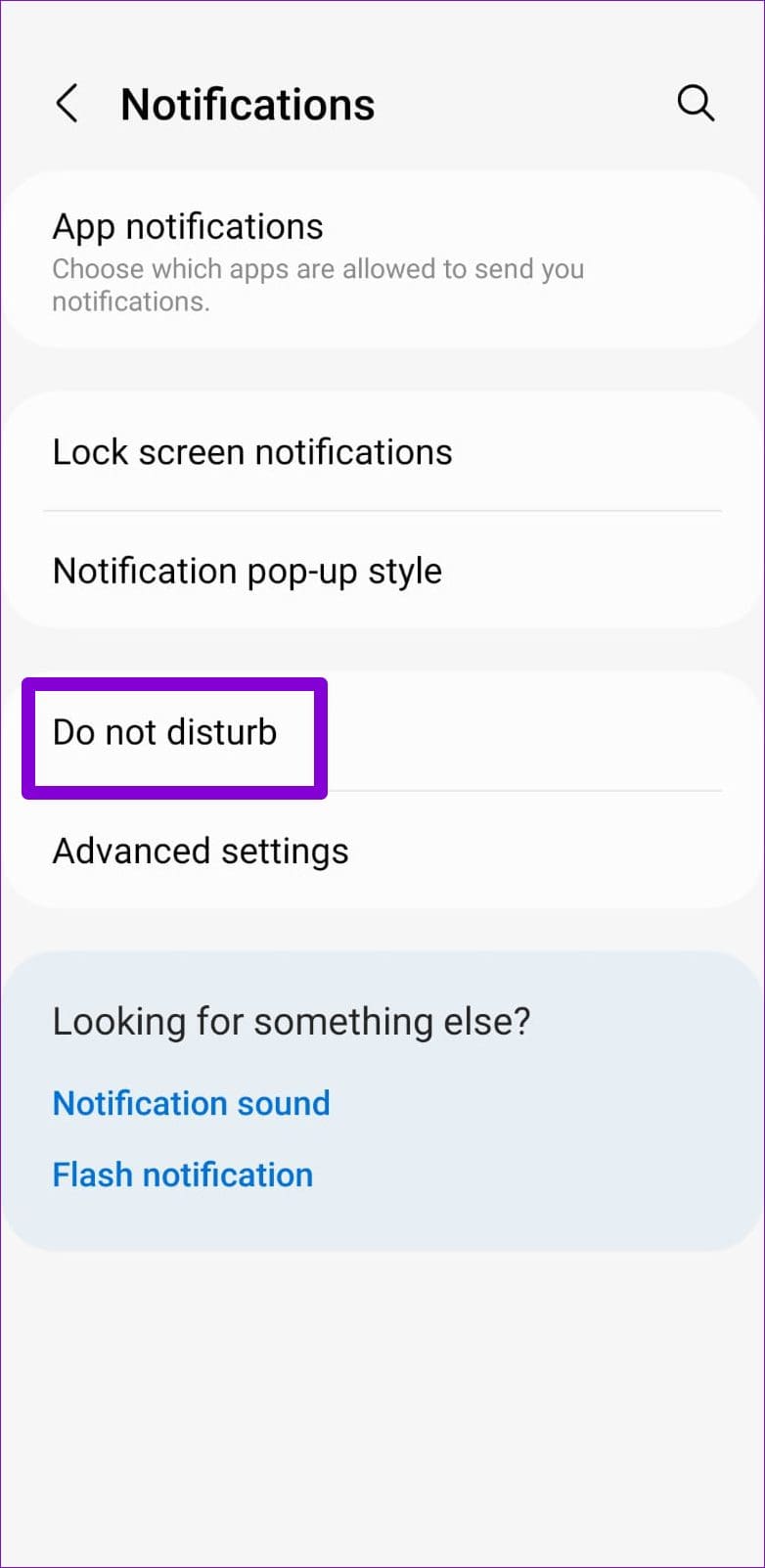
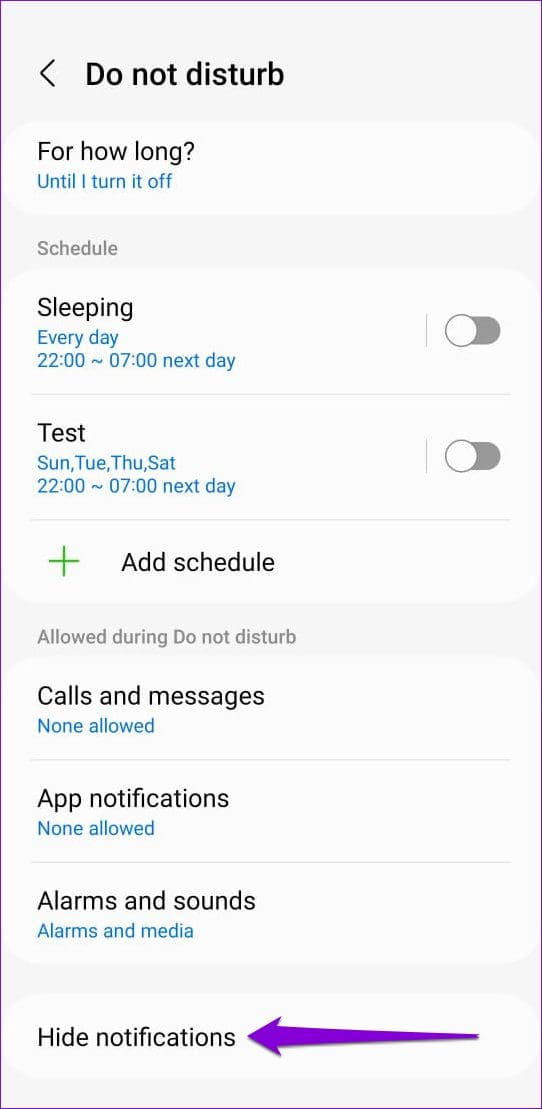
Step 3: If you want to see notification badges when Do Not Disturb is active, return to the Notifications page and select Do not disturb.
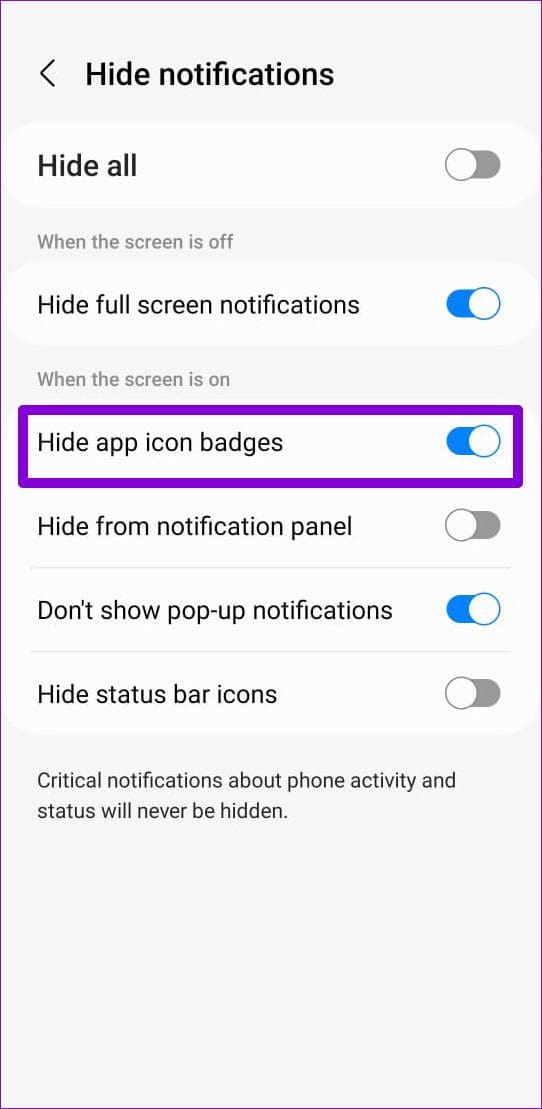
Step 4: Tap on Hide notifications and then disable the toggle next to Hide app icon badges.
Fix 2: Enable Notification Badges for Individual Apps
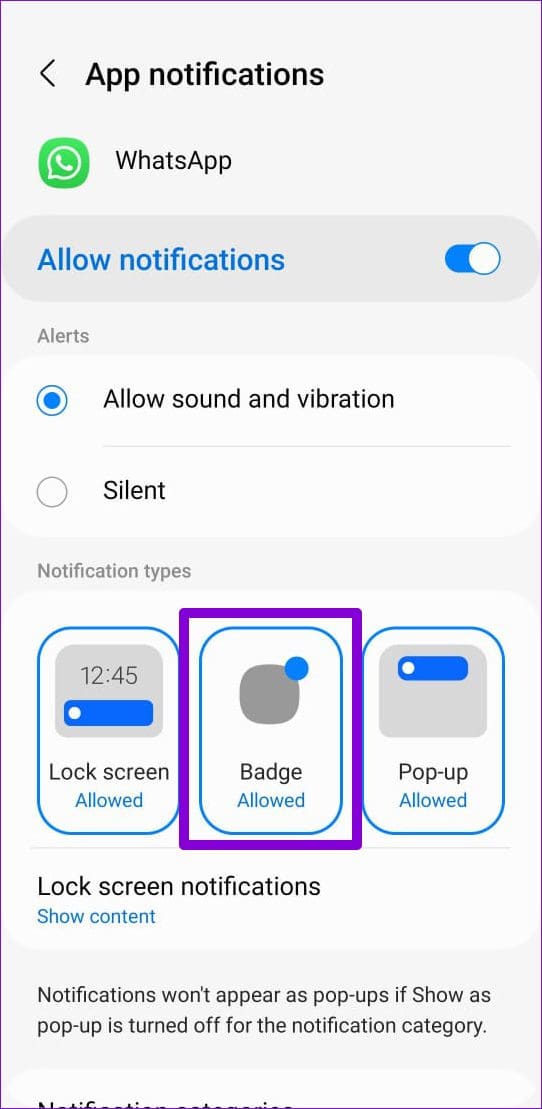
Your Android phone gives you the option to enable or disable notification badges on a per-app basis. So, if the app icon badges are not appearing for only one or two apps, you should check their notification settings.
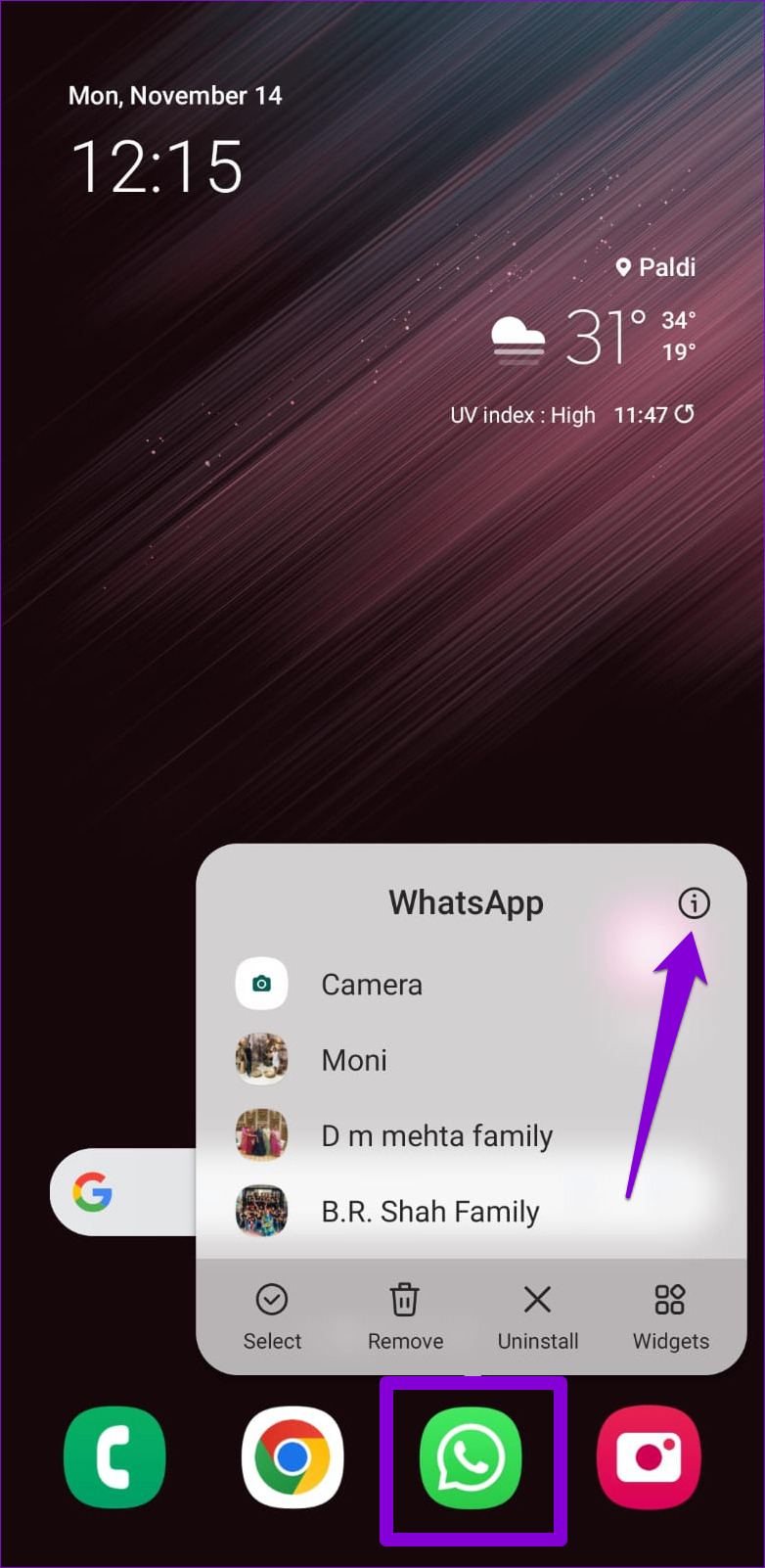
Step 1: Long press on the problematic app’s icon and tap the info icon from the resulting menu.
Step 2: Tap on Notifications. Under Notification types, select the Badge option.

Fix 3: Clear Launcher App Cache
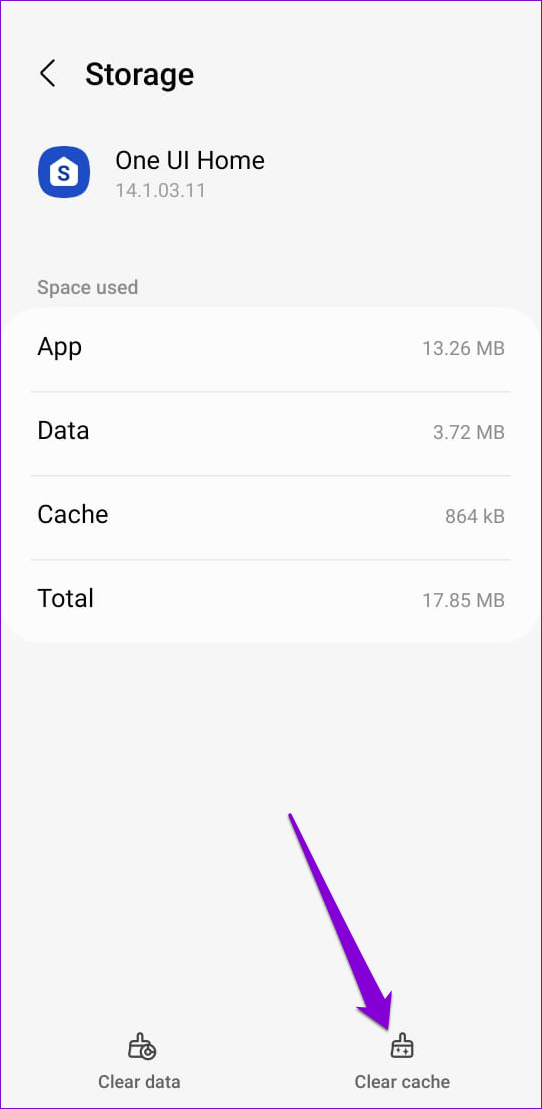
Like any other app, your phone’s default launcher app also creates cache files to serve you better. However, issues with this cache data can result in missing notification badges. You can try clearing the launcher app cache on your phone and see if that helps.
Step 1: Open the Settings app and go to Apps.
Step 2: Scroll down to locate your launcher app on the list and tap on it.


Step 3: Go to Storage and tap the Clear cache option at the bottom.

Fix 4: Change the Default Launcher App
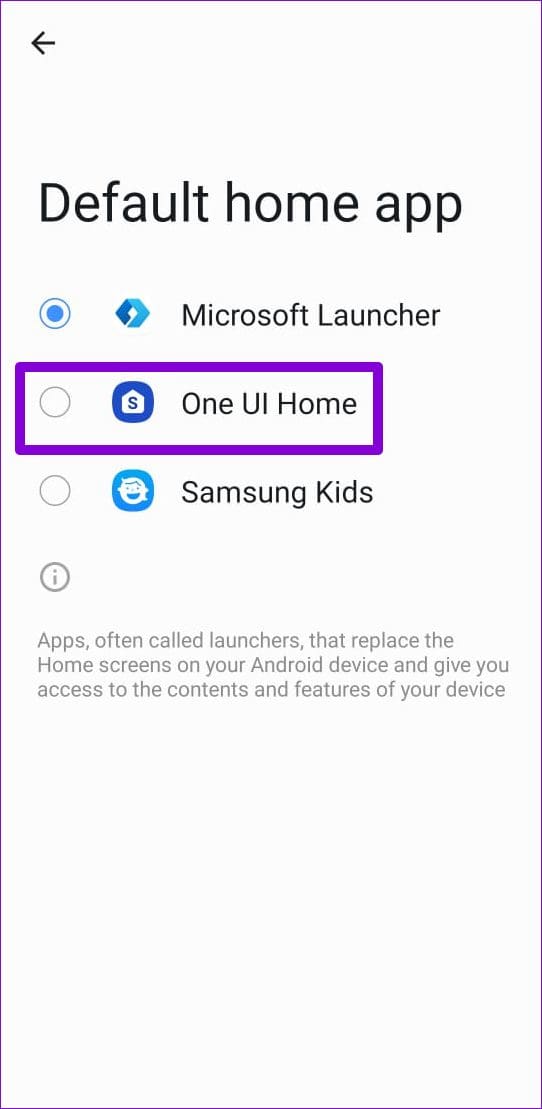
If clearing the cache does not help, you can consider using a different launcher app. Once you’ve installed your preferred launcher app on your phone, use the following steps to set it as the default option.
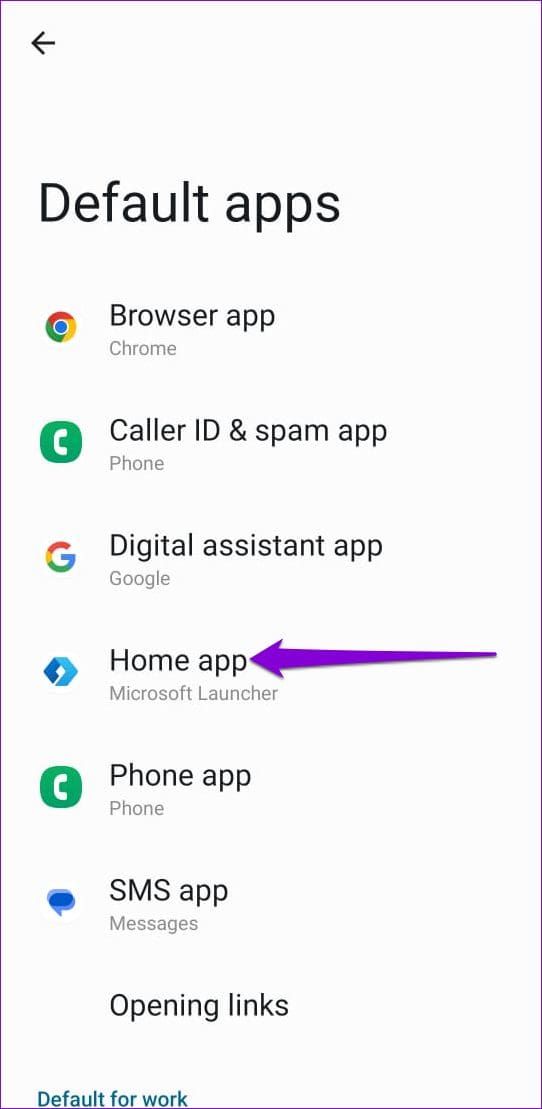
Step 1: Open the Settings app and go to Apps > Choose default apps.
Step 2: Tap on Home app and select another launcher app from the following menu.

Fix 5: Remove Background Restrictions for Apps
Another reason why an app may fail to display notification badges is if you’ve disabled background data usage for it or imposed battery restrictions. Here’s how to change that.
Step 1: Long-press on the problematic app’s icon and tap the info icon from the resulting menu.
Step 2: Tap on Mobile data and enable the toggles next to Allow background data usage and Allow data usage while Data saver is on.

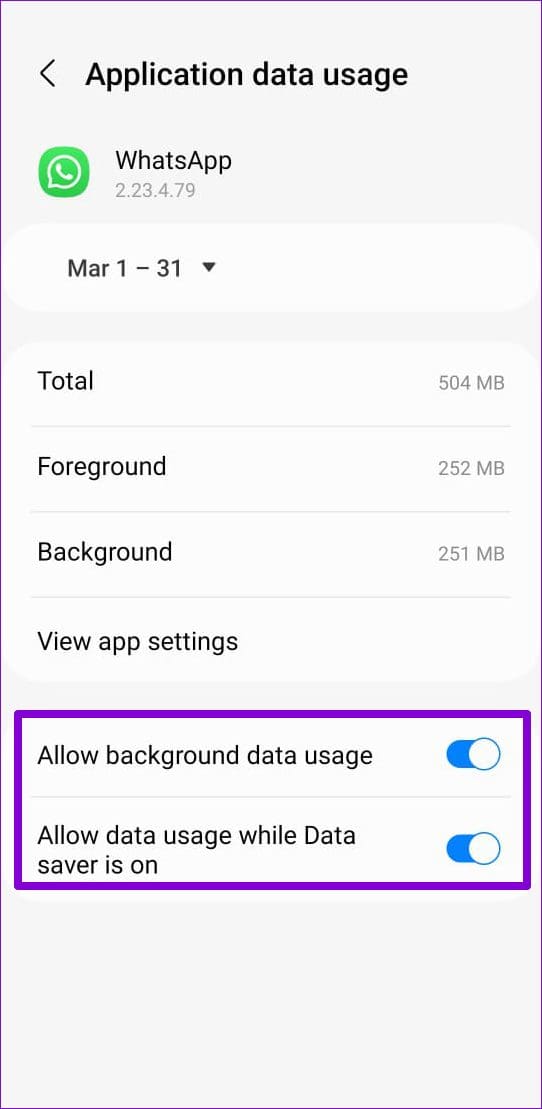
Step 3: Return to the App info page. Tap on Battery and select Unrestricted from the following menu.
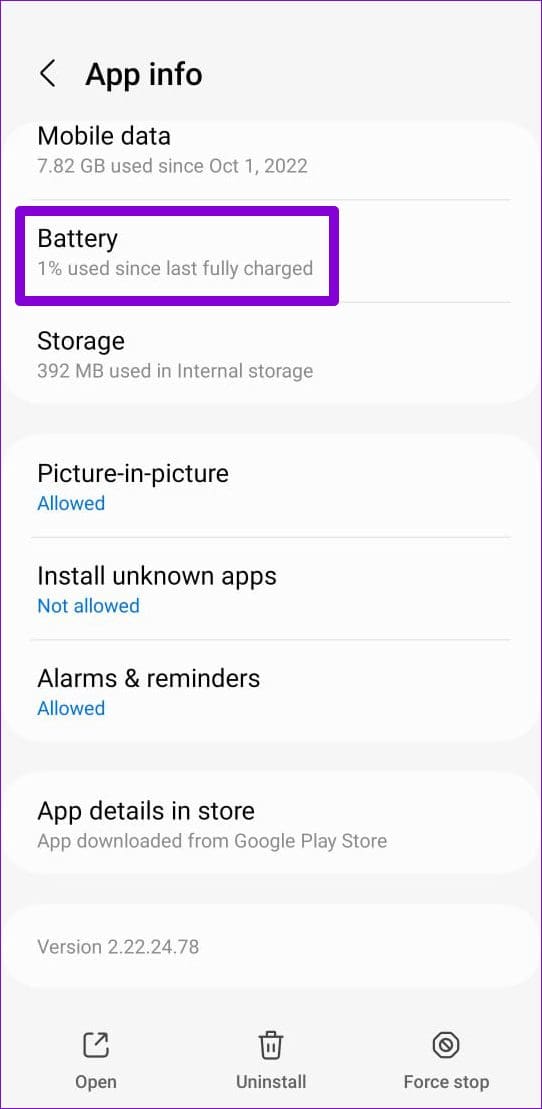

You’ll need to repeat the above steps for every app that’s failing to display notification badges on your Android.
Fix 6: Clear Cache for the Problematic App
Excessive cache data can cause an app to misbehave, resulting in a variety of issues, including this one. You can try clearing cache data for the problematic apps and see if that improves the situation.
Step 1: Long-press on the problematic app’s icon and tap the info icon from the menu that appears.
Step 2: Go to Storage and tap the Clear cache option at the bottom.


Was this helpful?
Last updated on 24 July, 2024
3 Comments
Leave a Reply
Read Next
 5 Ways to Fix Notification Badges Not Showing on iPhone
Basic Fixes: Restart your iPhone: It's a good idea to restart your iPhone, especially if you don't remember when you last did that.
5 Ways to Fix Notification Badges Not Showing on iPhone
Basic Fixes: Restart your iPhone: It's a good idea to restart your iPhone, especially if you don't remember when you last did that.
 How to Fix Missed Call Notification Not Showing on Android
Basic Fixes: Disable DND: If your Android phone is currently on DND, you will not be able to receive any missed call notifications as your device actively blocks any distractions.
How to Fix Missed Call Notification Not Showing on Android
Basic Fixes: Disable DND: If your Android phone is currently on DND, you will not be able to receive any missed call notifications as your device actively blocks any distractions.
 3 Ways to Fix Notification Sound Not Working on Android
Basic Ways: Adjust notification volume: Use the volume buttons or go to the Settings menu to check the current notification volume.
3 Ways to Fix Notification Sound Not Working on Android
Basic Ways: Adjust notification volume: Use the volume buttons or go to the Settings menu to check the current notification volume.
 How to Fix WhatsApp Notification Sound Not Working
Basic Fixes Ensure silent mode is turned off - The first thing you should do is to check and turn off Vibrate/Silent mode on your iPhone or Android.
How to Fix WhatsApp Notification Sound Not Working
Basic Fixes Ensure silent mode is turned off - The first thing you should do is to check and turn off Vibrate/Silent mode on your iPhone or Android.
 How to Get Battery Full Notification on Android Phones
1.
How to Get Battery Full Notification on Android Phones
1.
 How to Fix USB Connector Disconnected Notification on Android
Why Is My Phone Saying USB Connector Connected and Disconnected?
How to Fix USB Connector Disconnected Notification on Android
Why Is My Phone Saying USB Connector Connected and Disconnected?
 2 Ways to Fix Screen Recorder Not Showing up on Android
Basic Fixes Check if your device is eligible: If you're unsure which Android version your device is running, use the Settings app.
2 Ways to Fix Screen Recorder Not Showing up on Android
Basic Fixes Check if your device is eligible: If you're unsure which Android version your device is running, use the Settings app.
 4 Ways to Fix Wi-Fi Showing Limited Connectivity in Android
Basic Fixes Restart device: Restart your Android device to fix any temporary bugs and glitches.
4 Ways to Fix Wi-Fi Showing Limited Connectivity in Android
Basic Fixes Restart device: Restart your Android device to fix any temporary bugs and glitches.
The article above may contain affiliate links which help support Guiding Tech. The content remains unbiased and authentic and will never affect our editorial integrity.
Thank you soooo much… I’d tried half a dozen things and various search strings… finally found your page. #4 was the magic I needed. My apps icon badge will now alert me… YIPPEE!
I love you guys so much thank you very much
Will any of these fixes resolve the issue with android where there isn’t a badge icon counter? I spent a week with a Pixel 8 before returning it. On my iPhone, I frequently read an email or text and then mark it as unread so I can address it later. The badge icon with a counter makes this easy. Is there any way of getting this on android, specifically a Pixel 8 or the new Pixel 9, or even a Samsung phone?