Fix 1: Configure Geolocation Service
Geolocation Service is a small program that needs to run in the background for the location services to work. Ideally, the service should start every time your system boots. However, if that isn’t happening, location services may appear grayed out on Windows. Here’s what you can do to fix it.
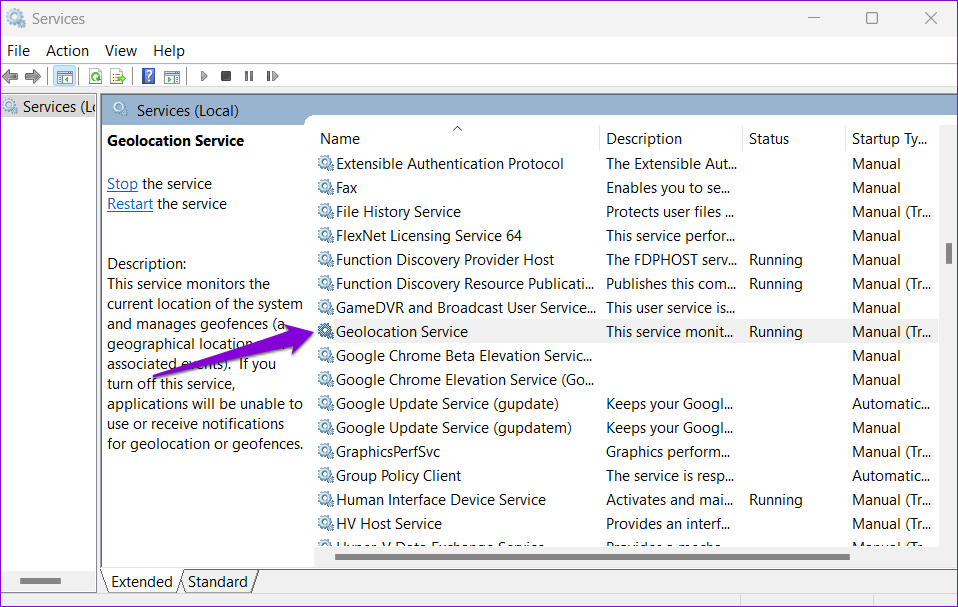
Step 1: Press the Windows key + R to open the Run dialog, type services.msc, and press Enter.
Step 2: Locate and double-click on Geolocation Service on the list.
Step 3: Change the Startup type to Automatic and hit Apply.
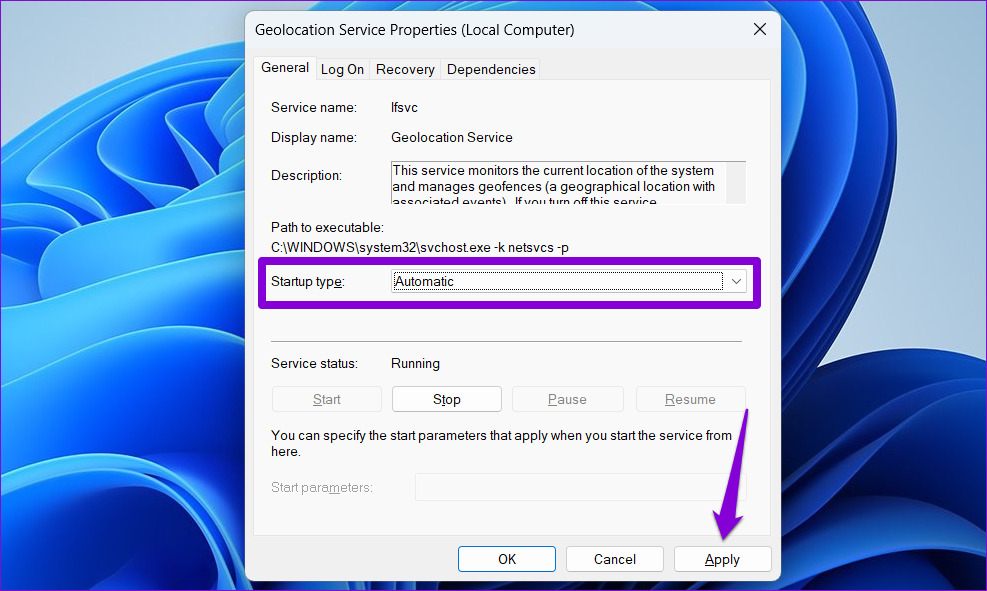
If the service is not running, click on the Start button. After that, see if you can access location services.

Fix 2: Tweak Registry Files
You can fix the problem by modifying some registry files if the location services continue to appear grayed out. Here’s how:
Step 1: Press the Windows key + S to open the search menu. Type registry editor in the box and select the first result that appears.

Step 2: In the Registry Editor window, paste the following path in the address bar at the top and press Enter.
HKEY_LOCAL_MACHINE\SYSTEM\CurrentControlSet\Services\lfsvc\TriggerInfo

Step 3: Right-click on the key named 3, and select Delete.

Restart your PC for changes to take effect and see if the issue is still there.
Fix 3: Use Local Group Policy Editor
Like using the Registry Editor, you can also make changes to your PC via the Local Group Policy Editor on Windows. For that, you must be running the Pro, Enterprise, or Education editions of the Windows operating system. If you’re using the Home edition of Windows 11, this method won’t work for you.
Step 1: Press the Windows key + R to open the Run dialog box. Type gpedit.msc in the Open field and press Enter.
Step 2: In the Local Group Policy Editor window, use the left pane to navigate to the following folder.
Administrative Templates\Windows Components\Location and Sensors
Step 3: On your right, you’ll see three policies: Turn off location scripting, Turn off location, and Turn off sensors.

Step 4: Double-click “Turn off location scripting,” select Disabled, and hit Apply.

Step 5: Disable the Turn off location and Turn off sensors policies as well.
Step 6: Click on the Windows Location Provider folder.

Step 7: Double click on Turn off Windows Location Provider.

Step 8: Select the Disabled option and click Apply.

Restart your PC and you should be able to access location services as before.
Fix 4: Try Clean Boot
At times, third-party apps and services running on your PC can also prevent you from accessing certain Windows features. To verify this, you can boot your PC in a clean boot state.
Step 1: Press the Windows key + R to open the Run dialog, type msconfig.msc, and press Enter.
Step 2: Under the Services tab, mark the box that reads Hide all Microsoft services box and click the Disable all button.

Step 3: Switch to the Startup tab and click on Open Task Manager.
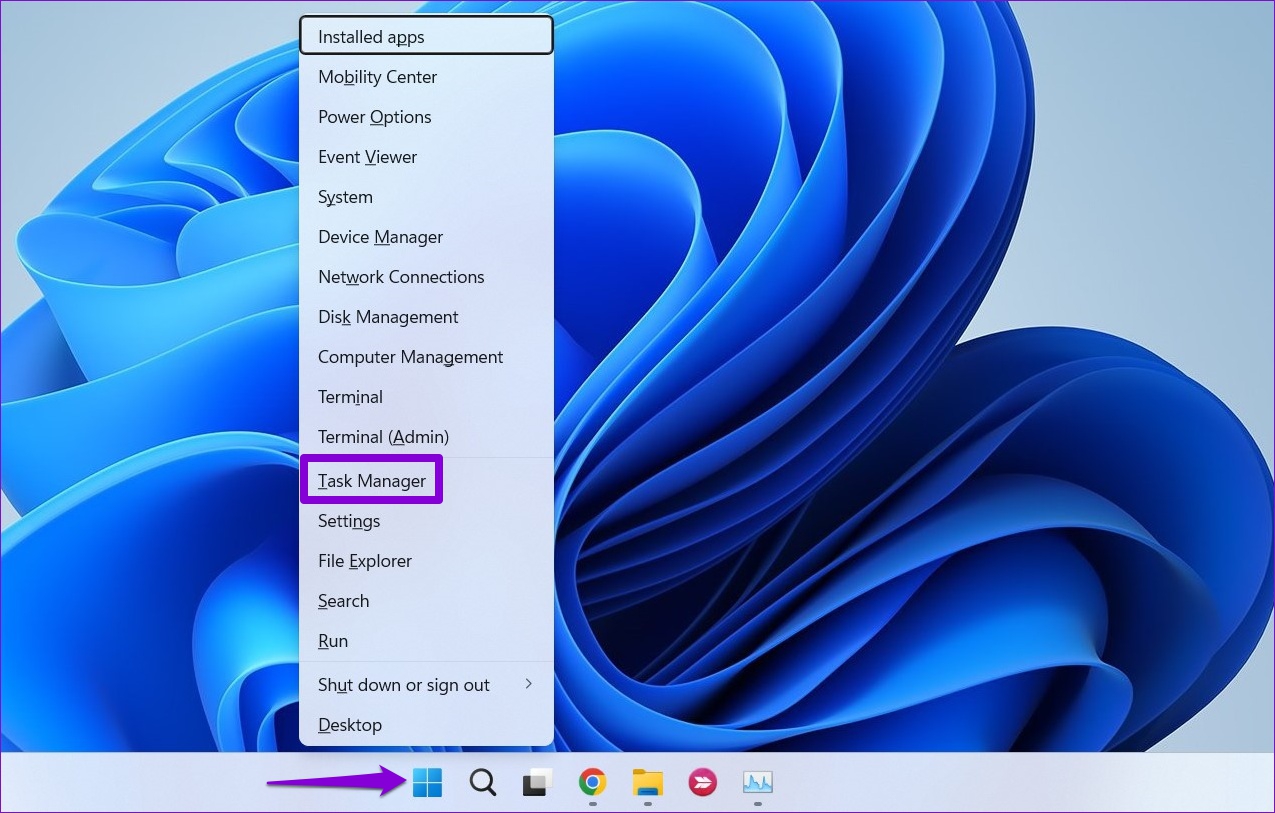
Step 4: In the Startup tab, disable all the third-party apps one by one.

Restart your PC after this to enter the clean boot state and see if you can access the location services. If this helps, you’ll need to look through any recently installed apps and programs and remove them.
To boot in normal mode again, follow the steps above to enable all Startup apps and services, and then reboot your PC.
Was this helpful?
Last updated on 26 July, 2024
Read Next
 6 Ways to Fix Airplane Mode Grayed Out on Windows 10 and Windows 11
Fix 1: Restart Radio Management Service Radio Management Service is an essential component that needs to run in the background for airplane mode to work.
6 Ways to Fix Airplane Mode Grayed Out on Windows 10 and Windows 11
Fix 1: Restart Radio Management Service Radio Management Service is an essential component that needs to run in the background for airplane mode to work.
 8 Ways to Fix Recycle Bin Is Grayed out Issue in Windows 10
The Recycle Bin acts as a failsafe for when you delete a file or folder and need to restore it.
8 Ways to Fix Recycle Bin Is Grayed out Issue in Windows 10
The Recycle Bin acts as a failsafe for when you delete a file or folder and need to restore it.
 Top 5 Ways to Fix Screen Resolution Setting Grayed Out Problem on Windows 10
Whether you’ve plugged in a new monitor or trying to improve the video performance, tweaking your screen resolution to the right settings is the key to a better viewing experience.
Top 5 Ways to Fix Screen Resolution Setting Grayed Out Problem on Windows 10
Whether you’ve plugged in a new monitor or trying to improve the video performance, tweaking your screen resolution to the right settings is the key to a better viewing experience.
 4 Best Fixes for Windows 10 Mobile Hotspot Grayed Out
Basic Fixes Check network connection: Ensure there are no problems with network connectivity or the router/modem.
4 Best Fixes for Windows 10 Mobile Hotspot Grayed Out
Basic Fixes Check network connection: Ensure there are no problems with network connectivity or the router/modem.
 8 Ways to Fix Location Services Not Working on iPhone
Try Basic Fixes Force restart your iPhone: Several users on an Apple Community post reported fixing location issues on their iPhones by performing a force reboot.
8 Ways to Fix Location Services Not Working on iPhone
Try Basic Fixes Force restart your iPhone: Several users on an Apple Community post reported fixing location issues on their iPhones by performing a force reboot.
 5 Ways to Fix Location Services Not Working on Android
Fix 1: Enable Google Location Accuracy When your Android phone fails to determine your location accurately, you may face issues while using apps like Google Maps, Uber, and such.
5 Ways to Fix Location Services Not Working on Android
Fix 1: Enable Google Location Accuracy When your Android phone fails to determine your location accurately, you may face issues while using apps like Google Maps, Uber, and such.
 4 Ways to Fix Location Services Not Working on Mac
Basic Fixes Restart your Mac: Sometimes a simple restart will solve a lot of issues on your Mac.
4 Ways to Fix Location Services Not Working on Mac
Basic Fixes Restart your Mac: Sometimes a simple restart will solve a lot of issues on your Mac.
 How to Fix Safari’s Clear History, Website Data Grayed Out Issue
All You Need to Do: Disable Content Restrictions To put any concerns to rest, there’s nothing wrong with your iPhone or iPad.
How to Fix Safari’s Clear History, Website Data Grayed Out Issue
All You Need to Do: Disable Content Restrictions To put any concerns to rest, there’s nothing wrong with your iPhone or iPad.
The article above may contain affiliate links which help support Guiding Tech. The content remains unbiased and authentic and will never affect our editorial integrity.