Fix 1: Force Close Firefox Processes
Sometimes, Firefox processes may become unresponsive on your PC due to temporary issues. In most cases, you can fix the problem by closing Firefox processes via the Task Manager on Windows.
Step 1: Press Ctrl + Shift + Esc on your keyboard to open the Task Manager.
Step 2: In the Processes tab, select Firefox and click the End task button at the top.

Fix 2: Try Troubleshoot Mode in Firefox
If you rely on add-ons in Firefox to improve your productivity, they could be causing issues. To verify if this is the case, launch Firefox in Troubleshooting Mode, which disables all add-ons, themes, and custom settings.
To launch Firefox in Troubleshoot Mode, hold down the Shift key and double-click the Firefox app shortcut. Then, click Open.
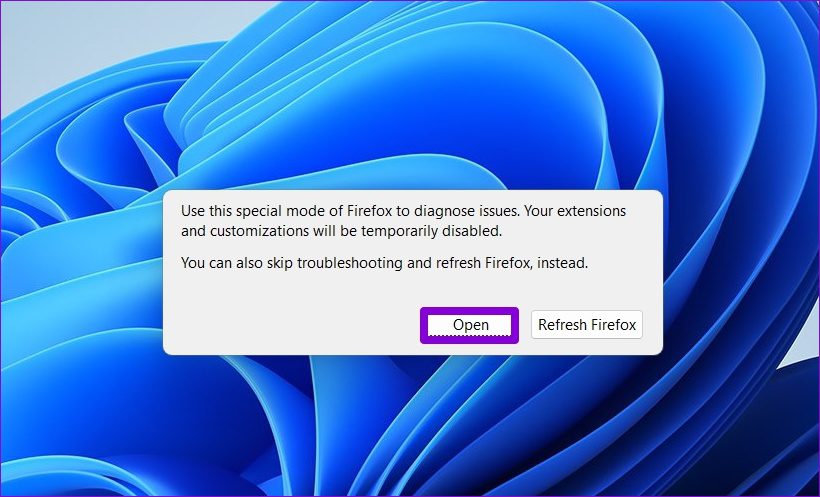
Now, use Firefox for a few minutes. If it works fine, the issue is likely due to one of the add-ons. To identify the culprit, try disabling all add-ons, then re-enable them one by one. Here’s how:
Step 1: Open Firefox in Troubleshoot Mode. Click the menu icon (three horizontal lines) in the top-right corner and select Add-ons and themes from the list.

Step 2: Use the switches next to the add-ons to turn them off.
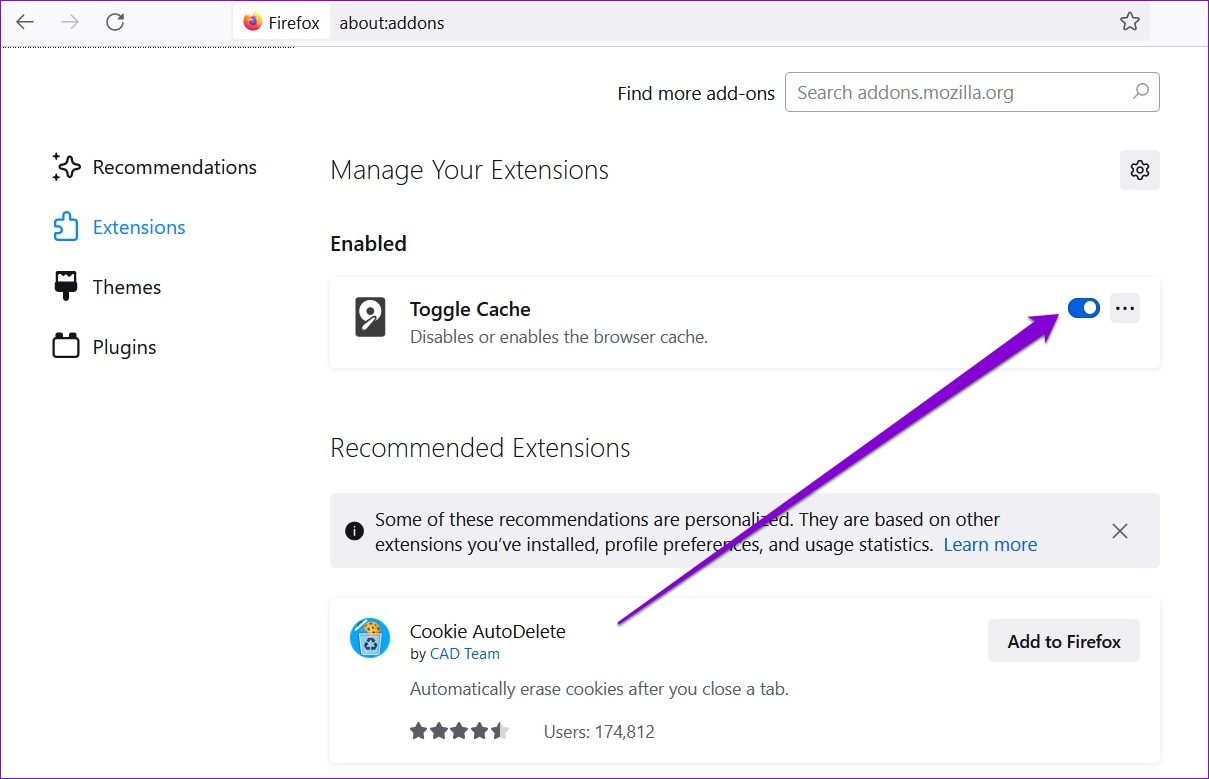
Once disabled, close Firefox and try opening it again. After that, enable each add-on one by one to find the one causing the issue.
Fix 3: Disable Hardware Acceleration
By default, Firefox comes with hardware acceleration enabled. This feature uses your PC’s GPU instead of the CPU to speed up processes. However, depending on your PC’s graphics card, it can sometimes cause Firefox to freeze. To see if this resolves the issue, try disabling Hardware Acceleration in Firefox. Here’s how:
Step 1: Launch Firefox on your PC, click the menu icon in the upper right corner and select Settings.
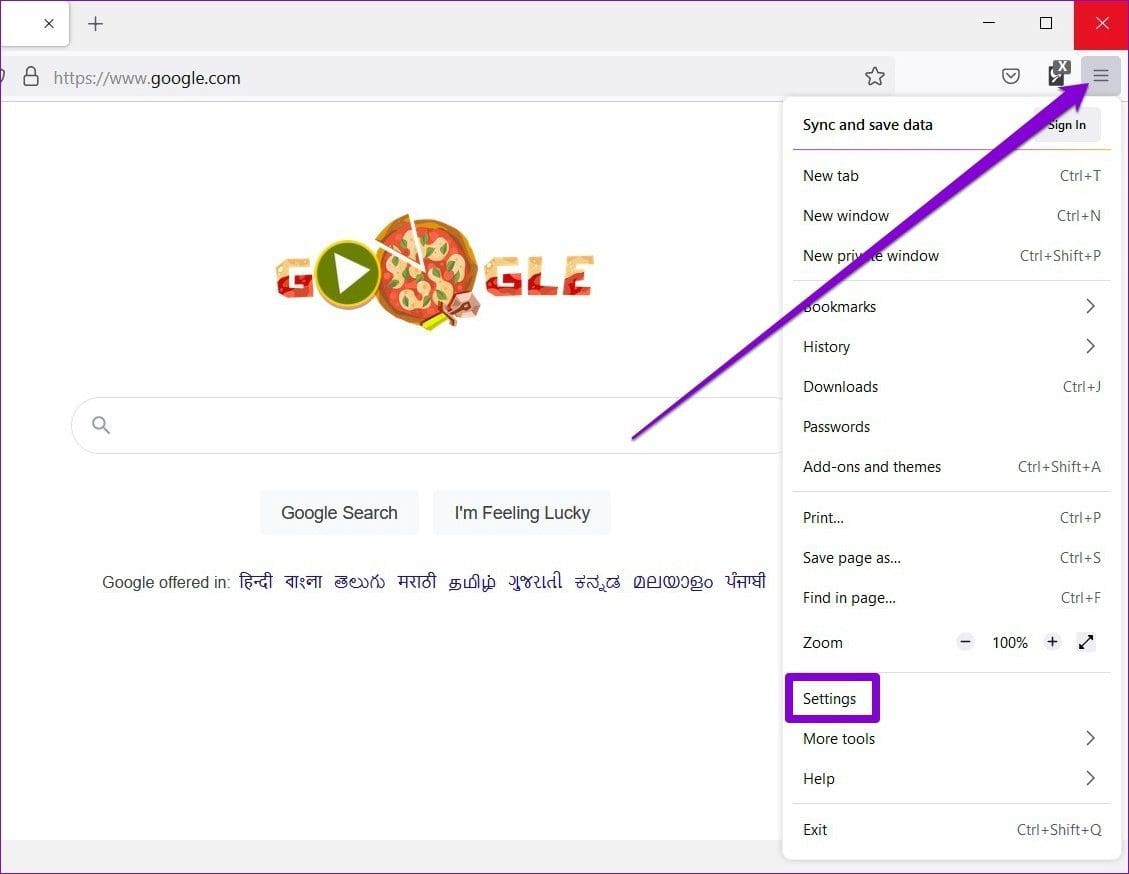
Step 2: Scroll down to go to the Performance section and uncheck the box that reads Use recommended performance settings.
Step 3: Uncheck the Use hardware acceleration when available option.

Fix 4: Clear Cache and Cookies
Browsers like Firefox use cache and cookies to enhance your browsing experience. However, over time, this old browsing data can accumulate and cause conflicts, leading to Firefox freezing or crashing. To address this, try clearing the cache and cookies from Firefox. Here’s how:
Step 1: Open settings on Firefox.
Step 2: Switch to the Privacy & Security tab on your left and scroll down to Cookies and Site Data. Then, click the Clear Data button.

Step 3: In the Clear Data panel, mark the boxes that read Cookies and Site Data and Cached Web Content. Then, hit Clear.

Fix 5: Refresh Firefox
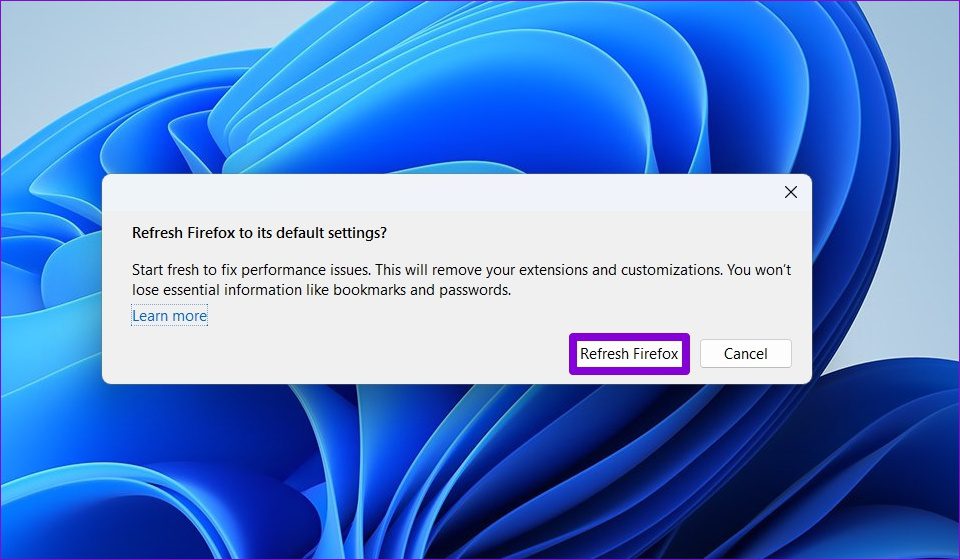
If none of the previous solutions work, resetting Firefox might be your last option. Fortunately, it’s a straightforward process, as Firefox offers a refresh option. This option removes your add-ons and preferences while keeping your bookmarks, saved passwords, and open tabs intact. Here’s how to do it:
Step 1: Hold down the Shift key and double-click on the Firefox app shortcut to open it in Troubleshoot Mode.
Step 2: Click the Refresh Firefox button.

Step 3: Select Refresh Firefox to confirm your action.
Was this helpful?
Last updated on 29 July, 2024
Read Next
 Top 6 Ways to Fix Zoom Not Responding on Windows 10
Zoom has certainly become an integral part of education and work.
Top 6 Ways to Fix Zoom Not Responding on Windows 10
Zoom has certainly become an integral part of education and work.
 3 Ways to Fix Google Chrome Not Responding Error
Basic Fixes Restart Google Chrome: If Google Chrome isn't responding, restart the browser.
3 Ways to Fix Google Chrome Not Responding Error
Basic Fixes Restart Google Chrome: If Google Chrome isn't responding, restart the browser.
 Easy Ways To Fix Excel Not Responding or Slow
Why Does Excel Keep Freezing or Lags on Windows If the Excel app or file stops responding or lags, it can be attributed to various factors.
Easy Ways To Fix Excel Not Responding or Slow
Why Does Excel Keep Freezing or Lags on Windows If the Excel app or file stops responding or lags, it can be attributed to various factors.
 Firefox vs Firefox Focus: Should You Switch
Firefox Focus is a strange name for a browser, and the fact that it’s developed by none other Mozilla is even weirder.
Firefox vs Firefox Focus: Should You Switch
Firefox Focus is a strange name for a browser, and the fact that it’s developed by none other Mozilla is even weirder.
 3 Ways to Fix Microsoft Word Not Responding on Windows 11/10
Preliminary Fixes Relaunch Microsoft Word app: Relaunching the Microsoft Word app can clear temporary glitches or corrupted processes, effectively reset the session, potentially resolve minor software conflicts, and refresh the
3 Ways to Fix Microsoft Word Not Responding on Windows 11/10
Preliminary Fixes Relaunch Microsoft Word app: Relaunching the Microsoft Word app can clear temporary glitches or corrupted processes, effectively reset the session, potentially resolve minor software conflicts, and refresh the
 4 Ways to Fix Microsoft Excel Not Responding on Windows 11
Fix 1: Open Microsoft Excel in Safe Mode and Disable Add-Ins You can open Excel in Safe Mode to run the app without add-ins.
4 Ways to Fix Microsoft Excel Not Responding on Windows 11
Fix 1: Open Microsoft Excel in Safe Mode and Disable Add-Ins You can open Excel in Safe Mode to run the app without add-ins.
 3 Ways to Fix Microsoft Access Not Responding on Windows 11
Basic Fixes: Update Windows 11 and Microsoft Office: You should run a Windows update to ensure that an outdated computer is not the problem.
3 Ways to Fix Microsoft Access Not Responding on Windows 11
Basic Fixes: Update Windows 11 and Microsoft Office: You should run a Windows update to ensure that an outdated computer is not the problem.
 Top 6 Ways to Fix Microsoft PowerPoint Not Responding on Windows 11
Microsoft PowerPoint is a popular application for creating visually appealing slideshows business meetings, educational presentations, or conferences.
Top 6 Ways to Fix Microsoft PowerPoint Not Responding on Windows 11
Microsoft PowerPoint is a popular application for creating visually appealing slideshows business meetings, educational presentations, or conferences.
The article above may contain affiliate links which help support Guiding Tech. The content remains unbiased and authentic and will never affect our editorial integrity.