


Method 1: Delete PDF Pages Using the Default PDF Editor on iPhone
Step 1: Open the Files app on your iPhone.
Step 2: Find your preferred PDF file and open it in the app.
Step 3: Tap the down arrow icon at the top and select Print.
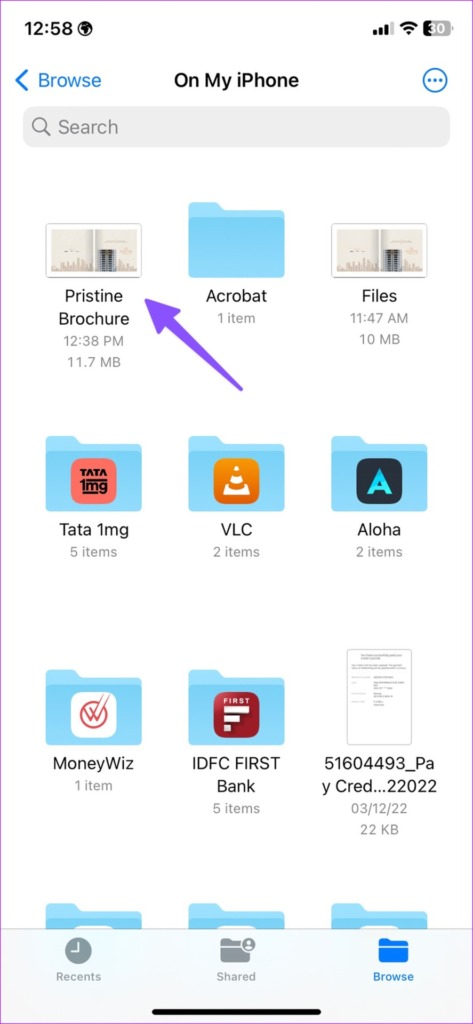

Step 4: The Files app will select all pages to print. Scroll horizontally and deselect pages from a PDF file.
Step 5: Hit the share icon at the top.
Step 6: Select Save to Files.
Step 7: Save your edited PDF file to a preferred location in the Files app.
Note that adding more pages to an existing PDF file using the Files app is currently not supported. Please refer to the following subheads for alternative methods.
Method 2: Use Smallpdf to Add or Delete PDF Pages on iPhone
Smallpdf is one of the best PDF editors for iPhones. Follow the steps below to add or delete PDF pages on your iPhone using the app.
Step 1: Open the App Store and download Smallpdf on your iPhone.
Step 2: Launch the Smallpdf app. Hit the + icon at the bottom and tap on Add from files.


Step 3: Import PDF documents from the Files app.
Step 4: Tap Organize at the bottom.


Step 5: Tap the radio button beside PDF pages to select them, then hit the Delete icon at the bottom-left corner to delete them. If you accidentally delete important pages, simply select the Undo icon (arrow curving left) located at the top of the screen.
Step 6: To add more pages to a PDF file, press the Pages icon at the bottom-right corner.
Step 7: Select ‘Add a document’ or ‘Add blank page.’
Step 8: After you select a document, Smallpdf will attach it to the existing file.
Step 9: You can also long-press on the page to reorder it. After you make all the changes, hit Save at the top.
Method 3: Use PDF Expert to Add or Delete PDF Pages on iPhone
PDF Expert is another feature-rich PDF editor for iPhone. Follow the steps below to use PDF Export to add or delete PDF pages on iPhone.
Step 1: Download PDF Expert from the App Store.
Step 2: Launch PDF Expert and create an account.
Step 3: Select files to import a PDF document.
Step 4: Tap the organize menu at the bottom.
Step 5: Select the PDF pages you want to remove and hit Delete.


Step 6: Tap Add and select Blank page, Scan Page, or Another File to add more pages to a PDF file.
Once you make relevant changes, click the three-dot menu at the top and select Save a Copy.
Manage PDF Pages Like a Pro
The default PDF editor on iPhone deletes PDF pages. For better control over PDF organization, use alternatives like Smallpdf or PDF Expert.
Was this helpful?
Last updated on 01 July, 2024
1 Comment
Leave a Reply
Read Next
 How to Save Web Pages as PDF in Chrome (iPhone and Android)
Save Web Pages on Chrome for iOS Chrome for iOS doesn’t have Save as PDF or Print to PDF options anywhere within its Printer Options screen.
How to Save Web Pages as PDF in Chrome (iPhone and Android)
Save Web Pages on Chrome for iOS Chrome for iOS doesn’t have Save as PDF or Print to PDF options anywhere within its Printer Options screen.
 3 Ways to Delete Blank or Extra Pages in Word
The Easiest Way to Delete a Page on Microsoft Word All you need to do is select the text or content on the page and hit the Backspace or Delete
3 Ways to Delete Blank or Extra Pages in Word
The Easiest Way to Delete a Page on Microsoft Word All you need to do is select the text or content on the page and hit the Backspace or Delete
 6 Ways to Fix Safari Not Loading Pages on iPhone and iPad
Basic Fixes: Restart phone and modem: Long-press the power button and use the slider to turn your device off.
6 Ways to Fix Safari Not Loading Pages on iPhone and iPad
Basic Fixes: Restart phone and modem: Long-press the power button and use the slider to turn your device off.
 5 Ways to Fix Google Chrome Not Loading Pages on Android and iPhone
Try Basic Fixes Enable or disable the VPN: If webpages are not loading in Chrome, consider disabling your VPN connection temporarily and see if that resolves the problem.
5 Ways to Fix Google Chrome Not Loading Pages on Android and iPhone
Try Basic Fixes Enable or disable the VPN: If webpages are not loading in Chrome, consider disabling your VPN connection temporarily and see if that resolves the problem.
 How to Add Special Characters and Symbols in Apple Pages and Other Tricks
Back in 2006, Apple introduced the iWork suite of apps, including Pages, Keynote, and Numbers.
How to Add Special Characters and Symbols in Apple Pages and Other Tricks
Back in 2006, Apple introduced the iWork suite of apps, including Pages, Keynote, and Numbers.
 How to Add Password to a PDF File on iPhone and iPad
How to Add Password to PDF on iPhone and iPad The iOS 16 and iPadOS 16 updates brought the option to lock a PDF file using the Files app.
How to Add Password to a PDF File on iPhone and iPad
How to Add Password to PDF on iPhone and iPad The iOS 16 and iPadOS 16 updates brought the option to lock a PDF file using the Files app.
 5 Ways to Fix Samsung Internet Browser Not Loading Pages
Try Basic Fixes Check your internet connection: The Samsung Internet browser may have trouble loading web pages if there is a problem with your internet connection.
5 Ways to Fix Samsung Internet Browser Not Loading Pages
Try Basic Fixes Check your internet connection: The Samsung Internet browser may have trouble loading web pages if there is a problem with your internet connection.
 How to Convert and Open Pages File on Windows PC: 6 Best Ways
If you are a Windows user and have received a Pages file from a Mac user, you may wonder how to open and view the document on your Windows PC.
How to Convert and Open Pages File on Windows PC: 6 Best Ways
If you are a Windows user and have received a Pages file from a Mac user, you may wonder how to open and view the document on your Windows PC.
The article above may contain affiliate links which help support Guiding Tech. The content remains unbiased and authentic and will never affect our editorial integrity.


After I delete the pages I no longer want. When I share the file it converts it to a horizontal instead of portrait and I can’t figure out how to keep it portrait.