Keep Picture Instead of Video or Name in Zoom on PC
It’s not rocket science to show your picture in Zoom. You must set up a profile picture in Zoom. As a new user, you wouldn’t have done that on Zoom yet. So, the time is now. After setting a photo, it will automatically show up on the screen to replace the name if the video is off.
There are two ways to change or add a picture in Zoom on a PC.
Method 1: Add the Picture Before Joining a Meeting
Step 1: Launch the Zoom app. Click your name initials at the top right.
Step 2: Select Change My Picture from the menu.

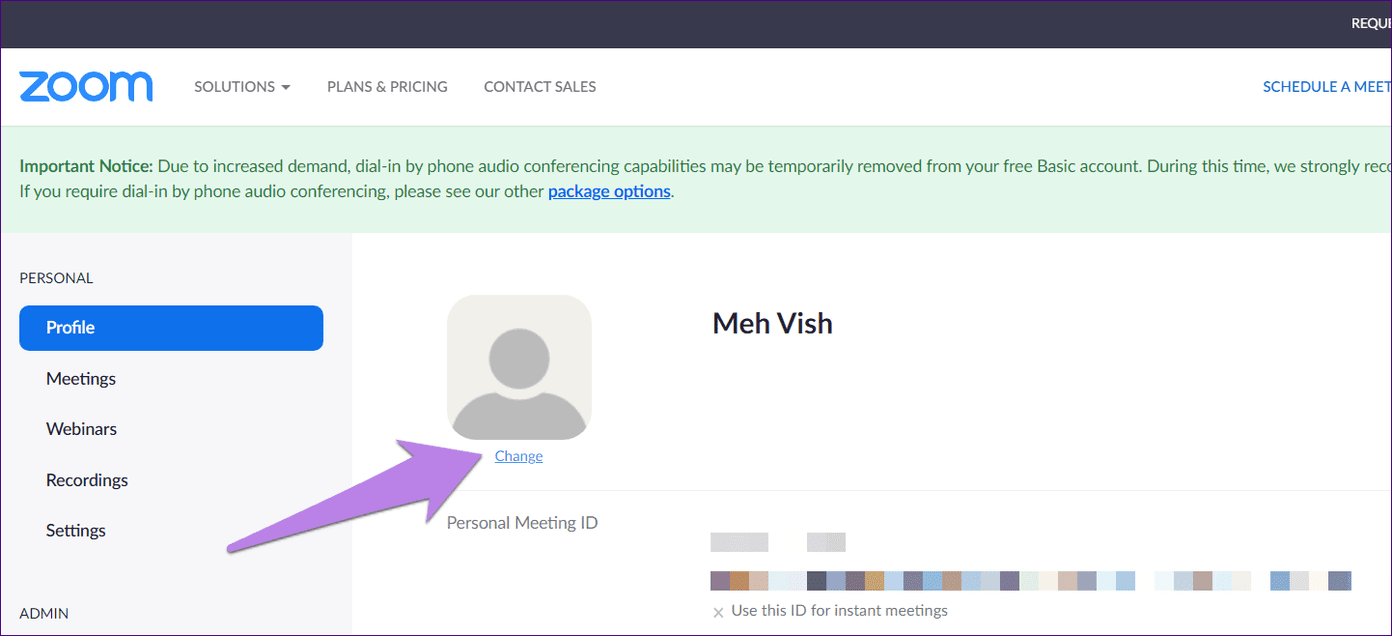
Step 3: You will be taken to the Zoom web version. Click Change under the picture icon.
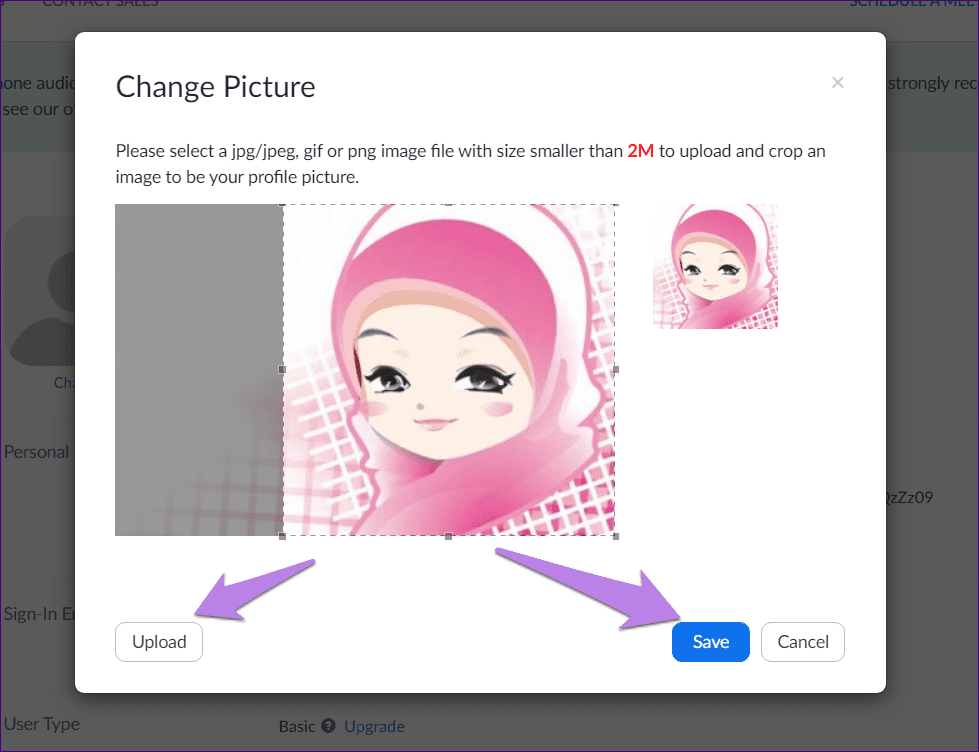
Step 4: Click Upload and add a picture of your choice. Adjust the image and click Save.
Note: The picture should be less than 2MB.
Once you save it, open the Zoom desktop app again. You will see your image at the top right. Now, to show this profile picture instead of your video, disable the video. Click Turn off my video before you join or click Stop video during the meeting.
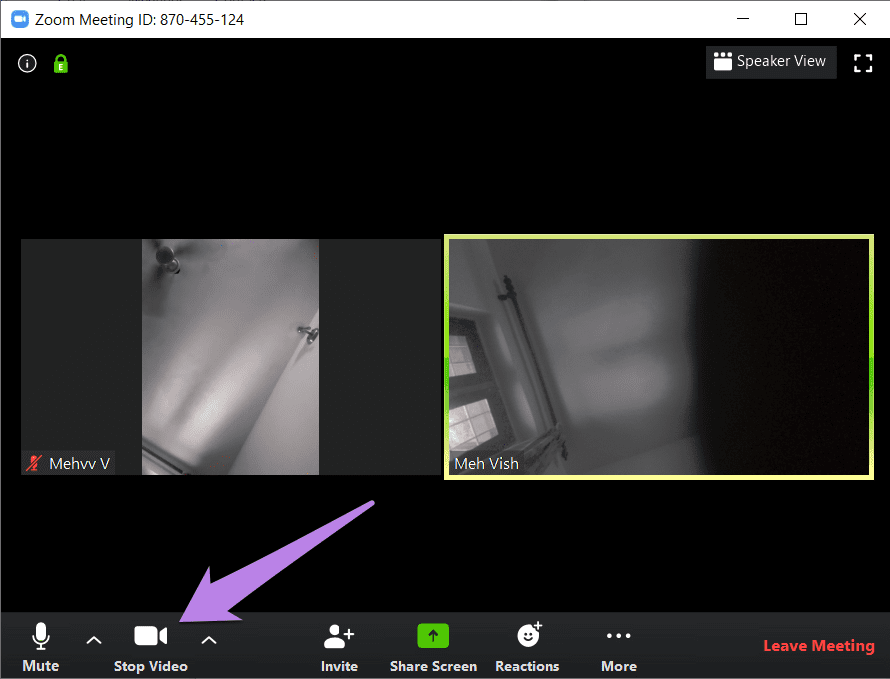
Pro Tip: You can right-click on the video and select Stop Video. Or use shortcuts Alt + V (Windows) and Command(⌘)+ Shift + V (Mac) to enable or disable the video.
Method 2: Add Picture in a Zoom Meeting
When in a Zoom meeting, right-click on your video preview screen. Choose Add or Edit Profile Picture from the menu. Stop the video, and you will see your picture.

Tip: While you’ve turned off your camera, you can utilize the opportunity to simultaneously take notes during Zoom meetings.
Show Picture Instead of Video in Zoom Mobile Apps
Step 1: Launch the Zoom app on your Android or iPhone and tap the Settings tab at the bottom.
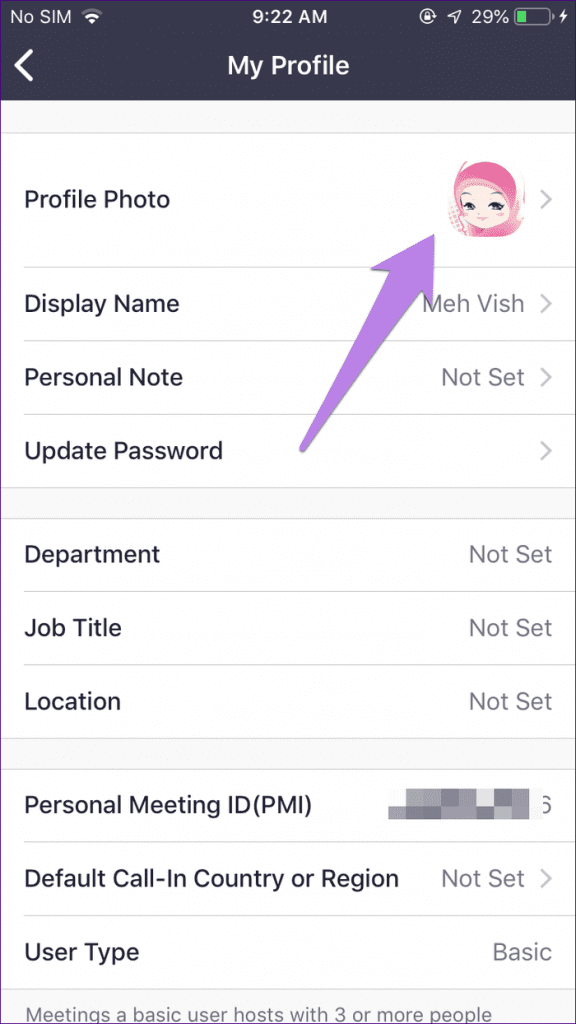
Step 2: Tap your name.
Tip: If you have already set an image, tap on the picture to view it in full size.


Step 3:Then, tap the Profile photo. Add an image from your gallery or capture a new one.
Step 4: Now, disable your video before joining a meeting. Or tap Stop Video at the bottom in a meeting.
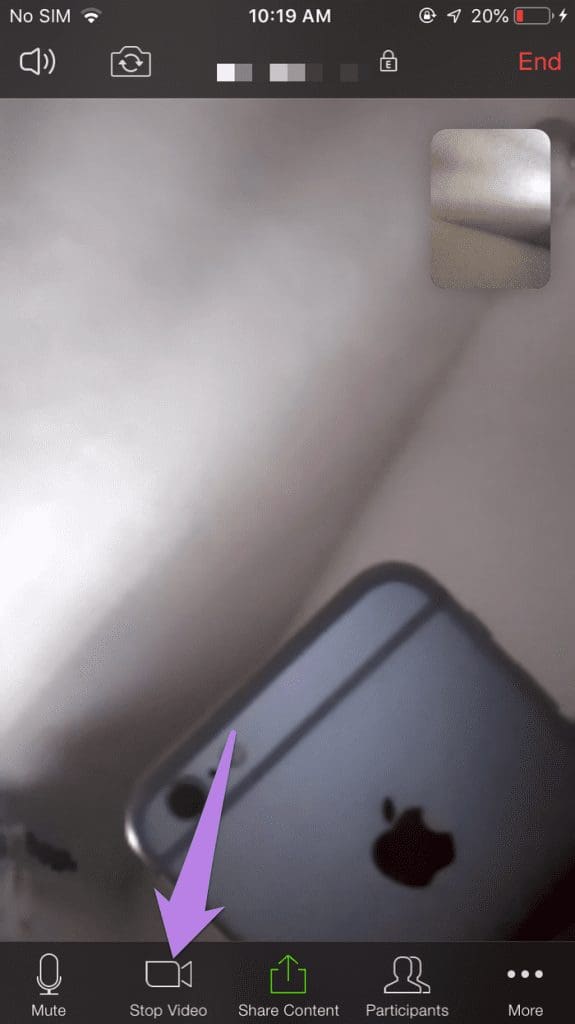
Note: If your internet speed is slow or you don’t want to show your video, displaying a picture instead is a great alternative.
Was this helpful?
Last updated on 30 August, 2024
Read Next
 How to Show Meeting Duration in Zoom
How to See Duration or Remaining Time in Zoom Meetings Desktop By default, Zoom doesn’t enable meeting duration.
How to Show Meeting Duration in Zoom
How to See Duration or Remaining Time in Zoom Meetings Desktop By default, Zoom doesn’t enable meeting duration.
 How to Add Skype Meeting to Outlook Meeting Invite (and Cool Tricks)
There's no denying the fact that Microsoft Outlook and Outlook Web are solid email managers.
How to Add Skype Meeting to Outlook Meeting Invite (and Cool Tricks)
There's no denying the fact that Microsoft Outlook and Outlook Web are solid email managers.
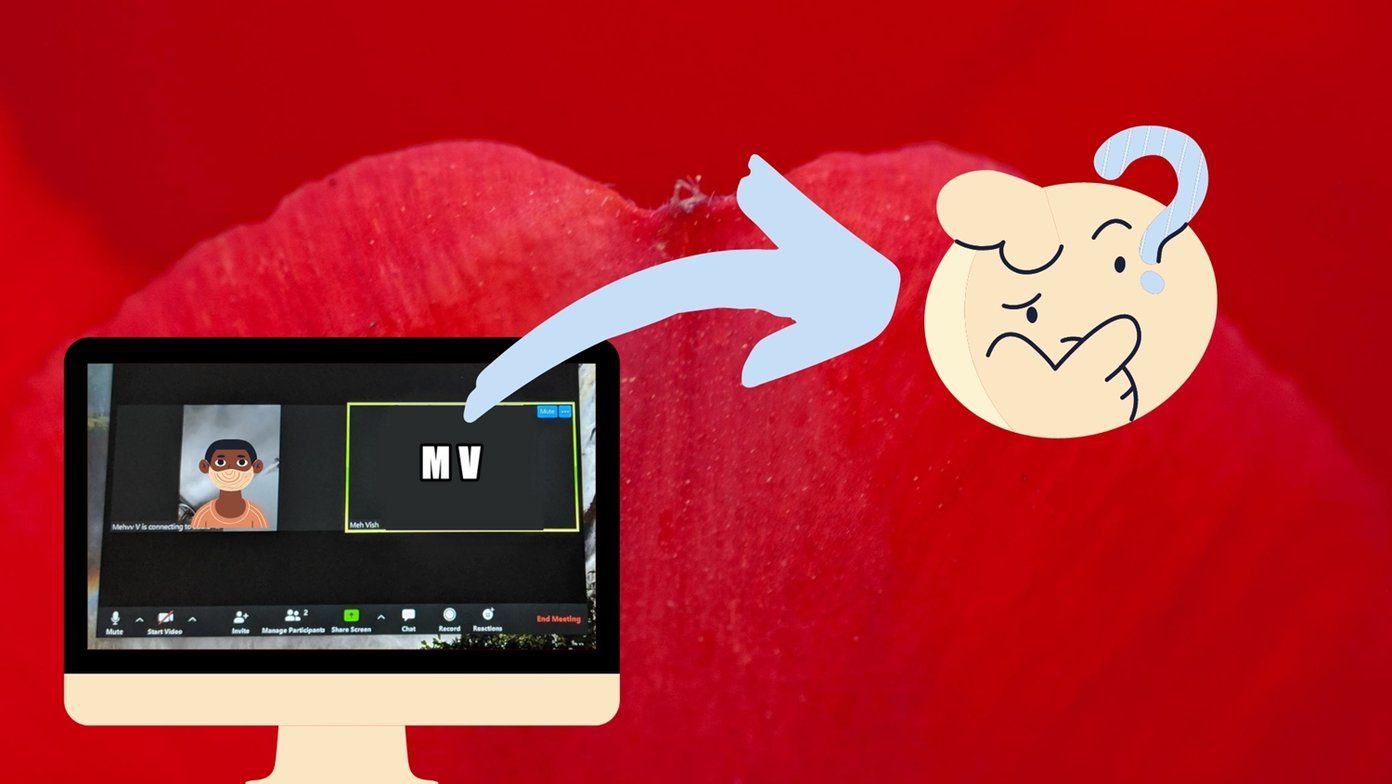 3 Fixes When Your Zoom Profile Picture Is Not Showing in Meetings
Basic Fix: Connect from an app or an alternative platform: Connecting from an alternative platform, such as your mobile device, maybe an easy workaround for the problem.
3 Fixes When Your Zoom Profile Picture Is Not Showing in Meetings
Basic Fix: Connect from an app or an alternative platform: Connecting from an alternative platform, such as your mobile device, maybe an easy workaround for the problem.
 How to Find Zoom Meeting Password on Mobile and PC
Were you trying to join a Zoom meeting when you were shown a ‘Enter Zoom meeting password’ pop-up?
How to Find Zoom Meeting Password on Mobile and PC
Were you trying to join a Zoom meeting when you were shown a ‘Enter Zoom meeting password’ pop-up?
 What Is WhatsApp Profile Picture Size and How to Add Any Picture to It
What’s the Best Size for a WhatsApp profile Picture While WhatsApp has opened up to many new features, from sharing HD photos to screen sharing, it remains stringent on its
What Is WhatsApp Profile Picture Size and How to Add Any Picture to It
What’s the Best Size for a WhatsApp profile Picture While WhatsApp has opened up to many new features, from sharing HD photos to screen sharing, it remains stringent on its
 3 Ways to Fix Prime Video Picture-in-Picture Not Working on Android and iPhone
Basic Fixes Restart Prime Video: Restart the Prime Video app and your smartphone to eliminate bugs and glitches.
3 Ways to Fix Prime Video Picture-in-Picture Not Working on Android and iPhone
Basic Fixes Restart Prime Video: Restart the Prime Video app and your smartphone to eliminate bugs and glitches.
 How to Make Echo Show Only Show the Clock
I have my Echo Show on my desk in front of me, and it’s distracting when the display keeps changing every few seconds.
How to Make Echo Show Only Show the Clock
I have my Echo Show on my desk in front of me, and it’s distracting when the display keeps changing every few seconds.
 7 Fixes When Printer on Windows 11 Keeps Printing Landscape Instead of Portrait
1.
7 Fixes When Printer on Windows 11 Keeps Printing Landscape Instead of Portrait
1.
The article above may contain affiliate links which help support Guiding Tech. The content remains unbiased and authentic and will never affect our editorial integrity.