Share Photos and Videos on Google Drive
The mobile and web apps for Google Drive allow you to share photos and videos. It is very convenient to add photos and videos in a folder and share them with collaborators or friends. We show you how below.
Using Mobile App
Android and iOS have identical Google Drive UIs; you can use the steps on any platform to get things done.
Upload Photos and Videos to Google Drive
Step 1: Open the Google Drive app on the iPhone.
Step 2: Tap the + icon at the bottom and select Create Folder.

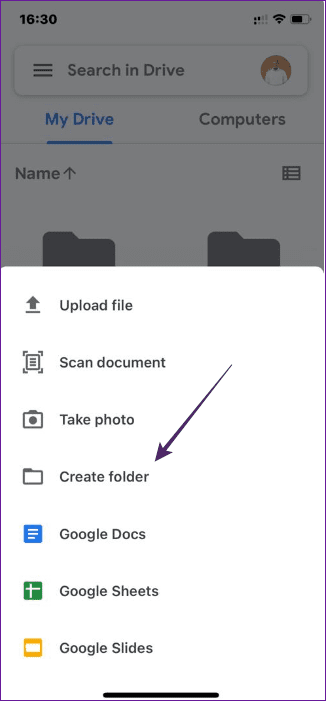
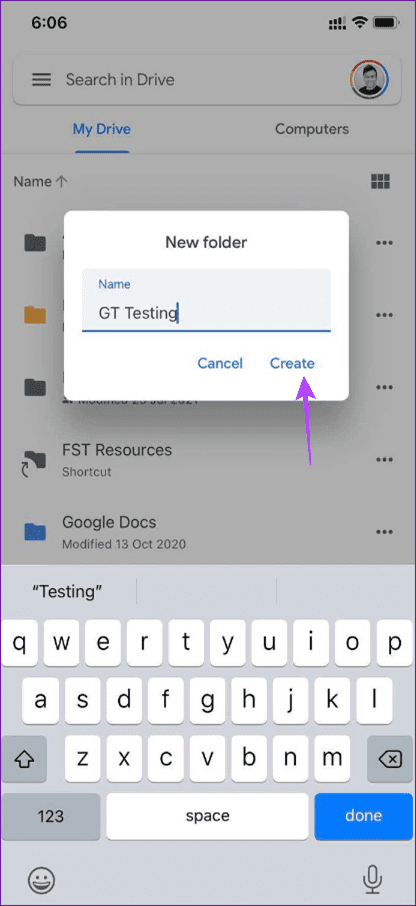
Step 3: Give it a relevant name and tap the Create button.
Step 4: For customization, tap on the three-dot menu beside the folder name and change the folder’s color from the default Grey to any color (there are 24 color options to choose from).
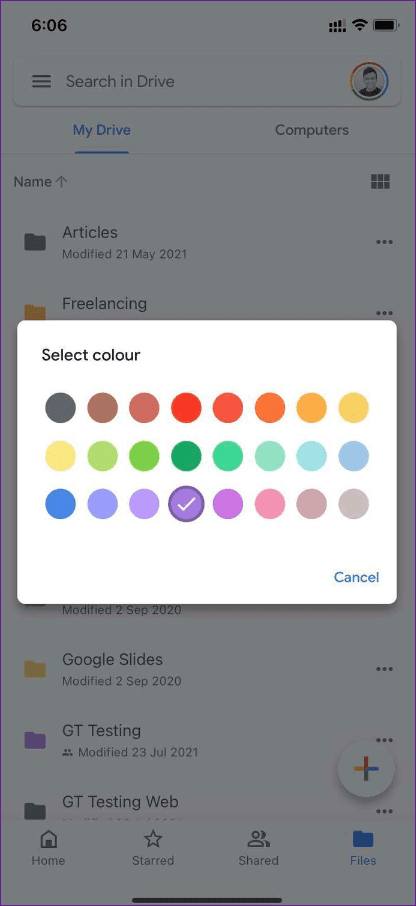
Step 5: Open the newly created folder, tap on the + icon, and select Upload file.
Step 6: Select Photos and Videos, give relevant permission to access all the media files on the phone, and open the Photos library menu.

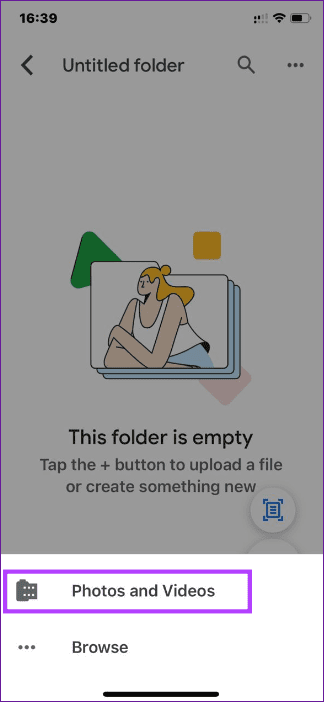
Step 7: Select the photos and video you want to share and hit the Upload button at the top.
Step 8: Based on your internet speed, Google Drive will upload media in original format without any compression.
Share Google Drive Folder
Step 1: Open the Google Drive app and navigate to the folder.
Step 2: Tap on the three-dot menu and select Share.
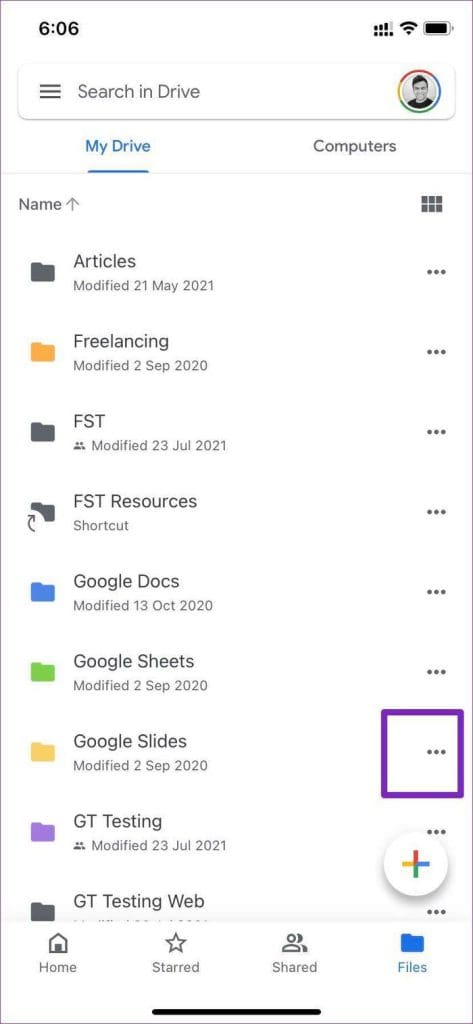
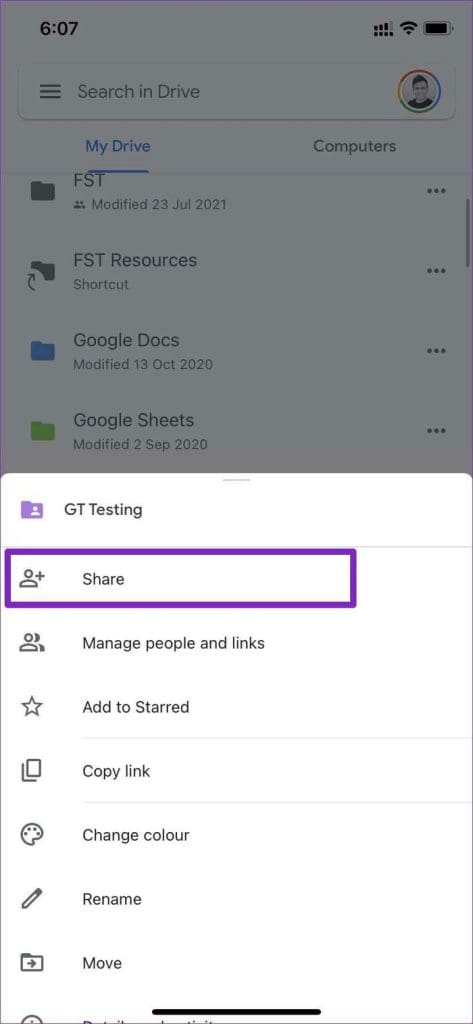
Step 3: Add the Google account IDs of other users to join the folder and start making changes, and click the Send icon.
Note: you may select any of the options from the drop-down menu before sharing:
- Viewer: Others with the link can only view the content in the folder.
- Commenter: Those with the Drive link can comment on their feedback.
- Editor: This gives anyone with the link complete freedom to change the content. They can download, edit, and remove photos and videos from the folder. Be careful when using the editor’s permission.
Also, uninstalling the app does not remove the shared settings.
Using Web Service
You can also share photos and videos using Google Drive web. This is convenient for those with photos and videos on their PCs.
Step 1: Visit Google Drive online and sign in using Google account credentials.
Step 2: Click the New button on the left side to create a new folder to share.

Step 3: Give it a relevant name, and you’re all set to upload photos and videos to it.
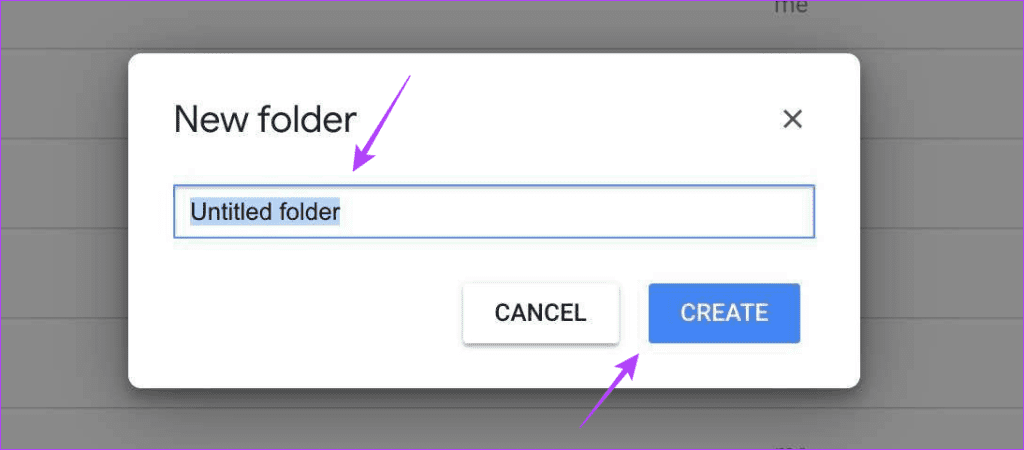
Step 4: Navigate to the media files stored on the computer. Select the photos you want to use and drag them to the Google Drive folder on the web.
Step 5: Once they are uploaded to the folder, you can return to Google Drive home.
Step 6: Select the folder you want to share and click the Share button at the top.
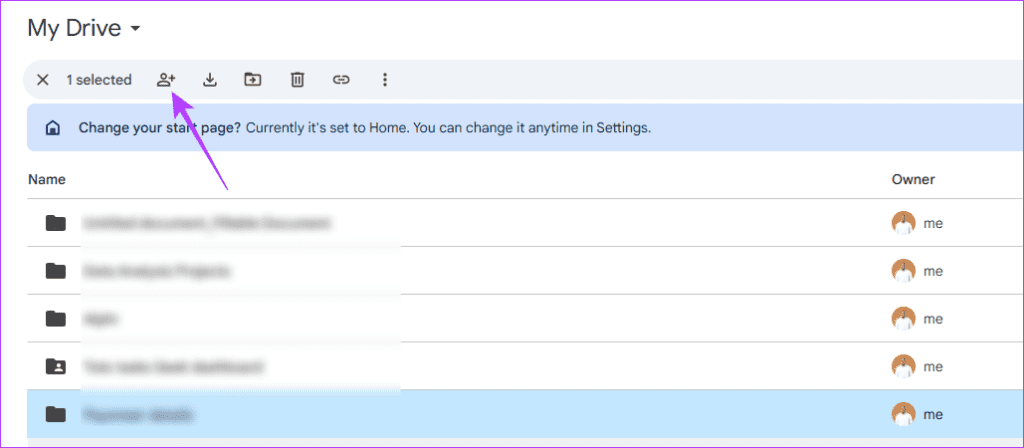
Step 7: Input the email address or addresses, select a privilege level from the drop-down menu, and click Send.

Alternatively, if you wish to share a single photo or video, you may click the Share option and follow the process in step 7 above to share it.
Was this helpful?
Last updated on 01 August, 2024
Read Next
 How to Create and Share Link of YouTube Videos Starting at a Certain Time
YouTube, one of the most popular video-streaming community, actually has a lot of tricks that power users like you must be aware of, but if you’re specifically looking for a
How to Create and Share Link of YouTube Videos Starting at a Certain Time
YouTube, one of the most popular video-streaming community, actually has a lot of tricks that power users like you must be aware of, but if you’re specifically looking for a
 Google Drive vs Google Photos: Which Is Best for Storing Photos
Google Drive vs Google Photos Comparison Key Differences Feature Google Drive Google PhotosFile Types All types Photos, Videos, GIFsOrganization Folders & Subfolders AlbumsPhoto Quality Original Original, High (compressed), Express (compressed)Storage
Google Drive vs Google Photos: Which Is Best for Storing Photos
Google Drive vs Google Photos Comparison Key Differences Feature Google Drive Google PhotosFile Types All types Photos, Videos, GIFsOrganization Folders & Subfolders AlbumsPhoto Quality Original Original, High (compressed), Express (compressed)Storage
 How to Remove Photos from Google Drive but Not Google Photos
Google Drive and Photos are two similar yet distinct products for storing photos and videos.
How to Remove Photos from Google Drive but Not Google Photos
Google Drive and Photos are two similar yet distinct products for storing photos and videos.
 How to Share Motion Photos From Google Pixel
How to Download Still Image From Motion Photo By default when you download or share the motion photo, it is saved as a still image.
How to Share Motion Photos From Google Pixel
How to Download Still Image From Motion Photo By default when you download or share the motion photo, it is saved as a still image.
 Top 5 Ways to Fix Google Photos Not Playing Videos
Basic Fixes Check Network Connection: If you're trying to stream content backed up to the cloud, then you’ll need to use high-speed internet to sync and stream it.
Top 5 Ways to Fix Google Photos Not Playing Videos
Basic Fixes Check Network Connection: If you're trying to stream content backed up to the cloud, then you’ll need to use high-speed internet to sync and stream it.
 How to Delete Photos From Google Photos But Not From Phone
What Happens When You Delete Photos?
How to Delete Photos From Google Photos But Not From Phone
What Happens When You Delete Photos?
 How to Move Photos from Email to Google Photos
Earlier, when you received photos on Gmail, it was easy to move them to Google Photos.
How to Move Photos from Email to Google Photos
Earlier, when you received photos on Gmail, it was easy to move them to Google Photos.
 How to Upload Photos to Google Photos on Android, iPhone, PC
How to Upload Photos on Google Photos From Mobile There are two ways to add pictures to Google Photos from Android or iOS devices.
How to Upload Photos to Google Photos on Android, iPhone, PC
How to Upload Photos on Google Photos From Mobile There are two ways to add pictures to Google Photos from Android or iOS devices.
The article above may contain affiliate links which help support Guiding Tech. The content remains unbiased and authentic and will never affect our editorial integrity.