


How to Install Google Drive on Windows 11 Device
Unfortunately, Google Drive isn’t available from the Microsoft Store. You must download the app from the official website.
Step 1: Visit Google Drive on the web.
Step 2: Click Download Drive for desktop and save the .exe file on the computer.

Step 3: Open the File Manager, find the downloaded file, and install Google Drive on your PC.
How to Map Google Drive in Windows 11
After successful Drive installation on your PC, Google Drive will allow you to launch the application. Follow the steps below:
Step 1: Click the Launch button.

Step 2: Alternatively, click the up-arrow icon in the Windows 11 taskbar, select Google Drive, right-click the Settings icon, and click Preferences.

Step 3: In the Google Drive Preferences menu, select My Laptop at the top left side, and click Add Folder to safely back up your PC files to Google Drive and Google Photos.

Step 4: Select either Sync with Google Drive or Backup to Google Photos and click Done.

Sync with Google Drive: It will upload all files and folders, including photos and videos. If you edit or remove files, those changes will be automatically synced.
Back up to Google Photos: Google Photos is purely a media backup service. It will skip files and documents from the folder and only upload photos, gifs, and videos to Google Photos.
Alternatively, after step 2, rather than clicking My laptop, click Google Drive and pick either Stream Files or Mirror Files.

Stream Files: It will keep all the My Drive files in the cloud, and you can keep necessary files offline on the PC. Even if your Google Drive has 100GB+ data, it won’t take up any space on the PC.
Mirror Files: If you prefer the old way of using Google Drive on a PC, you must go with Mirror Files. But be careful. Whatever folder you select, Drive will store all the folder content on your computer and in the cloud.
How to Add Google Drive in File Explorer
When you map Google Drive on Windows 11, it is added to your File Explorer by default, so you have no further setup to do. To access the folder, follow the steps below.
Step 1: Open the File Manager menu (use Windows + E keys).
Step 2: Click Google Drive on the left pane and My Drive on the right.

Now, you should have all your available files displayed.
Was this helpful?
Last updated on 09 July, 2024
5 Comments
Leave a Reply
Read Next
 How to Set Up and Use Google Chrome Remote Desktop on Windows 11
How to Download and Set Up Chrome Remote Desktop To access your PC remotely, you'll need to download and set up the Chrome Remote Desktop extension on your PC first.
How to Set Up and Use Google Chrome Remote Desktop on Windows 11
How to Download and Set Up Chrome Remote Desktop To access your PC remotely, you'll need to download and set up the Chrome Remote Desktop extension on your PC first.
 4 Ways to Create Desktop Shortcuts for Google Docs or Sheets
Note: Ensure that the Google Docs or Sheets website is open in the browser if you want to add shortcuts to any particular file.
4 Ways to Create Desktop Shortcuts for Google Docs or Sheets
Note: Ensure that the Google Docs or Sheets website is open in the browser if you want to add shortcuts to any particular file.
 How to Find Google Chrome Downloads on Mobile and Desktop
Find Google Chrome Downloads on Mac Step 1: Open Google Chrome and wait for the download process to complete.
How to Find Google Chrome Downloads on Mobile and Desktop
Find Google Chrome Downloads on Mac Step 1: Open Google Chrome and wait for the download process to complete.
 Top 5 Ways to Fix Google Chrome Closing Automatically on Desktop
https://youtu.be/zNKngnPi3AA Fix 1: Review Browser Extensions While the Chrome Web Store consists of thousands of extensions, not every extension is well-maintained.
Top 5 Ways to Fix Google Chrome Closing Automatically on Desktop
https://youtu.be/zNKngnPi3AA Fix 1: Review Browser Extensions While the Chrome Web Store consists of thousands of extensions, not every extension is well-maintained.
 7 Best Ways to Fix Kindle for PC Desktop App Won’t Open on Windows
Many users prefer the Kindle app on their desktop for reading eBooks.
7 Best Ways to Fix Kindle for PC Desktop App Won’t Open on Windows
Many users prefer the Kindle app on their desktop for reading eBooks.
 6 Ways to Fix WhatsApp Desktop App Not Showing Notifications on Windows 11
Fix 1: Verify In-App Notification Settings The first thing you should do is check WhatsApp’s in-app settings to ensure that notifications are not disabled.
6 Ways to Fix WhatsApp Desktop App Not Showing Notifications on Windows 11
Fix 1: Verify In-App Notification Settings The first thing you should do is check WhatsApp’s in-app settings to ensure that notifications are not disabled.
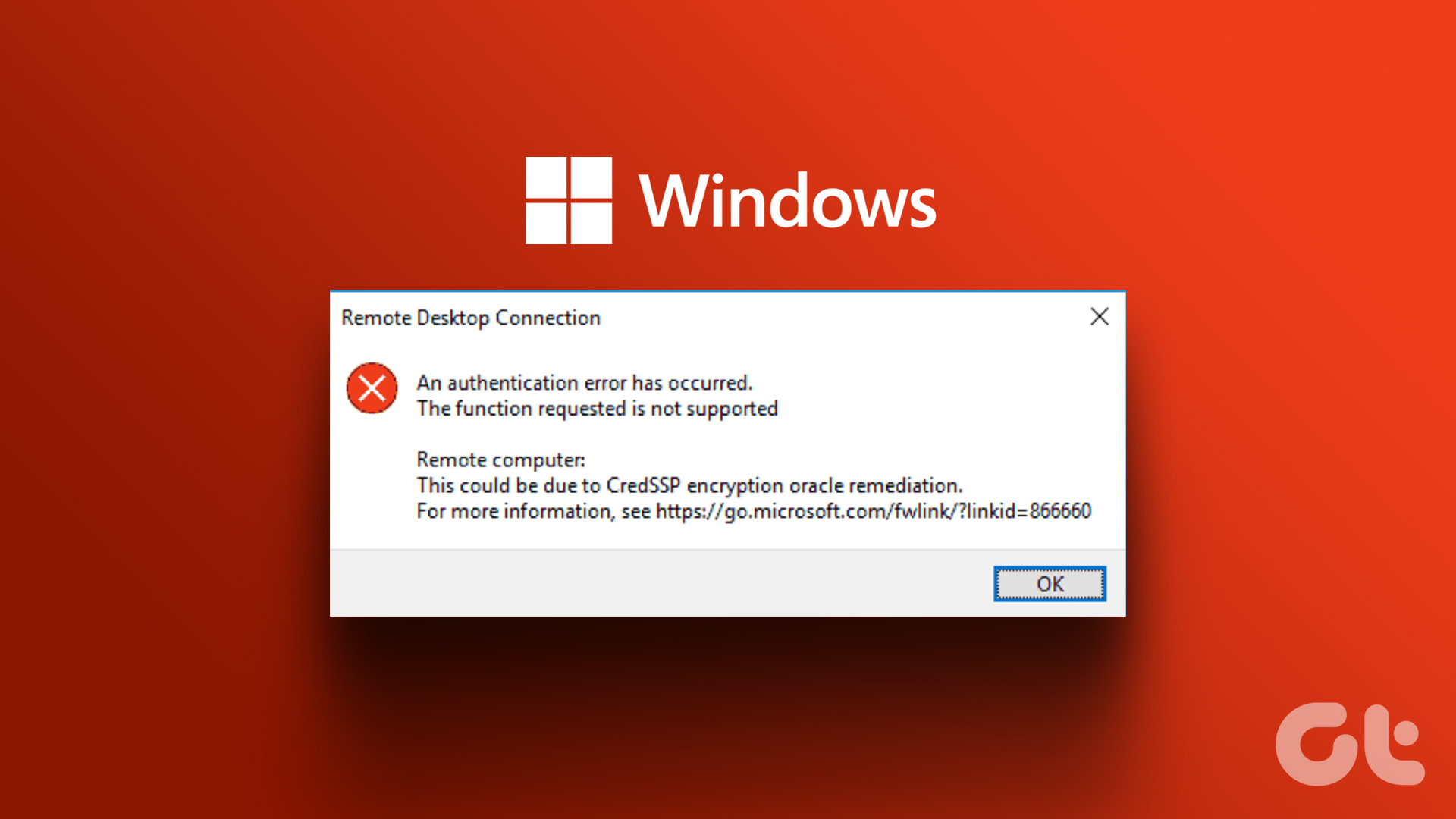 4 Fixes for Remote Desktop Authentication Error on Windows 11
Preliminary Fixes Check remote if the desktop is enabled: The Remote Desktop authentication error often occurs because your Windows 11 PC cannot establish a remote connection without the Remote Desktop
4 Fixes for Remote Desktop Authentication Error on Windows 11
Preliminary Fixes Check remote if the desktop is enabled: The Remote Desktop authentication error often occurs because your Windows 11 PC cannot establish a remote connection without the Remote Desktop
 5 Ways to Fix Desktop Background Keeps Changing in Windows 11
Fix 1: Check Desktop Background Settings Enabling wallpaper slideshow in Windows can cause your desktop background to change at regular intervals.
5 Ways to Fix Desktop Background Keeps Changing in Windows 11
Fix 1: Check Desktop Background Settings Enabling wallpaper slideshow in Windows can cause your desktop background to change at regular intervals.
The article above may contain affiliate links which help support Guiding Tech. The content remains unbiased and authentic and will never affect our editorial integrity.

Right-click not showing Google Drive functionalities… what could be happening?
same experience. with WIN11 you right click to open the short context menu, and another click is necessary to obtain the full menu including the google drive items.
Anyone aware how to bring the google drive items into the short menu?
Thanks and Regards,
Falko
It is my important device
Its a nightmare to use. Cannot even get to the menus easily. Your article helped me to sync stuff using the MyDrive option. So thank you!! Win11 Home.
I don’t think you can access shared drives with File Manager anymore. Google must have removed that capability. All I can access in google drive is “My Drive”. Have to use a browser to access “shared drives”