Save Web Pages on Chrome for iOS
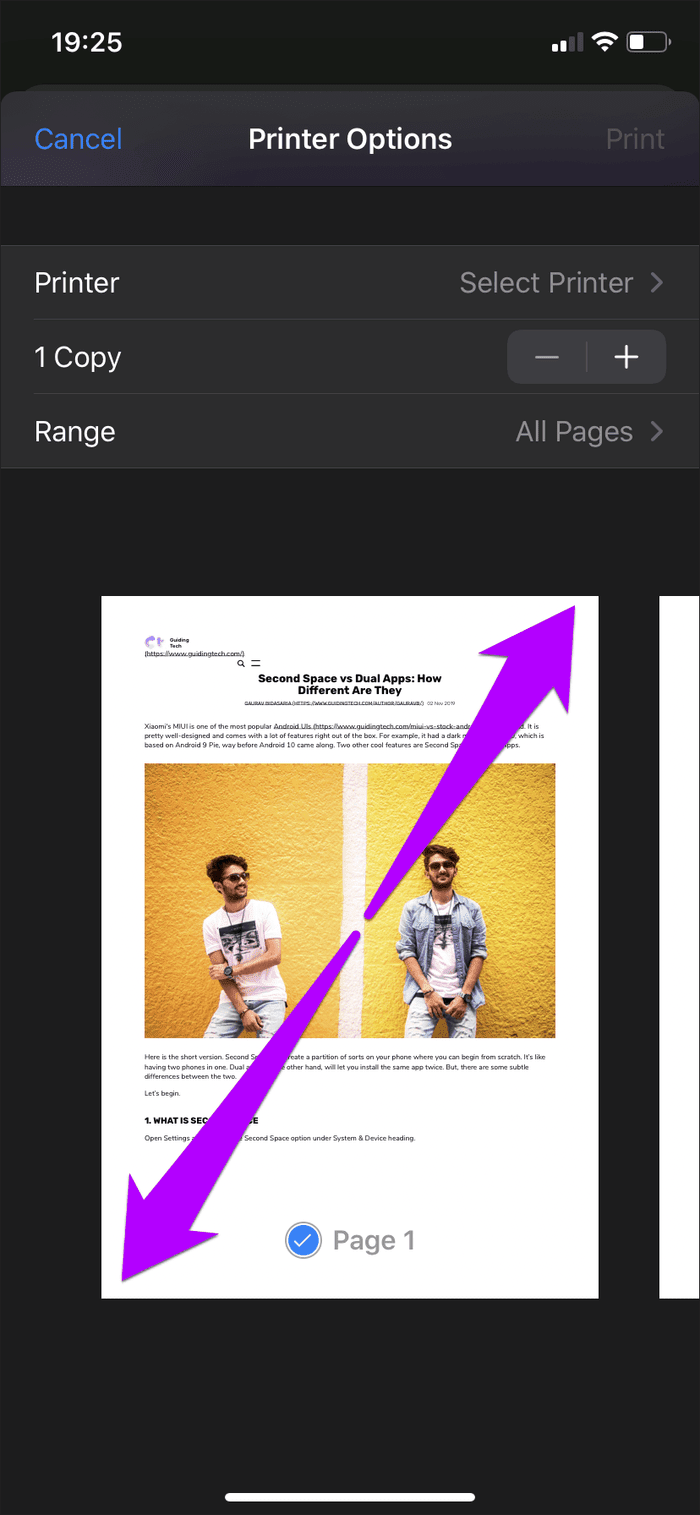
Chrome for iOS doesn’t have Save as PDF or Print to PDF options anywhere within its Printer Options screen. Instead, Chrome requires you to perform a certain two-fingered gesture to do the job.
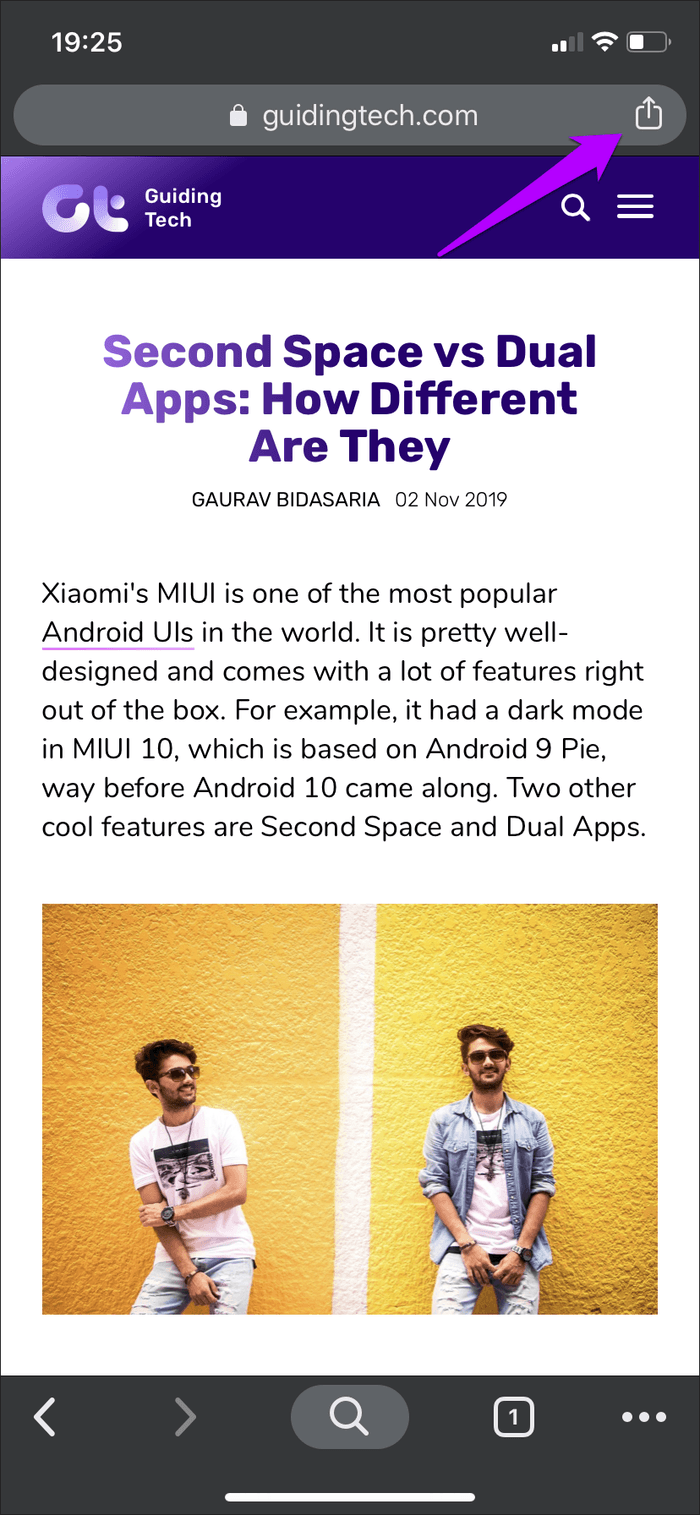
Step 1: Open a web page that you want to convert. Once it finishes loading, tap the Share icon.
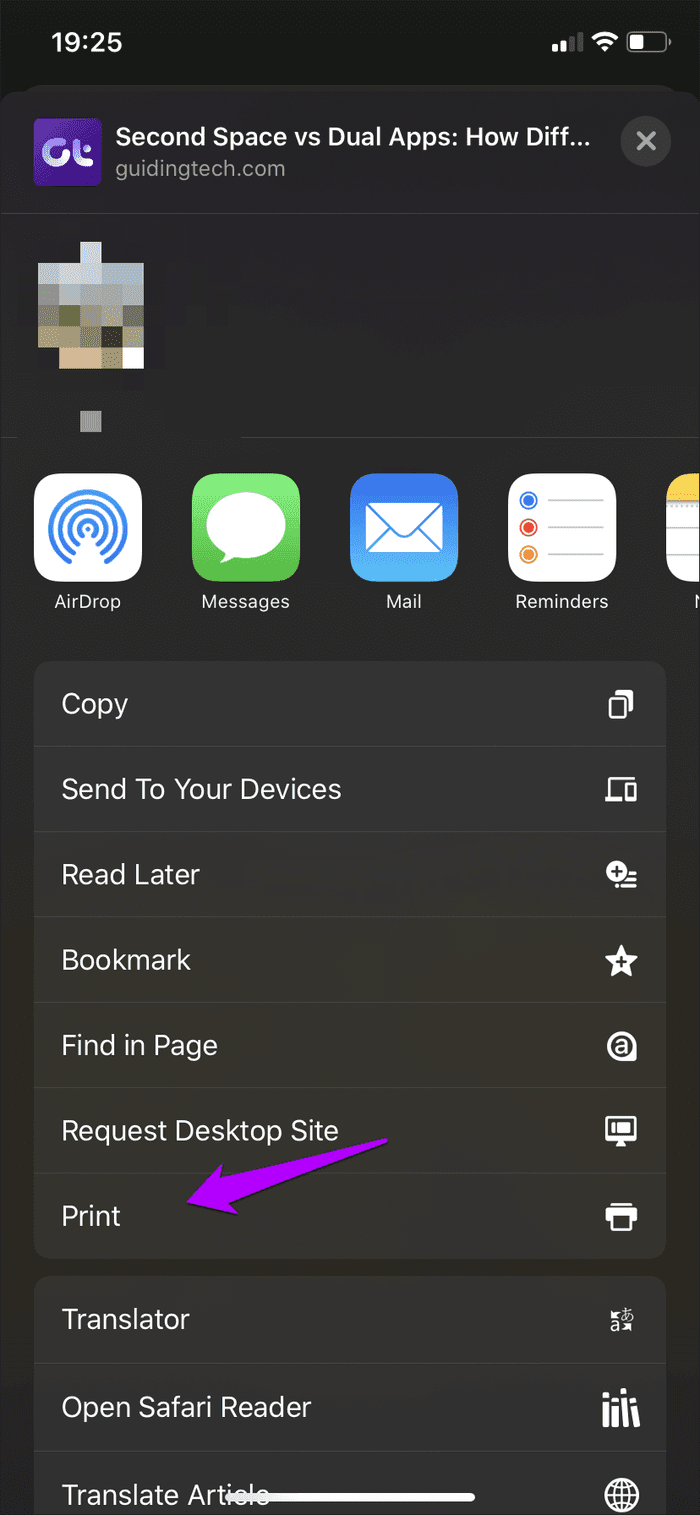
Step 2: Scroll down and tap Print.
Step 3: On the Printer Options screen, perform a Zoom In (or Pinch Out) gesture on any preview thumbnail. This action will instantly convert the web page to a PDF file.
Step 4: Tap the Share icon on the PDF file’s preview screen. Now, share the file with another app or save it locally.

Save Web Pages on Chrome for Android
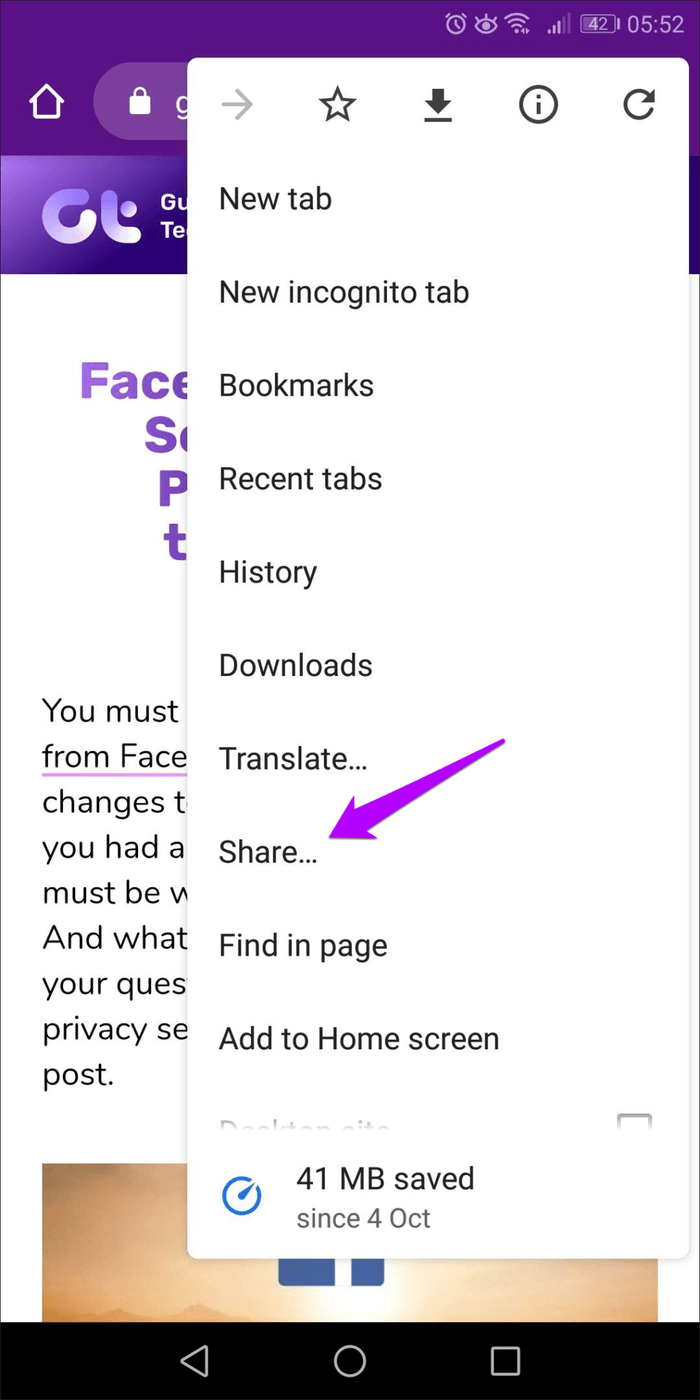
Step 1: Open a web page, tap the three-dot icon, and tap the Share option.
Step 2: Tap Print on the Share menu.

Step 3: On the preview screen, tap Select Printer > pick Save as PDF from the drop-down menu.
Step 4: Select specific pages or page ranges for conversion, adjust the paper size, select the orientation, etc. Finally, tap the Save icon.
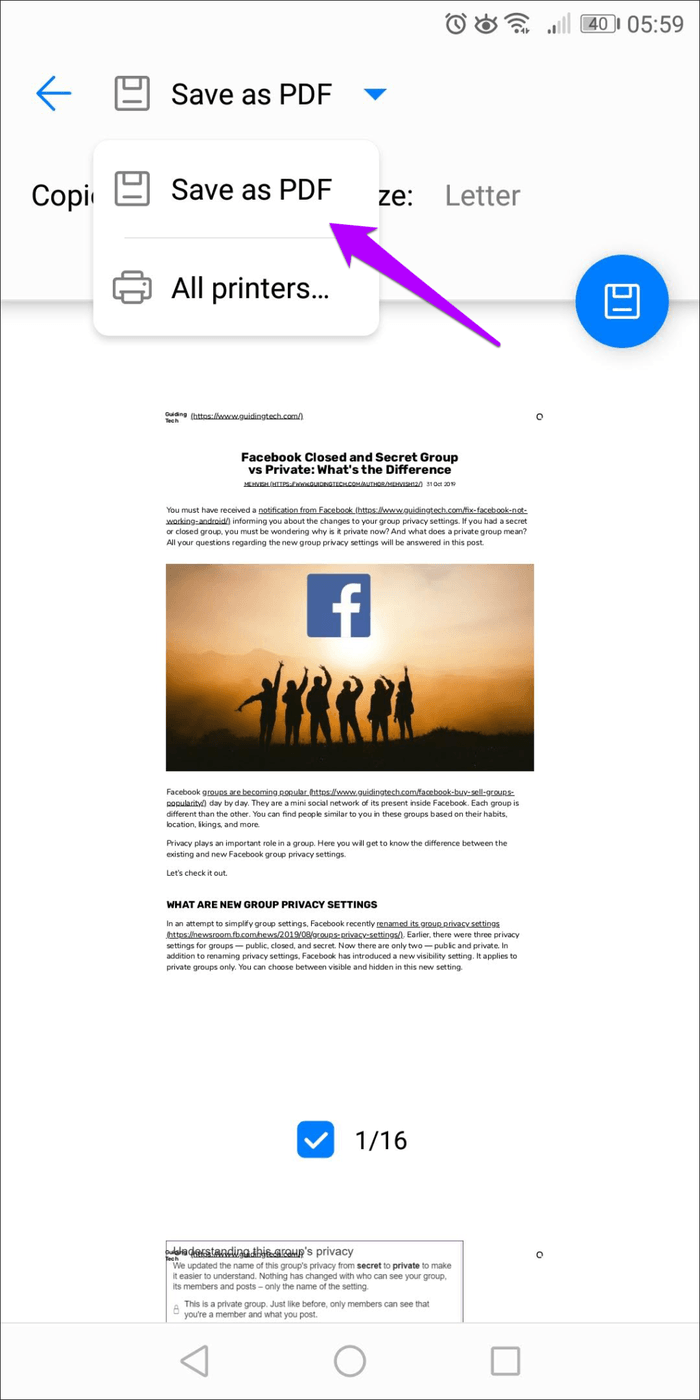

Chrome will convert and save the web page as a PDF to your device’s Downloads folder, after which you can open or share it with other apps.
When it comes to convenience and compatibility, there’s nothing out there like the PDF format that works on pretty much any device without issues.
Was this helpful?
Last updated on 30 August, 2024
Read Next
 4 Best Chrome Extensions to Identify Fonts on Web Pages
1.
4 Best Chrome Extensions to Identify Fonts on Web Pages
1.
 Top 3 Ways to Add or Delete PDF Pages on iPhone
Method 1: Delete PDF Pages Using the Default PDF Editor on iPhone Step 1: Open the Files app on your iPhone.
Top 3 Ways to Add or Delete PDF Pages on iPhone
Method 1: Delete PDF Pages Using the Default PDF Editor on iPhone Step 1: Open the Files app on your iPhone.
 How to Save WhatsApp Audio on iPhone, Android, and Web
How to Save Voice Message From WhatsApp on Android All the WhatsApp data is stored in your device's internal storage, which can be accessed using the File Manager.
How to Save WhatsApp Audio on iPhone, Android, and Web
How to Save Voice Message From WhatsApp on Android All the WhatsApp data is stored in your device's internal storage, which can be accessed using the File Manager.
 5 Ways to Fix Google Chrome Not Loading Pages on Android and iPhone
Try Basic Fixes Enable or disable the VPN: If webpages are not loading in Chrome, consider disabling your VPN connection temporarily and see if that resolves the problem.
5 Ways to Fix Google Chrome Not Loading Pages on Android and iPhone
Try Basic Fixes Enable or disable the VPN: If webpages are not loading in Chrome, consider disabling your VPN connection temporarily and see if that resolves the problem.
 9 Best Ways to Fix Google Chrome Not Loading Pages in Windows 10
Google Chrome is one of the most used browsers in the world, no doubt.
9 Best Ways to Fix Google Chrome Not Loading Pages in Windows 10
Google Chrome is one of the most used browsers in the world, no doubt.
 How to Save Google Docs as PDF on Desktop and Mobile
Save Google Docs as PDF Despite a few differences, the steps are similar for Android, iOS, and Desktop devices.
How to Save Google Docs as PDF on Desktop and Mobile
Save Google Docs as PDF Despite a few differences, the steps are similar for Android, iOS, and Desktop devices.
 4 Ways to Read and Save Twitter Threads as a PDF or an Article
The process of maintaining context continuity from one tweet to another to convey a lot of information has been made possible by threads.
4 Ways to Read and Save Twitter Threads as a PDF or an Article
The process of maintaining context continuity from one tweet to another to convey a lot of information has been made possible by threads.
 How to Save a Word Document as a PDF on Windows and Mac
While Microsoft Word is a powerful word processing tool, it is ideal to convert the document to a PDF before sharing it with anyone.
How to Save a Word Document as a PDF on Windows and Mac
While Microsoft Word is a powerful word processing tool, it is ideal to convert the document to a PDF before sharing it with anyone.
The article above may contain affiliate links which help support Guiding Tech. The content remains unbiased and authentic and will never affect our editorial integrity.