Basic Fixes
- Remove Expired Tokens: Some tickets also expire after use, so removing something from your Apple Wallet is useful to eliminate these expired tokens taking up space.
- Removing Old Cards: Removing old cards from the Apple Wallet on your iPhone, iPad, Apple Watch, and Mac can also save space.
How to Remove Passes From Apple Wallet
Apple Wallet is available on a host of Apple devices. Here’s how to remove passes, tickets, and cards added to your wallet on any device. Note that removing an item from one device will also remove it from your other devices linked to the same Apple ID.
On iPhone and iPad
The iPhone is probably the device on which you use the Apple Wallet the most. Here’s how to remove any added items on your Apple Wallet using the iPhone or iPad apps.
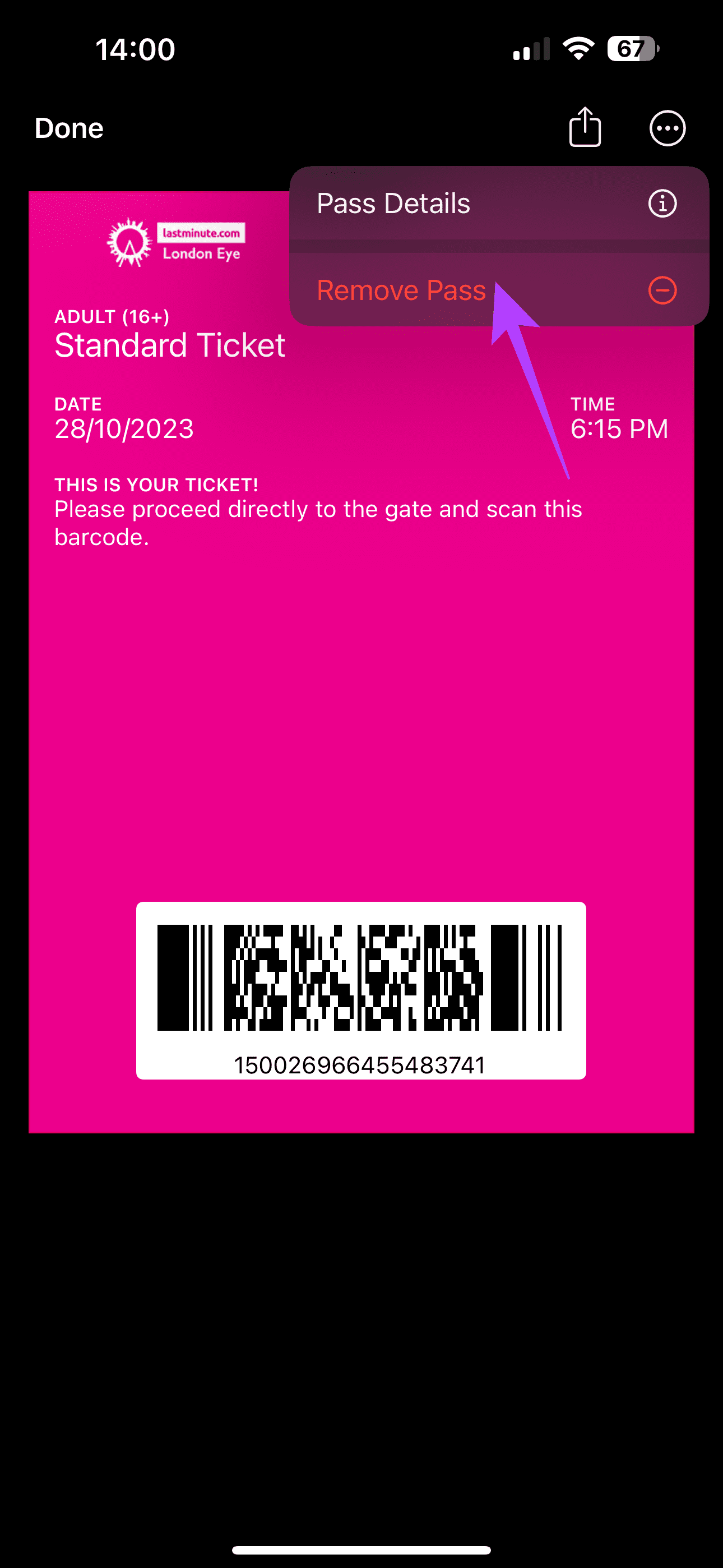
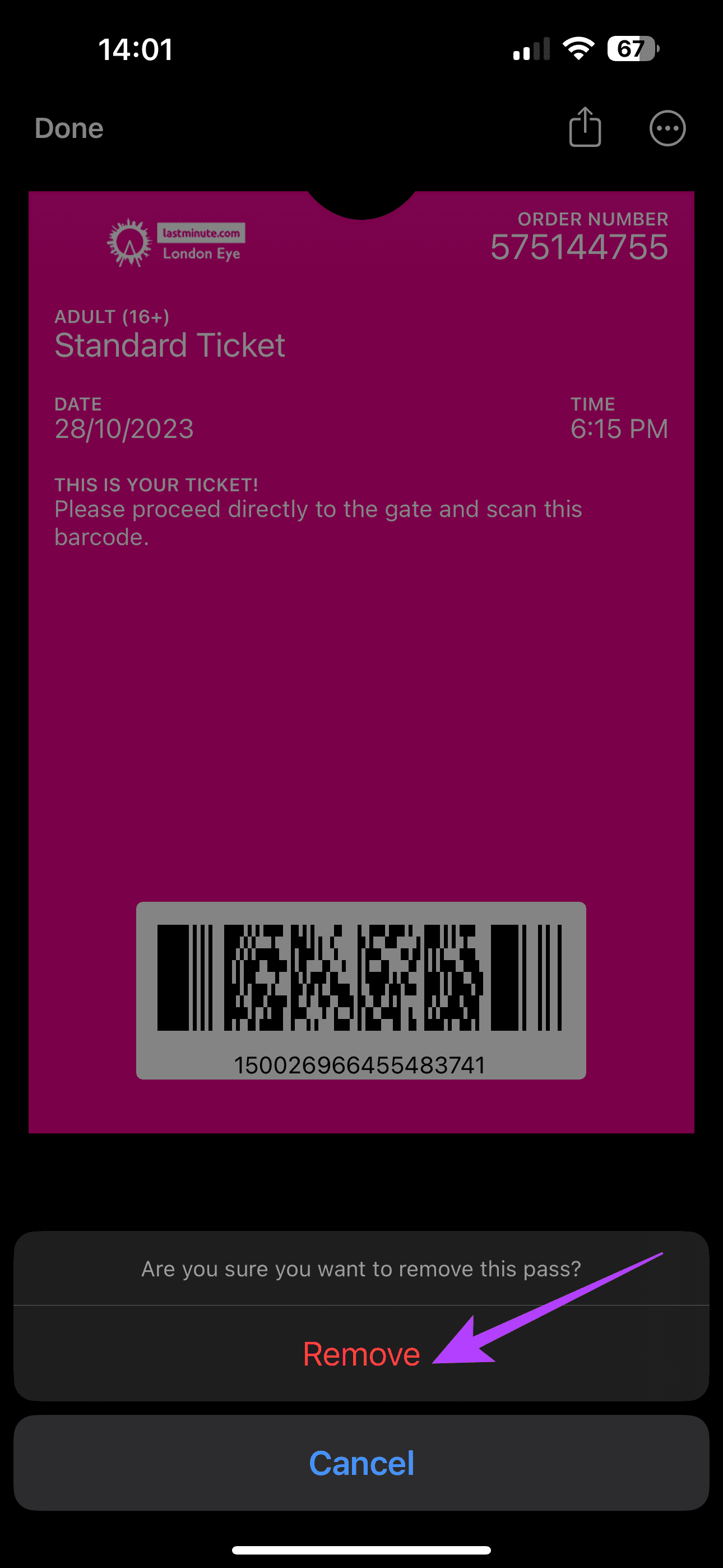
Step 1: Open the Wallet app on your iPhone/iPad. Tap on the item you wish to remove and hit the three-dot menu in the top-right corner. Select Remove Pass. Tap on Remove once again when prompted.
On Apple Watch
Another quick and easy way to use Apple Wallet is on your Apple Watch. It’s super convenient just to tap your watch at a payment terminal or display a QR code directly on the watch. But it’s also more difficult to scroll through too many cards or passes on the tiny Apple Watch screen. So, here’s how to remove items directly from your Apple Watch.
Step 1: Press the digital crown on the side of your Apple Watch to launch the list of apps. Then, look through the list and select Wallet. Once in the app, choose the item you wish to remove.

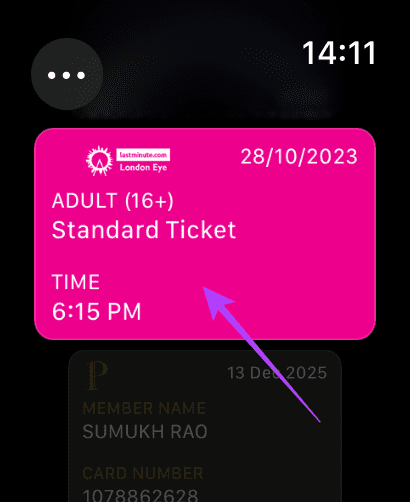
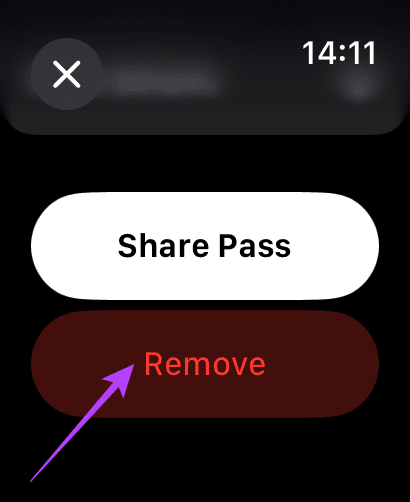
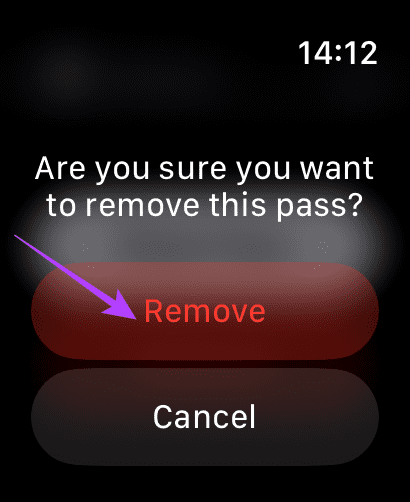
Step 2: Scroll all the way to the bottom. Then, tap on the Remove button. Select Remove once again to confirm the action.
On Mac
While it’s not common to use Apple Wallet on a device like a MacBook, you might want to use it for things like auto-filling card details on online websites. So, you can also remove items from your Apple Wallet via your Mac. Here’s how to go about it.
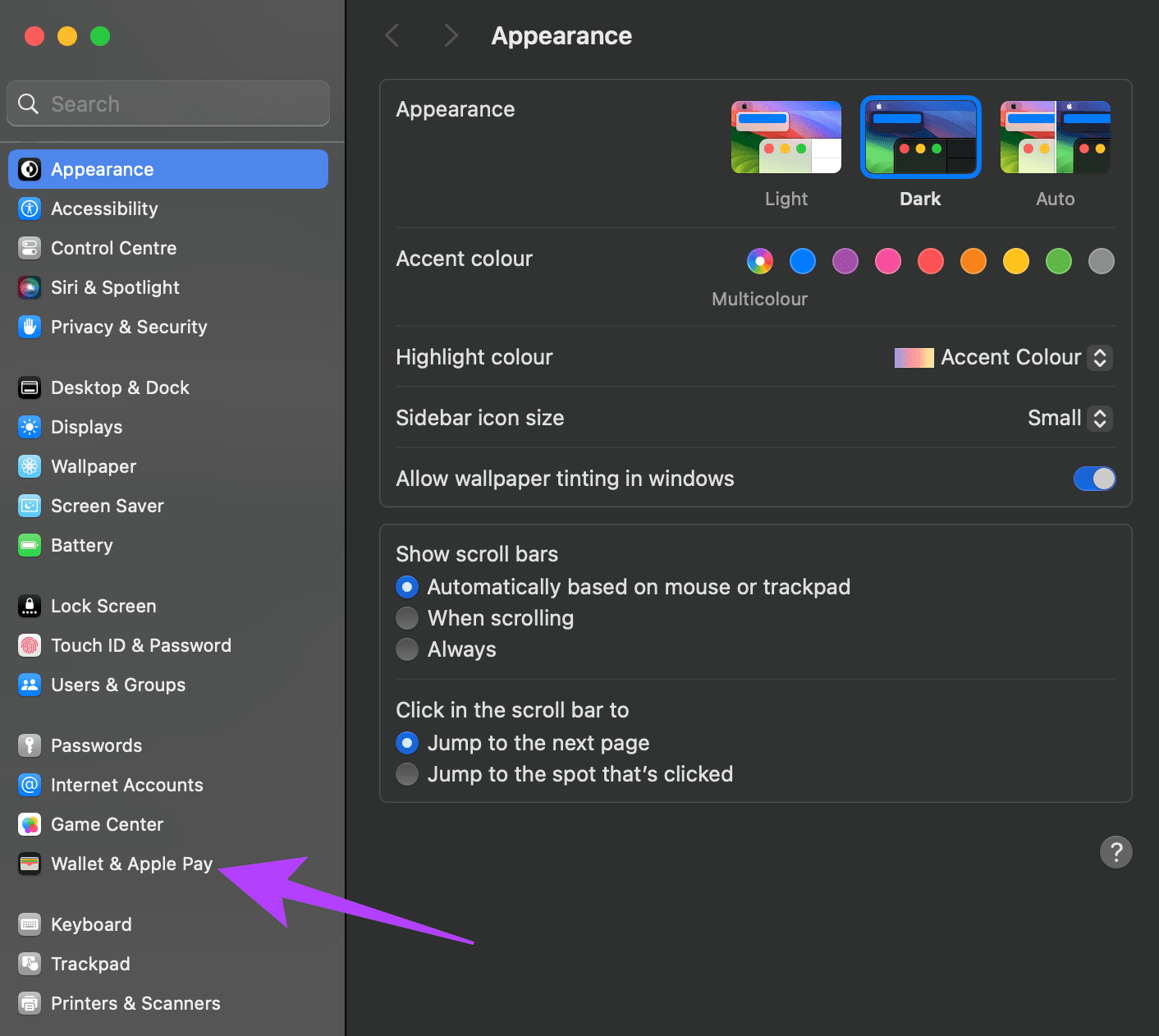
Step 1: Click on the Apple logo on your Mac and select System Settings. Navigate through the left pane.
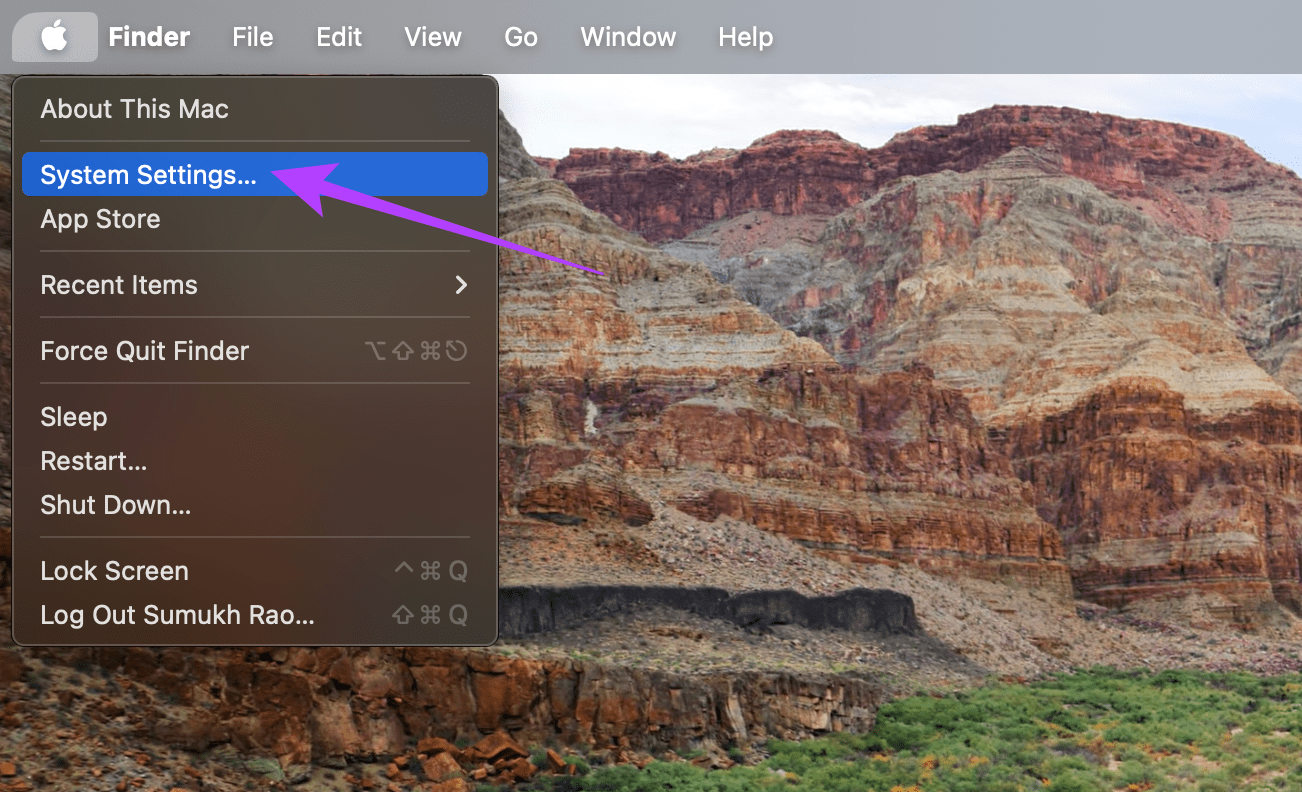
Step 2: Click on ‘Wallet & Apple Pay’. Click on the ‘-‘ sign next to the cards you wish to remove.
How to Hide Passes and Tickets in Apple Wallet
If you don’t want to repeatedly delete items in your Apple Wallet, you can choose to automatically hide passes that have expired. So if you add a boarding pass to your Apple Wallet and already use it to fly, the card will be hidden automatically. Here’s how to enable it.
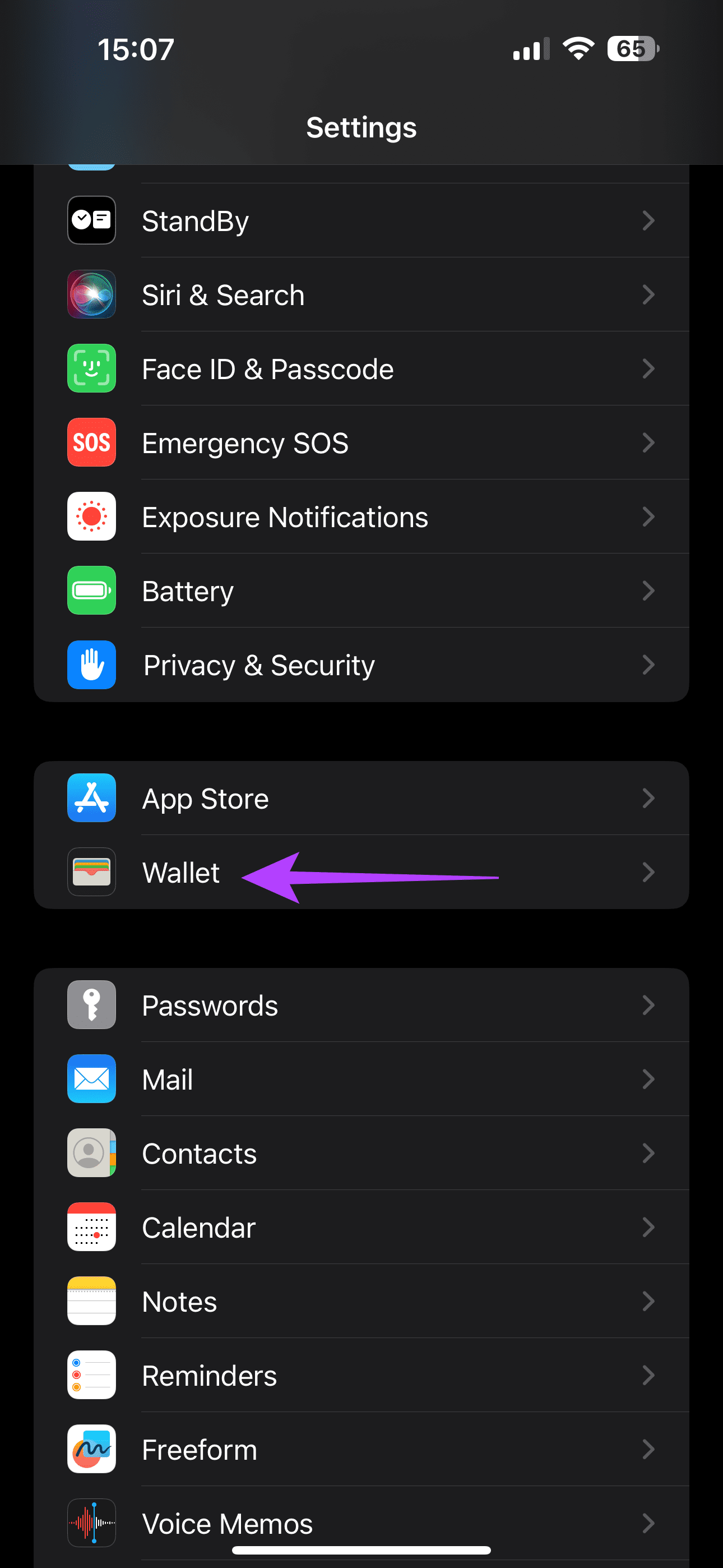
Open the Settings app on your iPhone. Navigate to the Wallet section. Turn on the toggle next to ‘Hide Expired Passes‘.
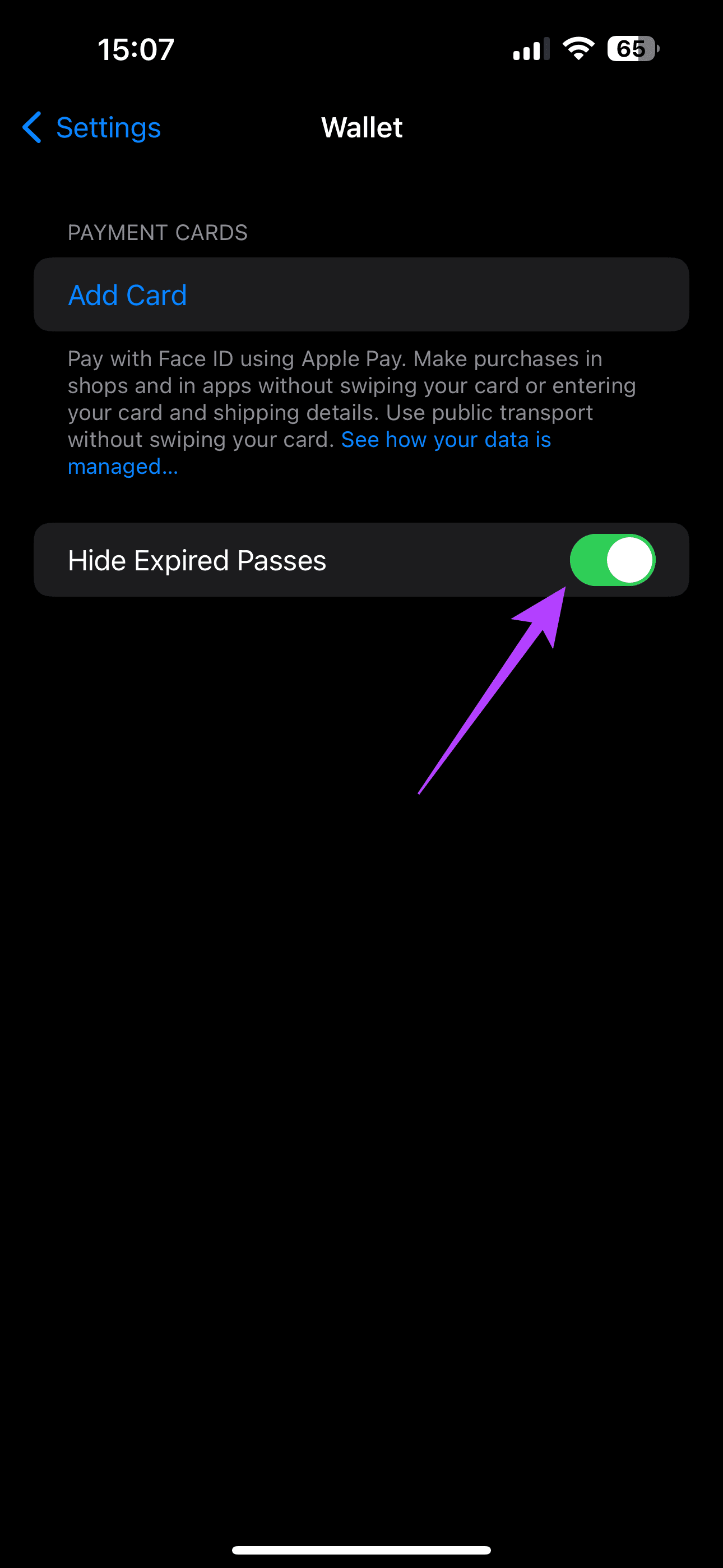
Now, you’ll see that all your old passes and tickets that have expired will be tucked away automatically.
Was this helpful?
Last updated on 04 September, 2024
Read Next
 6 Best Wallet Cases for iPhone 14
Buying the iPhone 14 may have caused a dent in your wallet.
6 Best Wallet Cases for iPhone 14
Buying the iPhone 14 may have caused a dent in your wallet.
 7 Best Wallet Cases for iPhone 15 Pro
If you've recently bought the iPhone 15 Pro from Apple, you should really be thinking about investing in a case to protect your new purchase.
7 Best Wallet Cases for iPhone 15 Pro
If you've recently bought the iPhone 15 Pro from Apple, you should really be thinking about investing in a case to protect your new purchase.
 6 Fixes for Sent Items Not Showing in Microsoft Outlook for Windows
Fix 1: Make Sure Outlook Is Configured to Save Sent Items Your sent emails may not show up in Outlook if you have previously configured the app to not save
6 Fixes for Sent Items Not Showing in Microsoft Outlook for Windows
Fix 1: Make Sure Outlook Is Configured to Save Sent Items Your sent emails may not show up in Outlook if you have previously configured the app to not save
 How to Create WhatsApp Invitation Cards
One may think of WhatsApp as a regular chat app.
How to Create WhatsApp Invitation Cards
One may think of WhatsApp as a regular chat app.
 How to Create and Use Business Cards in Microsoft Outlook
Microsoft Outlook provides a lot of features that make email management easy.
How to Create and Use Business Cards in Microsoft Outlook
Microsoft Outlook provides a lot of features that make email management easy.
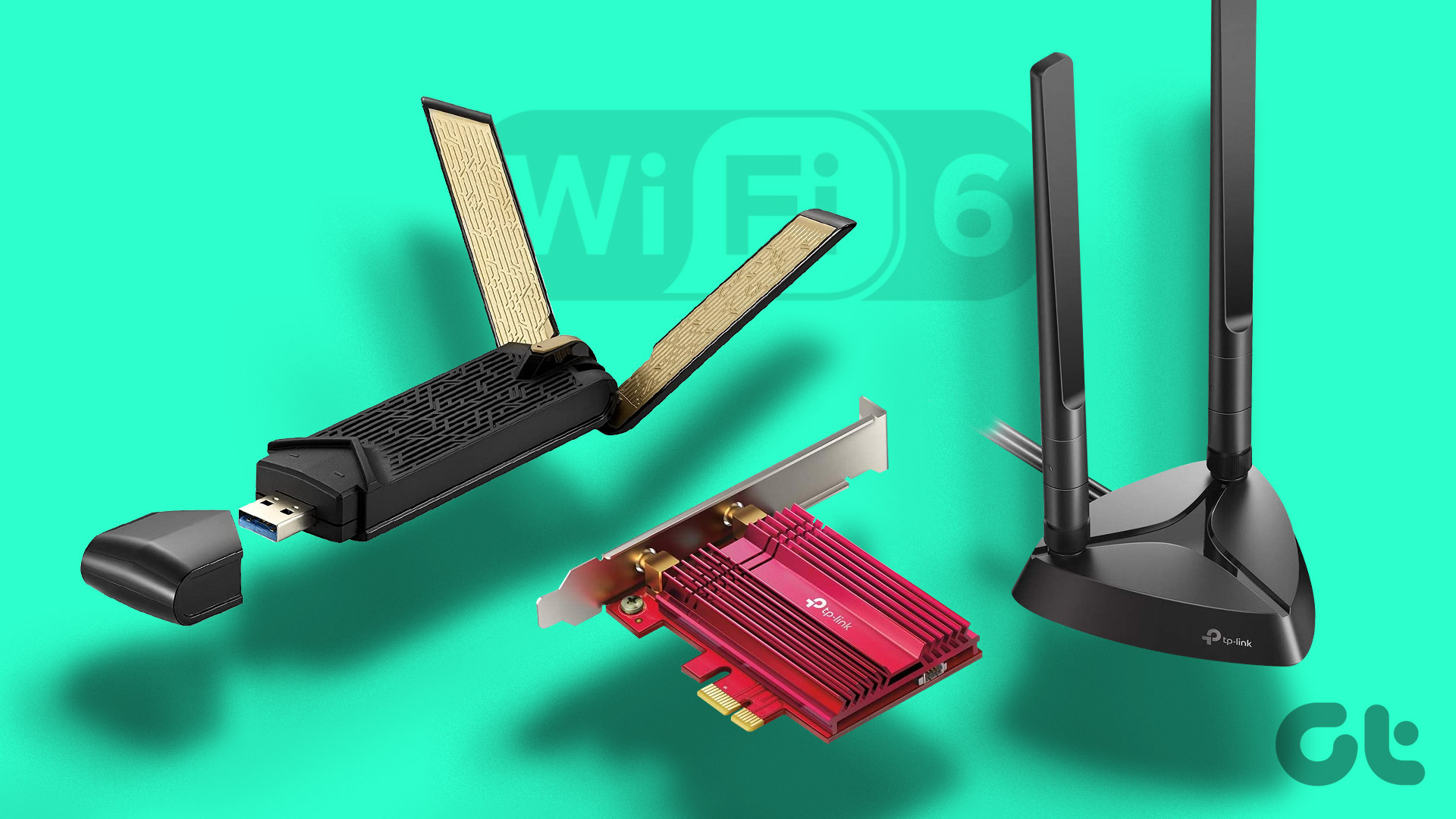 5 Best Wi-Fi 6 Adapters for PC: USB Adapter and Cards
A Wi-Fi 6 adapter is an excellent investment if you want to experience faster speeds, improved performance, and better coverage on your PC.
5 Best Wi-Fi 6 Adapters for PC: USB Adapter and Cards
A Wi-Fi 6 adapter is an excellent investment if you want to experience faster speeds, improved performance, and better coverage on your PC.
 6 Best Budget Graphics Cards Under $300
It's true that PCs remain one of the best ways to game on a budget.
6 Best Budget Graphics Cards Under $300
It's true that PCs remain one of the best ways to game on a budget.
 5 Best SD Cards for Dash Cams
Although the top dash cams come with an SD card, companies mostly offer a 64GB variant in the box.
5 Best SD Cards for Dash Cams
Although the top dash cams come with an SD card, companies mostly offer a 64GB variant in the box.
The article above may contain affiliate links which help support Guiding Tech. The content remains unbiased and authentic and will never affect our editorial integrity.