PDFs have become so commonplace, but they’re not perfect. For one, you might find the PDF reader too slow to open particular files too often, waiting for minutes to get the info you need. And even when the file does open, it can be a chore to scroll through.
Here is what you can do to speed up PDF opening and scrolling.
Fix 1: Remove PDF Metadata if the PDF Reader too Slow
One of the main reasons a reader might struggle to get a PDF open is that it needs to parse through a lot of annotations and metadata. These are “leftovers” from previous users changing the PDF, but they can pile on if you have a collaborative PDF that you’re sharing.
Step 1. Go to PDFStart or another online PDF editor (or use Adobe Reader’s Premium service).
Step 2. To remove metadata from a PDF, scroll down and select the “Remove Metadata” option.
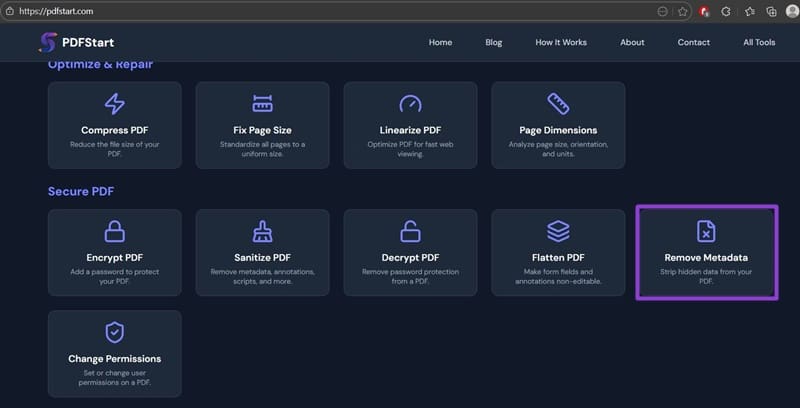
Step 3. Upload your PDF and leave the Metadata field empty to clear it. Download the result.
Step 4. Go back to PDFStart and use the option “Flatten PDF.” This makes annotations non-editable and part of the PDF itself, which drastically improves performance. Upload the file without metadata.
Step 5. Download the result.
Fix 2: Compress PDF if PDF Reader Too Slow
By far the biggest reason for the “PDF reader too slow” issue is the sheer size of the PDF. Since they often contain images, PDFs can jump to over 50MBs quite quickly, especially if you scan and merge images in higher resolution.
Step 1. Go to PDFStart.
Step 2. Scroll down and select “Compress PDF.”
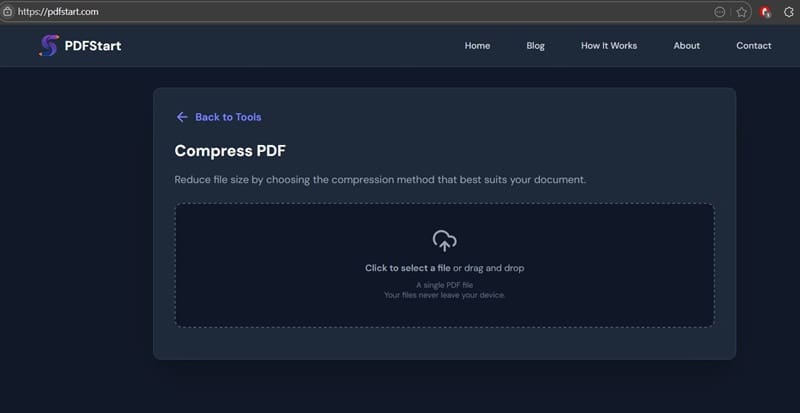
Step 3. Upload your file.
Step 4. Choose a compression level and type (based on the most important info you want to preserve in higher quality).
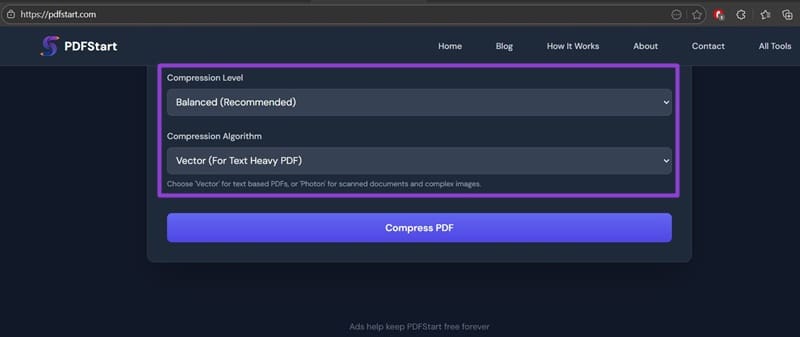
Step 5. Hit “Compress PDF” and download the result.
Notably, compression doesn’t really work if the PDF is already fully text-only without images or graphics.
Workaround 1: Split PDF Into Parts
If compressing the PDF doesn’t meaningfully change its size, it’s probably too long already.
You can use a PDF splitter tool (such as from PDFStart) to split it by page.
Step 1. Open the online editor and find the “Split PDF” option.
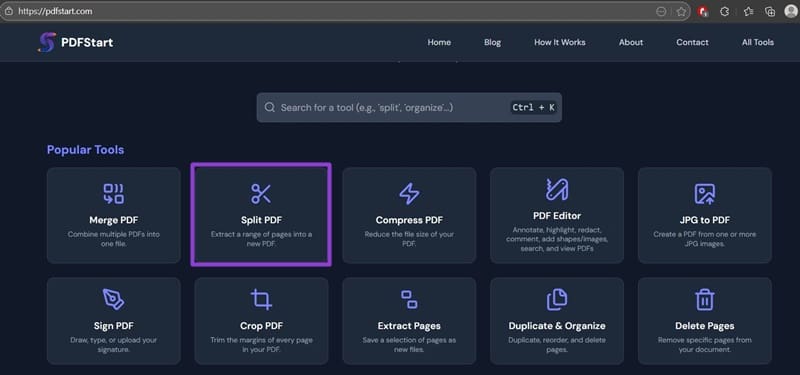
Step 2. Upload your PDF and select the range of pages you want to keep in each part. For this, you may need to look at the PDF first and make sure the parts can be cut at natural breakpoints.
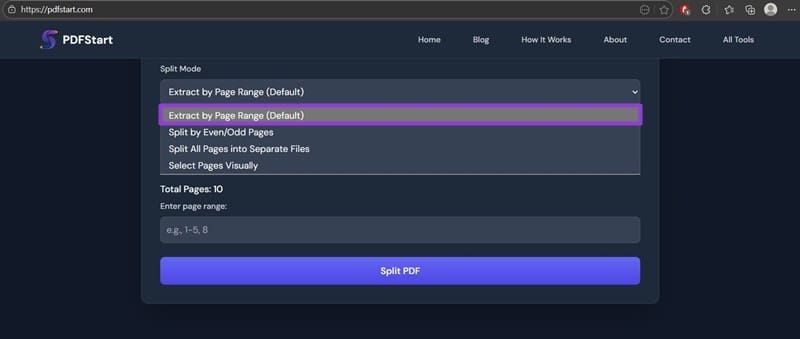
Step 3. By default, use the “Extract by Page Range” option, then enter the ranges in the text field below. Ranges “1-5, 6-10” will split the PDF into two pieces, for example.
Workaround 2: Recreate the PDF
If the PDF reader takes a while to load a PDF, your only option might be to recreate it. You’ll need to do this manually by copying and pasting its contents.
For this, use a text editor such as Notepad or Word as the “bridge” since it can remove metadata and conflate annotations and edits so the new PDF doesn’t have that baggage.
Workaround 3: Image Scanning Tips
For most purposes, scanning a page to anything more than 300 DPI doesn’t make a meaningful difference unless the ink it’s printed with is low-quality to begin with. Pictures will likely need a higher DPI if you want to maintain quality.
However, for pictures, it’s better to scan them separately and upload them outside of the PDF. This can prevent quality drops from compression and preserve the ability to edit the image.
Alternatives for PDF Reader Too Slow
If you’re still using Adobe Reader, make sure it’s updated. If you want to be safe, you can go to Adobe.com and redownload the latest version of the reader to keep working on it.
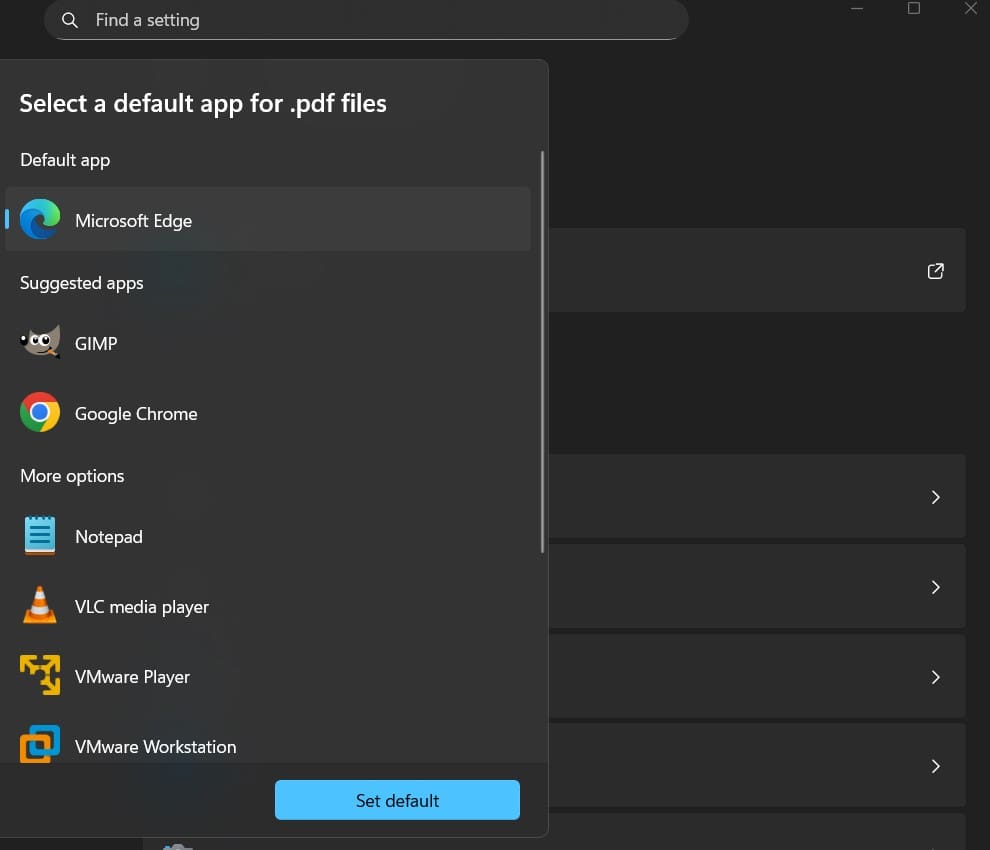
Alternatively, you can make your browser open PDF files.
Step 1. Open the Windows search and search for “Default apps.”
Step 2. In the “enter a file type” field, put “PDF.”
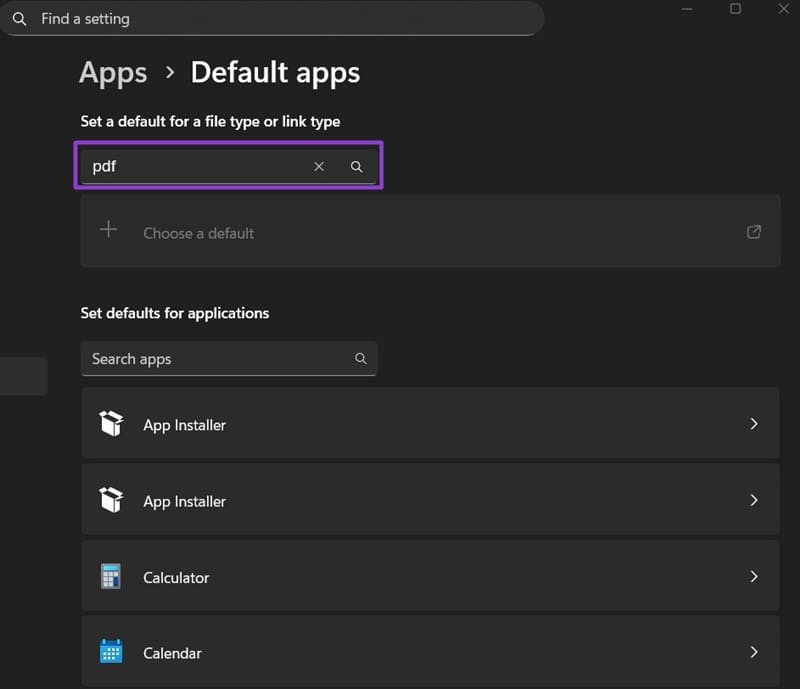
Step 3. Click on the icon on the right, then find your preferred browser from the list of apps.
Was this helpful?
Last updated on 15 February, 2026
Read Next
 WhatsApp Verification Code Not Received? Try These Workarounds
Basic Fixes Double-check your region code and number - WhatsApp automatically detects your region and shows a dialing code and a menu to enter your mobile number.
WhatsApp Verification Code Not Received? Try These Workarounds
Basic Fixes Double-check your region code and number - WhatsApp automatically detects your region and shows a dialing code and a menu to enter your mobile number.
 Top 4 Ways to Open PDF Document in Adobe Reader Instead of Browser
Are your PDF files opening in the Microsoft Edge on Windows 10 PC?
Top 4 Ways to Open PDF Document in Adobe Reader Instead of Browser
Are your PDF files opening in the Microsoft Edge on Windows 10 PC?
 How to Validate Digital Signatures in PDF Using Adobe Reader
Validate Digital Signatures in PDF Files on Mac For those using Adobe Acrobat Reader on Mac, you must enable a few options before checking for digital signature validation.
How to Validate Digital Signatures in PDF Using Adobe Reader
Validate Digital Signatures in PDF Files on Mac For those using Adobe Acrobat Reader on Mac, you must enable a few options before checking for digital signature validation.
 5 Fixes for Adobe Acrobat Reader Not Opening in Windows 11/10
Before starting the fixes, please note that Adobe Acrobat Reader DC and Adobe Acrobat Reader are the same now.
5 Fixes for Adobe Acrobat Reader Not Opening in Windows 11/10
Before starting the fixes, please note that Adobe Acrobat Reader DC and Adobe Acrobat Reader are the same now.
 6 Fixes for Slow Upload and Download Speeds on Google Drive
Preliminary Fixes Check your internet speed: Since Google Drive relies on your internet connection, a change in your internet speed will directly impact the upload and download speeds.
6 Fixes for Slow Upload and Download Speeds on Google Drive
Preliminary Fixes Check your internet speed: Since Google Drive relies on your internet connection, a change in your internet speed will directly impact the upload and download speeds.
 How to Enable Scrolling By Default in Adobe Acrobat DC and Reader DC
Switching to your preferred page mode in Adobe Acrobat DC and Acrobat Reader DC often disables continuous scrolling.
How to Enable Scrolling By Default in Adobe Acrobat DC and Reader DC
Switching to your preferred page mode in Adobe Acrobat DC and Acrobat Reader DC often disables continuous scrolling.
 How to Fit Full Page to Window By Default in Adobe Acrobat DC and Reader DC
Adobe Acrobat DC and Acrobat Reader DC prefer fitting pages by width.
How to Fit Full Page to Window By Default in Adobe Acrobat DC and Reader DC
Adobe Acrobat DC and Acrobat Reader DC prefer fitting pages by width.
 How to Hide or Remove the Adobe Reader DC Tools Pane Permanently
Just launch a PDF in Adobe Reader DC, and you should find a Tools pane pop up to the right of the screen.
How to Hide or Remove the Adobe Reader DC Tools Pane Permanently
Just launch a PDF in Adobe Reader DC, and you should find a Tools pane pop up to the right of the screen.
The article above may contain affiliate links which help support Guiding Tech. The content remains unbiased and authentic and will never affect our editorial integrity.