On Android
Method 1: Use the “Hey Google, open Assistant Settings” Command
The easiest way to open Google Assistant settings is to ask the Assistant itself to open the settings for you. Just say, “Hey Google, open assistant settings”. Or launch the assistant and say Google Assistant settings. That’s it. You will be taken to the Google Assistant settings screen.
Method 2: Using Google App
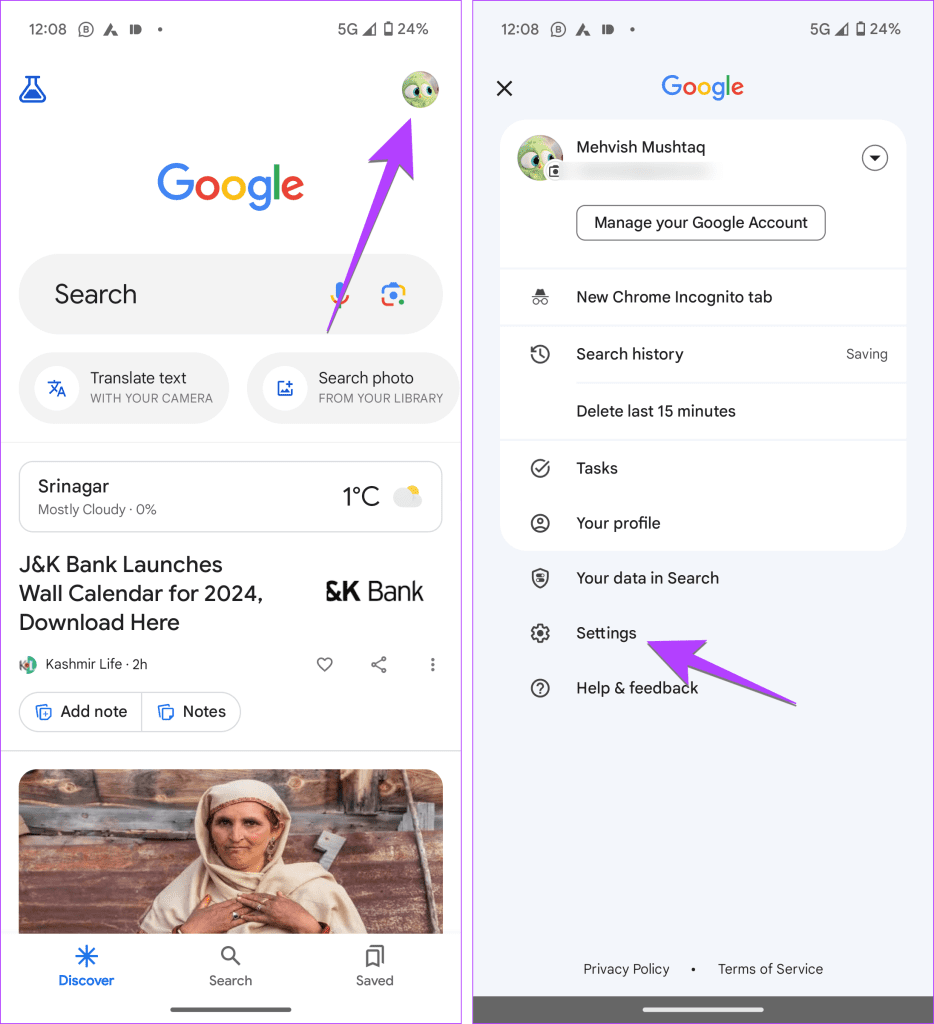
Step 1: Open the Google app on your phone.
Step 2: Tap on the profile picture at the top followed by Settings.
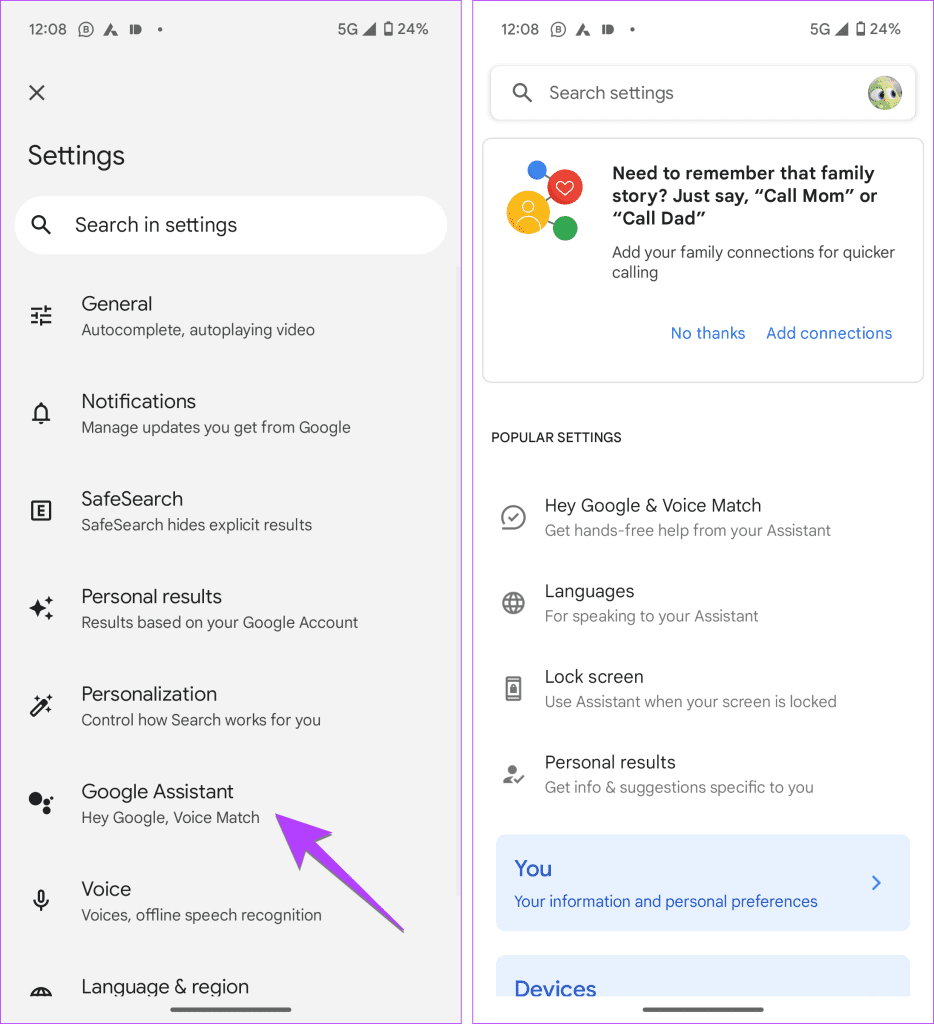
Step 3: Then tap on Google Assistant. Here you will find all the Google Assistant settings that can be changed.
Also Read: How to open Google Assistant on Samsung and other Android phones
Method 3: From the Settings App
On some Android phones, especially stock Android, you can configure Google Assistant settings from your phone settings too as shown below:
Step 1: Open Settings on your Android phone.
Step 2: Go to Apps and tap on Assistant at the bottom. You will reach the Assistant settings page.

Also Read: How to fix Google Assistant Voice Match not working
On iPhone and iPad
While Google Assistant comes pre-installed on most Android phones, it is accessible on iPhones by downloading the Assistant app only.
To access Google Assistant settings on iPhone and iPad, follow these steps:
Step 1: Launch the Google Assistant app on your iPhone.
Step 2: Tap on the profile picture icon present at the top-right corner to go to the Assistant settings.

How to Open Assistant Settings for Google Home
Google Assistant settings for Google Home devices are accessible using the above methods. In addition to that, you can also use the Google Home app to access voice match and other Google Assistant settings.
Step 1: Launch the Google Home app on your Android phone or iPhone.
Step 2: Tap on the Settings tab at the bottom. Then, tap on Google Assistant.

Also Read: 4 ways to switch back to Google Assistant from Gemini
Was this helpful?
Last updated on 25 July, 2024
Read Next
 How to Open Google Assistant on Samsung and Other Android Phones
Google Assistant is designed to make our lives easy.
How to Open Google Assistant on Samsung and Other Android Phones
Google Assistant is designed to make our lives easy.
 12 Hidden Google Games You Can Play on Chrome, Android, Earth, Search, and Assistant
Google is a company like no other.
12 Hidden Google Games You Can Play on Chrome, Android, Earth, Search, and Assistant
Google is a company like no other.
 How to Solve It Looks like That Device Hasn’t Been Setup yet Error in Google Assistant
Google Assistant is smart, like really smart.
How to Solve It Looks like That Device Hasn’t Been Setup yet Error in Google Assistant
Google Assistant is smart, like really smart.
 How to Turn off Google Assistant Bill Reminders
How Does Google Assistant Know When Your Bills Are Due Before starting, you must be wondering how Google gets all that information regarding your flights, packages, and bills.
How to Turn off Google Assistant Bill Reminders
How Does Google Assistant Know When Your Bills Are Due Before starting, you must be wondering how Google gets all that information regarding your flights, packages, and bills.
 4 Fixes for ‘Google Assistant Is Not Available on This Device’ Error
Basic Fixes: Restart your phone: A simple reboot can help fix common issues you might encounter on your smartphone as it restarts all device services.
4 Fixes for ‘Google Assistant Is Not Available on This Device’ Error
Basic Fixes: Restart your phone: A simple reboot can help fix common issues you might encounter on your smartphone as it restarts all device services.
 Top 9 Ways to Fix Google Assistant Not Working in Samsung Galaxy Phones
Bixby, Samsung's digital assistant, comes pre-loaded for Galaxy phones despite the popularity of Google Assistant.
Top 9 Ways to Fix Google Assistant Not Working in Samsung Galaxy Phones
Bixby, Samsung's digital assistant, comes pre-loaded for Galaxy phones despite the popularity of Google Assistant.
 4 Fixes for Google Assistant Not Working on Android TV
Basic Fixes Check your internet connection: The Google Assistant will display search results using your internet connection.
4 Fixes for Google Assistant Not Working on Android TV
Basic Fixes Check your internet connection: The Google Assistant will display search results using your internet connection.
 4 Ways to Switch Back to Google Assistant From Gemini
Method 1: Using Google App Step 1: Open the Google app on your Android phone.
4 Ways to Switch Back to Google Assistant From Gemini
Method 1: Using Google App Step 1: Open the Google app on your Android phone.
The article above may contain affiliate links which help support Guiding Tech. The content remains unbiased and authentic and will never affect our editorial integrity.