How to Send Files From Your Desktop Using Microsoft Edge Drop
Microsoft Edge’s Drop feature is only available in version 110.0.1587.41 or later. So, ensure you’re running the most recent version of Microsoft Edge.
Once you’ve updated Edge to the latest version, follow the steps below to send files using the Drop feature.
Step 1: In Microsoft Edge, click the plus icon in the sidebar on your right and enable the toggle next to Drop. If the sidebar is missing, click the menu icon at the top-right corner and select Show sidebar.

Step 2: Click the Drop icon on the sidebar and then click Start.
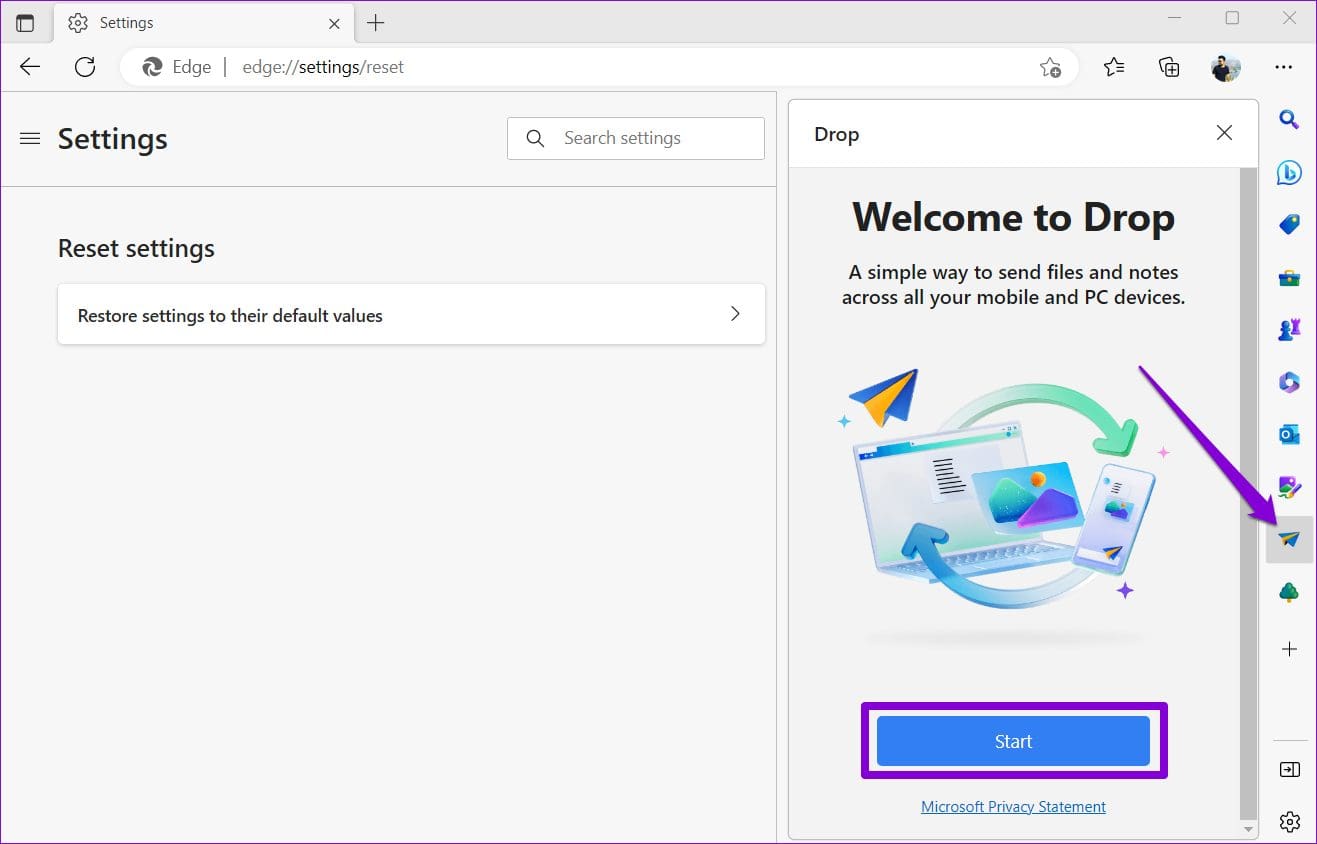
Step 3: Click the plus icon at the bottom and select the file you want to send from your computer. Alternatively, you can drag and drop files in the Drop panel to send them quickly.

Your file will be available for download on other devices via the Edge browser. Aside from photos, videos, and documents, you can also use the Drop feature to send yourself notes.
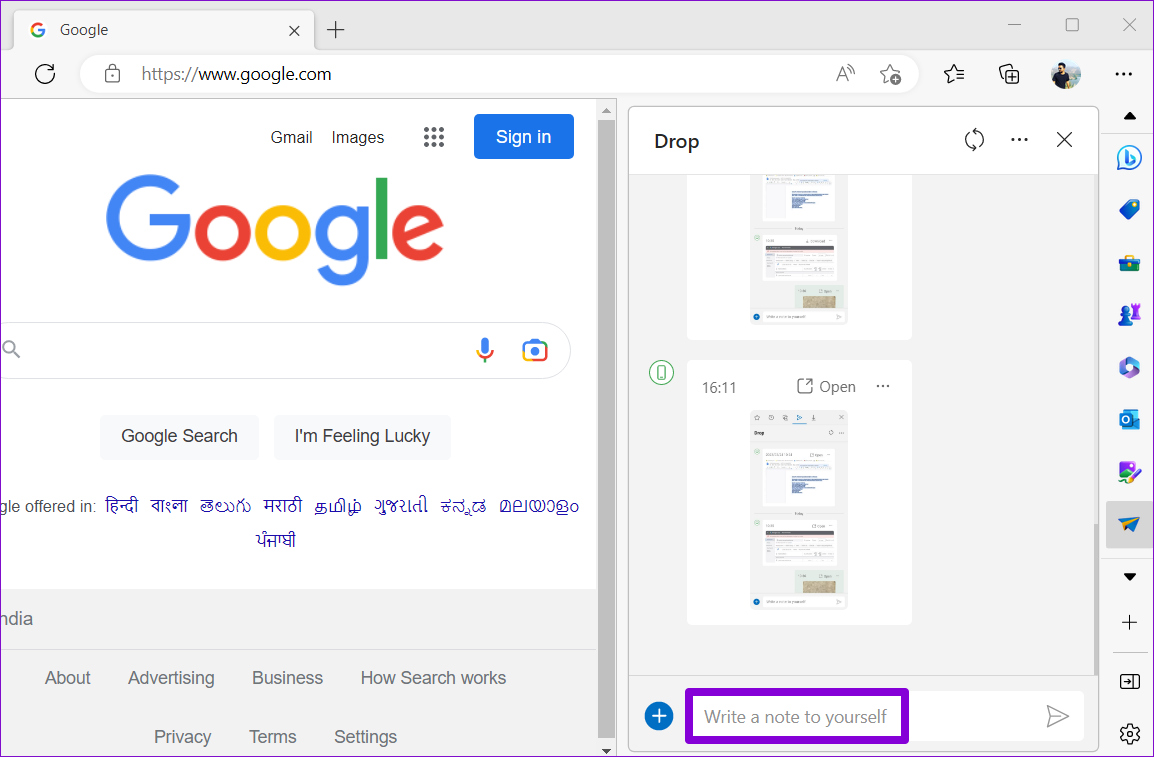
How to Download Microsoft Edge Drop Files on Your Desktop
Accessing your shared files on another computer isn’t difficult either. Ensure you use the same Microsoft account on both devices.
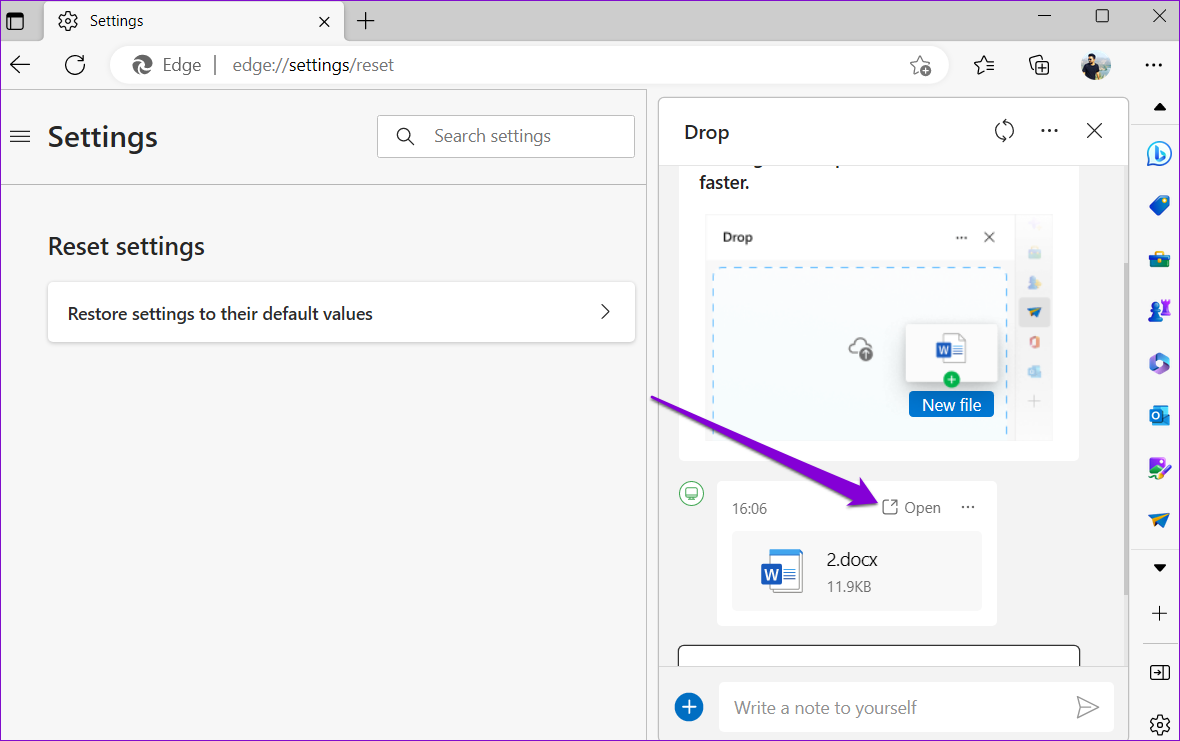
Step 1: Open Microsoft Edge on your computer and click the Drop icon on the sidebar to view your shared files. If the files don’t appear, click the refresh icon at the top.
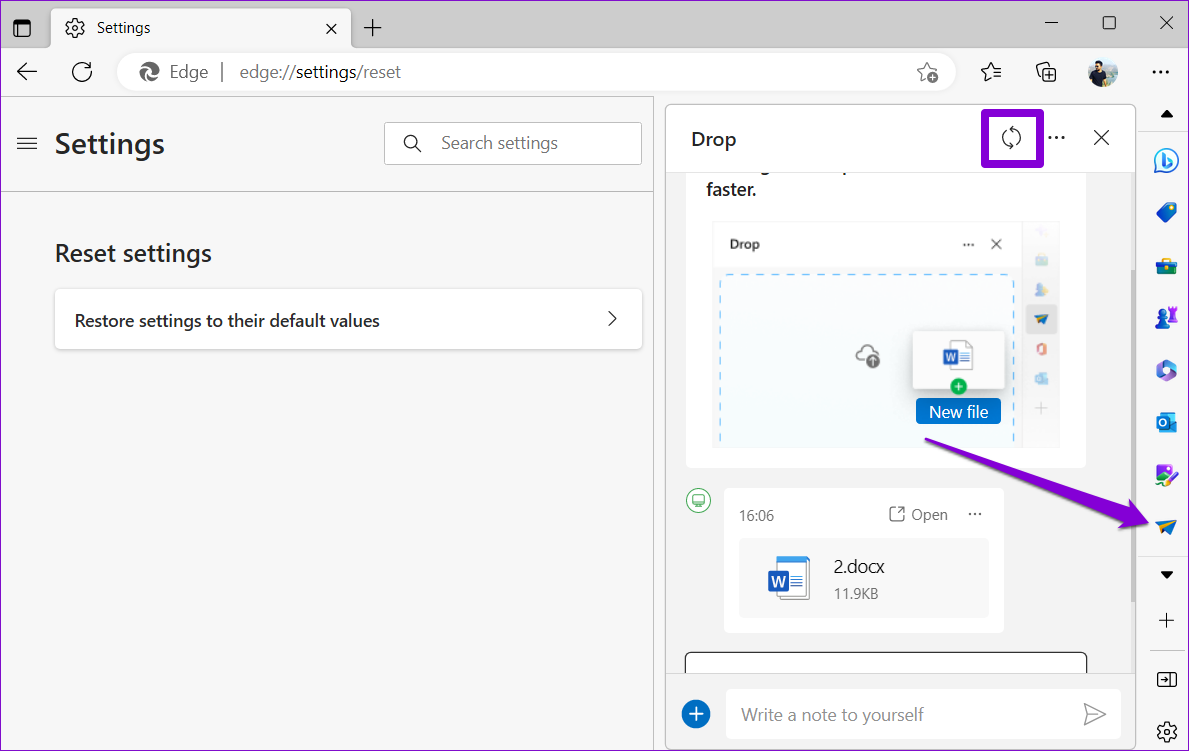
Step 2: Click the received file to open it on your computer.
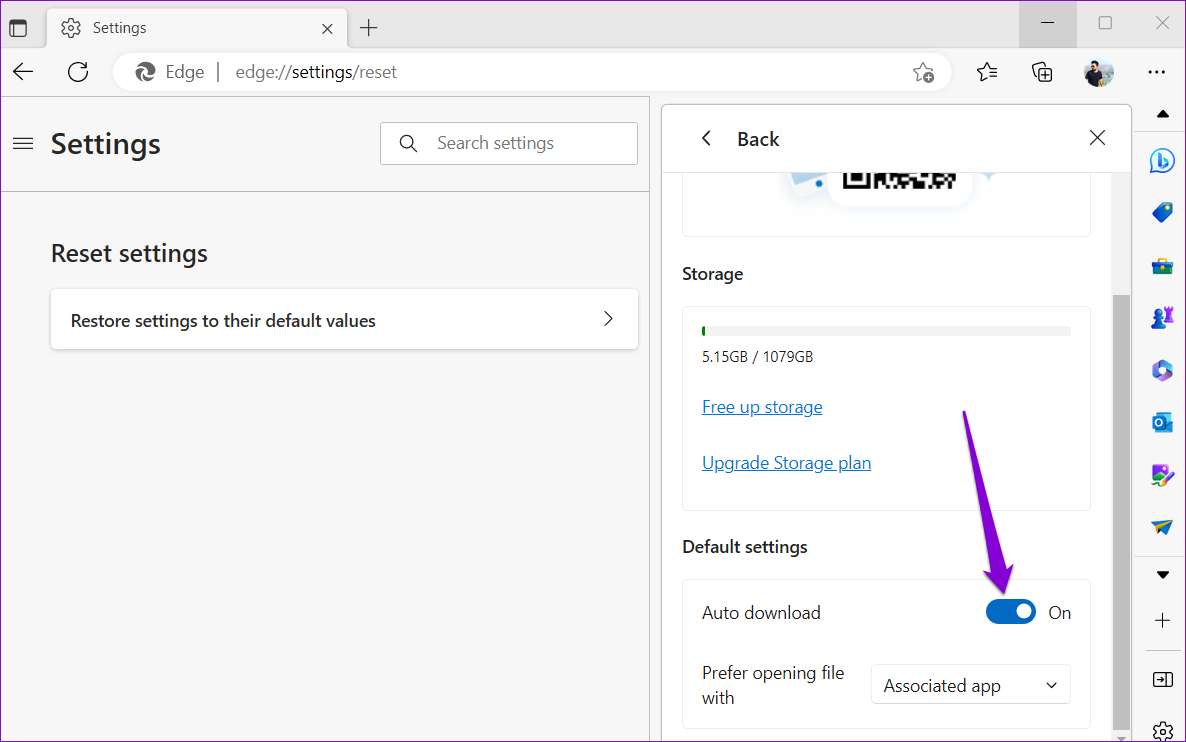
By default, Microsoft Edge will automatically download any files you receive via Drop. If you don’t want that, click the menu icon in the Drop panel and then disable the toggle next to Auto download.
How to Send Files From Your Mobile Using Microsoft Edge Drop
You can also use Microsoft Edge’s Drop feature to send files from your iPhone or Android. As Edge features an identical interface on both Android and iPhone, the following steps will work on any smartphone.
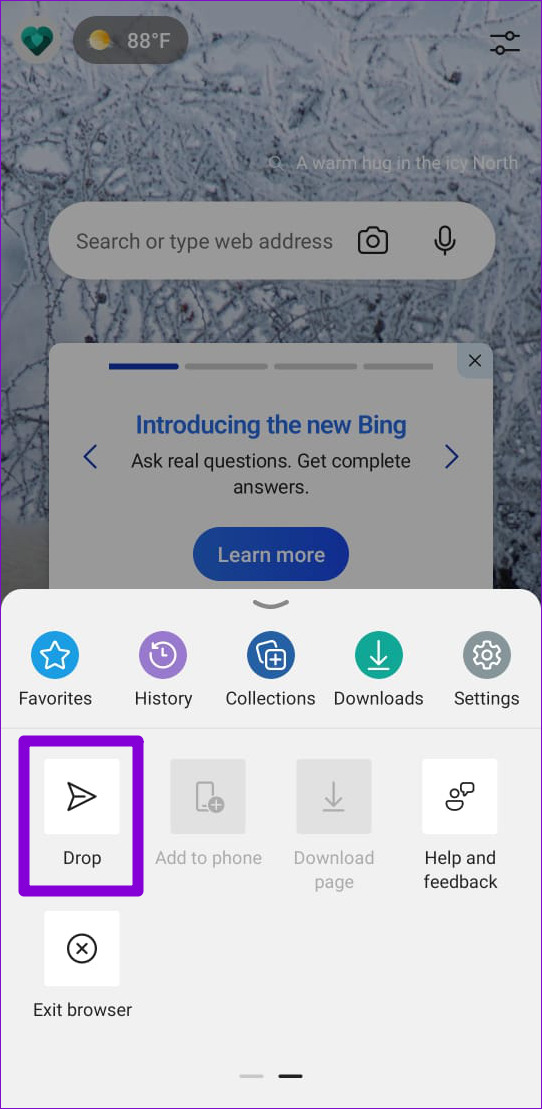
Step 1: Open Microsoft Edge on your Android or iPhone. Tap the three horizontal dots at the bottom and select Drop.
Step 2: Tap the plus icon at the bottom-left corner and select your preferred file type.
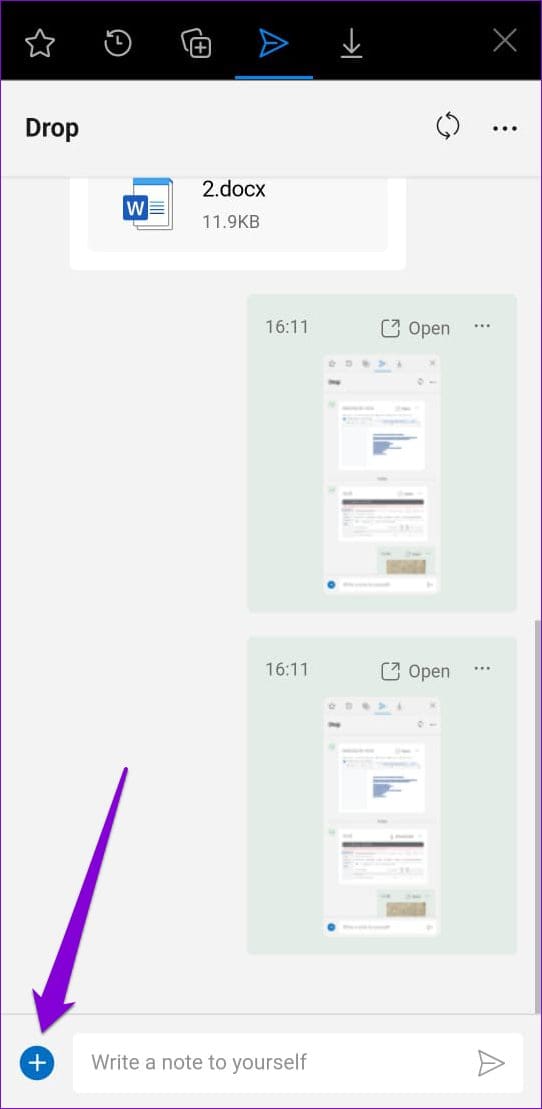
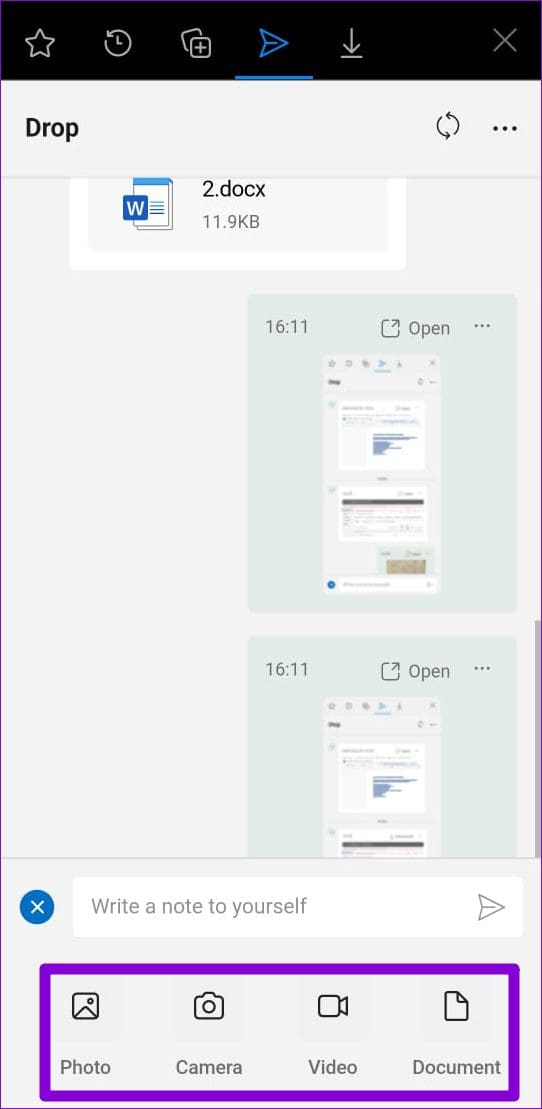
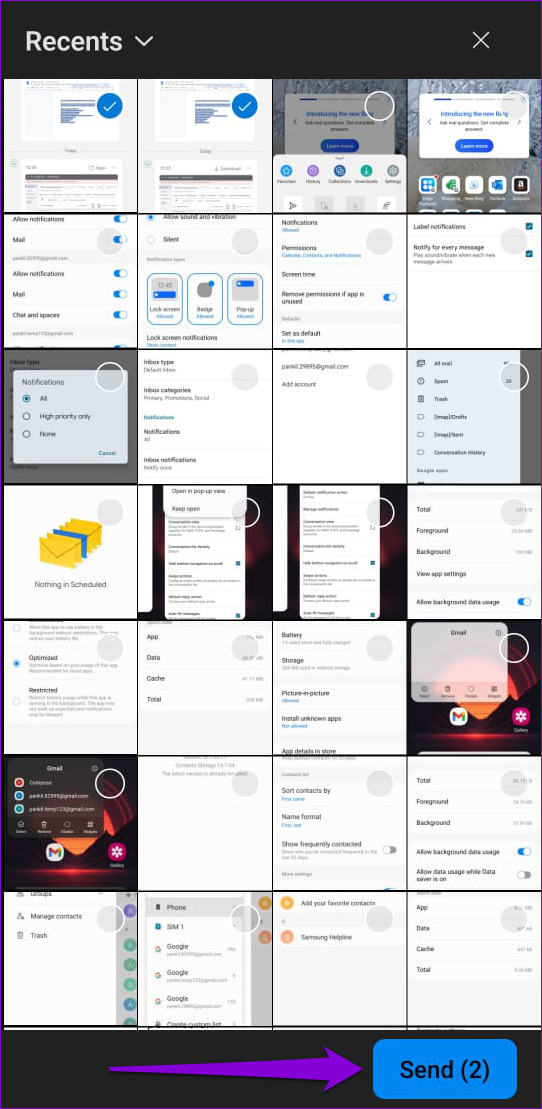
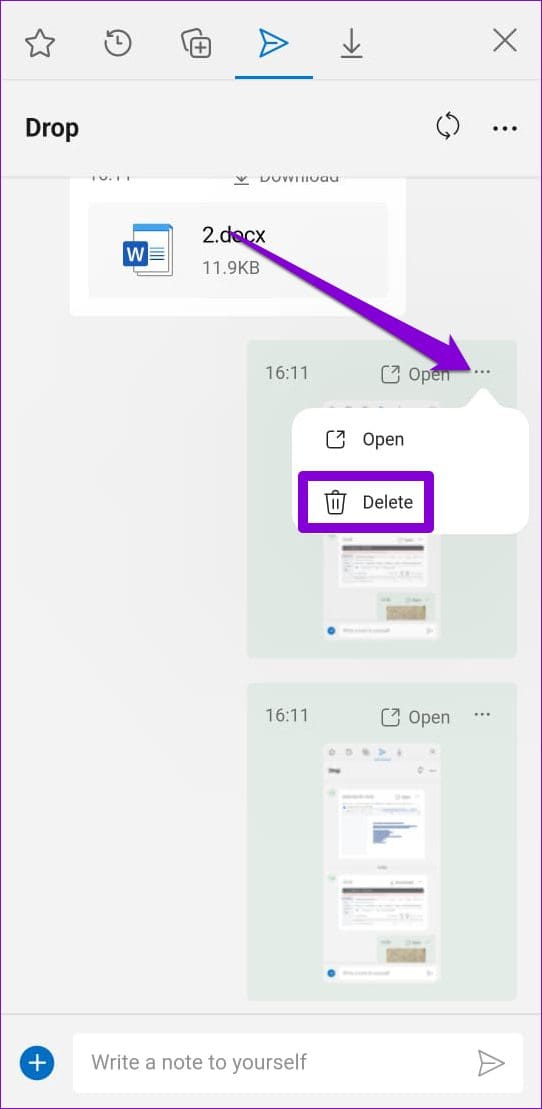
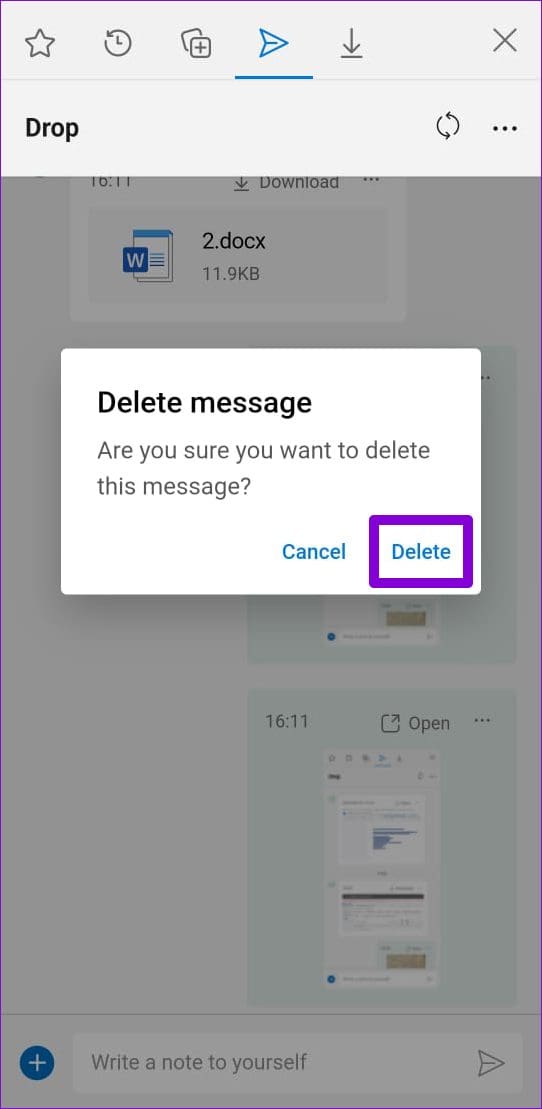
Step 3: Select the files you want to share and tap Send. If you accidentally send the wrong file, tap the three-dot icon next to the file and select Delete. Then, hit Delete to confirm.
How to Download Microsoft Edge Drop Files on Your Mobile
To view and download files shared via Edge Drop on your Android or iPhone, use these steps:
Step 1: Open Microsoft Edge on your phone. Tap the three-dot menu icon at the bottom and select Drop.
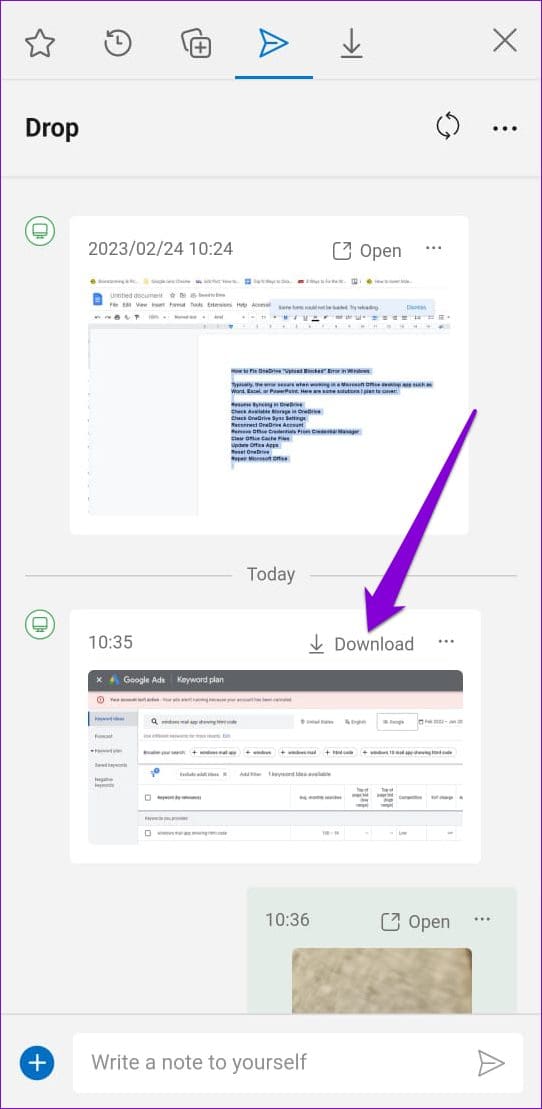
Step 2: Tap the Download option to save your file.
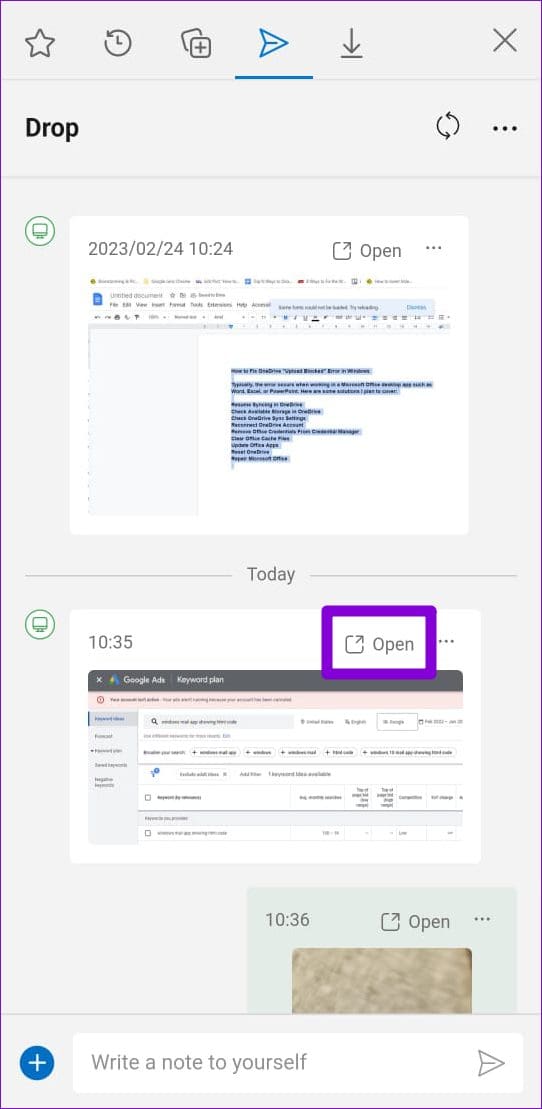
Step 3: After the files download, tap on Open to view the file on your phone.
How to Delete Files Shared Using Microsoft Edge Drop From OneDrive
As previously stated, any files you share with the Drop feature are saved to your OneDrive account. These files may eventually consume a large portion of your OneDrive storage. Fortunately, it’s fairly easy to delete files shared via Edge Drop. Here’s how you can go about it.
Step 1: Navigate to the OneDrive website in your browser and sign in with your Microsoft account.
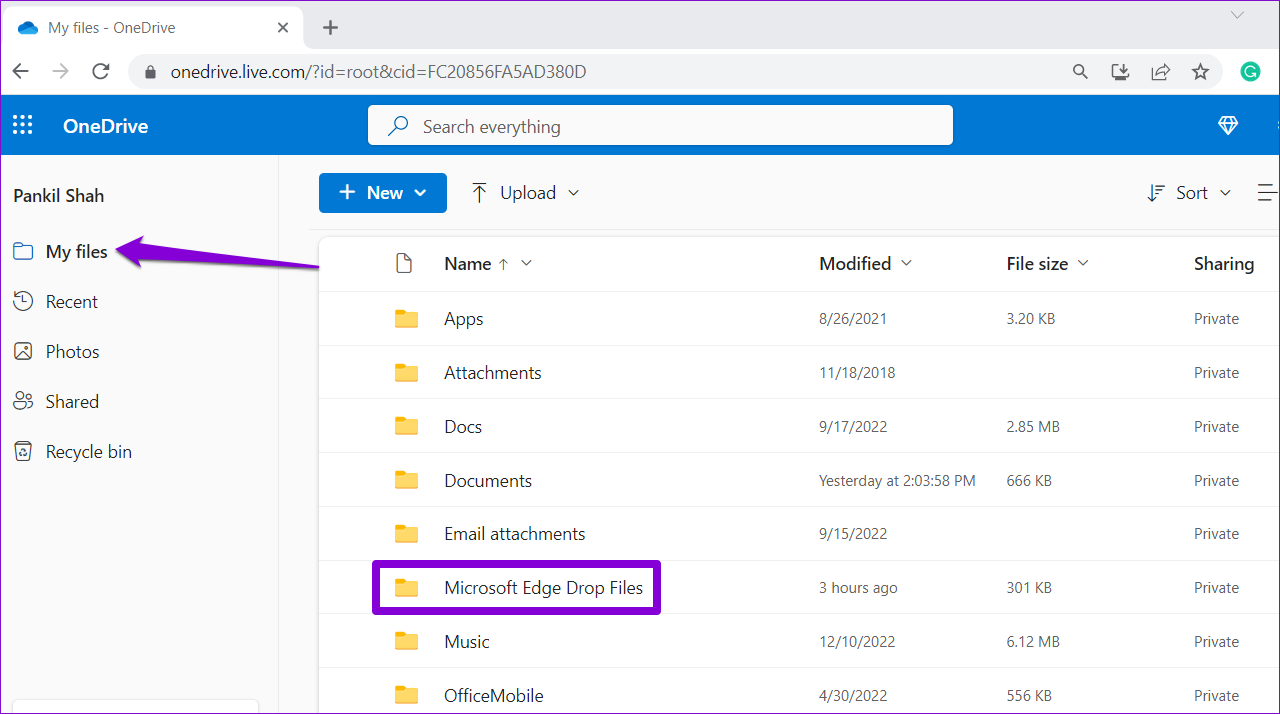
Step 2: In the My files tab, click the folder named Microsoft Edge Drop Files.
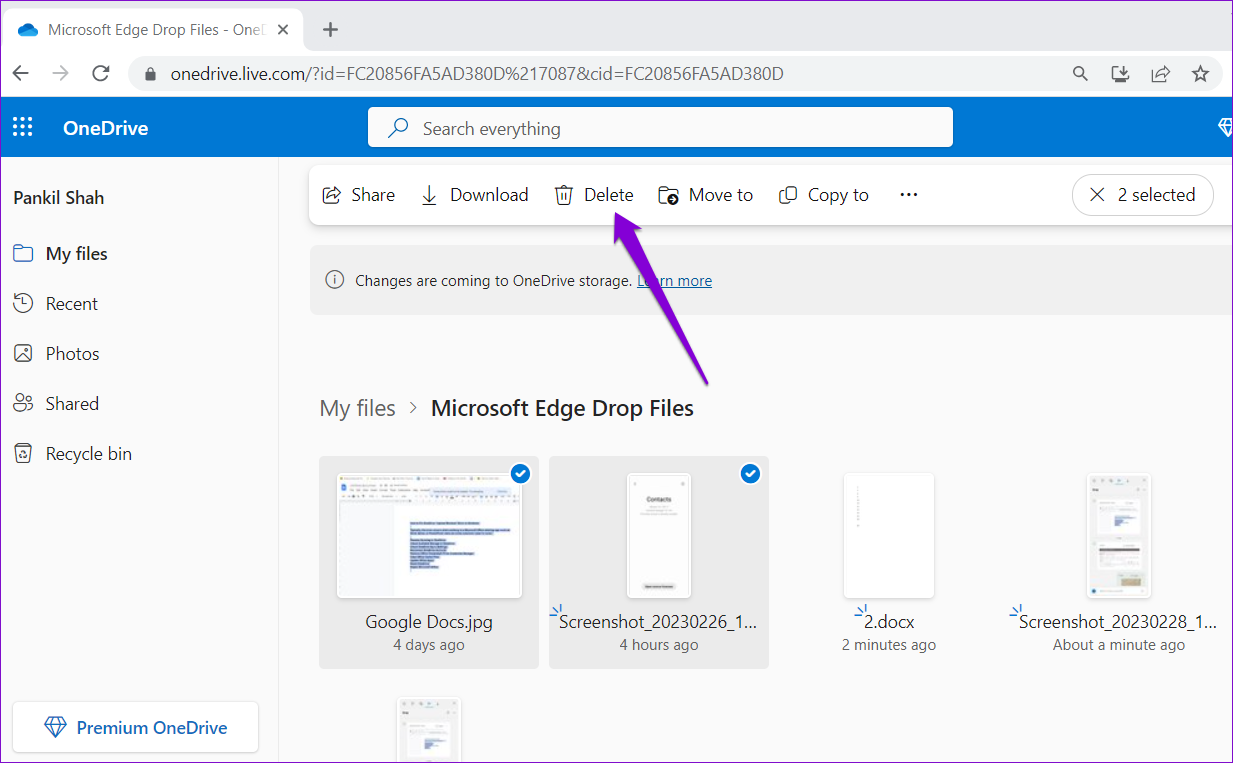
Step 3: Select the files you want to remove and click Delete.
Was this helpful?
Last updated on 16 May, 2024
Read Next
 2 Ways to Share Apps Between Android Devices
Method 1: Share Apps Between Android Devices Using the Play Store The easiest and quickest way to share apps between Android devices is via the Play Store.
2 Ways to Share Apps Between Android Devices
Method 1: Share Apps Between Android Devices Using the Play Store The easiest and quickest way to share apps between Android devices is via the Play Store.
 How to Use the Read Aloud Feature in Microsoft Edge
Use Read Aloud in Microsoft Edge on Desktop Microsoft Edge’s Read Aloud feature is simple to use and does not require any setup.
How to Use the Read Aloud Feature in Microsoft Edge
Use Read Aloud in Microsoft Edge on Desktop Microsoft Edge’s Read Aloud feature is simple to use and does not require any setup.
 How to Share Files Between Android and PC Without Internet
In today's connected world, sharing files between devices has become a necessity, whether for work, study, or personal reasons.
How to Share Files Between Android and PC Without Internet
In today's connected world, sharing files between devices has become a necessity, whether for work, study, or personal reasons.
 4 Fixes for Kindle Books Not Syncing Between Devices
Basic Fixes Use the same Kindle account: You should be using the same Amazon Kindle account on all your devices.
4 Fixes for Kindle Books Not Syncing Between Devices
Basic Fixes Use the same Kindle account: You should be using the same Amazon Kindle account on all your devices.
 5 Ways to Fix Microsoft Edge Not Downloading Files
Try Basic Fixes Check antivirus settings: Third-party antivirus programs can sometimes block downloads from the internet to protect your PC from suspicious files.
5 Ways to Fix Microsoft Edge Not Downloading Files
Try Basic Fixes Check antivirus settings: Third-party antivirus programs can sometimes block downloads from the internet to protect your PC from suspicious files.
 How to Manage and Share Files and Folder Access on Microsoft OneDrive
Like iCloud and Google Drive, Microsoft's OneDrive is a great cloud storage platform to store your data.
How to Manage and Share Files and Folder Access on Microsoft OneDrive
Like iCloud and Google Drive, Microsoft's OneDrive is a great cloud storage platform to store your data.
 How to Share Sticky Notes Between Computers
Gone are the days when you had to rely on Google Drive or simple copy-paste method to move your Sticky Notes from one computer to another.
How to Share Sticky Notes Between Computers
Gone are the days when you had to rely on Google Drive or simple copy-paste method to move your Sticky Notes from one computer to another.
 How to Use the Edge Bar in Microsoft Edge on Windows 11
How to Enable Edge Bar in Microsoft Edge Step 1: Launch Microsoft Edge on your PC > click the three-dot menu icon at the top right > select Settings.
How to Use the Edge Bar in Microsoft Edge on Windows 11
How to Enable Edge Bar in Microsoft Edge Step 1: Launch Microsoft Edge on your PC > click the three-dot menu icon at the top right > select Settings.
The article above may contain affiliate links which help support Guiding Tech. The content remains unbiased and authentic and will never affect our editorial integrity.