If you’ve been searching for the LinkedIn Resume Assistant in Microsoft Word, you won’t find it anymore. The feature was removed from all versions of Word in late 2022 with nothing to replace it directly. However, tech has progressed, and you now have plenty of options that still utilize basic Word systems to emulate and improve on what the MS Word LinkedIn Resume Assistant could do.
What LinkedIn Resume Assistant Used to Do
LinkedIn Resume Assistant integrated directly into Microsoft Word, appearing as a sidebar when you worked on resume documents. It provided job seekers with LinkedIn-powered insights, including:
- Real work experience examples from professionals in similar roles
- Top skills commonly listed for specific job titles and industries
- Relevant articles for resume writing guidance
- Job opportunities from LinkedIn’s job board
- Direct integration with LinkedIn profiles for easy application submission
The tool could help users craft more compelling resumes by showing how successful professionals in those same fields described their work experience.
Alternative 1 – Using Word’s Built-In Resume Templates
Microsoft Word offers a solid collection of professionally designed resume templates that serve as an excellent replacement for Resume Assistant.
Step 1. Click on “File” and go to “New.”
Step 2. In the search box, type “Resume” or “CV” to see all available resume templates. Alternatively, you can visit Microsoft Create’s resume templates online to browse the full collection before opening Word.

Step 3. Select a template from the list to choose it as the base for the resume.
Step 4. Replace placeholder text with your actual information.
Step 5. Adjust sections by adding or removing content blocks as needed. This can be a bit difficult if you’re working from premade templates as they are mainly tables.
Alternative 2 – Downloading and Using Your LinkedIn Profile Data
Your LinkedIn profile contains valuable information that can jumpstart your resume creation process. Here’s how to extract and use this data effectively.
Part 1 – Export Your LinkedIn Profile Data
Method 1: Direct Profile Download
Step 1. Log into LinkedIn and go to your profile.
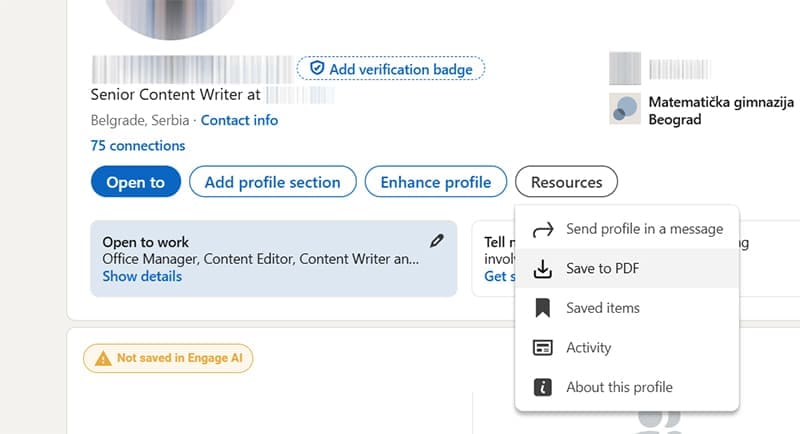
Step 2. Click “Resources” below your profile picture.
Step 3. Select “Save to PDF” to download a formatted version of your profile.
Method 2: Complete Data Export
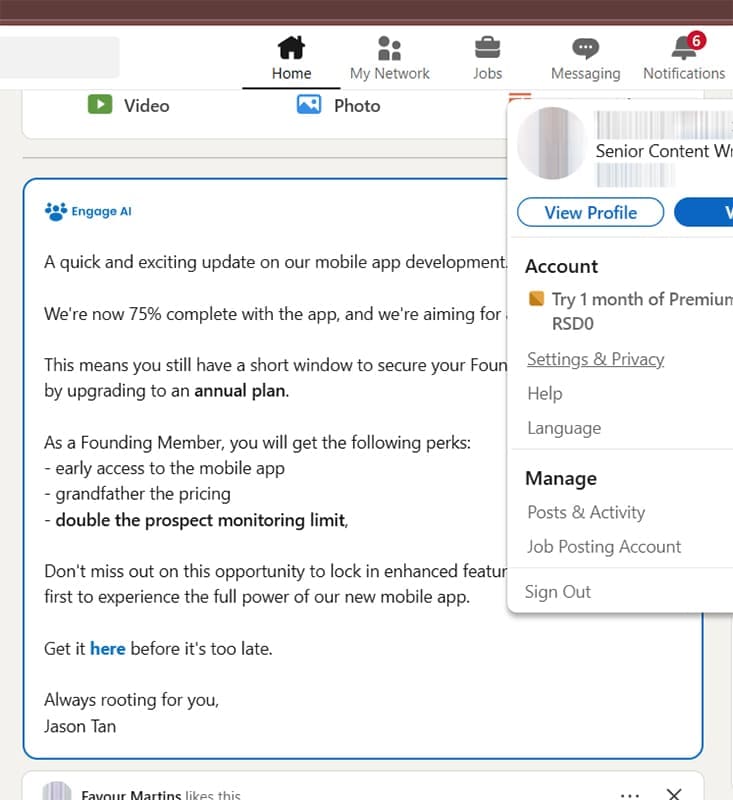
Step 1. Click on your profile image and select “Settings & Privacy.”
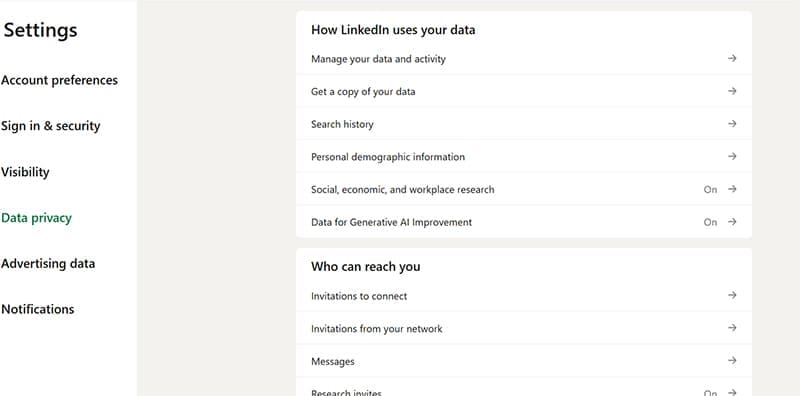
Step 2. Navigate to the “Data Privacy” section.
Step 3. Click on “Get a copy of your data.”
Step 4. Select the second option and check “Profile,” which will deliver your profile details such as your work history as described in LinkedIn.

Part 2 – Convert LinkedIn Data to Resume Format
Since the resume is downloaded as PDF, you’ll need to convert your LinkedIn profile into a polished resume.
Option 1 – Use a PDF to Word Converter
An online PDF converter can make your resume into an editable Word doc.
Since PDF converters aren’t great at detecting and mimicking formatting, you can use the resulting doc to fill in the information on the Word template from Alternative 1.
Option 2 – Third-Party LinkedIn-to-Resume Converters
Some online tools can directly create a resume from your LinkedIn info:
- Enhancv – Automatically imports LinkedIn profiles and offers AI optimization
- Kickresume – Converts LinkedIn data with 40+ professional templates
- Jobscan – Imports LinkedIn profiles and optimizes for specific job descriptions
- Teal – Offers LinkedIn import with ATS optimization features
Using these tools is relatively simple.
Step 1. Paste your LinkedIn profile URL into the import field.
Step 2. Select an appropriate template that matches your industry.
Step 3. Review and edit all imported information for accuracy.
Step 4. Tailor content to emphasize relevant experience for target roles.
Step 5. Add missing information that might not be on your LinkedIn profile.
Alternative 3 – Using AI Assistants for Job-Specific Resume Optimization
Modern AI-powered resume builders can provide you with more options than the LinkedIn Resume Assistant in Microsoft Word ever could.
You can either use common chatbots (such as ChatGPT, Gemini, Claude, or even Copilot), or use dedicated resume builder AIs like Rezi, Enhancv, or Resume.io. They can provide a curated resume based on the job description by scouring the job ad for keywords and inserting them in your work history or profile.

However, you’ll still need to review the resume to ensure the content is actually factually correct.
Was this helpful?
Last updated on 21 June, 2025
Read Next
 Apple Pages vs Microsoft Word: Which Word Processing Software Is Better
Every major tech company out there is offering their version of the productivity suite.
Apple Pages vs Microsoft Word: Which Word Processing Software Is Better
Every major tech company out there is offering their version of the productivity suite.
 Google Docs vs. Microsoft Word Online: Which Word Processor Is Better
Google Docs vs.
Google Docs vs. Microsoft Word Online: Which Word Processor Is Better
Google Docs vs.
 How to Block Someone on LinkedIn Without Them Knowing
What Happens When You Block a LinkedIn Member The person you block will no longer be able to see your LinkedIn profile.
How to Block Someone on LinkedIn Without Them Knowing
What Happens When You Block a LinkedIn Member The person you block will no longer be able to see your LinkedIn profile.
 How to Turn off LinkedIn Job Alerts on Mobile and PC
Method 1.
How to Turn off LinkedIn Job Alerts on Mobile and PC
Method 1.
 3 Ways to Fix LinkedIn Not Sending Messages
Fix 1: Clear Your Browser Cache and Cookies Your browser's cache and cookies could interfere with LinkedIn’s messaging scripts, which might block your messages.
3 Ways to Fix LinkedIn Not Sending Messages
Fix 1: Clear Your Browser Cache and Cookies Your browser's cache and cookies could interfere with LinkedIn’s messaging scripts, which might block your messages.
 How to View LinkedIn Profiles Anonymously or Without Account
Method 1: Use Private Mode on LinkedIn LinkedIn lets you select whether you want to disclose your identity while viewing someone else's profile natively.
How to View LinkedIn Profiles Anonymously or Without Account
Method 1: Use Private Mode on LinkedIn LinkedIn lets you select whether you want to disclose your identity while viewing someone else's profile natively.
 How to Stop LinkedIn from Training AI on Your Data
AI is a major force in the tech world at the moment, and that brings both plus points and downsides.
How to Stop LinkedIn from Training AI on Your Data
AI is a major force in the tech world at the moment, and that brings both plus points and downsides.
 Steps to Turn Off Focused Inbox on LinkedIn
If you’re an active user of LinkedIn, you’ll likely receive many messages from other users, brands, and people in your network.
Steps to Turn Off Focused Inbox on LinkedIn
If you’re an active user of LinkedIn, you’ll likely receive many messages from other users, brands, and people in your network.
The article above may contain affiliate links which help support Guiding Tech. The content remains unbiased and authentic and will never affect our editorial integrity.