Method 1: Use App Settings to Add or Remove App Timer
To limit your screen time, you can configure a timer for individual apps through the app settings.
Step 1: Open the Settings app > tap Apps > expand your desired app settings.
Step 2: Select App Timer, set your preferred time limit, and tap OK. Once the time limit expires, your Android phone will instantly notify you.


Step 3: To remove the timer, open the app settings and select the Trash icon next to it.


Method 2: Utilize Digital Wellbeing and Parental Controls
Besides configuring app settings, the Digital Wellbeing and parental controls menu on your Android phone lets you set timers on apps you use excessively.
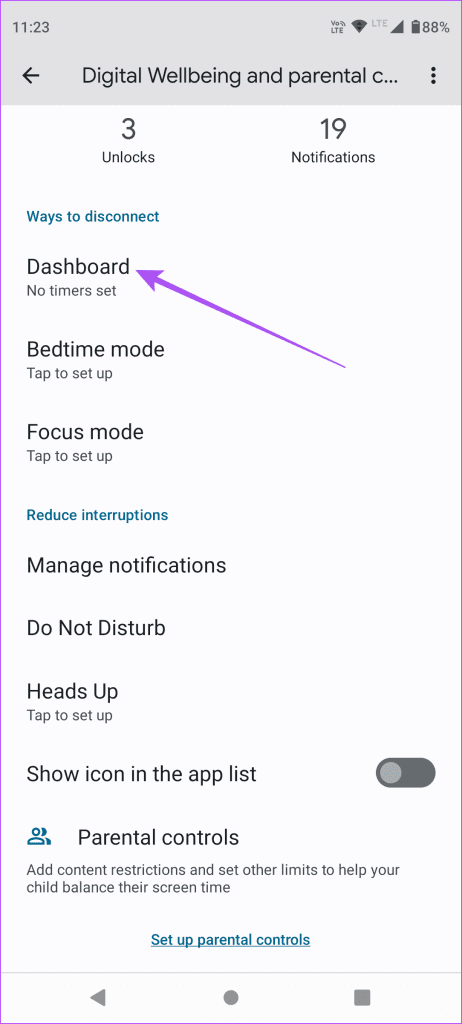
Step 1: Open Android settings, tap Digital Wellbeing and parental controls, and select Dashboard.


Step 2: Tap Show all apps, select the Timer icon next to the desired app, and configure the app timer. Tap OK to save changes.
Tip: On Samsung phones, you can locate App Timer under the Digital Wellbeing and parental controls feature in settings.


Step 3: To remove the app timer, open the Digital Wellbeing and parental controls Dashboard, select the configured app, and tap Delete timer.


Was this helpful?
Last updated on 01 May, 2024
Read Next
 How to Add Timer to a Quiz in Google Forms
Google Forms is a versatile tool for creating surveys and quizzes.
How to Add Timer to a Quiz in Google Forms
Google Forms is a versatile tool for creating surveys and quizzes.
 How to Set Up YouTube Music Sleep Timer on iPhone, Android, Windows, or Mac
Put a Timer on YouTube Music App for iPhone or Android Notably, the sleep mode on YouTube Music is only available on the app.
How to Set Up YouTube Music Sleep Timer on iPhone, Android, Windows, or Mac
Put a Timer on YouTube Music App for iPhone or Android Notably, the sleep mode on YouTube Music is only available on the app.
 How to Add, Remove, and Delete Samsung Account From Your Android Phone
You don't need a Samsung account to use your Android phone the same way you need a Google account.
How to Add, Remove, and Delete Samsung Account From Your Android Phone
You don't need a Samsung account to use your Android phone the same way you need a Google account.
 How to Set Shutdown Timer in Windows 11
Method 1: Set Auto Shutdown Using Task Scheduler Task Scheduler is a built-in Windows OS app that can be used to schedule different chores.
How to Set Shutdown Timer in Windows 11
Method 1: Set Auto Shutdown Using Task Scheduler Task Scheduler is a built-in Windows OS app that can be used to schedule different chores.
 3 Ways to Schedule Shutdown Timer on Mac
https://youtu.be/xEU_jtOvBZE Method 1: Using Built-in Power Scheduler The power scheduling feature was built into the Mac.
3 Ways to Schedule Shutdown Timer on Mac
https://youtu.be/xEU_jtOvBZE Method 1: Using Built-in Power Scheduler The power scheduling feature was built into the Mac.
 3 Ways to Fix Spotify Sleep Timer Missing or Not Working
Basic Fixes Check Spotify server status: If Spotify is currently facing issues in the backend, it might cause issues with the app.
3 Ways to Fix Spotify Sleep Timer Missing or Not Working
Basic Fixes Check Spotify server status: If Spotify is currently facing issues in the backend, it might cause issues with the app.
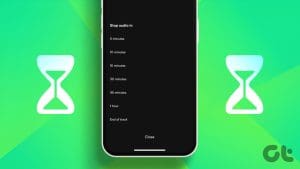 How to Set Spotify Sleep Timer on Any Device
Method 1: Set Sleep Timer Using Spotify Mobile App You can easily set a Sleep Timer using the Spotify iOS or Android app's player options.
How to Set Spotify Sleep Timer on Any Device
Method 1: Set Sleep Timer Using Spotify Mobile App You can easily set a Sleep Timer using the Spotify iOS or Android app's player options.
 How to Add and Remove Google Drive From Files App on iPhone
How to Add Google Drive to the Files App Step 1: Download the Google Drive app on your iPhone.
How to Add and Remove Google Drive From Files App on iPhone
How to Add Google Drive to the Files App Step 1: Download the Google Drive app on your iPhone.
The article above may contain affiliate links which help support Guiding Tech. The content remains unbiased and authentic and will never affect our editorial integrity.