How to Make the Taskbar Larger on Windows 10
If your work requires you to constantly use the taskbar for accessing the Start menu or switching apps, here are a couple of ways you can make the taskbar bigger and more easily accessible.
1. Use the Resize Tool
The quickest method to increase the size of the taskbar is through the resize tool. Here’s how it works.
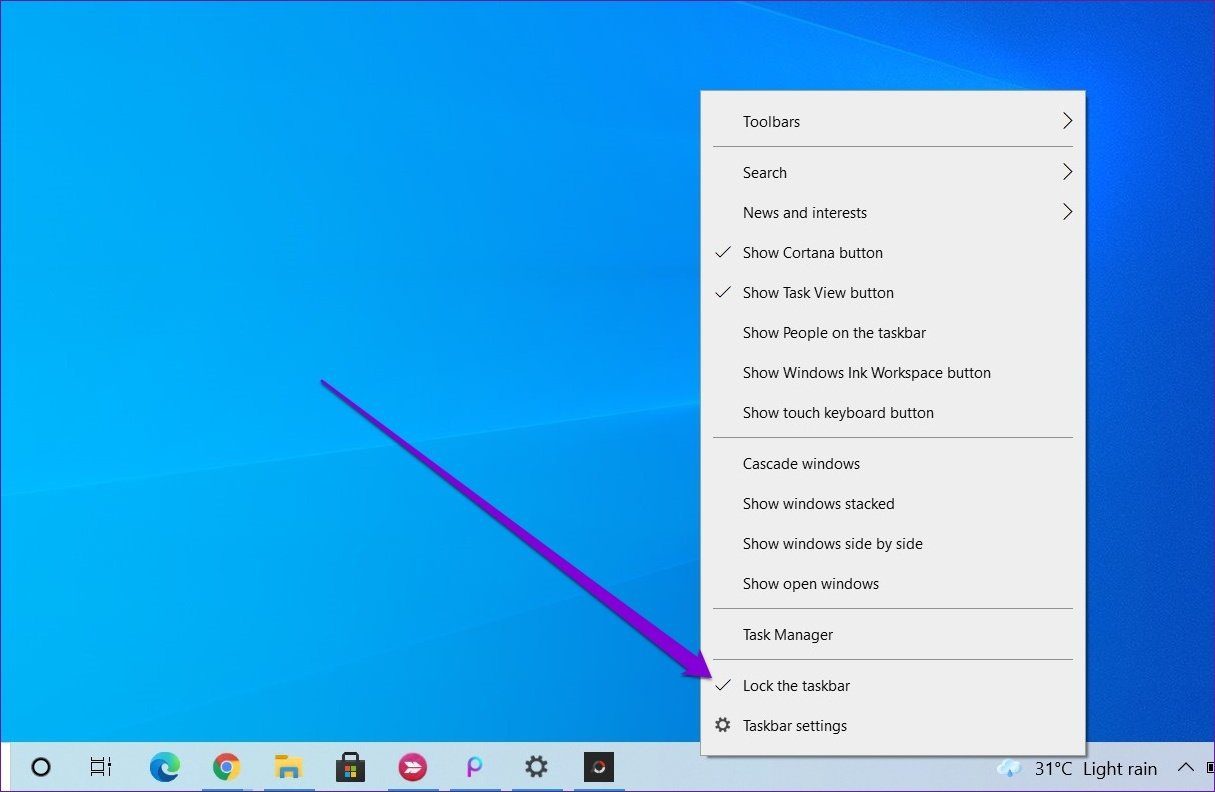
Step 1: Right-click on the taskbar and uncheck the Lock the taskbar option.
Step 2: Move your cursor to the top edge of the taskbar, and the cursor will turn into a double-sided arrow. Click and drag the mouse up and the height of the taskbar will change accordingly.
Step 3: Once your taskbar is set at a preferable height, let go of the mouse button.
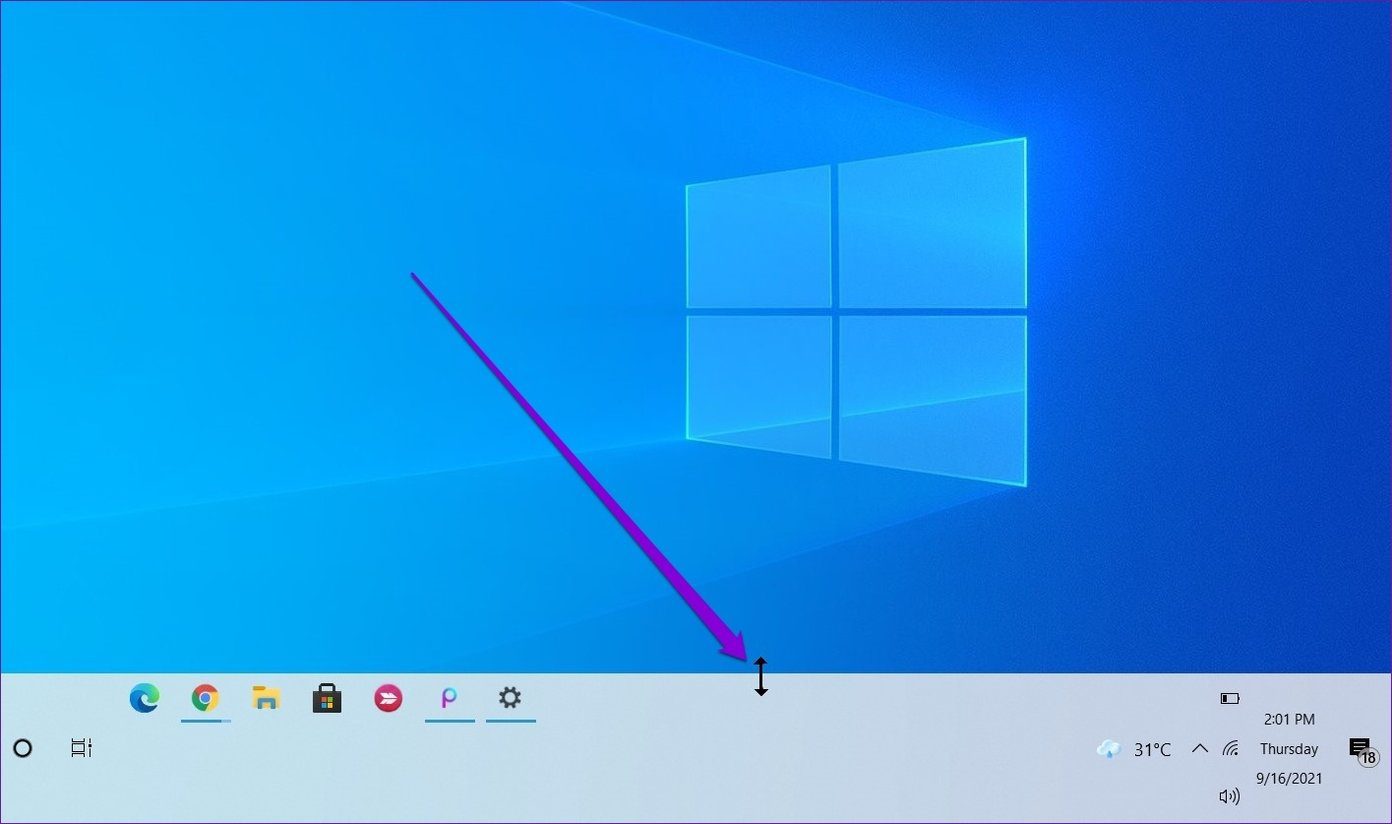
Likewise, if you use a vertical taskbar, move your cursor to the left or right edge of the taskbar and resize it from there.
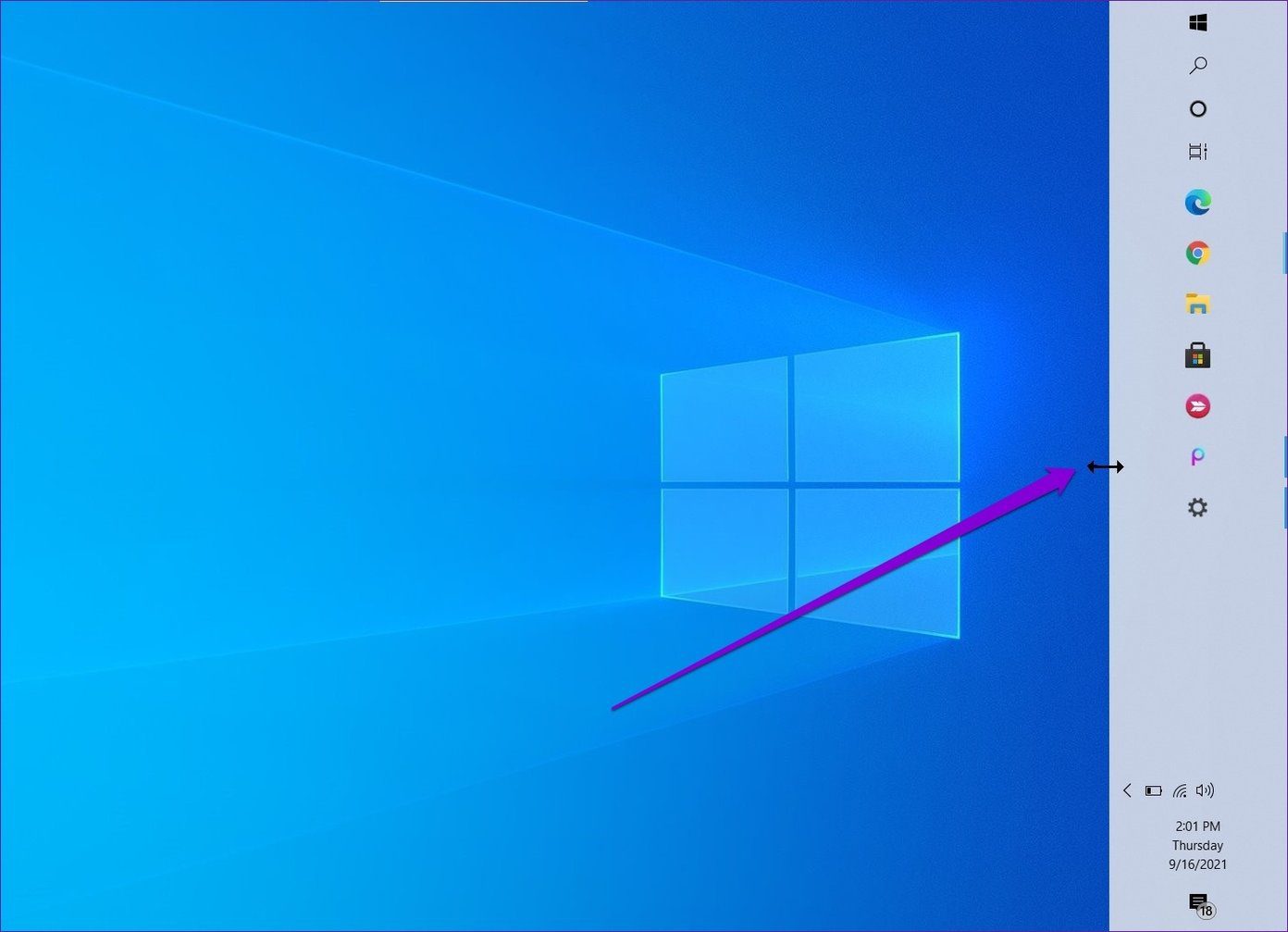
If you intend to keep the taskbar at its current height, lock the taskbar again so that you don’t accidentally change its height.
2. Increase Display Scale
When you change the taskbar size using the above method, it does not increase the size of the icons and buttons in the taskbar. If you wish to increase the size of the taskbar along with its icons and buttons, you’ll need to adjust the display scale on your PC. Here’s how to do it.
Step 1: Press the Windows Key + I to launch the Settings app and go to System.
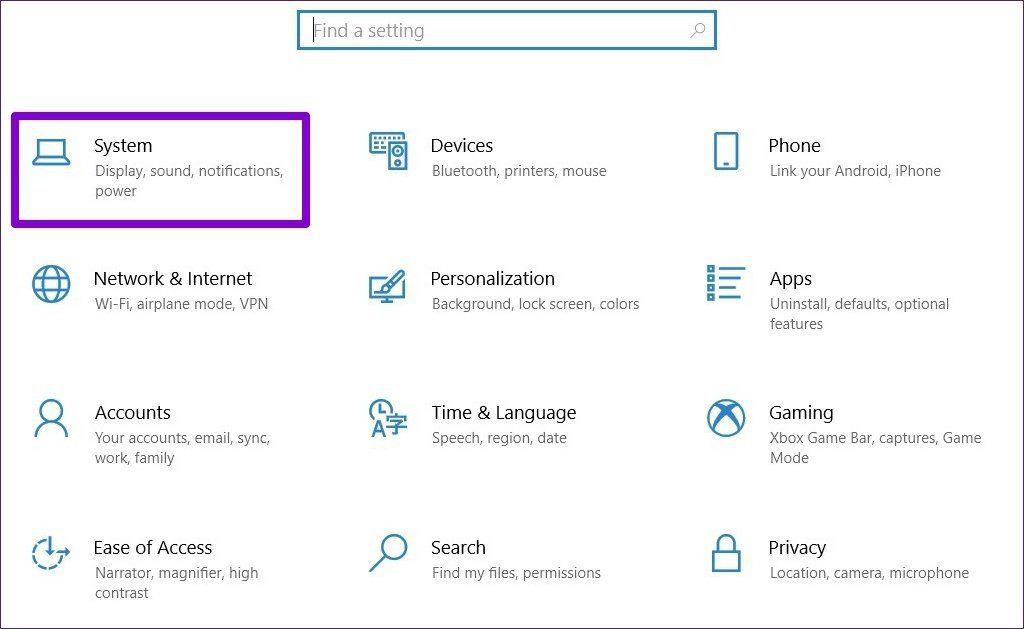
Step 2: Go to Display > Scale and layout. Use the drop-down menu under Change the size of text, apps, and other items to increase the scale.
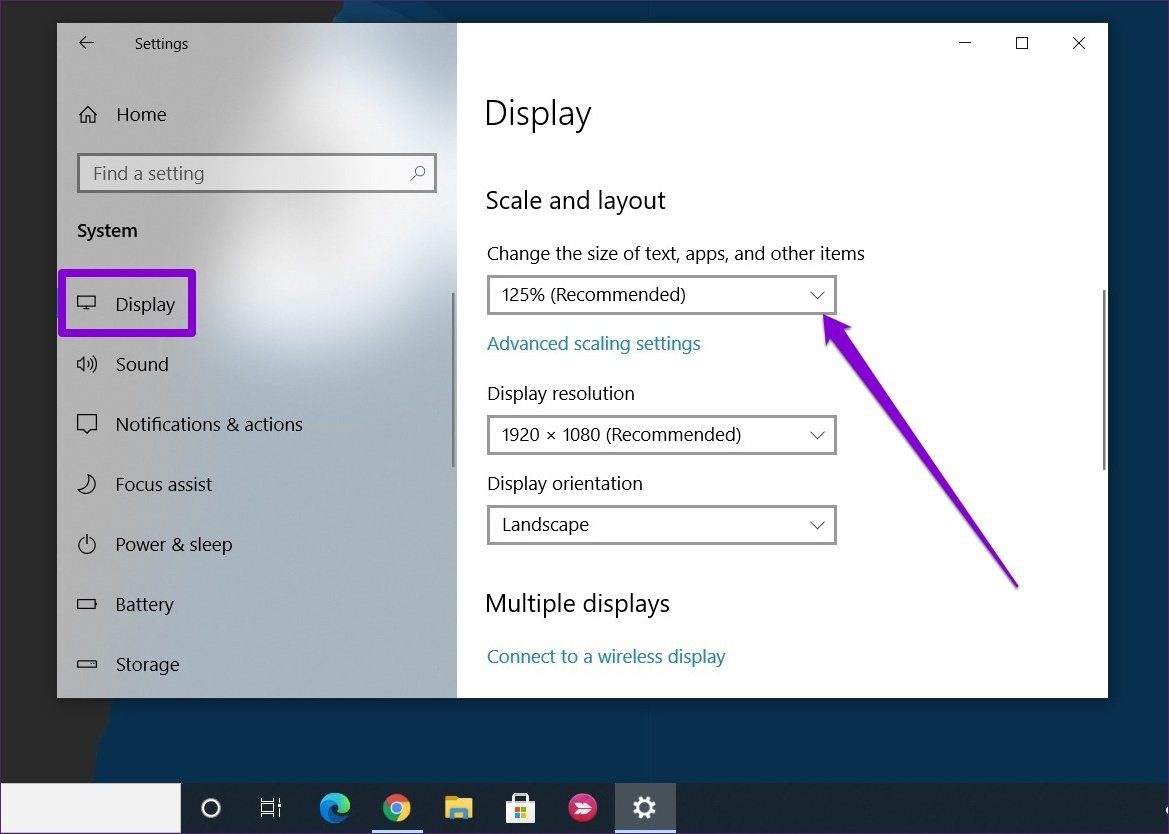
As you increase the scale, you’ll notice that the taskbar’s size and the other elements on your PC will increase. In other words, you’ll be seeing a zoomed-in version of the screen.
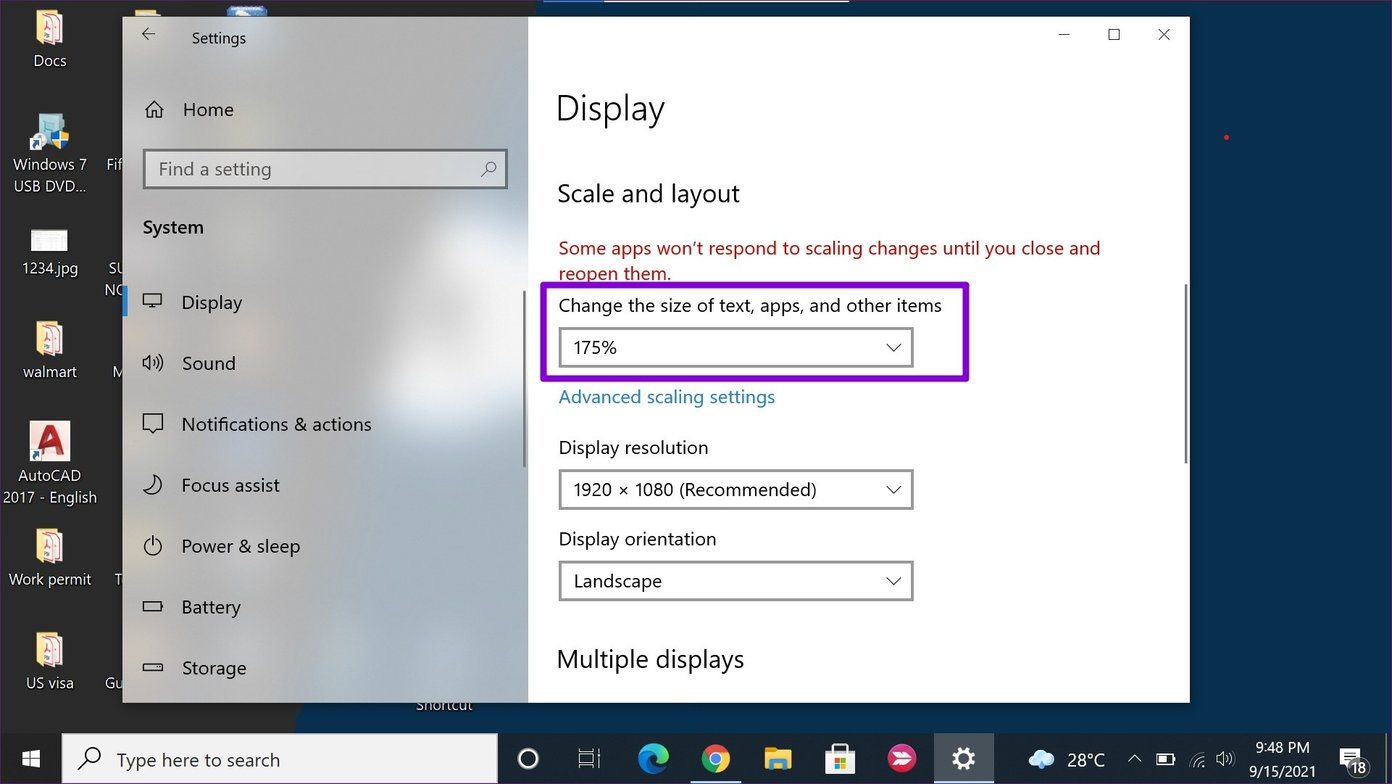
Note that this method will also increase the text size in apps like Google Chrome, Calendar, Notifications, etc.
How to Make the Taskbar Smaller in Windows 10
If you’re working on a smaller screen and feel that the taskbar is taking up valuable screen space, here is how to make the taskbar smaller on Windows 10.
1. Use the Resize Tool
The resize tool you use to increase the size of the taskbar can also be used to decrease its size. Here’s how.
Step 1: Right-click on the taskbar and uncheck Lock the taskbar.
Step 2: Move your cursor to the top edge of the taskbar. When the cursor turns into a double-sided arrow, click and drag the mouse down to decrease the height of the taskbar.
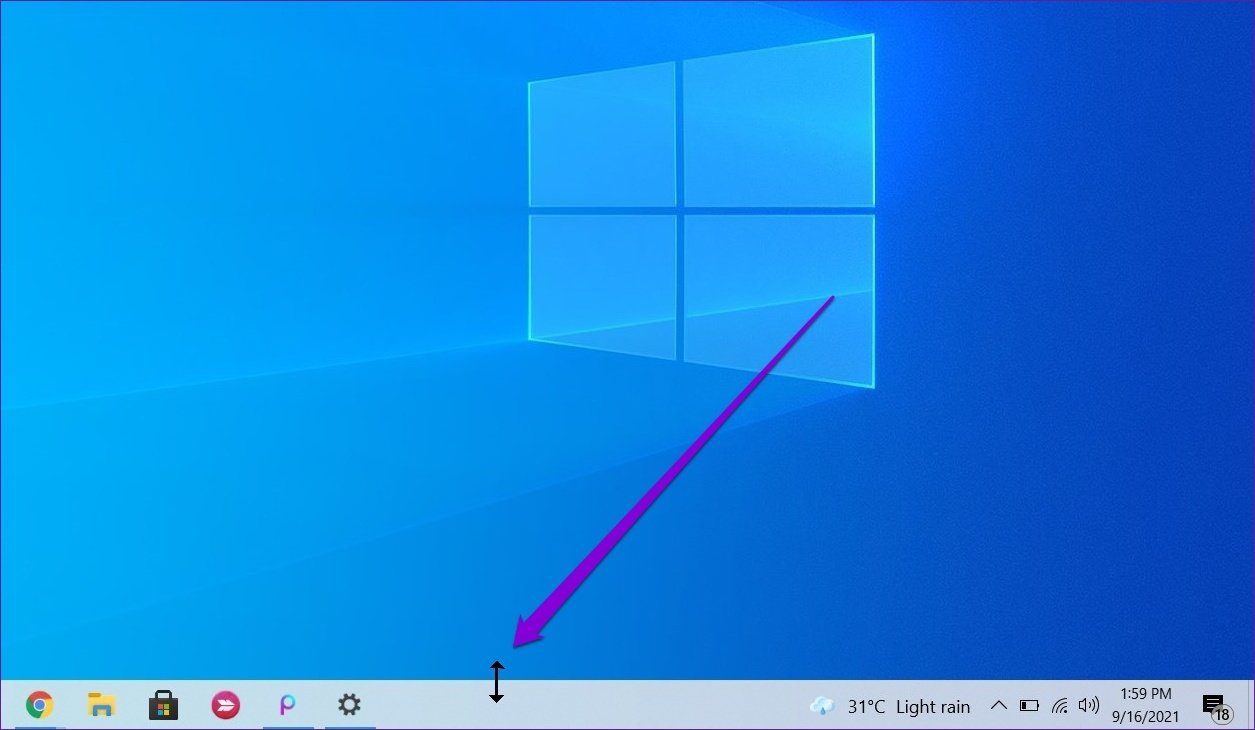
Once your taskbar is set at a preferable height, let go of the mouse button.
2. Enable Small Icons
While you can use the resize tool in the above method to make the taskbar smaller, it will stop at a certain limit. If you wish to go beyond that limit and make your taskbar even smaller, you’ll need to use smaller taskbar icons. Here’s how to enable them.
Step 1: Right-click anywhere on the taskbar and select Taskbar settings from the resulting menu.

Step 2: In the Settings window, toggle on the switch under Use small taskbar buttons.

Was this helpful?
Last updated on 02 July, 2024
Read Next
 2 Ways to Resize the Taskbar Icons in Windows 11
Method 1: Resize the Taskbar Icons Using Registry Editor Since there is no direct option to resize the taskbar icons, you must edit certain registry values to get this effect.
2 Ways to Resize the Taskbar Icons in Windows 11
Method 1: Resize the Taskbar Icons Using Registry Editor Since there is no direct option to resize the taskbar icons, you must edit certain registry values to get this effect.
 4 Ways to Resize Images in Windows 11
Method 1: Resize Images Using the Photos App You may use the Photos app to view, organize, and edit your photos.
4 Ways to Resize Images in Windows 11
Method 1: Resize Images Using the Photos App You may use the Photos app to view, organize, and edit your photos.
 How to Get Windows 11-Like Taskbar in Windows 10
Method 1: Use Stardock Start11 As Windows doesn’t have a setting to make the taskbar look like Windows 11, you can only rely on third-party apps like Stardock Start11.
How to Get Windows 11-Like Taskbar in Windows 10
Method 1: Use Stardock Start11 As Windows doesn’t have a setting to make the taskbar look like Windows 11, you can only rely on third-party apps like Stardock Start11.
 10 Ways to Fix Action Center Not Visible or Showing on Taskbar in Windows 10
The Action Center is a notification center where you can view, interact with, and dismiss all Windows 10 notifications.
10 Ways to Fix Action Center Not Visible or Showing on Taskbar in Windows 10
The Action Center is a notification center where you can view, interact with, and dismiss all Windows 10 notifications.
 How to Fix Windows 10 Invisible Taskbar Icons Issue
Pinning the frequently used apps to the taskbar is quite helpful.
How to Fix Windows 10 Invisible Taskbar Icons Issue
Pinning the frequently used apps to the taskbar is quite helpful.
 How to Fix Taskbar Icons Missing on Windows 11
Windows 11's new Taskbar looks great and feels modern, but it's not as perfect as it used to be.
How to Fix Taskbar Icons Missing on Windows 11
Windows 11's new Taskbar looks great and feels modern, but it's not as perfect as it used to be.
 4 Ways to Ungroup Taskbar Icons in Windows 11
Taskbar is an integral part of a Windows computer since it offers a quick access to your most-used applications.
4 Ways to Ungroup Taskbar Icons in Windows 11
Taskbar is an integral part of a Windows computer since it offers a quick access to your most-used applications.
 4 Fixes for Taskbar Calendar Not Opening on Windows 11
Try Basic Fixes Restart the Windows Explorer process: If the Windows Explorer process is malfunctioning on your system, the taskbar may not load correctly, and you may have trouble opening
4 Fixes for Taskbar Calendar Not Opening on Windows 11
Try Basic Fixes Restart the Windows Explorer process: If the Windows Explorer process is malfunctioning on your system, the taskbar may not load correctly, and you may have trouble opening
The article above may contain affiliate links which help support Guiding Tech. The content remains unbiased and authentic and will never affect our editorial integrity.