

Windows 10 gave users the chance to learn more about pictures they liked on the Lock Screen. In Windows 11, this feature is even more visible if you’re using Spotlight wallpapers.

So visible, in fact, that it might be annoying.
Normal deletion won’t do the trick for this additional icon on your desktop, but we have three methods to help you get rid of it.
New Updates, New Features
The “Learn about this picture” icon is a Spotlight wallpaper feature included as part of the Windows 11 24H2 update. It helps users find out more about a picture that’s currently on their Desktop wallpaper. For users trying to keep things uncluttered, it can be annoying and unnecessary. Let’s look at fixes:
Three Ways to Remove “Learn About This Picture” From Windows 11
Microsoft hasn’t made it easy to disable this feature, but three ways to remove the icon are through Settings, the System Registry, and third-party software.
Disable Through Settings
This is the easiest method of the three and lets you disable “Learn about this picture” through Settings. This does, however, involve you giving up the Spotlight feature, however. Here’s what to do:
Step 1. Open up Settings (Win + I).
Step 2. Navigate to “Personalization” in the sidebar.
Step 3. Scroll down and select “Background” in the left-hand sidebar menu.

Step 4. In the “Personalize your background subsection,” select the dropdown list, and choose any option other than “Windows Spotlight.”

Step 5. The icon and the whole feature should now have been removed.
Disable With the System Registry
If you like the Spotlight feature, but can’t stand the icon on your desktop, the best way to get rid of it is through your system registry. Here’s what to do:
Step 1. Open the Registry Editor. You can do this via the Search Bar or by typing “regedit” into the Run Dialog box (Win + R).

Step 2. Once inside the Registry Editor, navigate to the following path: “Computer\HKEY_CURRENT_USER\Software\Microsoft\Windows\CurrentVersion\Explorer\HideDesktopIcons.”
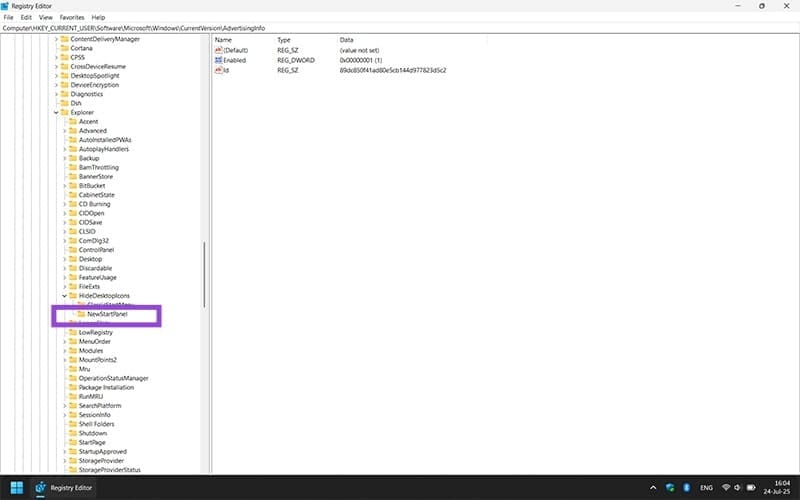
Step 3. In this folder, open the “NewStartPanel” subfolder by clicking it.
Step 4. Look for the entry named “{2cc5ca98-6485-489a-920e-b3e88a6ccce3}” and double click it.
Step 5. In the box that pops up, set the “Value Data” to “0.” Press “OK” when done.

Step 6. The icon should now be removed from your Desktop. If it isn’t, restart your machine.
If you want to reenable the icon at any time, simply enter the Registry Editor in the same way and change the “Value Data” to “1.”
Hide With Third-Party Software
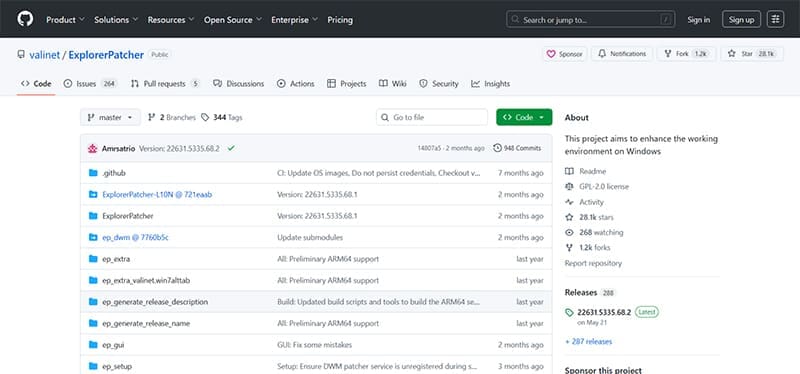
If fiddling around in the Registry Editor worries you, then there’s always a third-party software option to help you out. Not all of them involve a price, either. Take Explorer Patcher for example. This software was designed to help users customize their Windows 11 Explorer experience.
One such control helps the user better control the Spotlight feature, including how often the image changes and if the “Learn about this picture” icon is visible. As long as you have Explorer Patcher on your machine, you’ll be able to keep the icon hidden.
Was this helpful?
Last updated on 29 July, 2025
Read Next
 4 Android Apps to Learn Car Driving
1.
4 Android Apps to Learn Car Driving
1.
 4 Best Morse Code Apps to Learn & Type in Dots & Dash
Smartphones forever changed the way we communicate with each other.
4 Best Morse Code Apps to Learn & Type in Dots & Dash
Smartphones forever changed the way we communicate with each other.
 How to Enable or Disable Picture-in-Picture Mode on iPhone and iPad
Enable Automatic Picture-in-Picture Mode on iPhone and iPad If your iPhone or iPad doesn't automatically open videos in Picture-in-Picture mode when quitting to the Home screen, it's likely that your
How to Enable or Disable Picture-in-Picture Mode on iPhone and iPad
Enable Automatic Picture-in-Picture Mode on iPhone and iPad If your iPhone or iPad doesn't automatically open videos in Picture-in-Picture mode when quitting to the Home screen, it's likely that your
 4 Ways to Fix the iPhone Picture-in-Picture Not Working
Before you begin, try restarting your iPhone, and update the app you are trying to use picture-in-picture with, to the latest version.
4 Ways to Fix the iPhone Picture-in-Picture Not Working
Before you begin, try restarting your iPhone, and update the app you are trying to use picture-in-picture with, to the latest version.
 3 Fixes for Netflix Picture-In-Picture Mode Not Working on Android
Fix 1: Upgrade Netflix Plan If you are from a country where Netflix offers an ad-supported version, you must upgrade to a premium plan.
3 Fixes for Netflix Picture-In-Picture Mode Not Working on Android
Fix 1: Upgrade Netflix Plan If you are from a country where Netflix offers an ad-supported version, you must upgrade to a premium plan.
 What Is WhatsApp Profile Picture Size and How to Add Any Picture to It
What’s the Best Size for a WhatsApp profile Picture While WhatsApp has opened up to many new features, from sharing HD photos to screen sharing, it remains stringent on its
What Is WhatsApp Profile Picture Size and How to Add Any Picture to It
What’s the Best Size for a WhatsApp profile Picture While WhatsApp has opened up to many new features, from sharing HD photos to screen sharing, it remains stringent on its
 2 Ways to Turn on Picture in Picture on Microsoft Edge
Method 1: Use the Inbuilt PiP Option in Microsoft Edge Picture-in-Picture (PiP) mode was officially released in Microsoft Edge with the stable release of Microsoft Edge version 78.
2 Ways to Turn on Picture in Picture on Microsoft Edge
Method 1: Use the Inbuilt PiP Option in Microsoft Edge Picture-in-Picture (PiP) mode was officially released in Microsoft Edge with the stable release of Microsoft Edge version 78.
 3 Ways to Fix Picture-In-Picture Not Working in Facebook Messenger
Common Fixes Restart device - Long-press the physical Power button and tap Reboot to restart Android.
3 Ways to Fix Picture-In-Picture Not Working in Facebook Messenger
Common Fixes Restart device - Long-press the physical Power button and tap Reboot to restart Android.
The article above may contain affiliate links which help support Guiding Tech. The content remains unbiased and authentic and will never affect our editorial integrity.

