Microsoft has spent much of the past year pushing Copilot deeper into Windows 11, but with the April2026 Update, it finally added a proper way to remove Copilot instead of just hiding it. The “Remove Copilot” Group Policy option completely uninstalls it from the system. And if that doesn’t work for you, here are some alternatives.
Option 1 – Remove Copilot Group Policy Editor
Once set up, the “Remove Copilot” Group Policy goes into effect 28 days after you’ve stopped using any Copilot features, so it can take a bit of time for it to take effect.
Step 1. Press “Win + R,” type “gpedit.msc,” and click “OK.”
Step 2. Navigate to the following address:
“User Configuration > Administrative Templates > Windows Components > Windows Copilot.”
Step 3. Double-click on “Remove Microsoft Copilot app.”
Step 4. Select “Enabled,” then click on “Apply” and “OK” to confirm.
Step 5. Close the editor and restart your PC (or sign out and back in).
Option 2 – Remove Copilot Registry Editor Options
This is the version to use on Windows 11 Home, since the Group Policy Editor isn’t usually available. It also has a 28-day delay.
Step 1. Press “Win + R,” type “regedit,” and hit “Enter.” Accept the User Account Control prompt.
Step 2. Navigate to the following address:
“HKEY_CURRENT_USER\Software\Policies\Microsoft\Windows”
You can paste this into the address bar at the top (you have to drag over the existing address to select it).
Step 3. Right-click the “Windows” folder, select “New,” then “Key.” Name the new key “WindowsAI.”
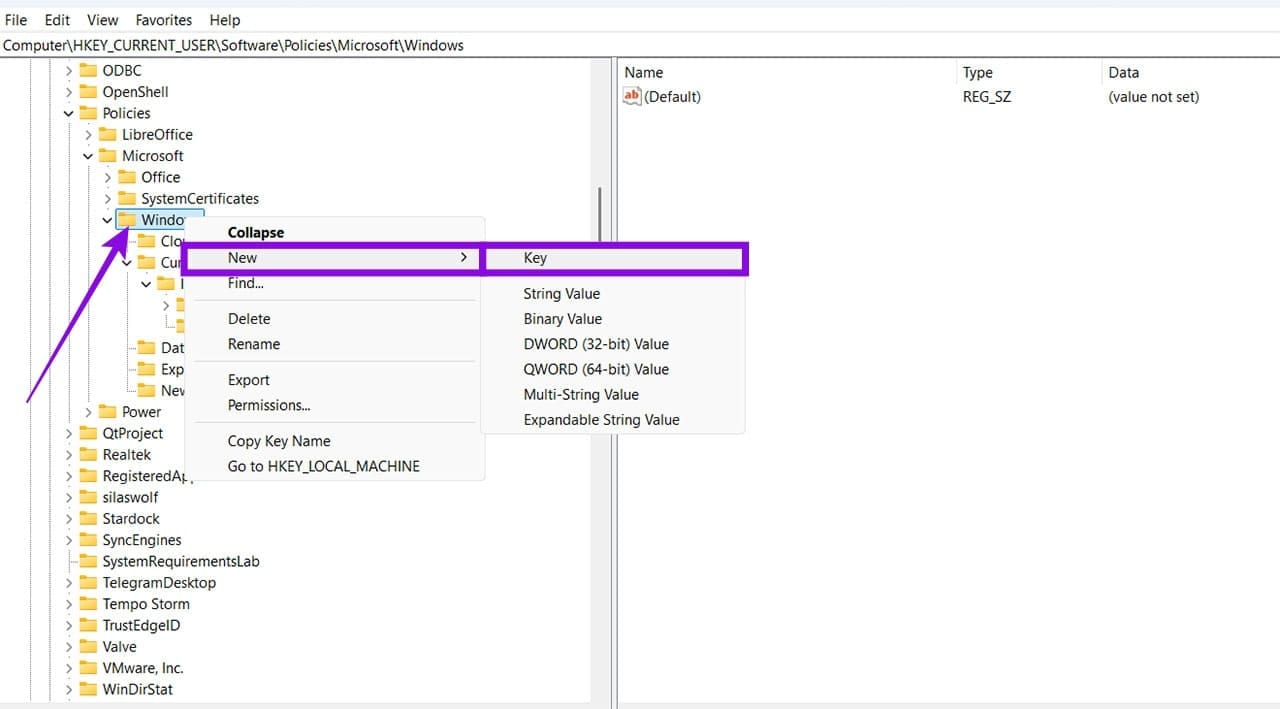
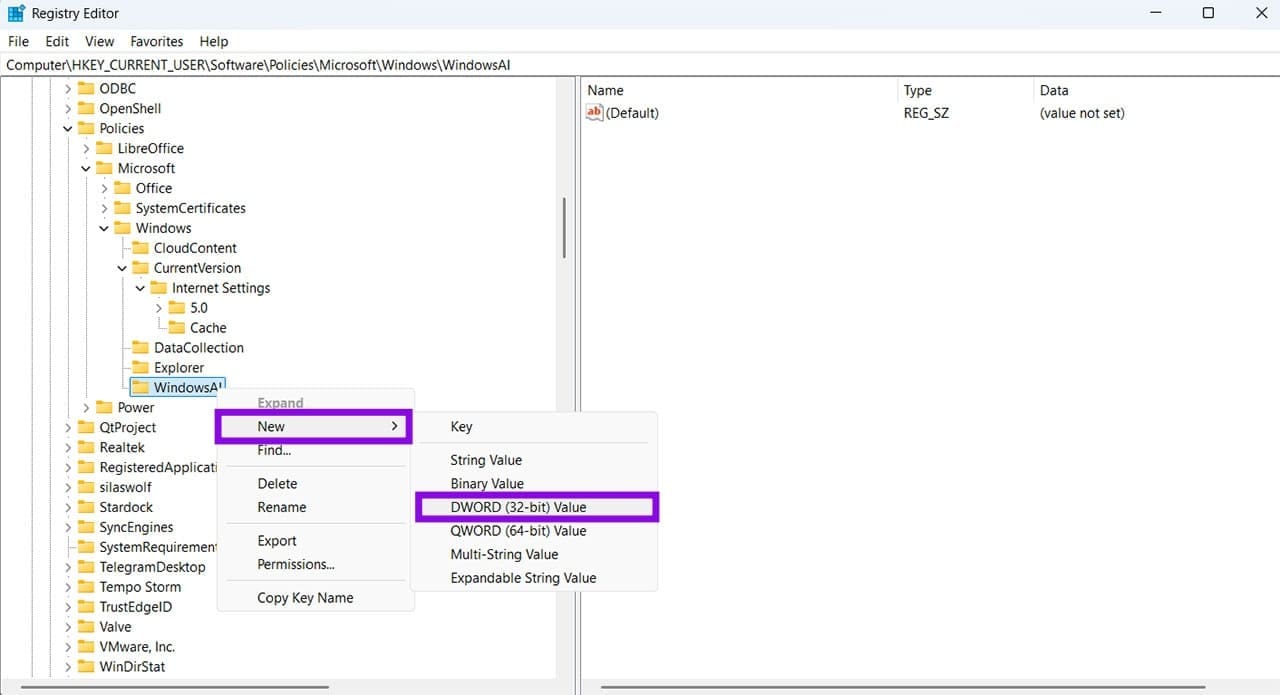
Step 4. Open the new key, right-click in the space on the right, and select “New,” then “DWORD (32-bit) Value.”
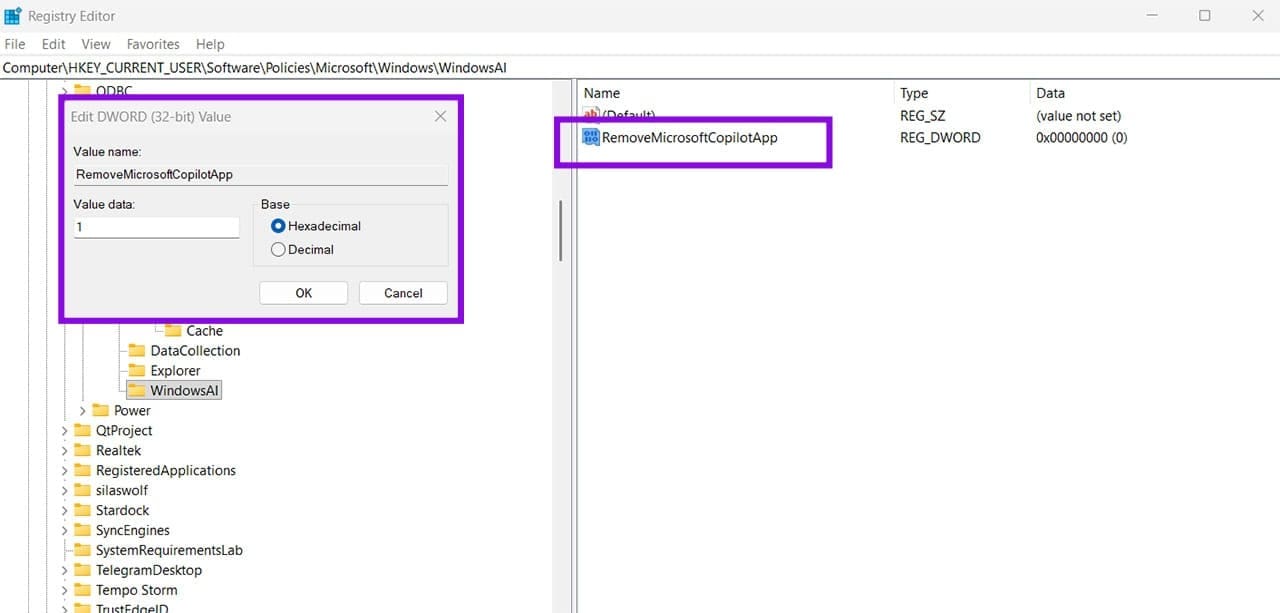
Step 5. Name the value “RemoveMicrosoftCopilotApp,” double-click it, and set it to “1.”
Step 6. Close the Registry Editor and restart your PC or sign out.
Option 3 – Remove Copilot With PowerShell
If you don’t want to wait for either method above to trigger on its own, this command removes the Copilot app right away.
Step 1. Right-click the Start icon and select “Terminal (Admin).”
Step 2. Identify the installed Copilot package by running:
“Get-AppxPackage *Copilot*”
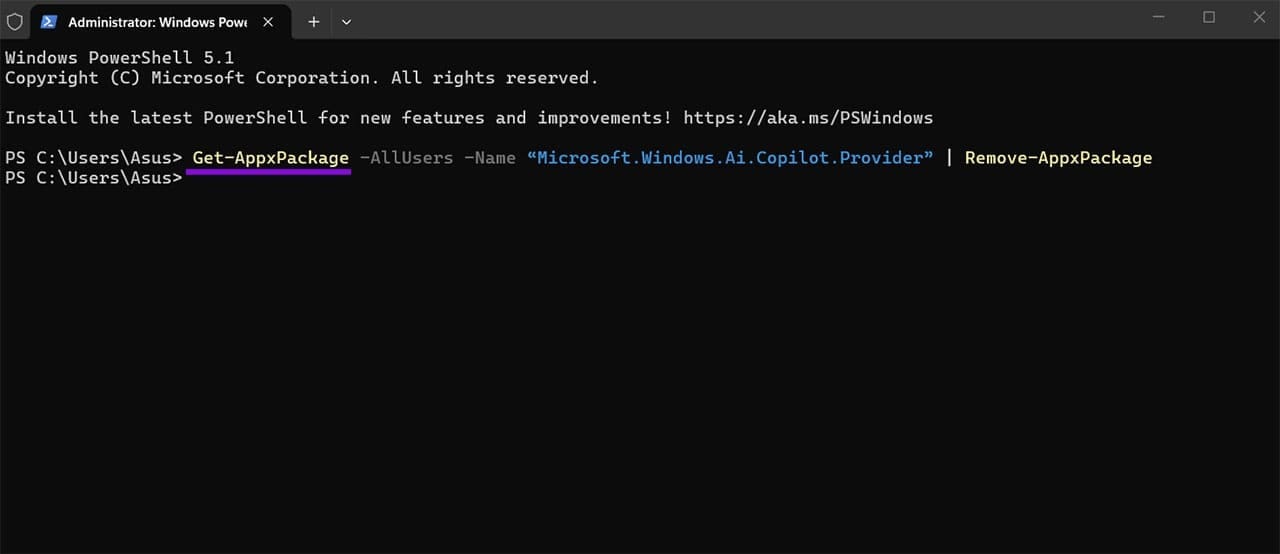
Step 3. Note the package name returned, then remove it by running:
“Get-AppxPackage -AllUsers -Name “<PackageName>” | Remove-AppxPackage -AllUsers”
Note: Replace <PackageName> with the package name returned in Step 2.
Step 4. Close the Terminal and sign out (or restart) to confirm Copilot is gone.
This clears the app immediately, but pair it with the Registry or Group Policy setting above to also prevent Windows from quietly reinstalling Copilot after a future update.
Option 4 – Just Want Copilot Hidden Instead of Removed?
If full removal sounds like overkill and you’d rather just hide Copilot while keeping the option to switch it back on, there’s an older, separate setting called “Turn off Windows Copilot” under the same Group Policy path, or the matching
HKEY_CURRENT_USER\Software\Policies\Microsoft\Windows\WindowsCopilot registry key with a “TurnOffWindowsCopilot” DWORD set to “1.”
This only hides the icon and prevents you from accessing Copilot; the app remains installed, but users cannot launch it through the Windows interface.
Was this helpful?
Last updated on 22 July, 2026
Read Next
 2 Ways to Fix Group Policy Editor (gpedit) Missing on Windows
Why Can't I Find the Group Policy Editor on Windows PC?
2 Ways to Fix Group Policy Editor (gpedit) Missing on Windows
Why Can't I Find the Group Policy Editor on Windows PC?
 2 Ways to Reset Local Group Policy Settings on Windows 11
Method 1: Reset Local Group Policy Settings Using the Group Policy Editor To reset local group policy settings on Windows 11, set all policies to 'Not Configured' individually using the
2 Ways to Reset Local Group Policy Settings on Windows 11
Method 1: Reset Local Group Policy Settings Using the Group Policy Editor To reset local group policy settings on Windows 11, set all policies to 'Not Configured' individually using the
 Eight Windows 11 Group Policy Best Practices for Admins
The Group Policy Editor for Windows 11 works similarly to its previous versions in Windows 10 or Windows 7.
Eight Windows 11 Group Policy Best Practices for Admins
The Group Policy Editor for Windows 11 works similarly to its previous versions in Windows 10 or Windows 7.
 How to Enable the Group Policy Editor in Windows 11 Home
If you want to set up multiple user accounts, perhaps for a shared office PC, the Group Policy Editor is one of the easiest ways to do so and prevent
How to Enable the Group Policy Editor in Windows 11 Home
If you want to set up multiple user accounts, perhaps for a shared office PC, the Group Policy Editor is one of the easiest ways to do so and prevent
 How to Remove Copilot and Disable Other AI Features on Windows 11
AI is an increasingly prominent part of modern life, and it’s becoming a bigger feature on computers and other devices, too.
How to Remove Copilot and Disable Other AI Features on Windows 11
AI is an increasingly prominent part of modern life, and it’s becoming a bigger feature on computers and other devices, too.
 How to Remove Copilot From Word
Microsoft Copilot has now become an integrated part of Office programs, including Word.
How to Remove Copilot From Word
Microsoft Copilot has now become an integrated part of Office programs, including Word.
 Remove “Ask Copilot” From the Right-Click Context Menu With These Tips
Copilot is a great tool for helping out in a pinch, but sometimes it really does seem that Windows is forcing it upon users at every opportunity.
Remove “Ask Copilot” From the Right-Click Context Menu With These Tips
Copilot is a great tool for helping out in a pinch, but sometimes it really does seem that Windows is forcing it upon users at every opportunity.
 How to Remove Copilot From Microsoft Edge
Method 1.
How to Remove Copilot From Microsoft Edge
Method 1.
The article above may contain affiliate links which help support Guiding Tech. The content remains unbiased and authentic and will never affect our editorial integrity.