

When setting up a new Windows 11 computer, you’ll be prompted to create a Microsoft account. Most users don’t realize this is actually an optional step, since Microsoft really pushes you to do it. However, you can use a local account instead that works just as well and doesn’t require a Microsoft login.
A local account doesn’t need an email or even internet access for you to use it. Instead, you just have a username and password. It’s like using an older version of Windows, on a modern computer.
During Setup on Windows 11 Home
When you set up a new computer or reinstall Windows 11 Home, it automatically tries to block the option to setup a local account. However, you can bypass this with the following steps.
Step 1: Start setting up your computer.
Step 2: When asked to connect to Wi-Fi, choose not to. If you’re already connected, disconnect from or forget the network.
Step 3: Go forward with setup and a popup should appear saying you need internet to continue.
Step 4: Press Shift and F10 on your keyboard.
Step 5: Type this in the command prompt window and then press Enter:
OOBE\BYPASSNRO
Step 6: Let your computer restart and then choose ‘Continue with limited setup.’
This should now let you sign in with a local account instead of a Microsoft account.
On Windows 11 Pro
If you have Windows 11 Pro, it’s easier to set up a local account.
Step 1: Go through setup until you get to the account screen.
Step 2: Click ‘Sign-in options’
Step 3: Choose ‘Offline account’ or ‘Local account’
Step 4: Click ‘Skip for now’ if asked to sign in.
Step 5: Create your account name and password.
After Windows Is Already Installed
If you’ve already setup a Microsoft account but decide you want to change to a local one, you don’t have to delete your entire account, just change it over.
Step 1: Go to Settings.

Step 2: Click ‘Accounts’ then ‘Your Info.’

Step 3: Find your Microsoft account. Click ‘Sign in with a local account instead.’
Step 4: Enter your current password to continue.

All you need after this is to create a username and password and your local account is all setup. Your original Microsoft account still exists and you can log back into it at any time in the settings. Keep in mind that local accounts don’t sync across devices, so you’ll need to switch back to your Microsoft account if you want to access your files elsewhere.
Was this helpful?
Last updated on 08 June, 2025
Read Next
 How to Set Up Windows 11 Without a Microsoft Account
When you set up a Windows 11 machine for the first time, it asks you to log in with your Microsoft account.
How to Set Up Windows 11 Without a Microsoft Account
When you set up a Windows 11 machine for the first time, it asks you to log in with your Microsoft account.
 How to Fix Cannot Log in to Facebook Account Problem
Basic Fixes Check if Facebook is down - Sometimes, Facebook experiences outages or technical issues that can stop you from logging in.
How to Fix Cannot Log in to Facebook Account Problem
Basic Fixes Check if Facebook is down - Sometimes, Facebook experiences outages or technical issues that can stop you from logging in.
 How to Log Out Devices From Telegram Account
Log Out Device From Telegram on Mobile Telegram is available for a wide variety of device platforms.
How to Log Out Devices From Telegram Account
Log Out Device From Telegram on Mobile Telegram is available for a wide variety of device platforms.
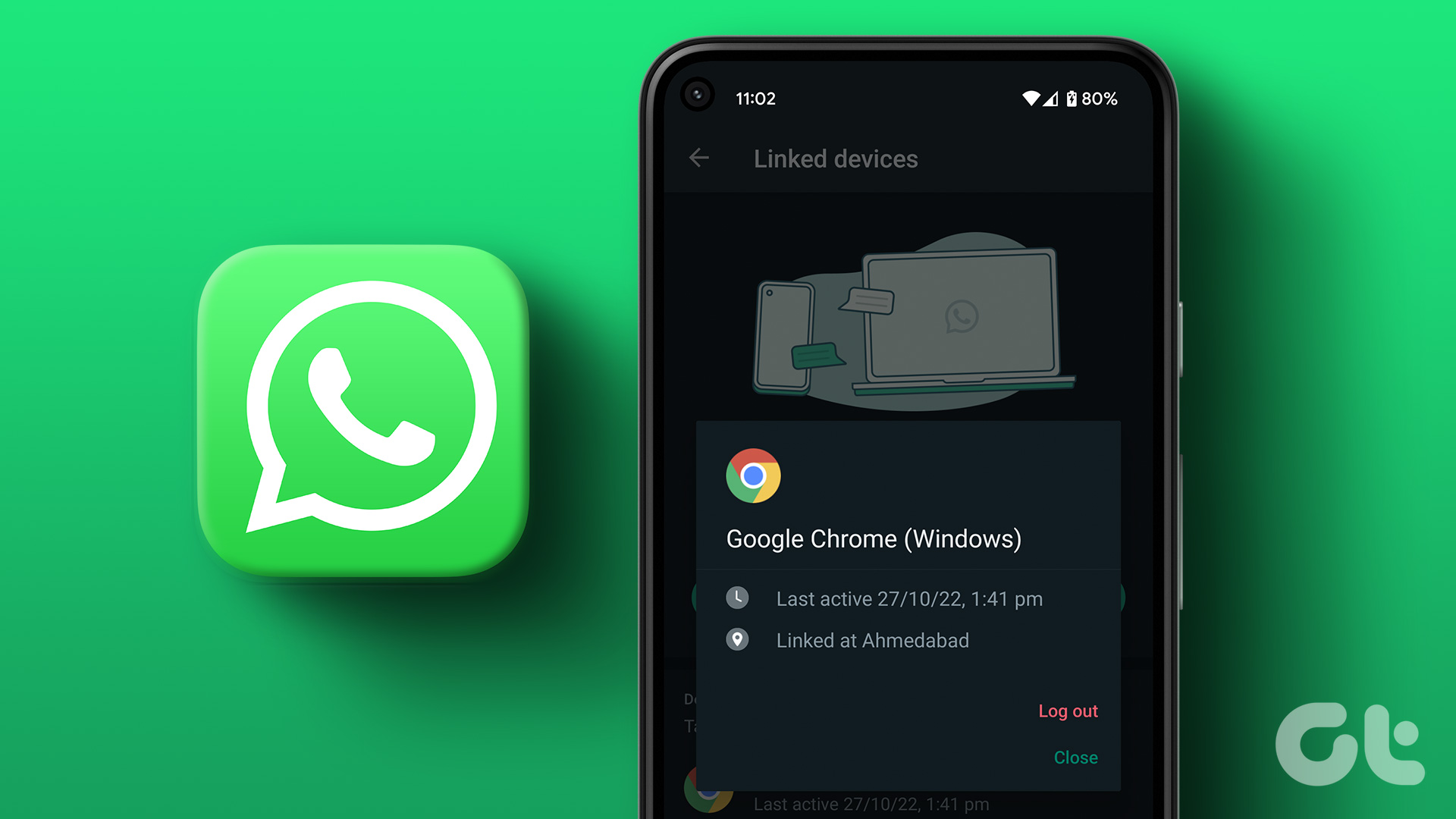 How to Log Out Linked Devices From WhatsApp Account
https://youtu.be/Ij8bVFcMnbE Log Out Linked Devices From WhatsApp on Mobile Before moving on with the steps, we suggest updating WhatsApp version on your iPhone or Android.
How to Log Out Linked Devices From WhatsApp Account
https://youtu.be/Ij8bVFcMnbE Log Out Linked Devices From WhatsApp on Mobile Before moving on with the steps, we suggest updating WhatsApp version on your iPhone or Android.
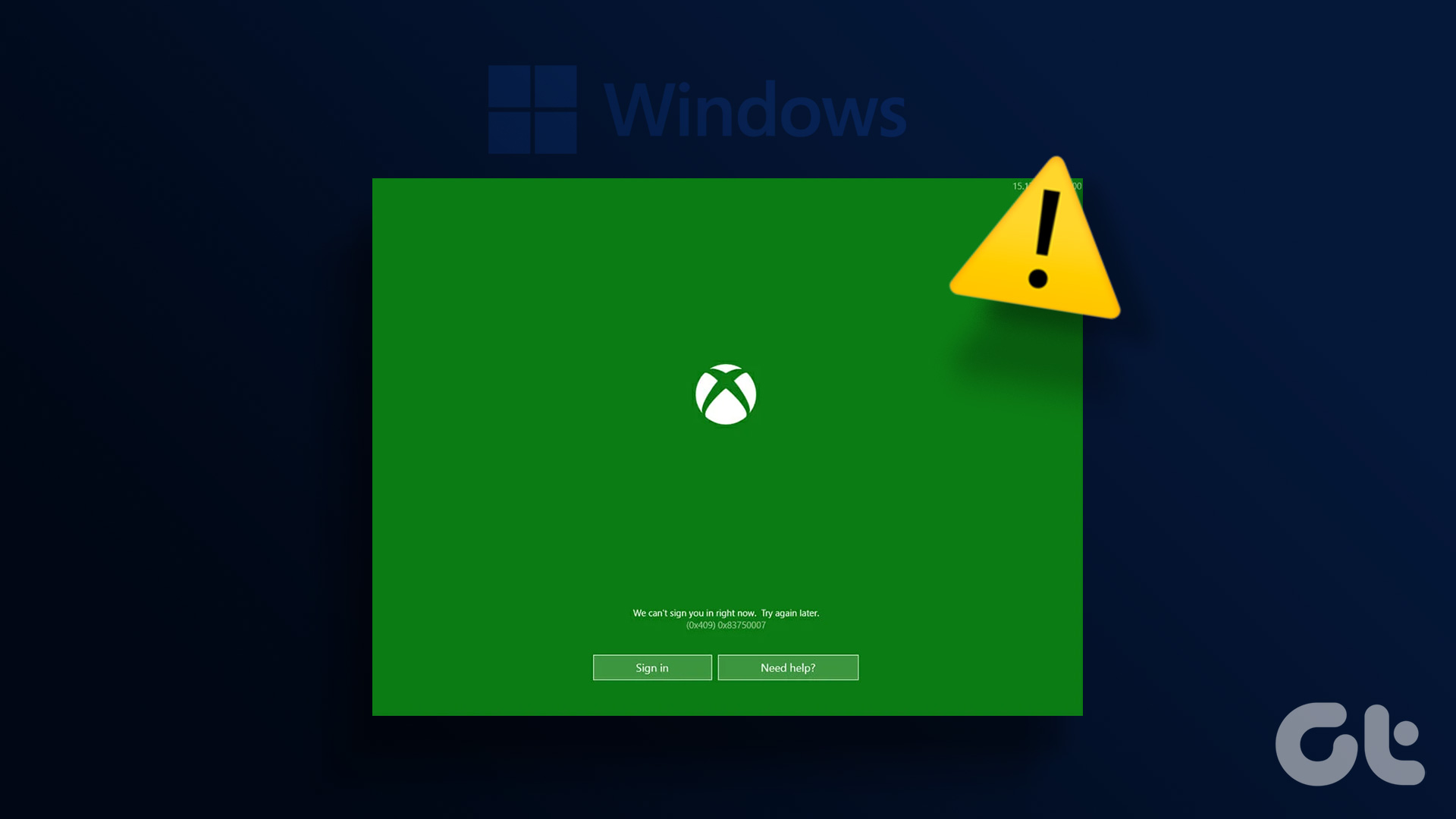 5 Ways to Fix Xbox App Won’t Let Me Log in on Windows 11
Fix 1: Ensure Xbox Services Are Running The Xbox app for Windows relies on certain background services to work on your computer.
5 Ways to Fix Xbox App Won’t Let Me Log in on Windows 11
Fix 1: Ensure Xbox Services Are Running The Xbox app for Windows relies on certain background services to work on your computer.
 How to View Instagram Posts and Stories Without an Account
How to See Instagram Stories Without an Account Unlike posts on Instagram (mentioned below), users can see who opened/viewed their Instagram Stories.
How to View Instagram Posts and Stories Without an Account
How to See Instagram Stories Without an Account Unlike posts on Instagram (mentioned below), users can see who opened/viewed their Instagram Stories.
 How to Delete ChatGPT Account (With or Without Login)
Things to Know Before Deleting Your ChatGPT Account You need to know some significant points before deleting your ChatGPT account because there is no going back after your account has
How to Delete ChatGPT Account (With or Without Login)
Things to Know Before Deleting Your ChatGPT Account You need to know some significant points before deleting your ChatGPT account because there is no going back after your account has
 How to Message a Private Account on Instagram (Without Following)
Message a Private Account on Instagram There are three ways to message a private account on Instagram, whether you follow them or not.
How to Message a Private Account on Instagram (Without Following)
Message a Private Account on Instagram There are three ways to message a private account on Instagram, whether you follow them or not.
The article above may contain affiliate links which help support Guiding Tech. The content remains unbiased and authentic and will never affect our editorial integrity.

