Windows 11 updates are meant to make the PC easier to use and more stable in the long run, but the 24H2 update seems to go against the grain. It’s become so problematic that Microsoft keeps a detailed list of hardware and software that have been affected and potential solutions.
If your Windows 11 24H2 crashes repeatedly, here are some common fixes that can mitigate the problem.
Fix 1 – Remove Windows Hello and Avoid Using the Camera
Windows 11 systems with integrated cameras (i.e., laptops) might experience the entire Windows operating system freezing up when a program that uses the camera opens. This can be debilitating if you’re using Windows Hello to log in. To address this:
Step 1. Go to Settings, then to “Accounts.”
Step 2. Scroll down and select “Sign in options.”

Step 3. Expand “Facial Recognition” and select “Remove.”
Step 4 (optional). Repeat the process for the fingerprint and PIN settings.
Step 5. Set up an account password to unlock the PC if you want to maintain some security.

Fix 2 – Change Registry Settings for Western Digital and SanDisk SSDs
The update has changed how Windows processes memory, and these specific SSDs have become incompatible out of the box. While you can perform a firmware update through SanDisk’s website, you risk corrupting all the data on the drive. If you can’t offload the data to another device, you can use a temporary registry change to bypass this.
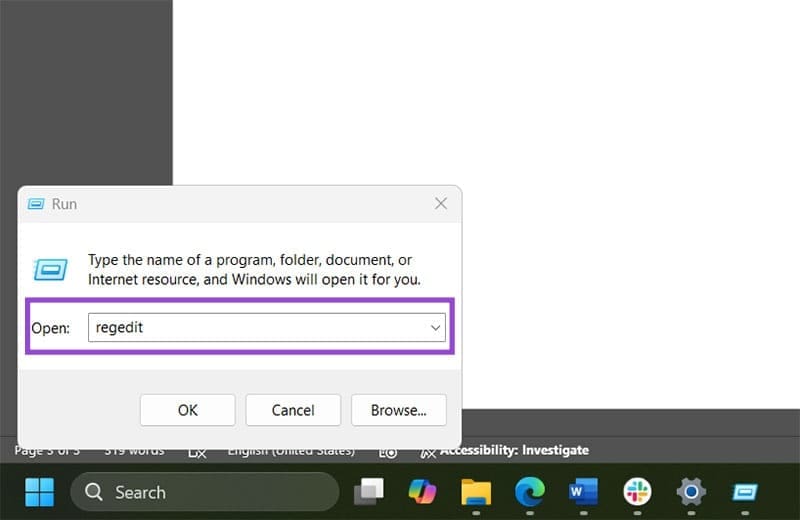
Step 1. Open the Registry Editor by going to “Run” (via “Windows + R”) and entering “regedit.” Confirm the User Account Control pop-up.
Step 2. Go to the following address:
Computer\HKEY_LOCAL_MACHINE\SYSTEM\CurrentControlSet\Control\StorPort
Step 3. Find a DWORD named HmbAllocationPolicy. If it doesn’t exist, right-click on the folder, then make one.

Step 4. Modify the DWORD value to either 0 or 2.
Step 5. Restart the PC.
Fix 3 – Perform Windows Updates Again
Since Windows 11 24H2 is still being rolled out, new updates and fixes can clear some of the issues you have. In June, this happened with Easy AntiCheat, which affected some of the most popular games, for example. To fix this:
Step 1. Go to Windows Update.
Step 2. Check for new updates.
Step 3. Find, select, and download all updates that relate to the “Windows 11 24H2” version, even if you ignore all others (but it’s generally best to download all).
Step 4. Follow the instructions and restart the PC when needed.
Fix 4 – Reroll Windows 11
If you’ve only recently updated Windows 11 to 24H2, you’ll usually get an option to roll back to the previous version, since the files are still in memory. However, this option only lasts for 10 days and might get cut if you perform subsequent updates.
Step 1. Go to Settings and choose “System.”
Step 2. Open “Recovery.”
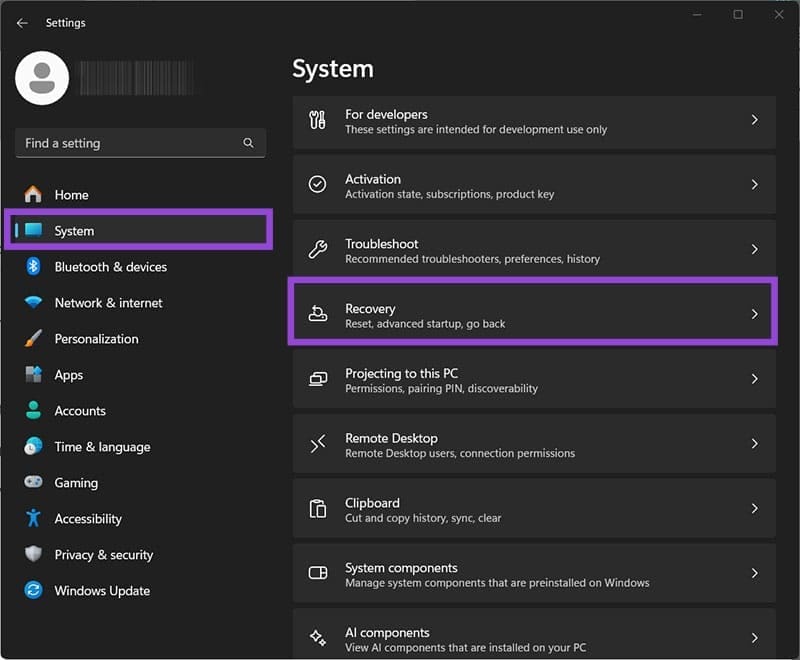
Step 3. Choose the option “Go back” if it’s not greyed out.
If you can’t use “Go back,” you can manually download Windows 11 23H2 from Microsoft’s website and perform a clean install with that version. You’ll need to back up your data, at least from the partition that Windows is installed on.
Was this helpful?
Last updated on 26 July, 2025
Read Next
 How to Roll Back Windows 11 24H2 Update to 23H2
Did you ever update your system software only to realize you were better off before the move?
How to Roll Back Windows 11 24H2 Update to 23H2
Did you ever update your system software only to realize you were better off before the move?
 Windows 11 Deactivated After 24H2 Update
You signed up for Windows 11 and had the fully enabled version installed on your PC.
Windows 11 Deactivated After 24H2 Update
You signed up for Windows 11 and had the fully enabled version installed on your PC.
 4 Ways to Fix App Crashes on Windows
Try Basic Fixes Install Windows and app updates: Windows updates bring all kinds of bug fixes and stability improvements to your PC.
4 Ways to Fix App Crashes on Windows
Try Basic Fixes Install Windows and app updates: Windows updates bring all kinds of bug fixes and stability improvements to your PC.
 6 Ways to Fix Google Chrome Crashes When Downloading Files on Windows
Fix 1.
6 Ways to Fix Google Chrome Crashes When Downloading Files on Windows
Fix 1.
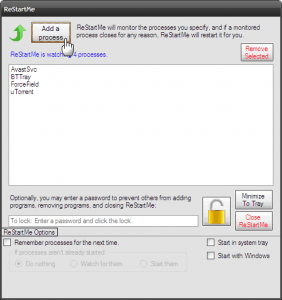 Quickly Auto-Restart a Windows Process or Program that Crashes
No one’s ever been killed in a Windows crash, so the Microsoft jokes don’t die down.
Quickly Auto-Restart a Windows Process or Program that Crashes
No one’s ever been killed in a Windows crash, so the Microsoft jokes don’t die down.
 6 Ways to Fix Google Chrome Crashes or Freezes When Uploading Files
Common Fixes Close other tabs and background applications: It will free up system resources, saving Google Chrome from a potential crash.
6 Ways to Fix Google Chrome Crashes or Freezes When Uploading Files
Common Fixes Close other tabs and background applications: It will free up system resources, saving Google Chrome from a potential crash.
 How to Manually Cause BSOD in Windows: 5 Ways
Note: It is vital that you save your work before proceeding with the below-mentioned steps and methods.
How to Manually Cause BSOD in Windows: 5 Ways
Note: It is vital that you save your work before proceeding with the below-mentioned steps and methods.
 Outlook Crashes at Startup — 3 Fixes
If you’ve experienced Outlook crashing at startup, you’re not alone.
Outlook Crashes at Startup — 3 Fixes
If you’ve experienced Outlook crashing at startup, you’re not alone.
The article above may contain affiliate links which help support Guiding Tech. The content remains unbiased and authentic and will never affect our editorial integrity.