

Microsoft’s AI agent, Copilot, is changing the way users work with their Windows devices. With the new “Hey Copilot” feature for Windows 11, you no longer even need to click or type to engage with this AI assistant; you can simply say the phrase “Hey Copilot” and use voice commands to ask questions, get help, generate content, and more.
This guide looks at how to set up “Hey Copilot” for Windows 11 and some of the ways you can use this feature.
How to Enable “Hey Copilot” for Windows 11
The “Hey Copilot” feature basically lets you “wake up” your Copilot AI assistant using your voice, instead of having to open up the Copilot app and type out a message. It’s great for hands-free AI interactions, and setting it up only takes a moment. Here’s what you need to do.
Step 1. Press “Windows” and “C” together to launch the Copilot app, or just click on the Copilot icon. Then click the “Open sidebar” button in the top-left corner.
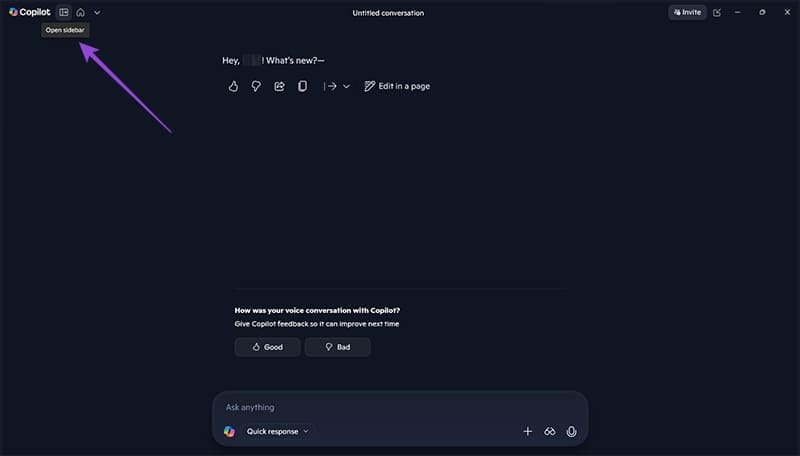
Step 2. In the bottom-right, you should see your profile icon. Click that, then select “Settings.”

Step 3. In the Settings menu, scroll down to the “Voice mode” section and look for the option labeled “Listen for ‘Hey, Copilot’” to start a conversation.” Click the switch to toggle that feature on.

Troubleshooting Issues With Voice Commands With AI in Windows
Once you’ve enabled Copilot voice commands, you should be able to simply say “Hey Copilot” at any time and start chatting with Copilot right away. However, if the feature doesn’t seem to be working, you might need to take a couple of extra steps to permit Copilot to access your microphone.
Step 1. Open the Windows Settings app using the “Windows” and “I” keyboard combination or the Start menu shortcut.

Step 2. Click on “Privacy & security.” Then scroll down to the “App permissions” section and select “Microphone.”

Step 3. Make sure the switch next to “Copilot” is toggled to the “On” position.

Note, also, that the “Hey Copilot” command only works if your device is on and unlocked, so if you’ve locked your computer, you won’t be able to access Copilot this way.
How to Use AI Voice Commands for Windows
Once you’ve set everything up correctly, Copilot will always be listening out for the “Hey Copilot” wake word. If it hears that phrase, it’ll activate. What’s more, you can use this at any time, like when you’re using other Windows apps, such as Microsoft Edge, Word, Excel, and so on. Just say “Hey Copilot” and then ask for whatever you need, which might include:
- Rapid answers: You can ask Copilot to define words, answer queries, or provide recommendations.
- File control: Use Copilot to create and edit your documents and other files, or save and send them to others.
- Task management: Get Copilot to set reminders or plan a schedule for you, organizing your calendar or making a to-do list of important tasks.
From helping you shop online to assisting with study, research, and work, there are lots of options to engage with Copilot, and the “Hey Copilot” command gives you yet another way to access this AI assistant whenever you want.
Was this helpful?
Last updated on 11 November, 2025
Read Next
 2 Ways to Fix Alexa Not Responding to Voice Commands
Basic Troubleshoot Ensure Wi-Fi is working: If the network connection is unstable, Alexa may not respond to your question or process a request.
2 Ways to Fix Alexa Not Responding to Voice Commands
Basic Troubleshoot Ensure Wi-Fi is working: If the network connection is unstable, Alexa may not respond to your question or process a request.
 3 Fixes for Alexa Not Responding to Voice Commands on Amazon Fire TV Stick 4K
Basic Fixes Bring the remote closer: According to the instruction manual for the Amazon Fire TV Stick 4K, the distance between the Fire TV remote and Fire TV Stick 4K
3 Fixes for Alexa Not Responding to Voice Commands on Amazon Fire TV Stick 4K
Basic Fixes Bring the remote closer: According to the instruction manual for the Amazon Fire TV Stick 4K, the distance between the Fire TV remote and Fire TV Stick 4K
 3 Ways to Turn off Copilot on Windows 11
https://youtu.be/WmmLAoyJSpo Method 1: Via Taskbar Settings Step 1: Right-click on the Taskbar and choose Taskbar settings from the menu.
3 Ways to Turn off Copilot on Windows 11
https://youtu.be/WmmLAoyJSpo Method 1: Via Taskbar Settings Step 1: Right-click on the Taskbar and choose Taskbar settings from the menu.
 Copilot Missing on Windows 11? Here’s How to Bring It Back
Get Copilot From the Microsoft Store If you can't find Microsoft Copilot on your Windows 11 system, install it from the Microsoft Store to get started.
Copilot Missing on Windows 11? Here’s How to Bring It Back
Get Copilot From the Microsoft Store If you can't find Microsoft Copilot on your Windows 11 system, install it from the Microsoft Store to get started.
 How to Remove Copilot and Disable Other AI Features on Windows 11
AI is an increasingly prominent part of modern life, and it’s becoming a bigger feature on computers and other devices, too.
How to Remove Copilot and Disable Other AI Features on Windows 11
AI is an increasingly prominent part of modern life, and it’s becoming a bigger feature on computers and other devices, too.
 How to Use Copilot Vision on Windows for Instant Answers in Any App
After Copilot Vision was piloted on Microsoft Edge, news of the feature coming directly to the Windows OS as a whole has reinvigorated its potential use cases.
How to Use Copilot Vision on Windows for Instant Answers in Any App
After Copilot Vision was piloted on Microsoft Edge, news of the feature coming directly to the Windows OS as a whole has reinvigorated its potential use cases.
 How to Use Copilot in Word
How to Use Microsoft Copilot in Word for Drafts Microsoft Copilot is a generative AI tool which means it can create text from prompts.
How to Use Copilot in Word
How to Use Microsoft Copilot in Word for Drafts Microsoft Copilot is a generative AI tool which means it can create text from prompts.
 How to Use MS Copilot in Excel
: Getting Started Step 1: Open Excel Step 2: Make sure you’re logged into the Microsoft account that’s associated with your Copilot Pro license
How to Use MS Copilot in Excel
How to Use MS Copilot in Excel: Getting Started Step 1: Open Excel Step 2: Make sure you’re logged into the Microsoft account that’s associated with your Copilot Pro license
The article above may contain affiliate links which help support Guiding Tech. The content remains unbiased and authentic and will never affect our editorial integrity.

