If your hard drive is starting to run out of space, your Windows updates (and many others) could fail and you may run into security issues. To solve this, your best option is to check largest items on hard drive that has Windows on it and relocate (or delete) them.
Option 1: Use Windows Storage Settings for a Broad Overview and Smart Options
By default, Windows might be keeping some old update files and updates that can be safely removed, which can save a few gigabytes of space.
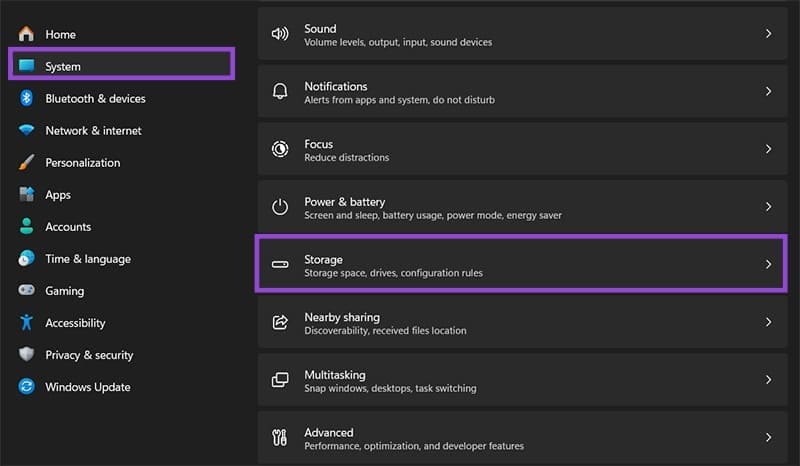
Step 1. Open Settings via “Win + I” and go to “System.”
Step 2. Select “Storage” and wait for Windows to complete calculating available space.
Step 3. If you want to save a bit of space, click on “Temporary files.”
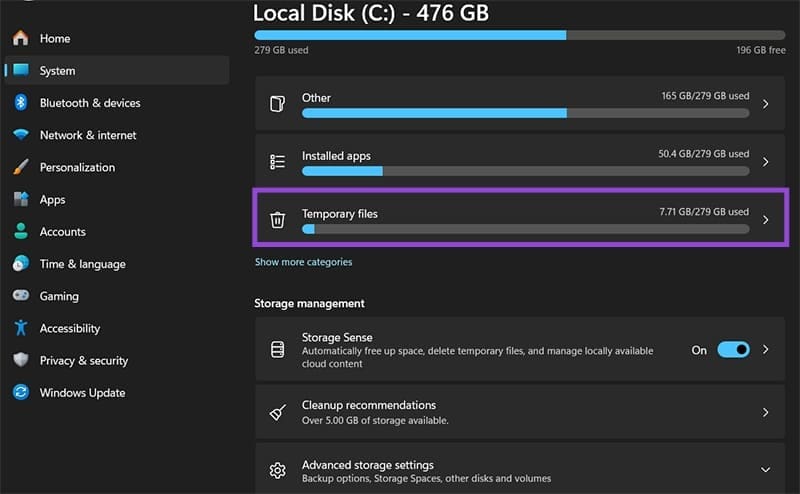
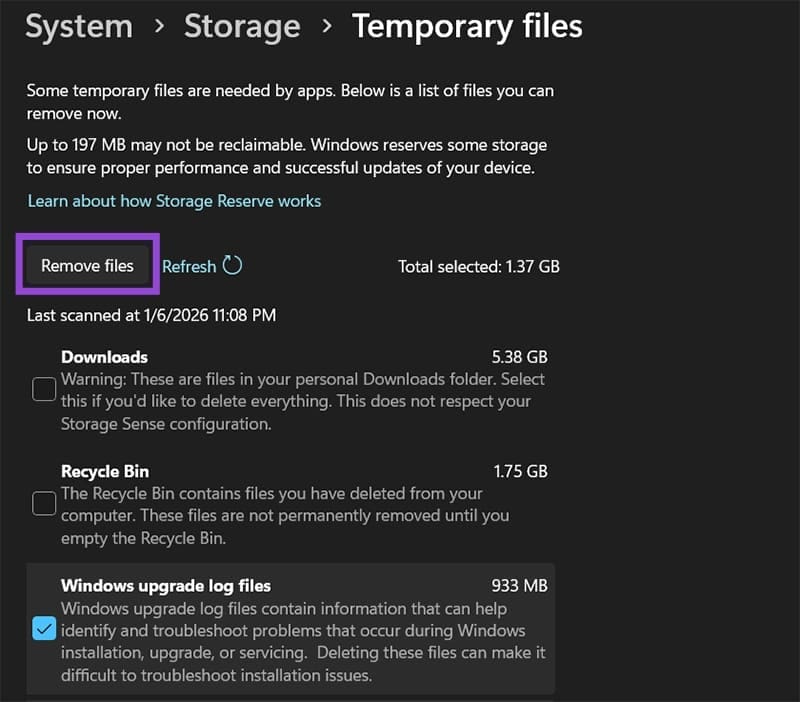
You can instantly remove temporary files from there. Keep the suggested options checked and select “Remove files.” You can also keep “Storage Sense” on to periodically remove obsolete files.
Option 2: Use a Third-Party Tool to Find Largest Items on Hard Drive
Third-party tools allow you a much better filtering view and have a visual interface that helps you check largest items on hard drive partitions easily.
To find large items on Windows, WinDirStat is likely your best bet (which we’ll use for demonstration). For Mac, you can use GrandPerspective.
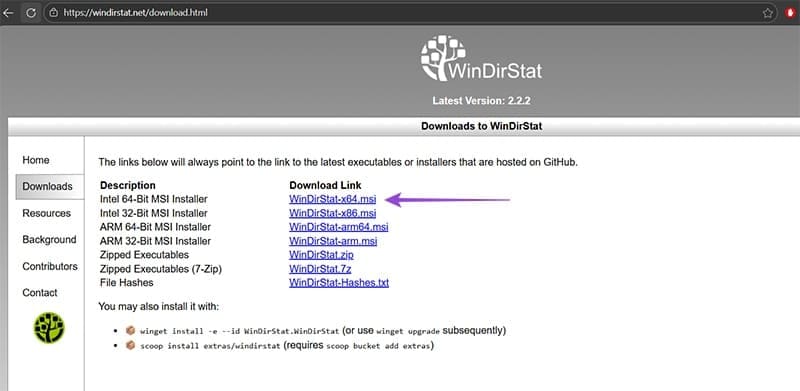
Step 1. Download WinDirStat from the official download page. In most cases, you’ll want the Intel 64-bit installer.
Step 2. Run the downloaded file and follow the installation instructions.
Step 3. Find and open the application from your search bar if you didn’t add a shortcut to your desktop.
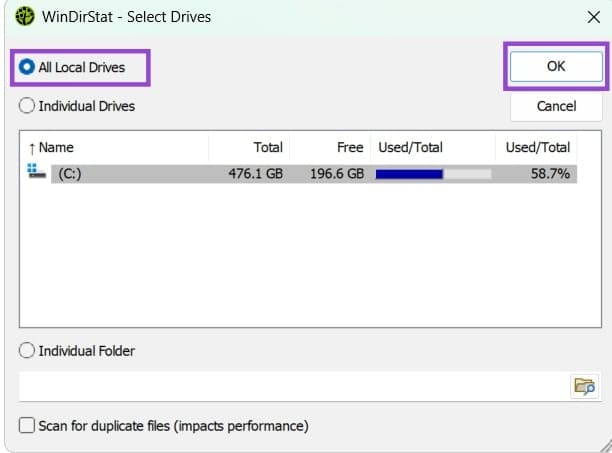
Step 4. Select the drives you want to check or go to “All Local Drives” and select “OK.” You can choose to scan for duplicates, but this is much slower.
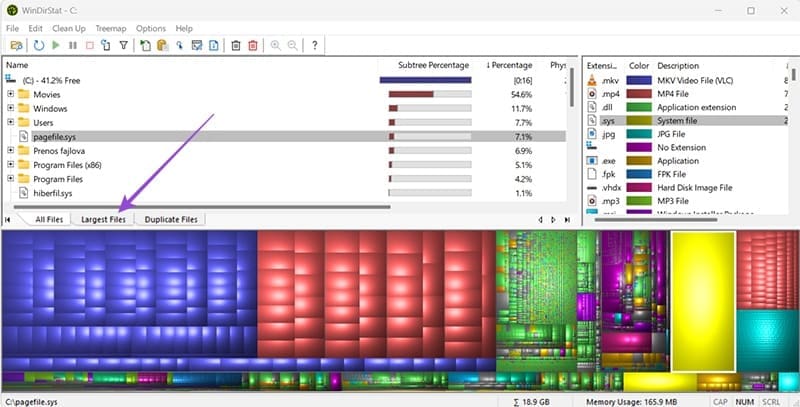
Step 5. Click on the “Largest Files” tab on the bottom of the path selector (but above the visual grid).
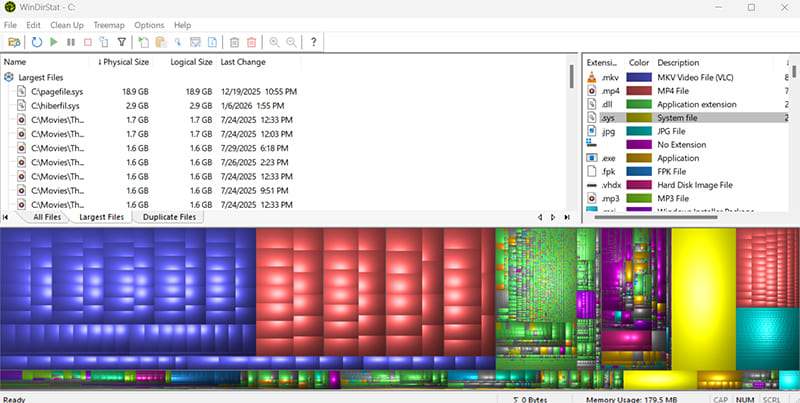
In there, you’ll get a direct path to the largest files and their extensions. You can use the extension descriptor on the right to determine what each file is supposed to be. In most cases, the paging files or Windows installation files will be at the top, followed by large graphics caches and video files.
You can also manually click on a particular file from the graphical view on the bottom, which displays items based on the relative space they occupy on the disk (so the largest single block is the biggest file).
Option 3: Use File Explorer to Find Large Items Natively
If you don’t want a full graphical interface, you can search through big files with File Explorer.
Step 1. Open File Explorer or This PC, then find the hard drive you want to browse.
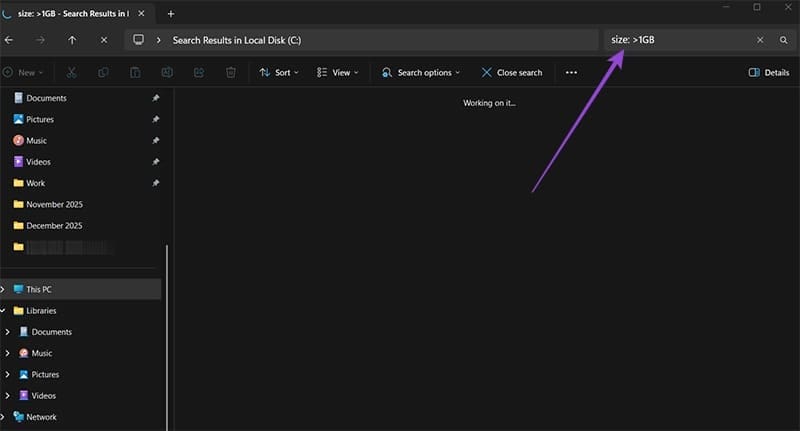
Step 2. In the search bar, enter “size: >” followed by the size you want and the unit needed (so “size: >150MB” will search for all files larger than 150 MB).
The search may take a long time if you have a lot of files, so it’s not a foolproof method.
Was this helpful?
Last updated on 11 January, 2026
Read Next
 5 Fixes for iPhone Photos Taking Up Space Even After Deleting Them
Fix 1: Delete the Recently Deleted Folder Step 1: Open the Photos app, and go to the Recently Deleted folder.
5 Fixes for iPhone Photos Taking Up Space Even After Deleting Them
Fix 1: Delete the Recently Deleted Folder Step 1: Open the Photos app, and go to the Recently Deleted folder.
 3 Ways to Fix iCloud Drive Taking Up Too Much Space on iPhone
Method 1: Delete Local Copies of iCloud Drive Files From iPhone Files and folders stored in iCloud Drive are backed up to iCloud, and some may be stored on the
3 Ways to Fix iCloud Drive Taking Up Too Much Space on iPhone
Method 1: Delete Local Copies of iCloud Drive Files From iPhone Files and folders stored in iCloud Drive are backed up to iCloud, and some may be stored on the
 6 Fixes for Sent Items Not Showing in Microsoft Outlook for Windows
Fix 1: Make Sure Outlook Is Configured to Save Sent Items Your sent emails may not show up in Outlook if you have previously configured the app to not save
6 Fixes for Sent Items Not Showing in Microsoft Outlook for Windows
Fix 1: Make Sure Outlook Is Configured to Save Sent Items Your sent emails may not show up in Outlook if you have previously configured the app to not save
 How to Restore Quarantined Items From Windows Defender
Windows Defender (technically named “Windows Security” in Windows 11) remains one of the most reliable built-in antivirus tools and should be sufficient for most users.
How to Restore Quarantined Items From Windows Defender
Windows Defender (technically named “Windows Security” in Windows 11) remains one of the most reliable built-in antivirus tools and should be sufficient for most users.
 4 Ways to Fix Windows Not Taking Screenshots
Fix 1: Close Interfering Apps We often install multiple screenshot software, each taking over the Print screen shortcuts.
4 Ways to Fix Windows Not Taking Screenshots
Fix 1: Close Interfering Apps We often install multiple screenshot software, each taking over the Print screen shortcuts.
 Microsoft Whiteboard vs OneNote: Which One to Use for Note Taking
Availability First, both platforms require a Microsoft account to function regardless of the platform you use.
Microsoft Whiteboard vs OneNote: Which One to Use for Note Taking
Availability First, both platforms require a Microsoft account to function regardless of the platform you use.
 How to Remove Cards, Tickets, and Other Items From Apple Wallet
Basic Fixes Remove Expired Tokens: Some tickets also expire after use, so removing something from your Apple Wallet is useful to eliminate these expired tokens taking up space.
How to Remove Cards, Tickets, and Other Items From Apple Wallet
Basic Fixes Remove Expired Tokens: Some tickets also expire after use, so removing something from your Apple Wallet is useful to eliminate these expired tokens taking up space.
 7 Best Note-Taking Apps That Work on iPhone and Android
The Apple Notes app works perfectly well across Apple devices such as iPhone, iPad, and Mac.
7 Best Note-Taking Apps That Work on iPhone and Android
The Apple Notes app works perfectly well across Apple devices such as iPhone, iPad, and Mac.
The article above may contain affiliate links which help support Guiding Tech. The content remains unbiased and authentic and will never affect our editorial integrity.