Dark mode is a great setting for those using a PC in a darker room, as it’s easier on the eyes, and the darker aesthetic doesn’t hurt either.
You can also switch to dark mode (and lower your brightness) to get more battery life out of your laptop when it’s not plugged in.
It’s straightforward to change between dark and light mode on Windows 11 – you just need to know where to look.
Change Between Dark and Light Mode on Windows 11
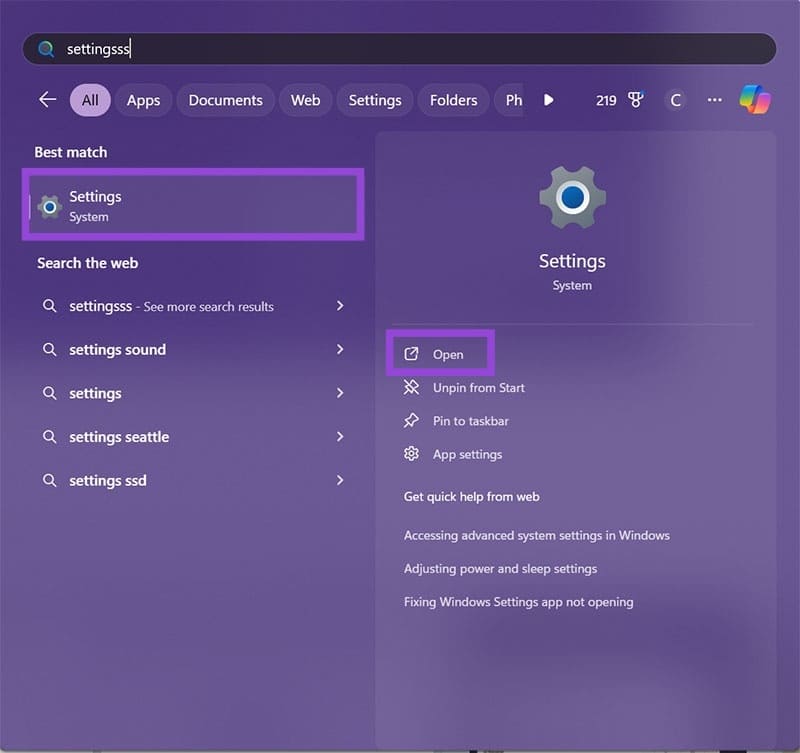
Step 1. Click on the Start menu, then search for or navigate to Settings > Personalization.
Step 2. Once on the Personalization screen, click the Colors tab.
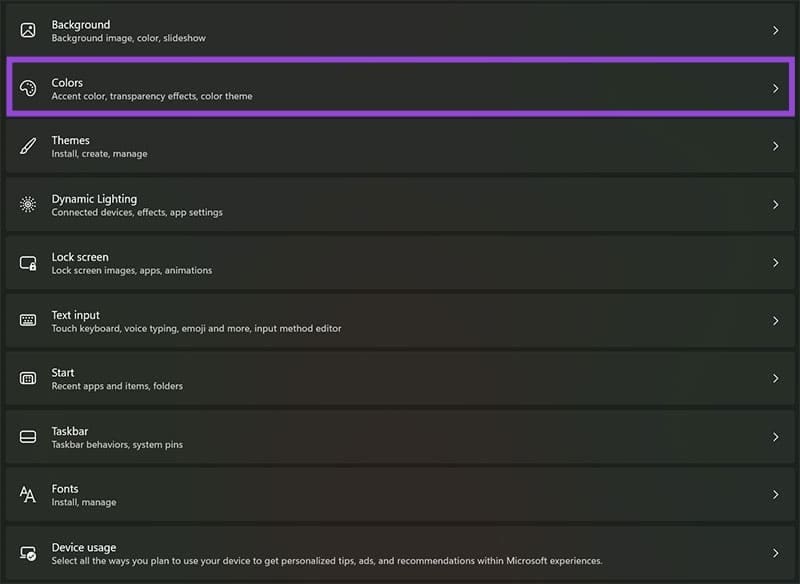
Step 3. In the Colors menu, you will find the settings for Light, Dark, and Custom under the Choose Your Mode menu.

Step 4. Choosing the custom option will bring up an additional drop-down menu where you can set up the lighting defaults for Windows and app modes.

Step 5. Select a mode to have your changes applied immediately. You can also change the accent colors and transparency settings on the Colors page.
Windows 11: Switch Between Light and Dark Mode Automatically
For those of you looking to schedule the change between dark and light mode in Windows 11, you can set up the night light to switch between the two automatically.
Setting it up is easy and you can schedule the times you’d like the switch to occur as well as the overall shade of the screen.
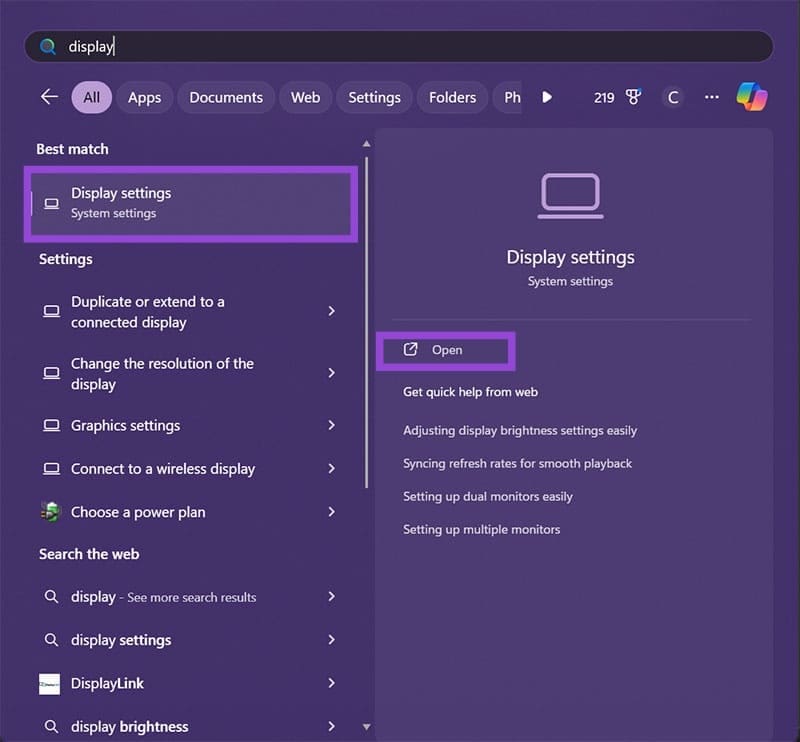
Step 1. To set up automatic changing between dark and light mode in Windows 11, click the Start menu and navigate to Display settings.
Step 2. In the Display settings menu, click Night light.
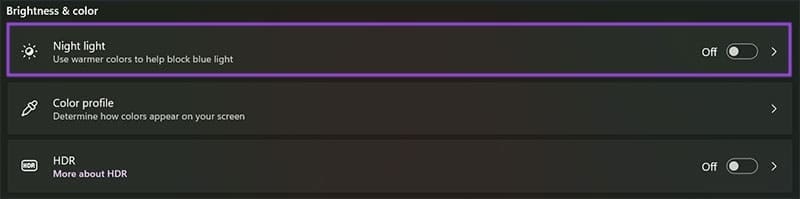
Step 3. In the Night light menu, you can turn on warmer colors, adjust the strength of the shading, and set up the night light window.
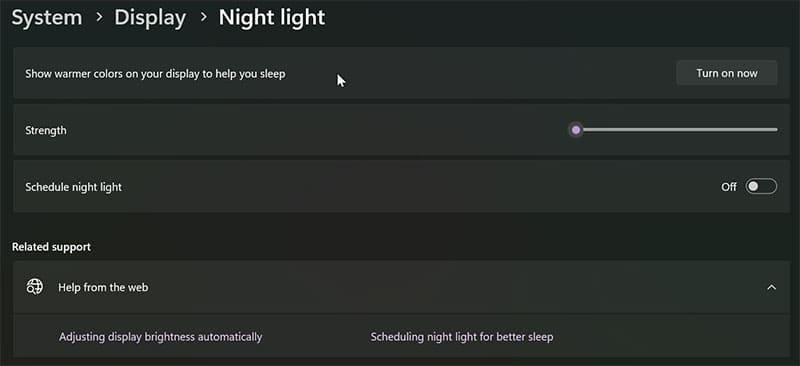
Step 4. With schedule night light toggled on, you can adjust the time frame based on your location or manually set the hours you’d like dark mode to turn on.

Note: You will need to turn location settings on to use the Sunset to sunrise settings.
And that does it! You can now change between dark and light mode on Windows 11 any time you need or even set up automatic switching using the night light feature. Dark mode is great if you are sitting in a dark room or are locking in for a long session at your PC. Give it a try if you have not already using this detailed walkthrough.
Was this helpful?
Last updated on 29 December, 2025
Read Next
 What’s the Difference Between Do Not Disturb, Airplane, and Silent Mode on iPhone
What Is Silent Mode on iPhone?
What’s the Difference Between Do Not Disturb, Airplane, and Silent Mode on iPhone
What Is Silent Mode on iPhone?
 How to Turn off Dark Mode in Microsoft Excel, Word, and PowerPoint
Dark mode is savored by many.
How to Turn off Dark Mode in Microsoft Excel, Word, and PowerPoint
Dark mode is savored by many.
 How to Enable Dark Mode in Microsoft Office Apps
Is the bright white format of Excel burning holes in your eyes, or are you just looking for a theme that matches the rest of your desktop aesthetic?
5 Ways to Fix Night Light Not Working on Windows 11
Common Fixes Disconnect the Docking Station: If your PC is connected to monitor via a docking station, disconnect it, and connect the monitor directly to your PC to resolve Night
How to Enable Dark Mode in Microsoft Office Apps
Is the bright white format of Excel burning holes in your eyes, or are you just looking for a theme that matches the rest of your desktop aesthetic?
5 Ways to Fix Night Light Not Working on Windows 11
Common Fixes Disconnect the Docking Station: If your PC is connected to monitor via a docking station, disconnect it, and connect the monitor directly to your PC to resolve Night
 2 Fixes When the Windows 11 Caps Lock Light Is Not Working
Basic Fixes: Check for keyboard problems: If the Caps Lock light does not work on Windows 11, it may indicate a physical or mechanical issue.
2 Fixes When the Windows 11 Caps Lock Light Is Not Working
Basic Fixes: Check for keyboard problems: If the Caps Lock light does not work on Windows 11, it may indicate a physical or mechanical issue.
 How to Disable Dark Mode in Windows 10, macOS, Android, and iOS
Disable Dark Mode in Windows 11 The system-level color scheme is customizable so that it can display darker tones on menus and backgrounds, making it easier on your eyes.
How to Disable Dark Mode in Windows 10, macOS, Android, and iOS
Disable Dark Mode in Windows 11 The system-level color scheme is customizable so that it can display darker tones on menus and backgrounds, making it easier on your eyes.
 7 Ways to Fix Red Light Error on Motherboard
In the intricate world of computer hardware, the motherboard is your system's backbone.
7 Ways to Fix Red Light Error on Motherboard
In the intricate world of computer hardware, the motherboard is your system's backbone.
 5 Best Ways to Transfer Files Between iPhone and Windows PC
We always speak about how convenient the Apple ecosystem is.
5 Best Ways to Transfer Files Between iPhone and Windows PC
We always speak about how convenient the Apple ecosystem is.
The article above may contain affiliate links which help support Guiding Tech. The content remains unbiased and authentic and will never affect our editorial integrity.