Method 1: Access Google Keep Notes on the Web
Google Keep lets you create, sync, and access notes across multiple devices. You can open it on your Windows 11 PC using a web browser with these easy steps:
Step 1: Open a new tab in your web browser, type ‘keep.google.com‘ in the search bar, and hit Enter to access Google Keep.

Step 2: If you haven’t signed into your Google account on the browser before, type your account credentials, click Next, and follow the on-screen instructions to log into Google Keep.

Method 2: Install the Google Keep App From Browser
If you frequently access Google Keep, you can install it as a web app and pin it to your Windows 11 taskbar for instant access.
Step 1: Open Google Keep (as explained above) and click the Download icon at the right-most end of your browser’s address bar.

Step 2: Select Install when prompted to install the Google Keep web app on your Windows 11 PC.

Step 3: Finally, click Yes at the bottom right to pin Google Keep to your Windows Taskbar for quick access.

Method 3: Use a Chrome Extension
Lastly, you can install a Chrome extension to access Google Keep and save notes while browsing the internet.
Step 1: Install the ‘Create a Google Keep Note‘ browser extension from the Chrome Web Store.

Step 2: Once installed, select the Extensions icon and click Pin to move it beside the address bar for quick access.

Step 3: Click the extension icon to launch Google Keep and create a new note instantly.

Was this helpful?
Last updated on 05 September, 2024
Read Next
 3 Ways to Access Apple Notes on Windows
Method 1: Use the Notes Web App Note: You can't view or edit any notes within the Notes app's 'On My iPhone' folder.
3 Ways to Access Apple Notes on Windows
Method 1: Use the Notes Web App Note: You can't view or edit any notes within the Notes app's 'On My iPhone' folder.
 Moving from Evernote to Google Keep Notes and Docs: My Experience
Last month, I wrote a detailed post explaining why I moved all my data and files from Dropbox to Google Drive.
Moving from Evernote to Google Keep Notes and Docs: My Experience
Last month, I wrote a detailed post explaining why I moved all my data and files from Dropbox to Google Drive.
 How to Organize Your Notes in Google Keep
Method 1: Use Labels to Group Notes Google Keep lacks hierarchy, as it doesn’t support folders and subfolders.
How to Organize Your Notes in Google Keep
Method 1: Use Labels to Group Notes Google Keep lacks hierarchy, as it doesn’t support folders and subfolders.
 How to Transfer Google Keep Notes to Another Account
Method 1: Send to Another Google Account On Google Keep's mobile apps, you get the option to share individual notes across different apps.
How to Transfer Google Keep Notes to Another Account
Method 1: Send to Another Google Account On Google Keep's mobile apps, you get the option to share individual notes across different apps.
 How to Transfer iPhone Notes to Google Keep
Method 1: Upload to Google Keep Manually This step is the simplest of all and you can easily transfer your notes to Google Keep.
How to Transfer iPhone Notes to Google Keep
Method 1: Upload to Google Keep Manually This step is the simplest of all and you can easily transfer your notes to Google Keep.
 How to Transfer Samsung Notes to Google Keep
There’s a constant battle going on between Samsung and Google apps.
How to Transfer Samsung Notes to Google Keep
There’s a constant battle going on between Samsung and Google apps.
 How to Access Sticky Notes on iPhone, Android, and Mac
Sticky Notes has been a part of the Windows operating system for years.
How to Access Sticky Notes on iPhone, Android, and Mac
Sticky Notes has been a part of the Windows operating system for years.
 6 Best Ways to Access Windows Tools on Windows 11
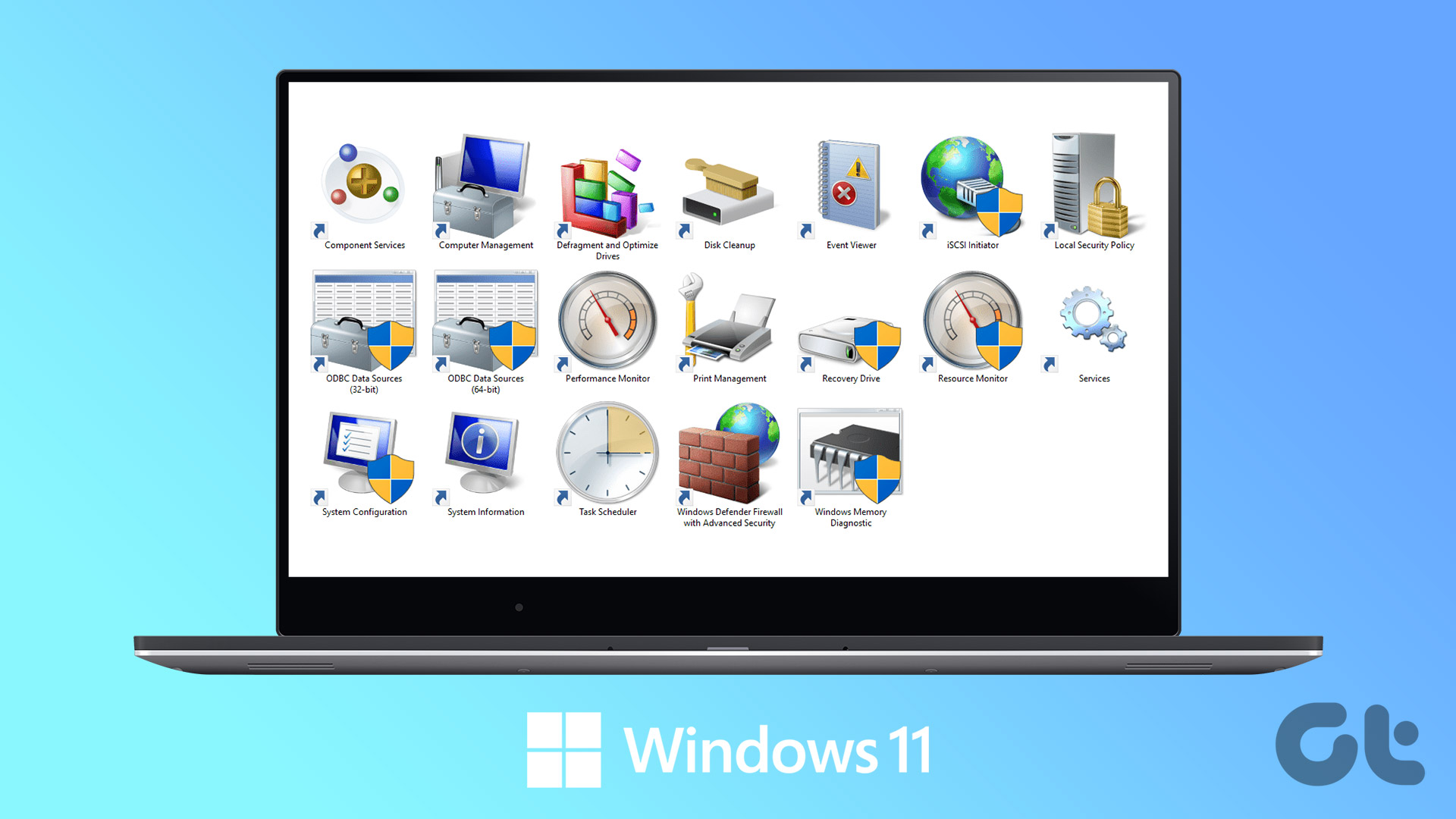
Windows Tools carries useful utilities like Event Viewer, Task Scheduler, and System Configuration Tool, organized into a folder for easy access.
6 Best Ways to Access Windows Tools on Windows 11
Windows Tools carries useful utilities like Event Viewer, Task Scheduler, and System Configuration Tool, organized into a folder for easy access.
The article above may contain affiliate links which help support Guiding Tech. The content remains unbiased and authentic and will never affect our editorial integrity.