You know that feeling of being so close to the finish line and then stumbling? Well, if you’ve had a Google Chrome download stuck at 100%, that pain is very familiar. In this article, we’ll be looking at this annoying issue of stuck downloads and providing some potential fixes.
Why Is My Download Stuck at 100%?
Google Chrome downloads being stuck can be caused by a few problems, including:
- A disrupted internet connection
- Security scanning (Chrome Safe Browsing and/or antivirus browsing)
- A corrupted browser cache
- A third-party extension blocking the completion
More important than the cause are the fixes to try to remedy them.
How to Fix Google Chrome Download Stuck at 100%
Let’s get into the fixes for this annoying error. Hopefully, one below will work for you:
Check Your Internet Connection
Let’s start with the obvious and potentially save you a headache. Before anything else, check the stability of your internet. Reset your router if need be and check any cables.
Pause and Resume the Download
Sometimes a disruption in connection can freeze a Chrome download and sometimes, stopping and starting it manually might be the way to get it over the finish line. Here’s what to do:
Step 1. Click the Download icon in the top menu, then click the Pause button next to your current download.
Step 2. Once paused, click the Resume button to restart the process.
If the download fails after this, restart it from scratch to see if it helps.
Clear Your Browser Cache
A pretty easy and non-invasive fix is to clear out your cache. An erratic cache can cause no end of problems, including ones with your downloads. Here’s what to do:
Step 1. Press Ctrl + Shift + Del.
Step 2. Select “Cached images and files,” which is usually the key offender with this error. If you’re looking to be thorough, clear everything.
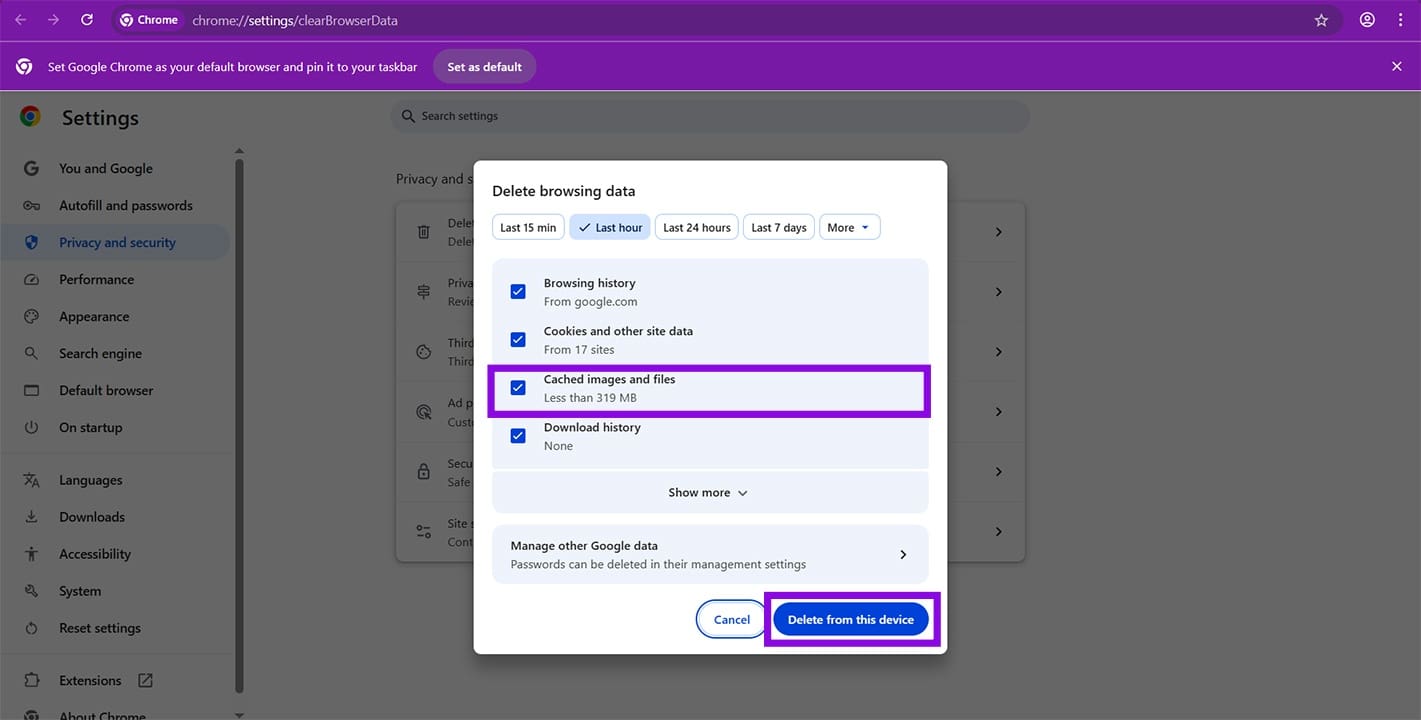
Step 3. Click “Delete from this device” to finalize.
Step 4. Once cleared, try downloading again to see if the error’s resolved.
Disable Third-Party Extensions
If you suspect extensions are to blame, then try disabling them and attempting the download again:
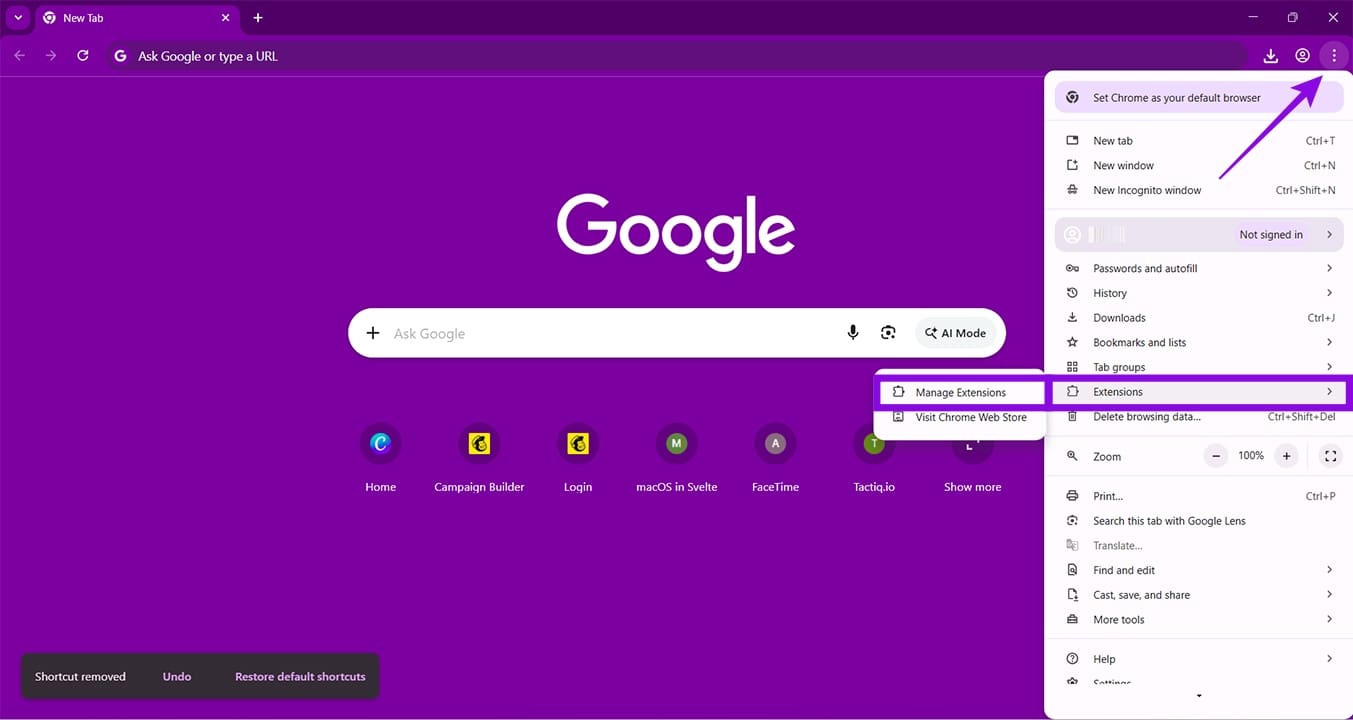
Step 1. Click the Ellipses menu (three dots) in the top-right and hover over “Extensions.” Click “Manage Extensions.”
Step 2. Next to any extension, toggle the slider off. Restart Chrome just to be sure and see if the issue is resolved.
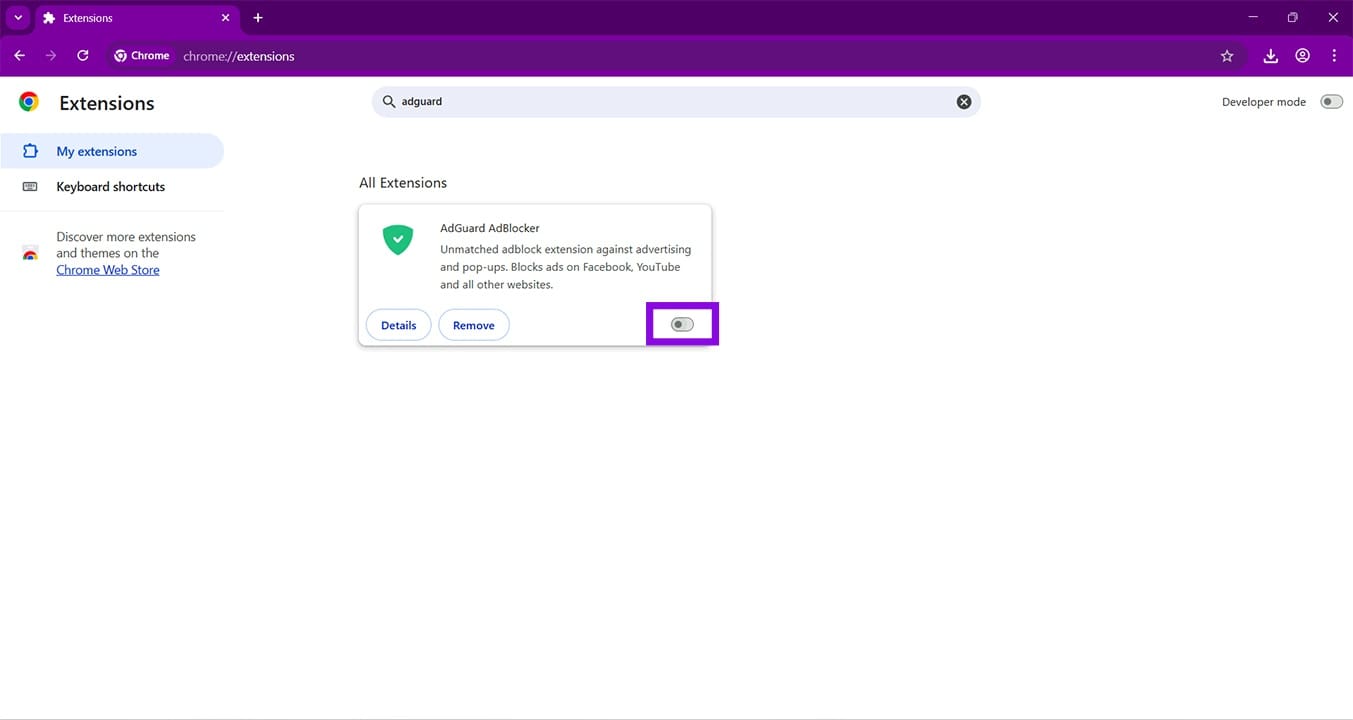
We recommend disabling as many extensions as possible then turning them on one by one to find the offender. Incognito Mode also runs without extensions, so try downloading in that mode as well.
Disable Safe Browsing
Chrome’s built-in protections, like Safe Browsing, might also be interfering with your downloads. You can turn it off by doing the following:
Step 1. Open the Ellipses menu and click Settings.
Step 2. Click “Privacy and security” in the sidebar.
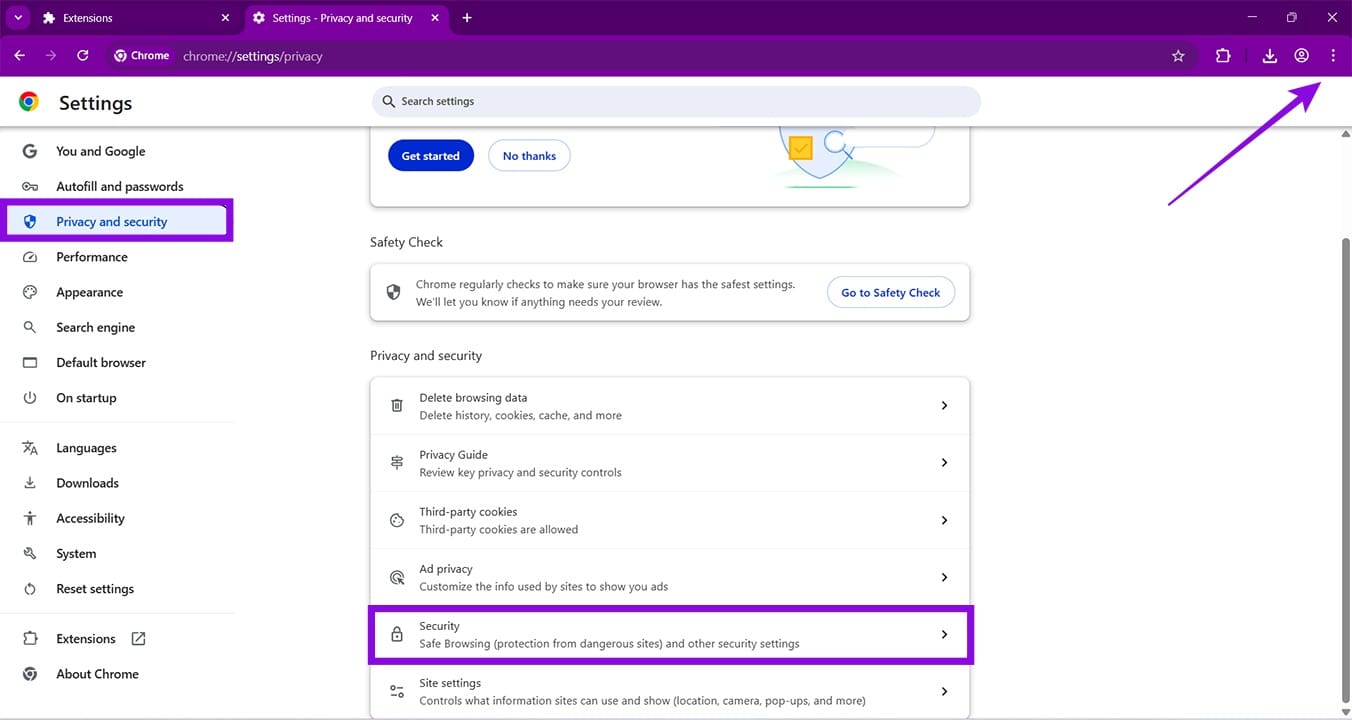
Step 3. Click “Security” in the main window.
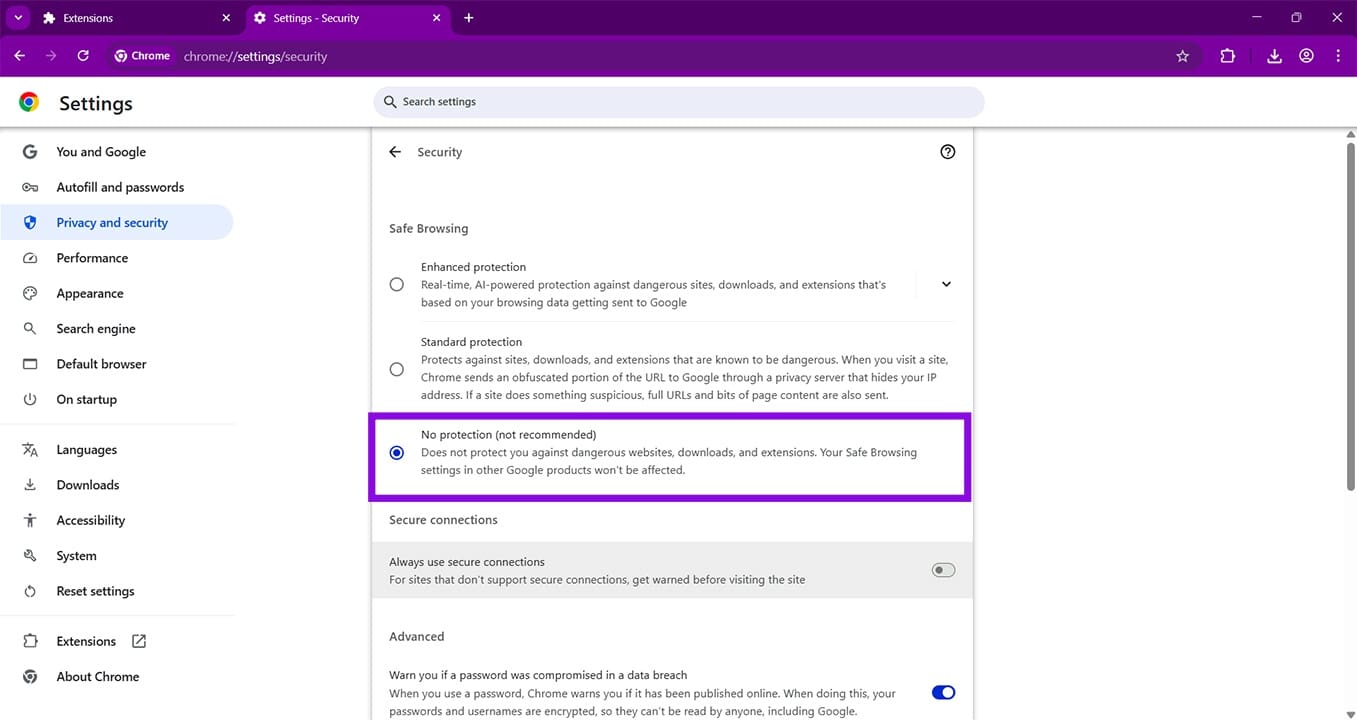
Step 4. Change the Safe Browsing toggle to “No protection.” Try again to see if this solves the issue.
Was this helpful?
Last updated on 08 May, 2026
Read Next
 10 Ways to Fix Windows Update Stuck at 100% Issue
Keeping your Windows device up-to-date ensures you get access to the latest features and bug fixes.
10 Ways to Fix Windows Update Stuck at 100% Issue
Keeping your Windows device up-to-date ensures you get access to the latest features and bug fixes.
 Top 9 Ways to Fix Google Chrome Stuck on Waiting to Download Issue
We usually joke about the fact that everyone uses Internet Explorer or its upgraded version Microsoft Edge Browser to install Google Chrome only.
Top 9 Ways to Fix Google Chrome Stuck on Waiting to Download Issue
We usually joke about the fact that everyone uses Internet Explorer or its upgraded version Microsoft Edge Browser to install Google Chrome only.
 10 Best Ways to Increase Download Speeds in Google Chrome on Windows
While Google Chrome is touted as the fastest web browser among the competition, it isn't unusual to see slow download speeds on the browser.
10 Best Ways to Increase Download Speeds in Google Chrome on Windows
While Google Chrome is touted as the fastest web browser among the competition, it isn't unusual to see slow download speeds on the browser.
 How to Limit Download Speed in Google Chrome
Set Download Speed Using a Custom Throttle Profile Chrome’s web development tools, DevTools, are insanely powerful configuration options that help developers test websites under various simulated situations, including differing network
How to Limit Download Speed in Google Chrome
Set Download Speed Using a Custom Throttle Profile Chrome’s web development tools, DevTools, are insanely powerful configuration options that help developers test websites under various simulated situations, including differing network
 9 Ways to Solve 100% Disk Usage Error in Windows 10
You know why you are here, right?
9 Ways to Solve 100% Disk Usage Error in Windows 10
You know why you are here, right?
 6 Best Budget Tablets Under $100 for 2023
These days, tablets have become an essential tool for many people, from students and professionals to casual users.
6 Best Budget Tablets Under $100 for 2023
These days, tablets have become an essential tool for many people, from students and professionals to casual users.
 5 Best Waterproof Speakers Under $100
If you're in the market for a portable speaker to take your music to the pool, you've come to the right place.
5 Best Waterproof Speakers Under $100
If you're in the market for a portable speaker to take your music to the pool, you've come to the right place.
 4 Ways to Fix if Chrome Won’t Download Files
Basic Fixes Check the internet connection: Chrome downloads may get stuck and take forever to complete due to a slow or intermittent internet connection.
4 Ways to Fix if Chrome Won’t Download Files
Basic Fixes Check the internet connection: Chrome downloads may get stuck and take forever to complete due to a slow or intermittent internet connection.
The article above may contain affiliate links which help support Guiding Tech. The content remains unbiased and authentic and will never affect our editorial integrity.