


Basic Fixes
- Restart PC: Restart your PC to get rid of temporary bugs and glitches
- Close unwanted apps: Close unwanted apps using Task Manager to free up memory, and improve the performance.
- Check storage on PC: If your PC is running low on storage space, it might cause a bottleneck, and a few services might be rendered slow with many performance issues.
Fix 1: Restart File Explorer
While you restart Windows Explorer, the currently running process is terminated. Once a fresh instance of Windows Explorer is created, it is also less likely to contain bugs and glitches.
Step 1: Open Task Manager from the Start menu. Or hit Ctrl + Alt + Del and select Task Manager.
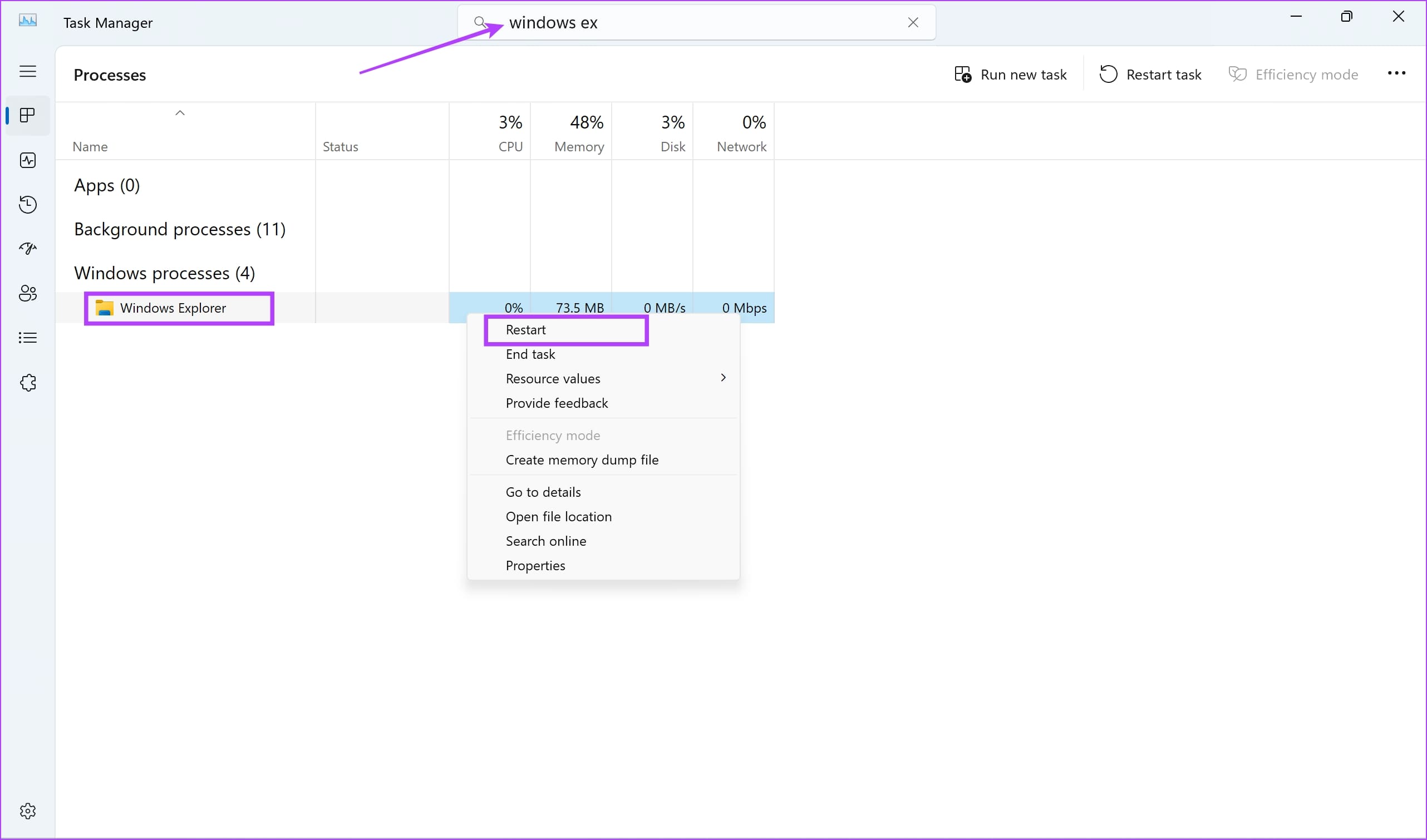
Step 2: Scroll down to Windows Processes, and you will find the Windows Explorer process. Right-click and select Restart.
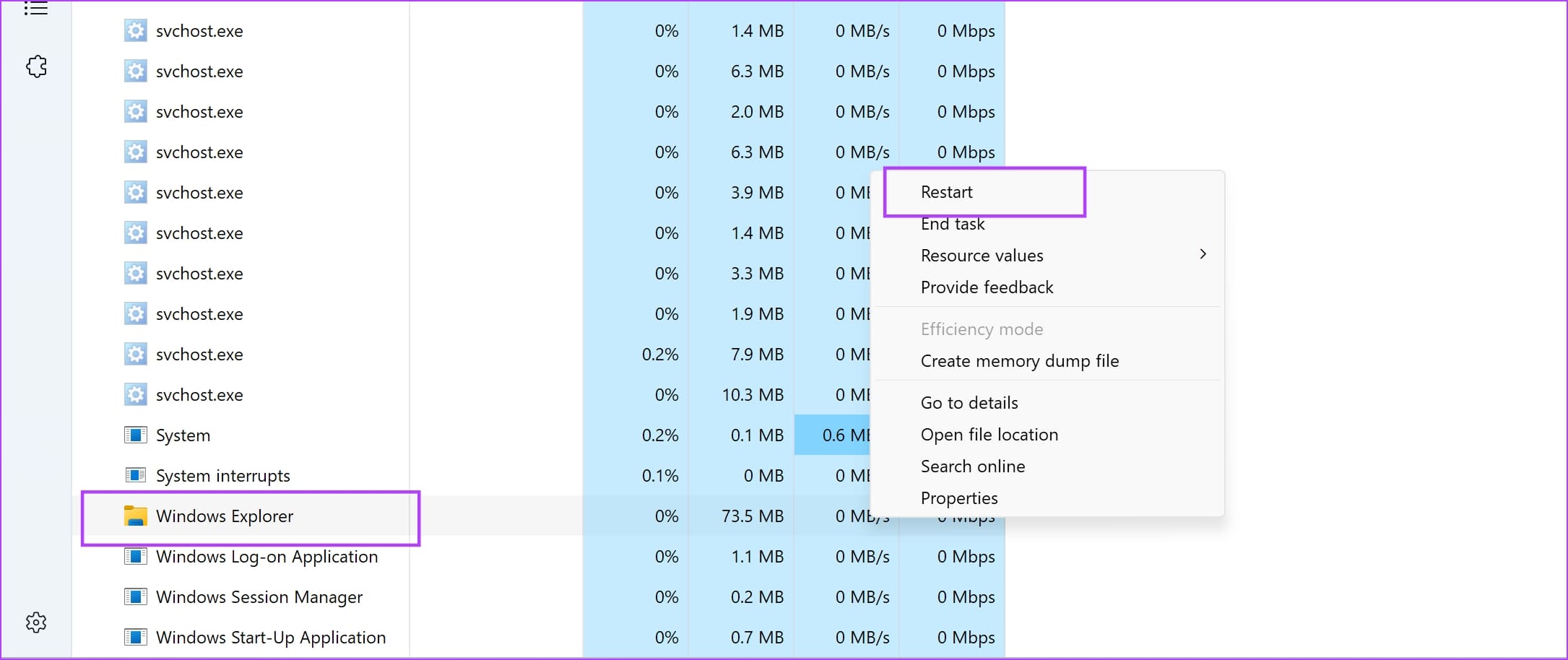
Alternatively, you can use the search bar to find the Windows Explorer process. Right-click on the search result and select Restart.
Fix 2: Clear Quick Access (File Explorer Search History)
If there’s a long list of items in the File Explorer history, it may take Windows Explorer additional resources and time to load the same.
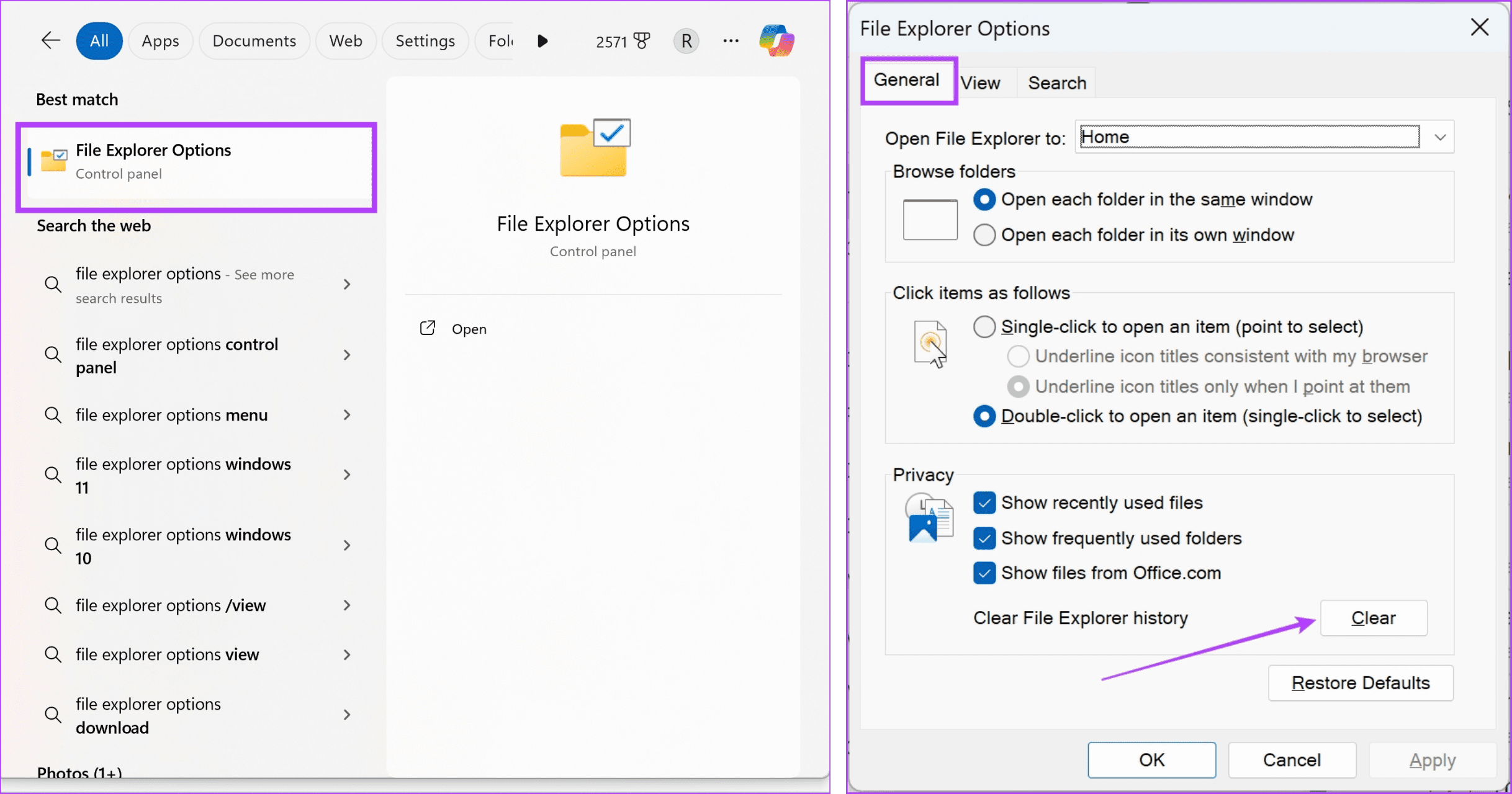
Open the File Explorer Options app from the start menu. In the General tab, click on the clear button next to Clear File Explorer History.
Fix 3: Add Folder Optimization Settings
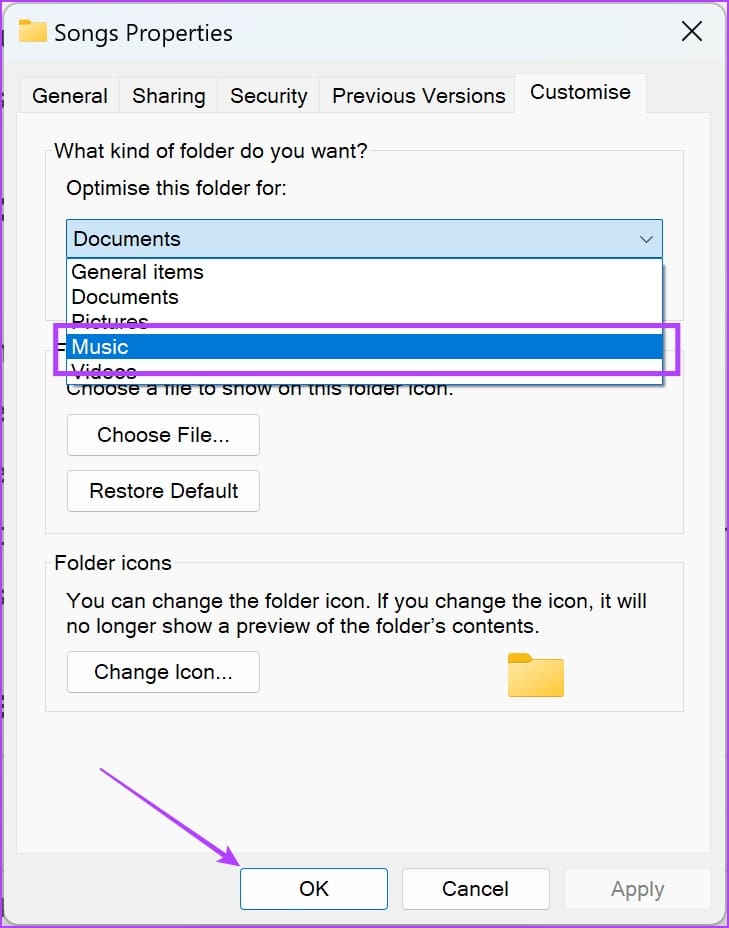
You can optimize a folder based on its contents. This means Windows Explorer can handle the folder in specific ways to improve loading speeds and performance.
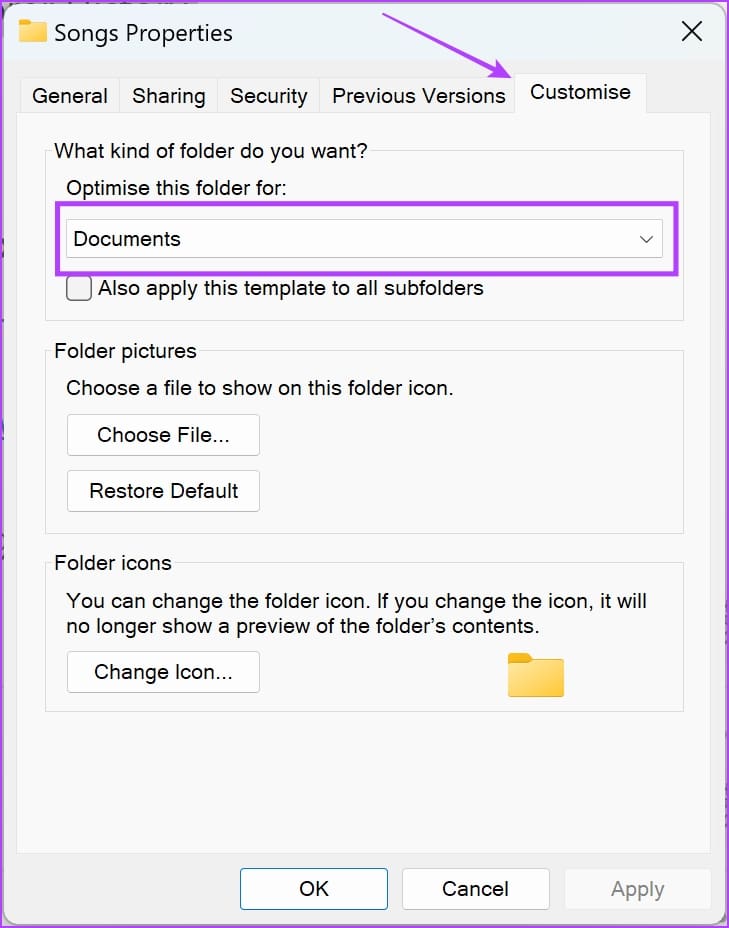
Step 1: Right-click on the folder that often loads slowly and select properties. Go to the Customize tab and click on the drop-down menu under Optimize the folder for.
Step 2: Select the relevant option based on the type of content in the folder. Click on OK to save changes and optimize the folder based on its contents.
Fix 4: Troubleshoot Search and Indexing
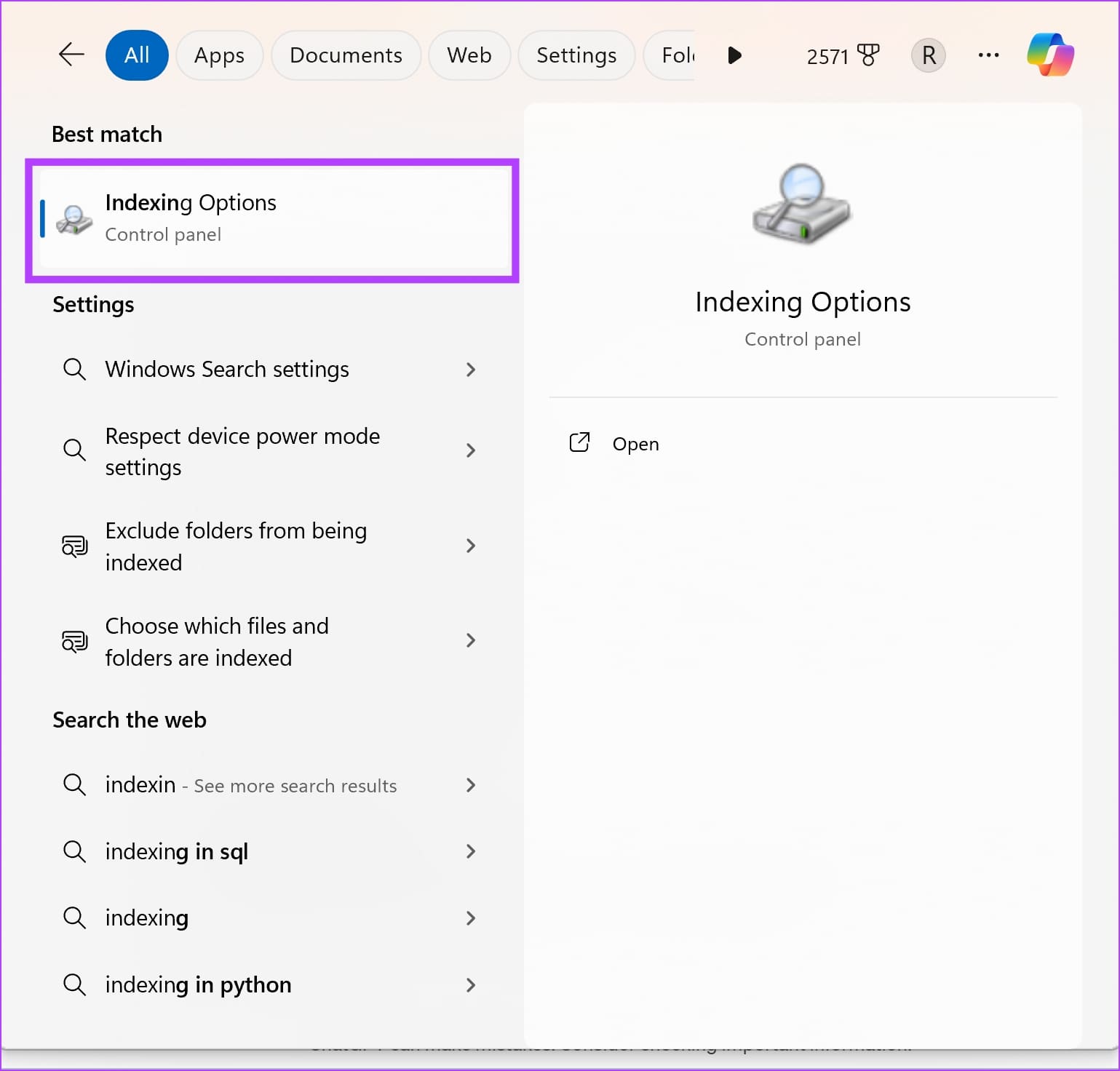
You can troubleshoot problems with search and indexing that can help improve loading speeds on Windows Explorer. This can eliminate any issue preventing Windows Explorer from efficiently navigating through the vast database of files and folders on your PC.
Step 1: Open the Indexing Options app from the Start menu.
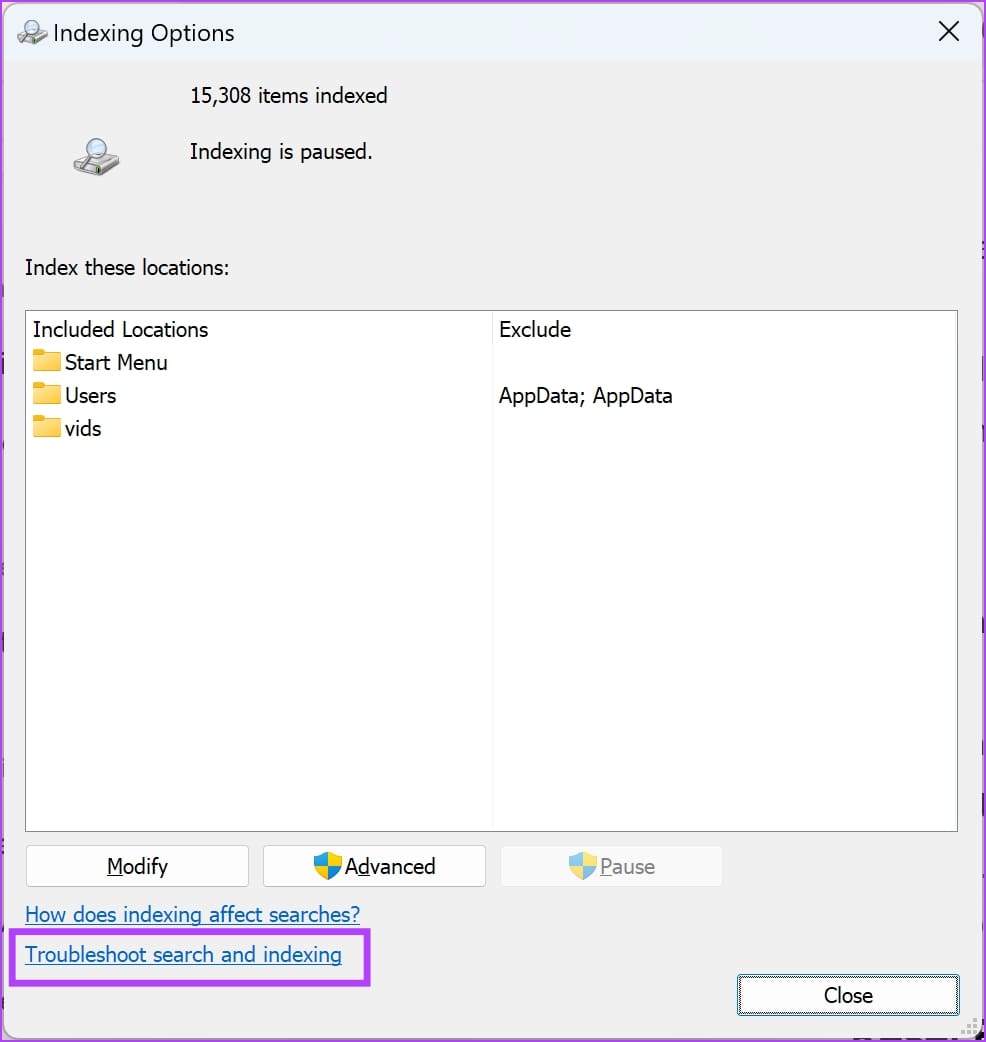
Step 2: Click on Troubleshoot Search and Indexing.
Follow the on-screen instructions to help Windows understand, diagnose, and get rid of the issue you’re facing.
Fix 5: Reset File Explorer to Default
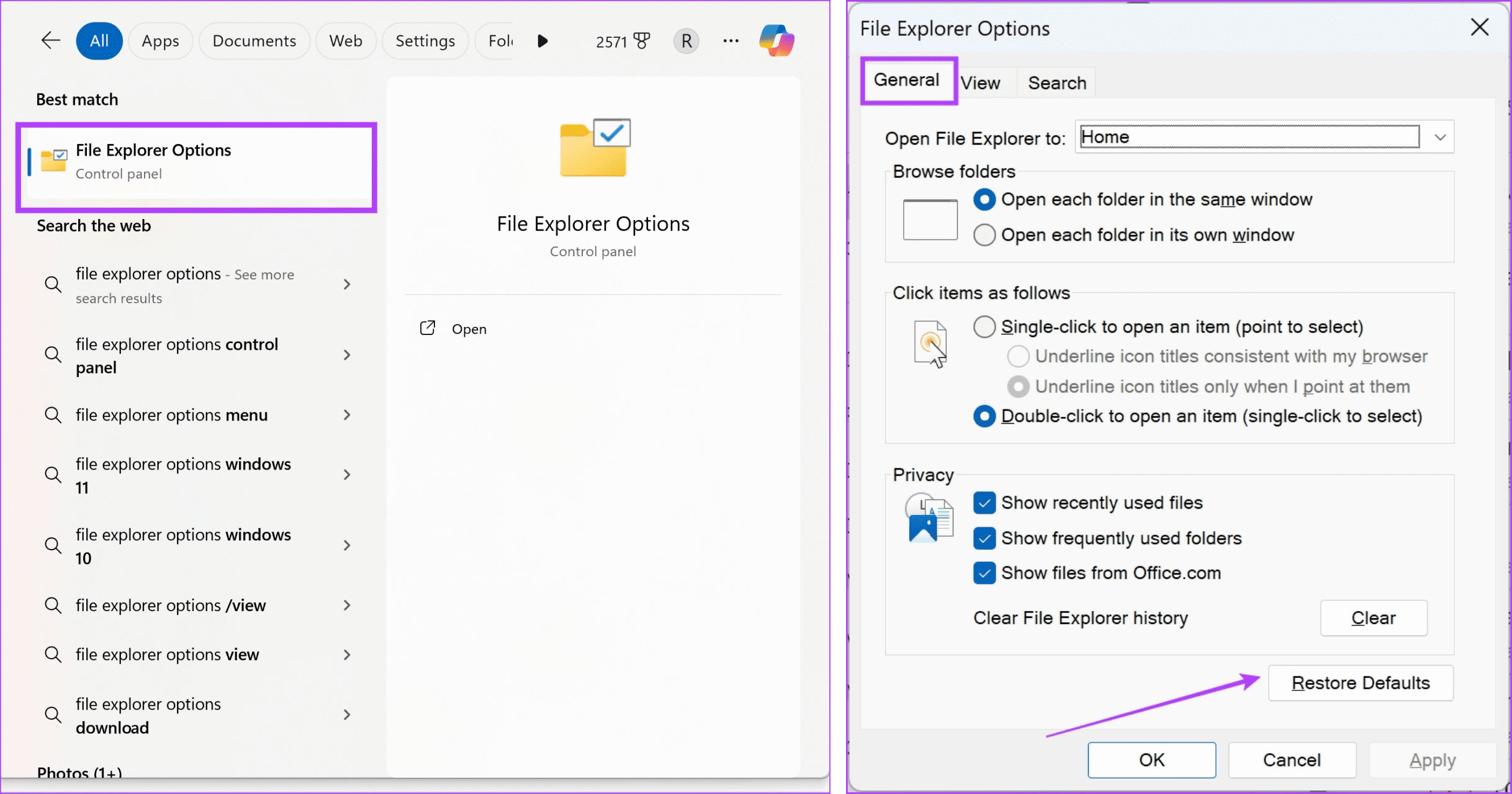
If there’s any misconfiguration affecting File Explorer that is affecting the loading speeds, resetting all settings to defaults will help.
Open the File Explorer Options app from the Start menu > go to General > click on Restore Defaults.
Was this helpful?
Last updated on 17 July, 2024
Read Next
 11 Easy Ways to Fix iPhone Charging Slowly
You have thirty minutes to leave for work and plug your iPhone to charge.
11 Easy Ways to Fix iPhone Charging Slowly
You have thirty minutes to leave for work and plug your iPhone to charge.
 5 Ways to Fix Windows Explorer High CPU Usage on Windows 11
Try Basic Fixes Restart the Windows Explorer process: There's a chance that Windows Explorer's high CPU usage is a one-time glitch.
5 Ways to Fix Windows Explorer High CPU Usage on Windows 11
Try Basic Fixes Restart the Windows Explorer process: There's a chance that Windows Explorer's high CPU usage is a one-time glitch.
 Top 8 Ways to Fix File Explorer Not Opening on Windows 10
File Explorer is an integral part of Windows 10 OS.
Top 8 Ways to Fix File Explorer Not Opening on Windows 10
File Explorer is an integral part of Windows 10 OS.
 5 Ways to Fix File Explorer Search Not Working on Windows 11
Basic Fixes Perform a clean boot: An installed PC software may conflict with the File Explorer app, causing the search issue.
5 Ways to Fix File Explorer Search Not Working on Windows 11
Basic Fixes Perform a clean boot: An installed PC software may conflict with the File Explorer app, causing the search issue.
 4 Ways to Fix File Explorer Not Working on Windows 11
Try Basic Fixes Scan for malware: It's possible that a malicious virus has affected your PC, disrupting regular operations on Windows 11.
4 Ways to Fix File Explorer Not Working on Windows 11
Try Basic Fixes Scan for malware: It's possible that a malicious virus has affected your PC, disrupting regular operations on Windows 11.
 8 Ways to Fix File Explorer Search Not Working on Windows 11
Before you begin, try restarting the File Explorer app and fixing corrupted files using an SFC scan.
8 Ways to Fix File Explorer Search Not Working on Windows 11
Before you begin, try restarting the File Explorer app and fixing corrupted files using an SFC scan.
 3 Ways to Fix File Explorer Tabs Not Showing in Windows 11
Try Basic Fixes Install Windows updates: File Explorer tabs are only available on computers running Windows 11 22H2 or later.
3 Ways to Fix File Explorer Tabs Not Showing in Windows 11
Try Basic Fixes Install Windows updates: File Explorer tabs are only available on computers running Windows 11 22H2 or later.
 5 Ways to Fix Windows Explorer Not Responding
Basic Fixes Restart PC: Restart your PC to fix temporary bugs and glitches.
5 Ways to Fix Windows Explorer Not Responding
Basic Fixes Restart PC: Restart your PC to fix temporary bugs and glitches.
The article above may contain affiliate links which help support Guiding Tech. The content remains unbiased and authentic and will never affect our editorial integrity.

