


Basic Fixes:
- Enable and disable Airplane mode: If your iPhone is facing several network issues, enable Airplane mode on the iPhone. After some time, disable it from the same menu. This will reset the network connection and help fix such issues.
- Check WhatsApp servers: If WhatsApp servers are having an off day, you can’t connect to the service. You can go to Downdetector and search for WhatsApp. If you notice heavy shutdown spikes, wait before using WhatsApp again.
- Update WhatsApp: If you use an old build of WhatsApp on iPhone, update it to the latest version. WhatsApp regularly updates the app to add new functions and improve reliability, which can also help fix software-related issues.
Fix 1: Enable Mobile Data for WhatsApp
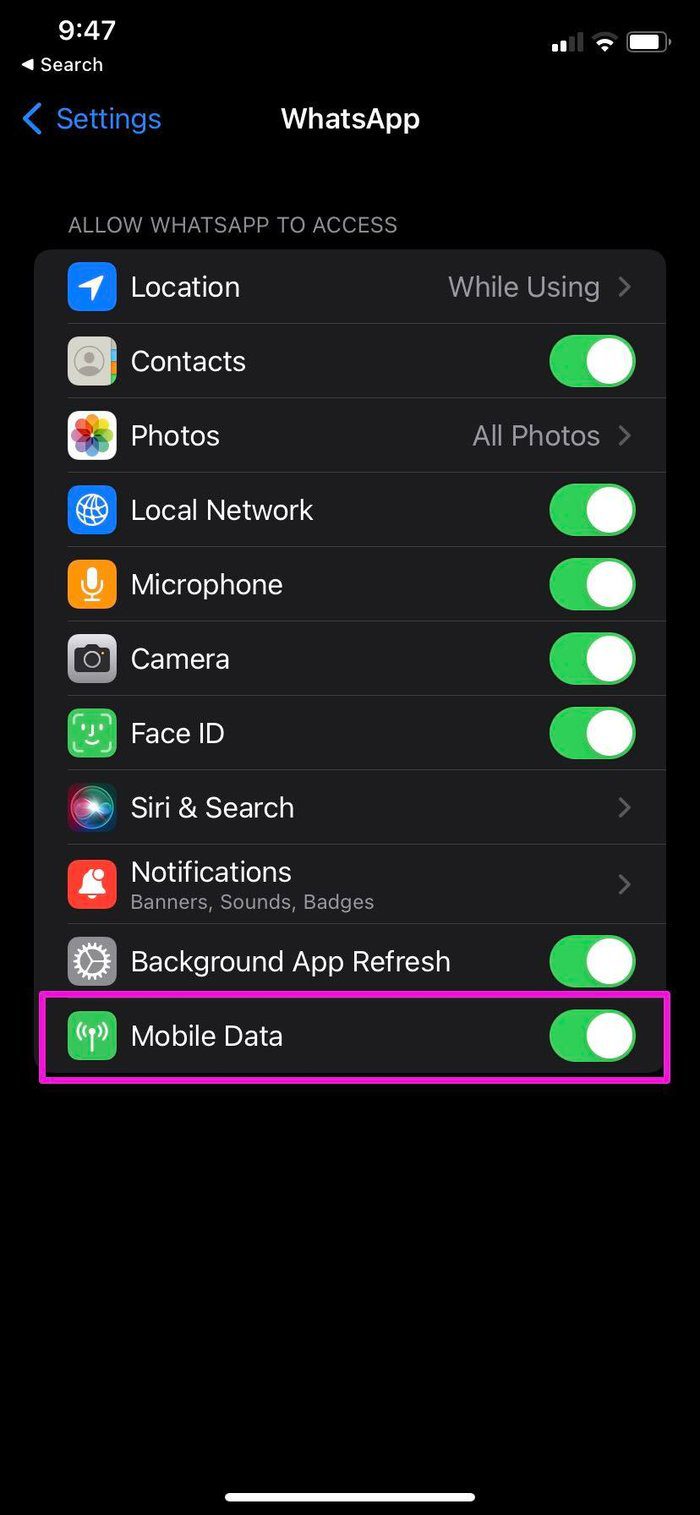
Did you disable mobile data for WhatsApp? iOS allows you to enable or disable mobile data for installed apps on the phone. If you have disabled mobile data for WhatsApp, you will keep facing a connecting error on the phone. Follow the steps below to enable mobile data for WhatsApp.
Step 1: Open Settings and tap on WhatsApp. Enable the Mobile Data toggle.

Fix 2: Disable Low Data Mode
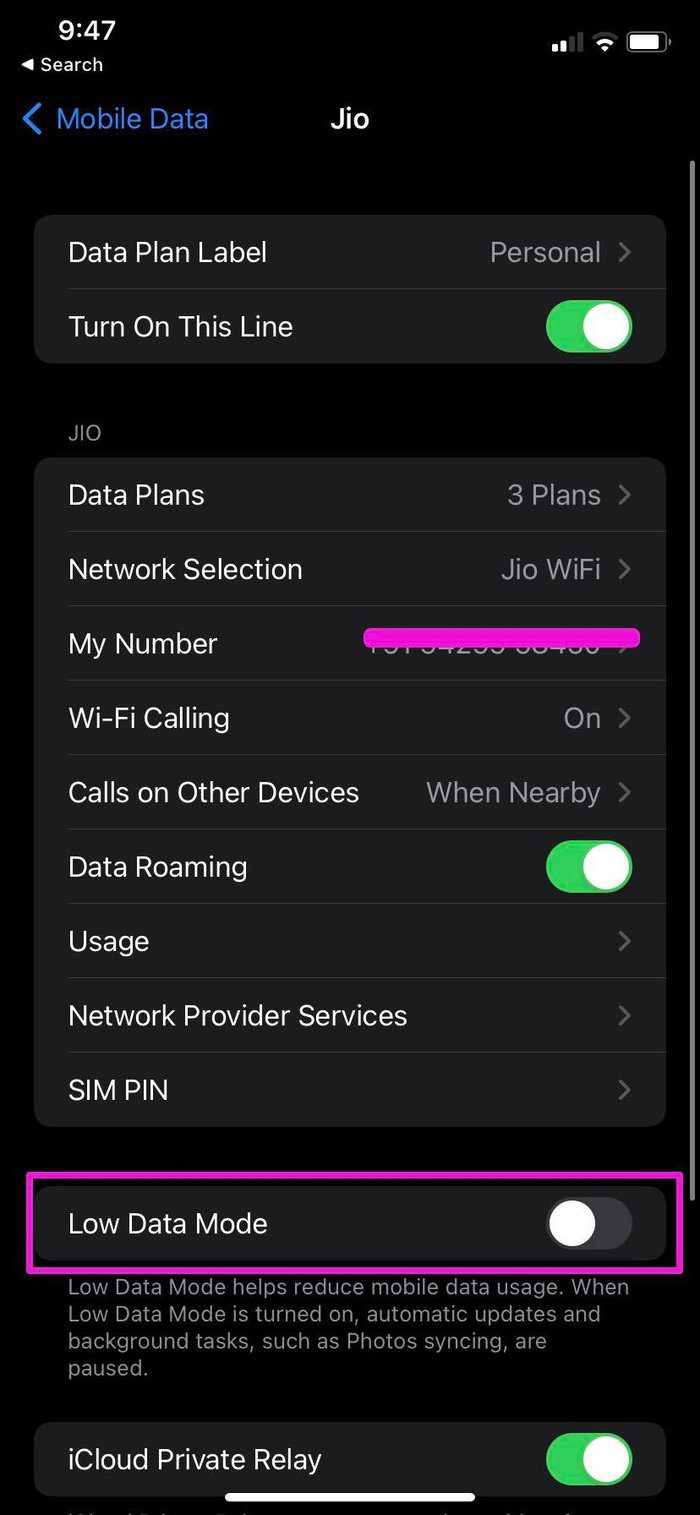
Enabling Low Data Mode for mobile networks might lead to WhatsApp connection issues on your iPhone. So, disable Low Data Mode and check again. Here’s how to do it.
Step 1: Open Settings and tap on Mobile Data.
Step 2: Select your current carrier and turn the Low Data Mode toggle off.

Fix 3: Reset Network Settings
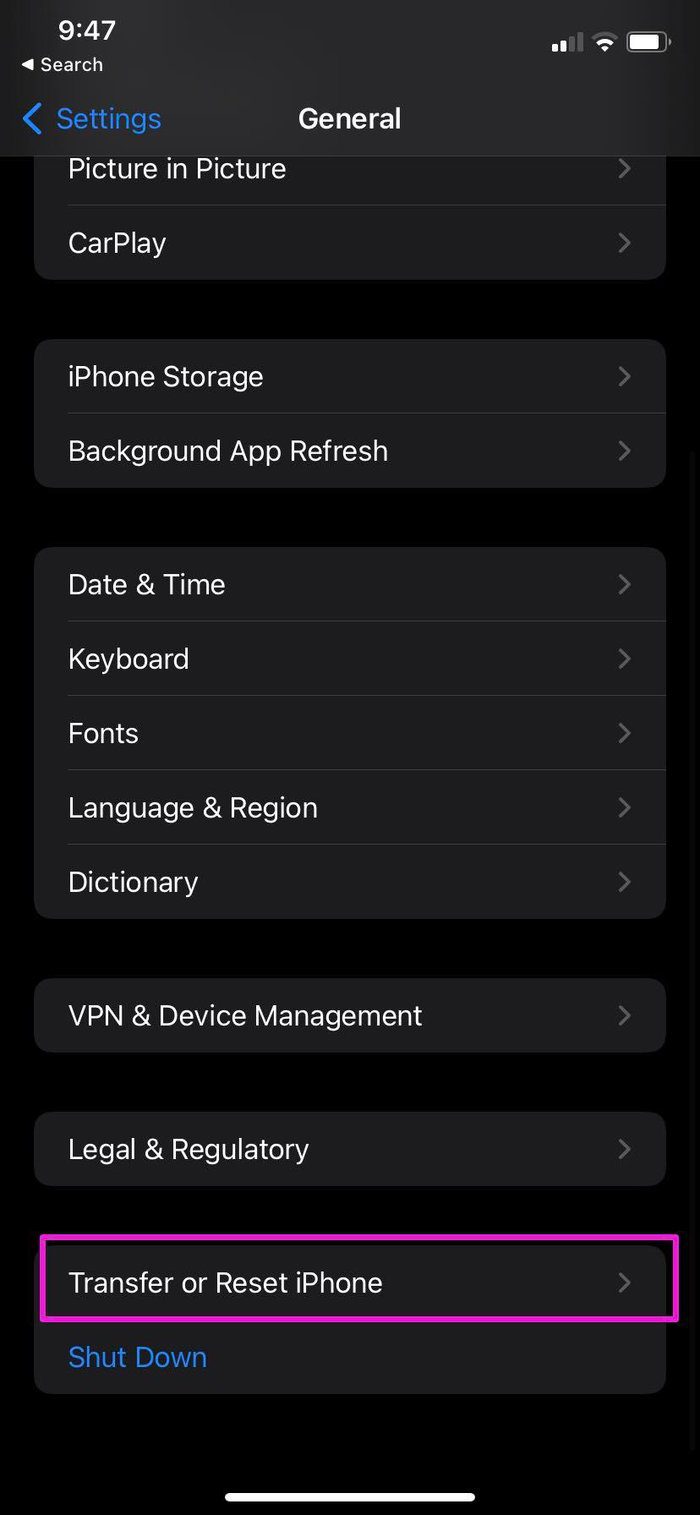
Are you facing frequent network issues on your iPhone? Use the Airplane mode trick, but even if that doesn’t work, reset the network settings on your iPhone. This will delete all custom network settings without affecting any other device data. Here’s how to do it.
Step 1: Open Settings > tap on General > Transfer or Reset iPhone.
Step 2: Select Reset > tap on Reset Network Settings.
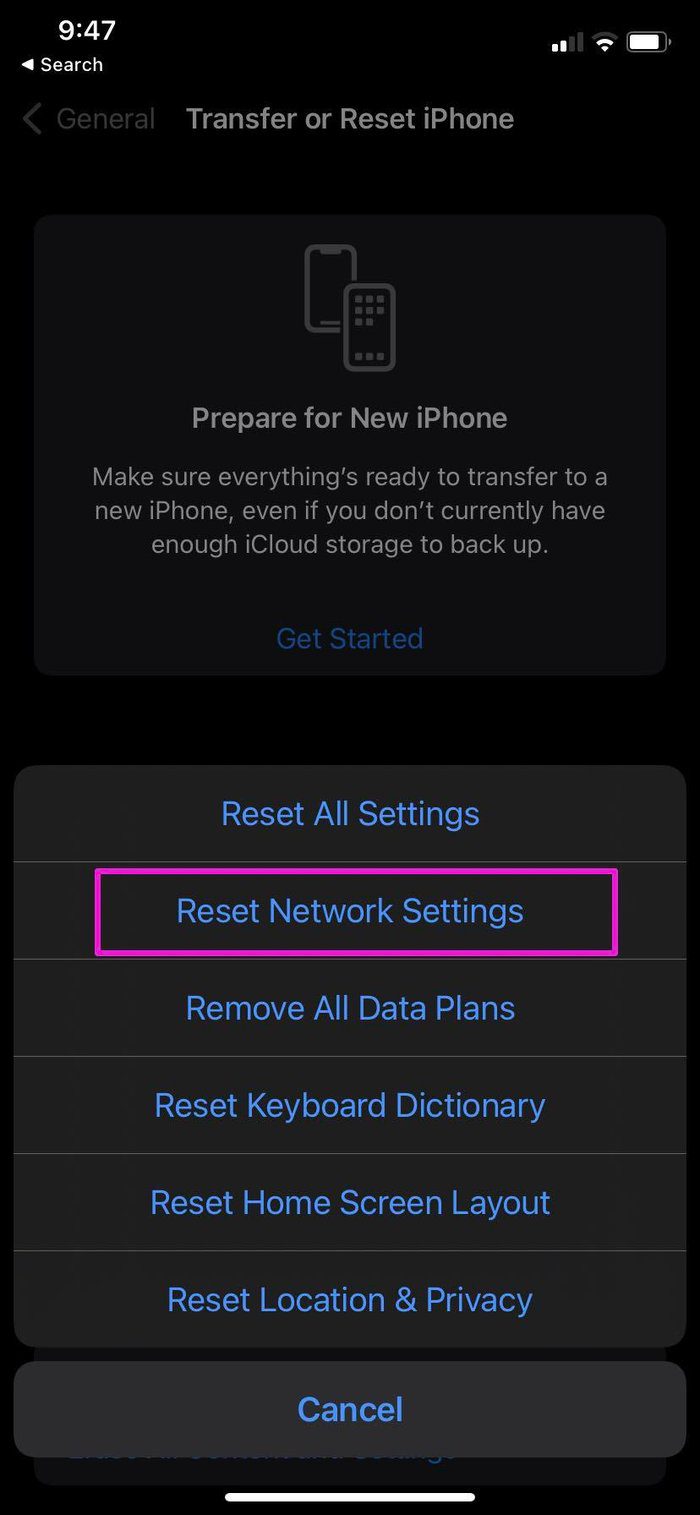
Once done, close and reopen the WhatsApp app. Then, try using it to see if the issue has been fixed on your iPhone.
Was this helpful?
Last updated on 28 June, 2024
2 Comments
Leave a Reply
Read Next
 5 Ways to Fix WhatsApp Call Stuck at Connecting
Basic Fixes Check WhatsApp servers - The culprit behind WhatsApp calls getting stuck at connecting could be server issues.
5 Ways to Fix WhatsApp Call Stuck at Connecting
Basic Fixes Check WhatsApp servers - The culprit behind WhatsApp calls getting stuck at connecting could be server issues.
 3 Ways to Fix PS4 Controller Not Connecting to iPhone Issues
Basic Fixes: Restart iPhone: Yes, this simple action sometimes does the magic.
3 Ways to Fix PS4 Controller Not Connecting to iPhone Issues
Basic Fixes: Restart iPhone: Yes, this simple action sometimes does the magic.
 3 Ways to Fix Facebook Messenger Not Connecting to the Internet on iPhone
Try Basic Fixes Check if Messenger is down: Facebook Messenger servers can occasionally experience problems.
3 Ways to Fix Facebook Messenger Not Connecting to the Internet on iPhone
Try Basic Fixes Check if Messenger is down: Facebook Messenger servers can occasionally experience problems.
 3 Ways to Fix iPhone Not Automatically Connecting to Wi-Fi
Before you begin, ensure that there isn't any problem with your network connectivity and the Wi-Fi router.
3 Ways to Fix iPhone Not Automatically Connecting to Wi-Fi
Before you begin, ensure that there isn't any problem with your network connectivity and the Wi-Fi router.
 Top 9 Ways to Fix Telegram Connecting Problems on iOS and Android
Telegram is jumping the popularity charts on both iOS and Android.
Top 9 Ways to Fix Telegram Connecting Problems on iOS and Android
Telegram is jumping the popularity charts on both iOS and Android.
 4 Ways to Fix iPad Not Connecting to the Internet
Basic Fixes: Restart your iPad: Restarting your iPad can help fix any temporary issues preventing it from connecting to the internet.
4 Ways to Fix iPad Not Connecting to the Internet
Basic Fixes: Restart your iPad: Restarting your iPad can help fix any temporary issues preventing it from connecting to the internet.
 3 Ways to Fix iPhone or iPad Not Connecting to Windows PC
Basic Fixes Check or switch your data cable: Closely inspect the data cable you use to connect the iPhone/iPad to your PC.
3 Ways to Fix iPhone or iPad Not Connecting to Windows PC
Basic Fixes Check or switch your data cable: Closely inspect the data cable you use to connect the iPhone/iPad to your PC.
 4 Ways to Fix Apple Watch Not Connecting to Wi-Fi
Basic Fixes Restart Wi-Fi: Turning off your Wi-Fi and building fresh connectivity between the Wi-Fi router and your Apple Watch can help fix the problem.
4 Ways to Fix Apple Watch Not Connecting to Wi-Fi
Basic Fixes Restart Wi-Fi: Turning off your Wi-Fi and building fresh connectivity between the Wi-Fi router and your Apple Watch can help fix the problem.
The article above may contain affiliate links which help support Guiding Tech. The content remains unbiased and authentic and will never affect our editorial integrity.


Number 3. Work for me
I have tried All of the above and there is no difference the iPhone 13 mini WhatsApp app will not connect to our Wi-Fi all other apps are working fine including what’s app on other phone. Have rebooted hard and soft no change just connecting icon going round in circles !,!