Basic Fixes:
- Check if Your System Supports the Game: Before diving into solutions, ensure your system meets the game’s minimum requirements. You can check for the same on the official website.
- Update Rocket League: By default, the game will update automatically upon launching the game. You can manually check and update it from the Epic Games Launcher if it doesn’t. Simply click on the three dots below Rocket League, select Manage, and then enable Auto Update.
- Restart Your System: As simple as this sounds, a simple reboot is enough to fix most issues on Windows, including Rocket League not working properly.
- Install Necessary Packages: In addition to the game, it’s important to have all the necessary packages installed. This includes DirectX 11, .NET Framework, and Microsoft C++ Packages. Once you’ve installed them all, try launching Rocket League again to see if it’s working.
Fix 1: Verify Game Files on Epic Games
You should verify your game files to solve the Rocket League not launching issue. When you verify a game, it will see if there are any issues regarding the file and repair the missing or damaged ones.
Step 1: Open Epic Games and choose Library. Click the three dots below Rocket League and select Manage.
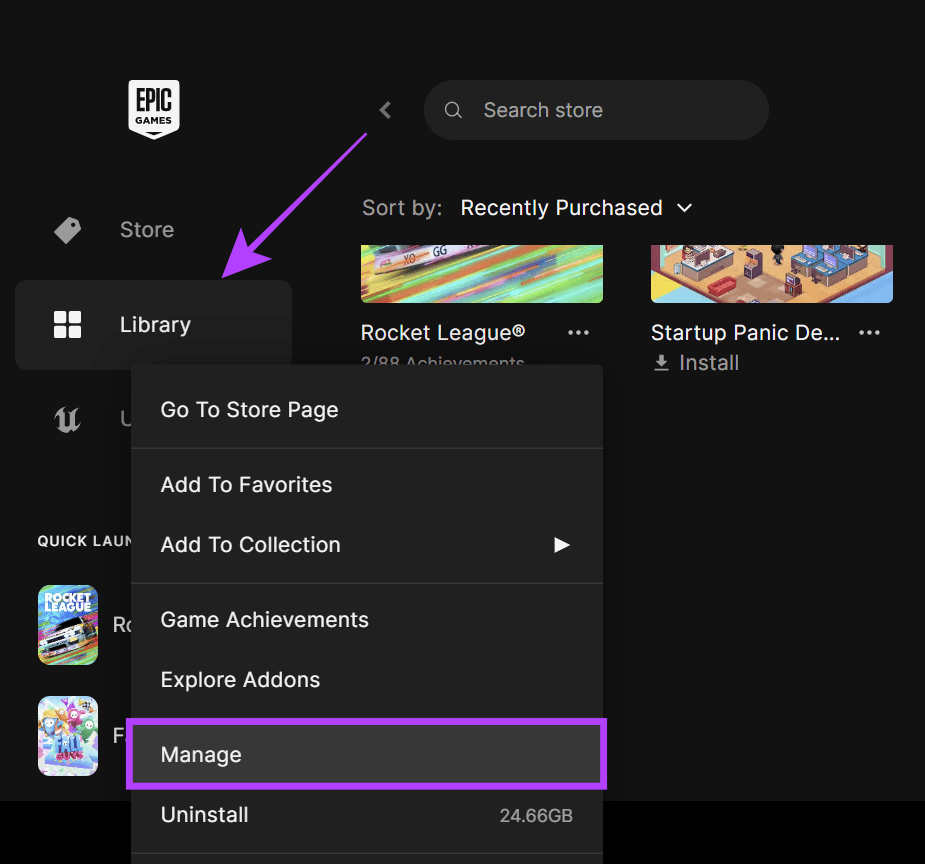
Step 2: Click Verify.

Fix 2: Disable Mods
If you have a system with good specs, but Rocket League keeps crashing on startup, check if you have any mods, as some users were having these issues because of the mods installed in the game. Here’s how you can disable mods in Rocket League.
Note: Before you disable the mod, launch BakkesMod (if you are using that) and see if any update is available. The team has started rolling updates to make the mod compatible with the game’s latest version.
Step 1: Open Settings > Apps > Installed apps.

Step 2: Choose the three dots next to BakkesMod and select Uninstall.

Step 3: Select Uninstall to confirm.

You can also follow the same steps to remove any recently installed applications that might be causing Rocket League not to launch.
Note: You can also delete the Bakkes mod files inside your system. They will usually be saved inside C drive > Program files > Bakkesmod. If you have saved the files elsewhere, delete them accordingly. Remember that you are supposed to delete the mod files and not the setup file you downloaded in the first place.
Fix 3: Run Rocket League in Windowed Mode on Epic Games
Windowed mode is a display setting in which a program runs within a resizable window on the desktop rather than taking up the entire screen in fullscreen mode. This might help you run the game without crashing. Here’s how you can enable the option:
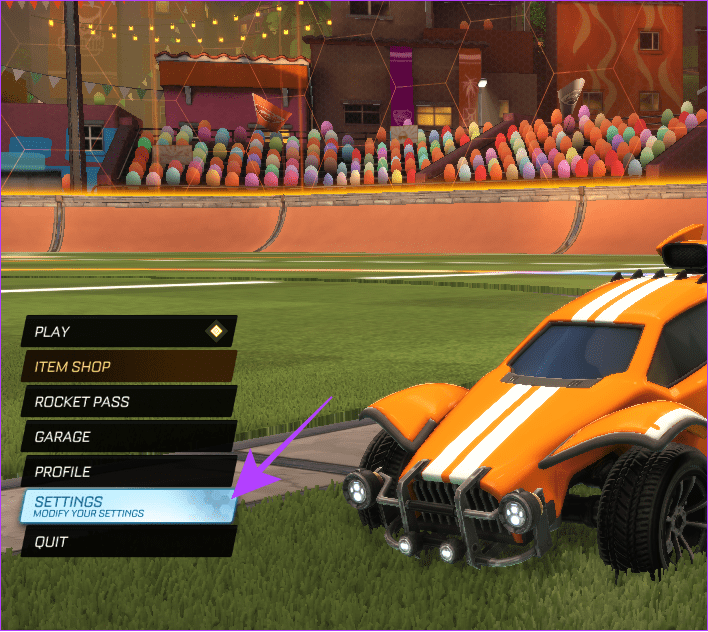
Step 1: Launch Rocket League and choose Settings.
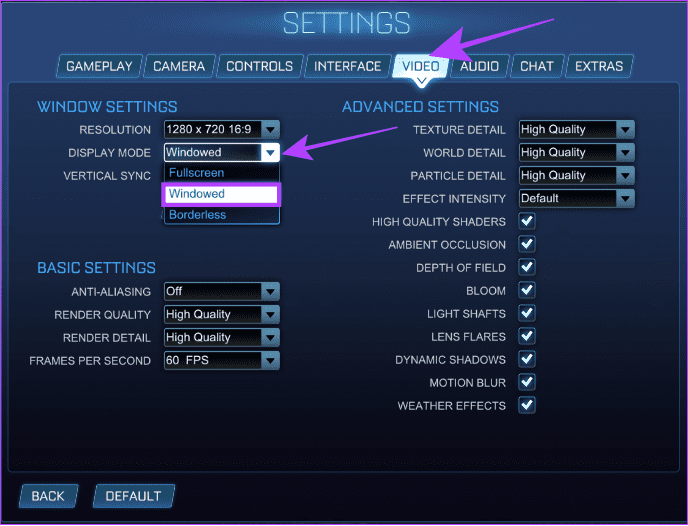
Step 2: Select Video > Display mode > Windowed. Once done, click on Apply to make the changes.
Fix 4: Update Windows Graphics Driver
Updating the graphics drivers improves game performance and prevents issues when joining the game. Here’s how to do it.
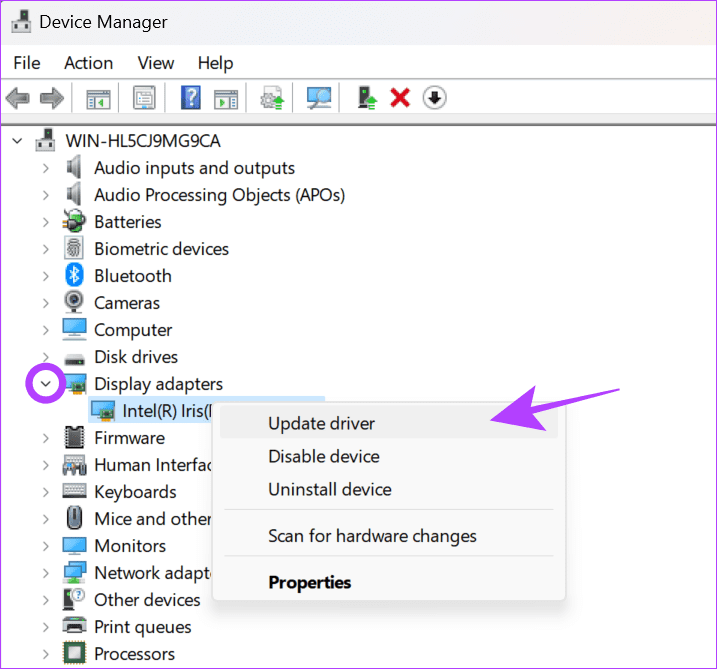
Step 1: Open Device Manager by searching in the Start menu.

Step 2: Click the down arrow next to Display adapters. Then, right-click the driver and choose Update driver.
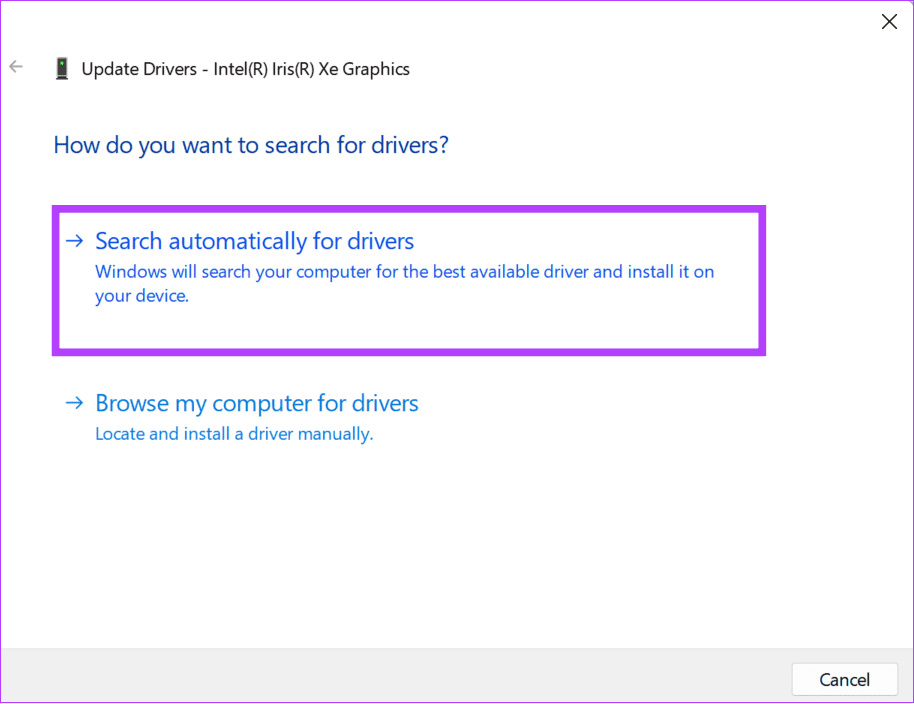
Step 3: Choose between the options mentioned below (We are going with ‘Search automatically for drivers’).
- Search automatically for drivers: Windows will automatically search and install suitable drivers.
- Browse my computer for drivers: If you have manually downloaded the drivers, choose this option.
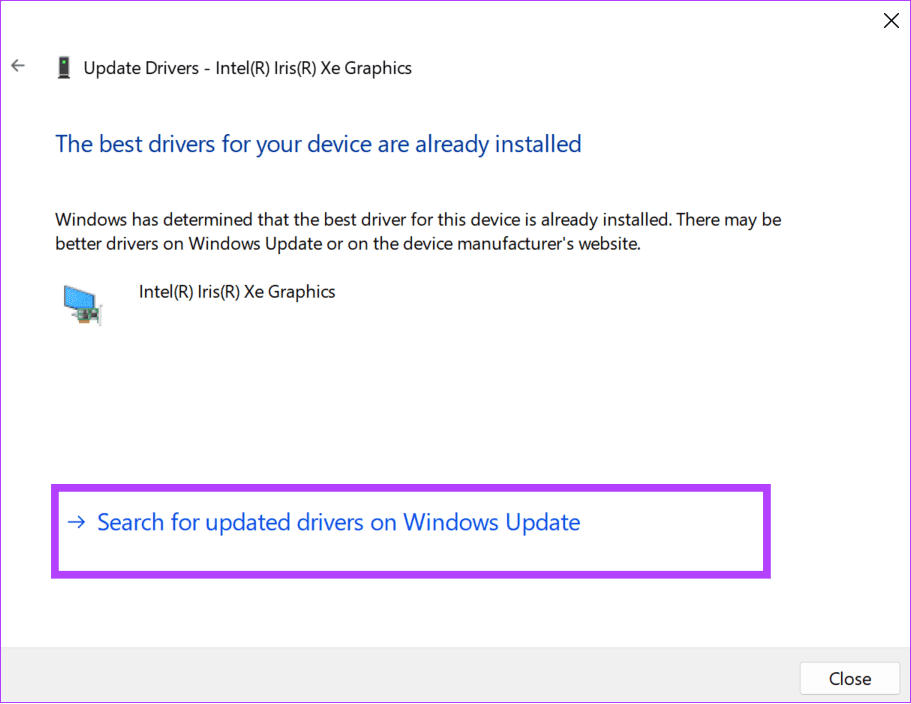
Step 4: Select Search for updated drivers on Windows Update.
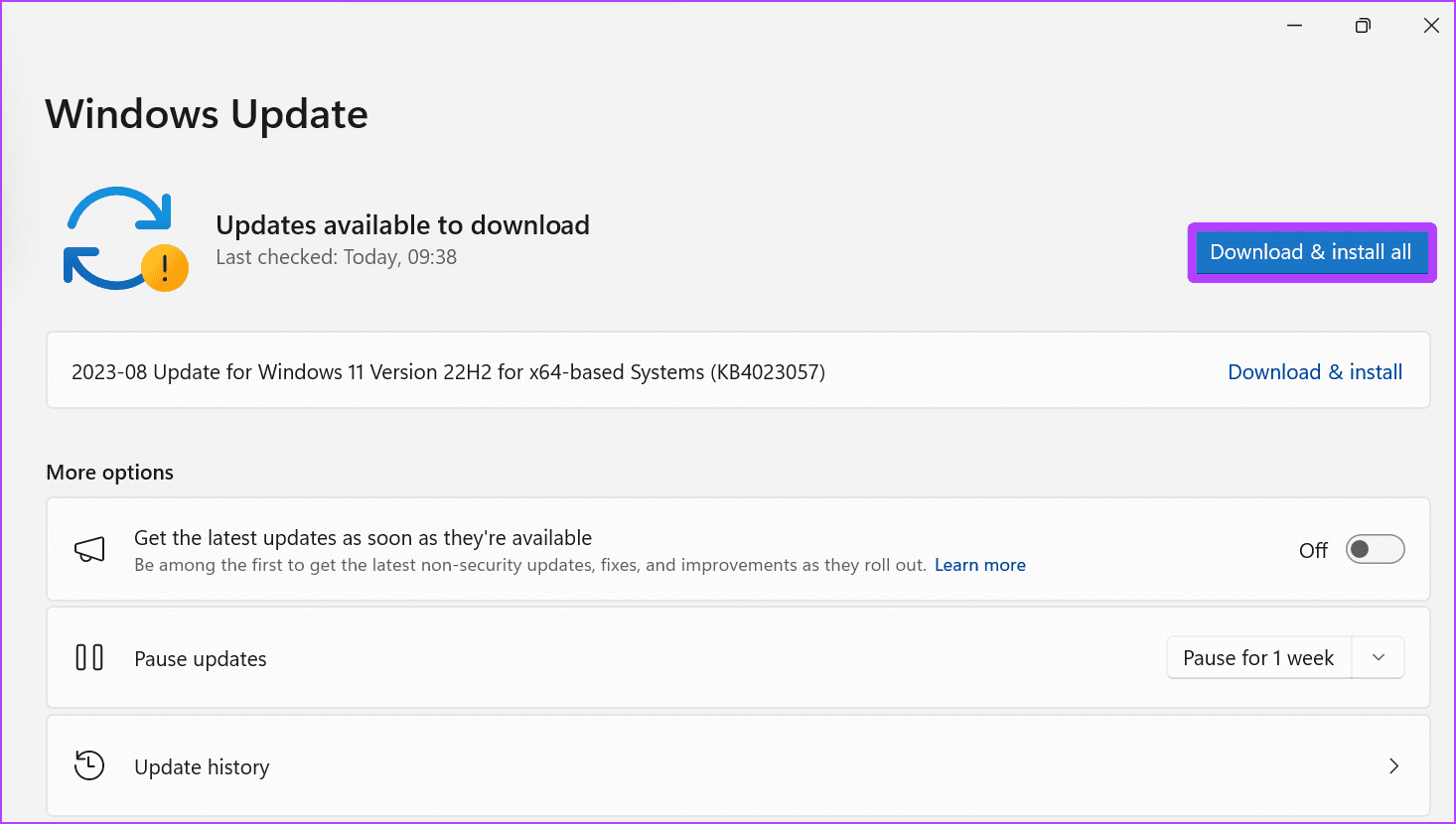
Step 5: Click Check for Updates and choose Download & Install All.
Fix 5: Delete Game Cache Files
Cache files are useful for loading certain game features fast but can also cause issues in the long run if you don’t clear them occasionally. Hence, try clearing the cache.
Step 1: Open the Windows Explorer and navigate to Documents > My Games > Rocket League > TAGame > Cache > WebCache.

Step 2: Now, delete all the files inside the folder.
Fix 6: Run Your Game With Default Settings
Rocket League might also keep crashing or freezing because of your changes to the game settings. You can solve this issue by resetting them to the default settings. Here are the steps:
Step 1: Launch Rocket League on your system and choose Settings.
Step 2: Click Default.
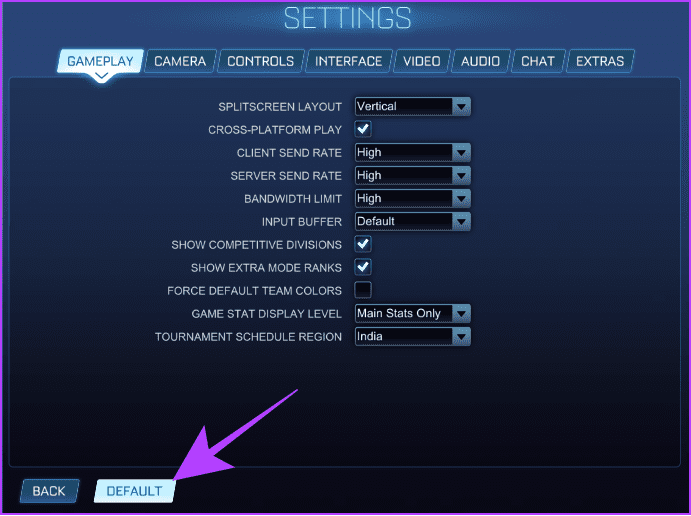
Step 3: Choose Yes to confirm.

Once done, exit the game and relaunch it. Hopefully your issues should be resolved.
Fix 7: Uninstall and Reinstall Game
If all else fails, you can uninstall and install the game again. Follow these steps to uninstall Rocket League on Windows:
Step 1: Open Epic Games and choose Library.
Step 2: Choose the three dots next to Rocket League and select Uninstall.

Step 3: Select Uninstall to confirm.
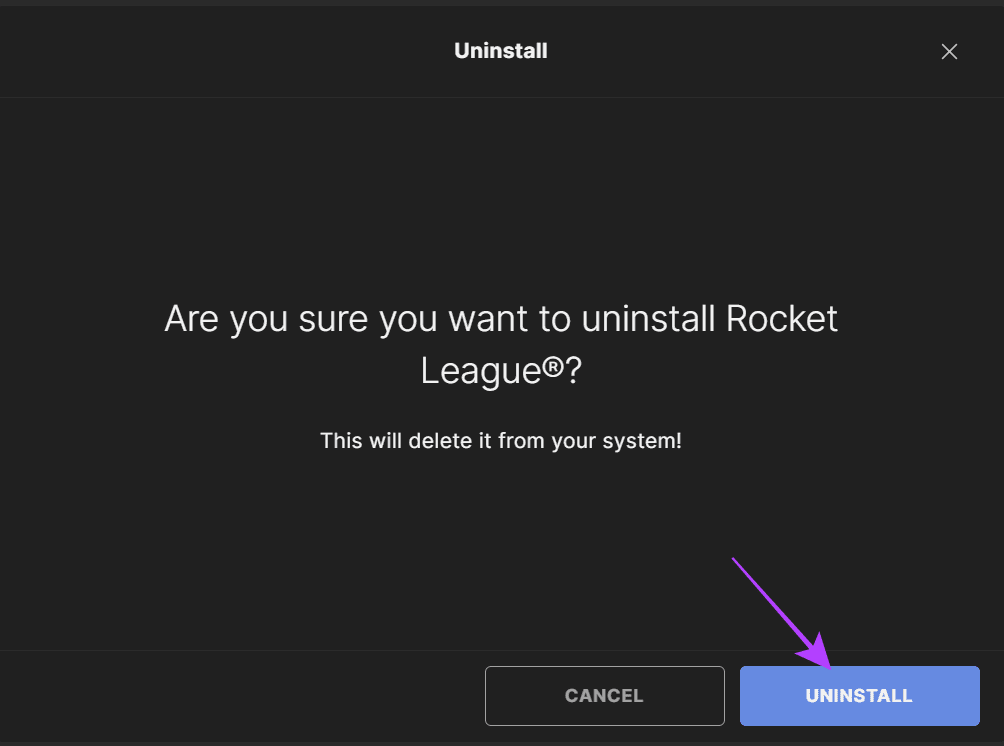
Now, reinstall the game. That should fix the problem for you.
FAQs
As of writing this guide, Rocket League only supports DirectX 11. Hence, we suggest you use this DirectX version on your system.
Rocket League can usually run 60+ FPS at 1080p, 1440p, or 4K resolution without issues. With the right spec device, you can even push 100+ FPS.
Was this helpful?
Last updated on 27 June, 2024
Read Next
 5 Ways to Fix Rocket League Not Launching in Windows 11
Fix 1: Restart Your Computer Step 1: Press the Windows key to open the Start menu.
5 Ways to Fix Rocket League Not Launching in Windows 11
Fix 1: Restart Your Computer Step 1: Press the Windows key to open the Start menu.
 Top 10 Ways to Fix Google Chrome Keeps Freezing or Crashing on Windows 10
Google Chrome is the go-to browser of millions across the world.
Top 10 Ways to Fix Google Chrome Keeps Freezing or Crashing on Windows 10
Google Chrome is the go-to browser of millions across the world.
 3 Ways to Fix Messages App Keeps Crashing or Freezing on iPhone
Basic Fixes: Check the Messages app server status: If there is an issue with Apple's servers, it can affect the functioning of the Messages app.
3 Ways to Fix Messages App Keeps Crashing or Freezing on iPhone
Basic Fixes: Check the Messages app server status: If there is an issue with Apple's servers, it can affect the functioning of the Messages app.
 3 Ways to Fix Fire TV Stick Mirroring Not Working or Freezing
Screen Mirroring Requirements and Limitations for Fire TV Stick Before starting, let us look at certain conditions that you might need to meet when screen mirroring your device to your
3 Ways to Fix Fire TV Stick Mirroring Not Working or Freezing
Screen Mirroring Requirements and Limitations for Fire TV Stick Before starting, let us look at certain conditions that you might need to meet when screen mirroring your device to your
 3 Ways to Fix iPhone Camera Keeps Freezing
Basic Fixes Restart iPhone: A simple restart fixes most issues affecting your iPhone.
3 Ways to Fix iPhone Camera Keeps Freezing
Basic Fixes Restart iPhone: A simple restart fixes most issues affecting your iPhone.
 3 Ways to Fix Netflix Keeps Freezing on Your Phone
Basic Fixes: Close and restart all background apps: Background apps can end up hogging system resources, causing the Netflix app not to work as expected.
3 Ways to Fix Netflix Keeps Freezing on Your Phone
Basic Fixes: Close and restart all background apps: Background apps can end up hogging system resources, causing the Netflix app not to work as expected.
 9 Ways to Fix Videos Freezing on Instagram Stories and Posts
Ever since apps like Dubsmash and TikTok popularized short videos, popular social media apps have come up with alternatives for posting short-form content.
9 Ways to Fix Videos Freezing on Instagram Stories and Posts
Ever since apps like Dubsmash and TikTok popularized short videos, popular social media apps have come up with alternatives for posting short-form content.
 7 Best Ways to Fix Hogwarts Legacy Crashing Issue on Windows 11
Hogwarts Legacy is an open-world game set in the Harry Potter world.
7 Best Ways to Fix Hogwarts Legacy Crashing Issue on Windows 11
Hogwarts Legacy is an open-world game set in the Harry Potter world.
The article above may contain affiliate links which help support Guiding Tech. The content remains unbiased and authentic and will never affect our editorial integrity.