Preliminary Fixes
- Check remote if the desktop is enabled: The Remote Desktop authentication error often occurs because your Windows 11 PC cannot establish a remote connection without the Remote Desktop feature enabled.
- Uninstall the latest Windows updates: Sometimes, a Windows update causes the RDP authentication error. If you recently updated your Windows PC, roll back the update to resolve the error.
- Disable Windows 11 Firewall to enable Remote Desktop: The Firewall sometimes blocks Remote Desktop connections, causing an RDP internal error. To fix this, disable the Windows Firewall and reinitiate the Remote Desktop connection.
Fix 1: Check Remote Desktop Account Credentials
If the Remote Desktop is enabled but you’re still getting the authentication error, your remote desktop account password may have expired, or you may be entering an incorrect username or password.
If the password has expired, create a new one. This is similar to creating a new password for your Windows 11 PC. Once created, try using it to establish a Remote Desktop connection.
Fix 2: Turn off Network Level Authentication on the RDP Server
When a client attempts to connect remotely, the Network Level Authentication (NLA) acts as a security feature that authenticates itself before a full connection is established. Sometimes, this can cause the remote desktop connection authentication error.
You must disable the NLA to eliminate this error. Follow the below-mentioned steps.
Step 1: Press the Windows key on your keyboard > type Run > click Open.
Step 2: Type the below command and click OK. This will open the System Properties window.
sysdm.cpl

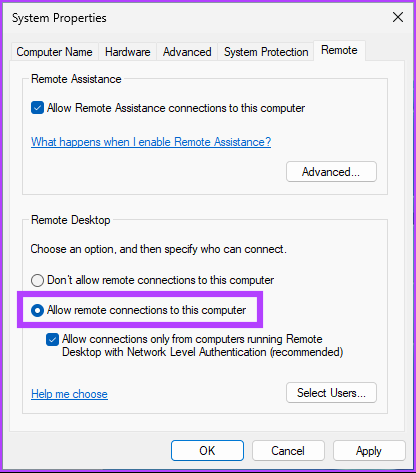
Step 3: Go to the Remote tab.
Step 4: Under Remote Desktop, check the box for Allow remote connections to this computer.
Step 5: Uncheck Allow connections only from computers running Remote Desktop with Network Level Authentication (recommended).
Step 6: Click on Apply > OK to save changes.
You must reboot your computer to ensure the changes are in place. Once your PC comes up, establish the Remote Desktop connection. Then, you should be good to go.
If this method doesn’t resolve the remote desktop connection, jump to the next method.
Fix 3: Change Registry Settings to Enable Remote Desktop Authentication
Step 1: Press the Windows key on your keyboard > type Registry Editor > click Run as administrator. In the prompt, select Yes.
Step 2: In the top address bar, enter the below-mentioned address and hit Enter.
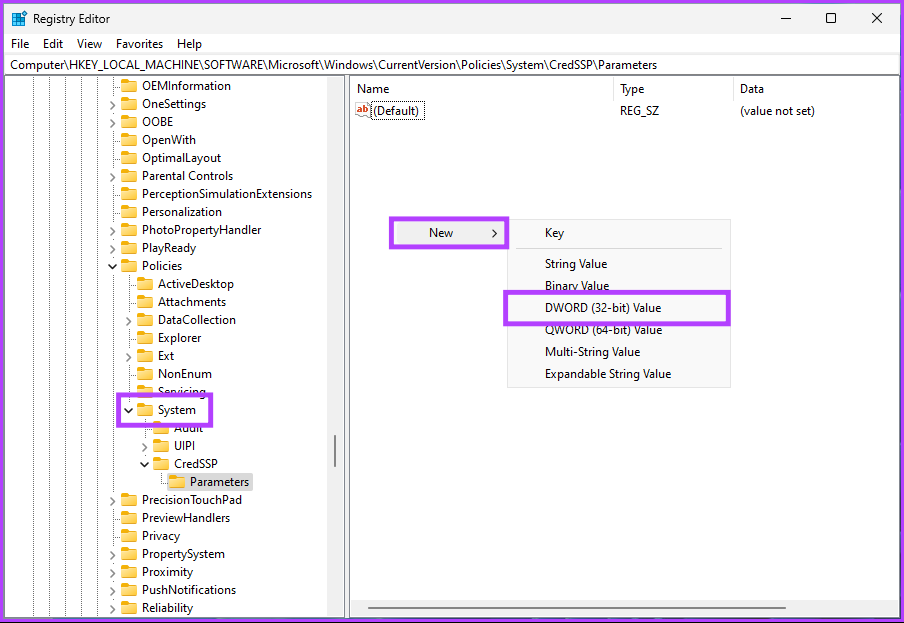
HKEY_LOCAL_MACHINE\SOFTWARE\Microsoft\Windows\CurrentVersion\Policies\System\CredSSP\Parameters
Step 3: Under the System folder, right-click, select New, and choose DWORD (32-bit) Value.
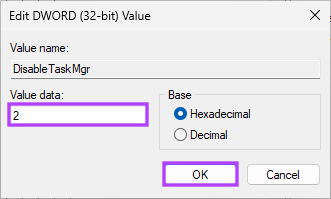
Step 4: Type DisableTaskMgr in the name field.

Step 5: Double-click the new value, type 2 in the Value Data field, and press OK.
Finally, reboot the system to implement the changes. And that’s it! When the system boots back, try reconnecting to Remote Desktop; you shouldn’t see the ‘An authentication error has occurred’ prompt.
Fix 4: Enable Encryption Oracle Remediation Using Group Policy Editor
The Group Policy Editor is only available for Windows 11 Pro and Enterprise versions. If you are using Windows 11 Home Edition, skip this method.
Step 1: Press the Windows keys on your keyboard > type gpedit > click Open.
Step 2: In the left pane, under Local Computer Policy, select Computer Configuration.
Step 3: In the right pane, double-click on Administrative Templates.
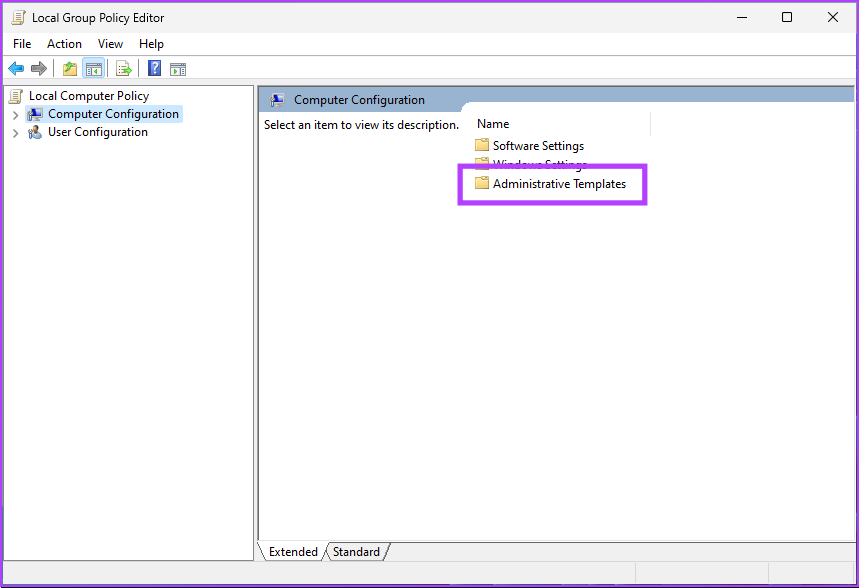
Step 4: Select the System option.
Step 5: Under the System option, find and click Credentials Delegation.
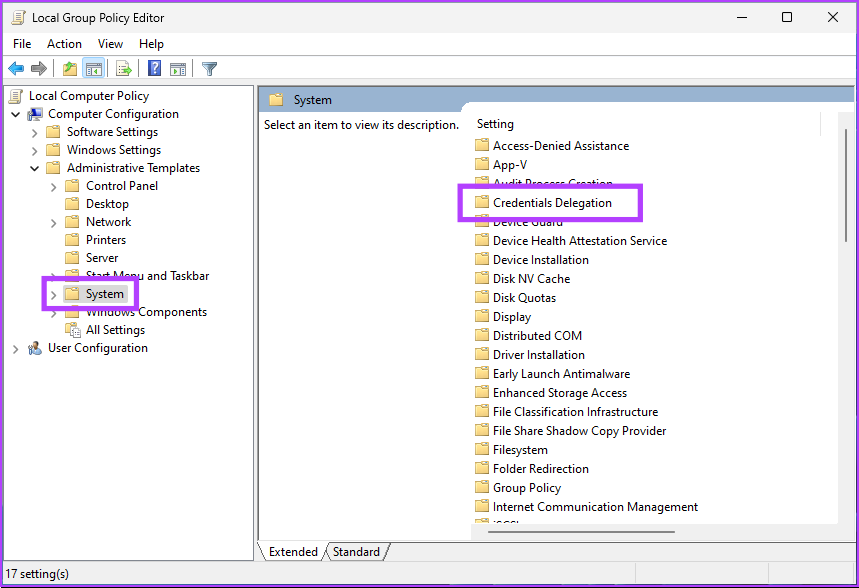
Step 6: In the Credentials Delegation, double-click on Encryption Oracle Remediation on the right.
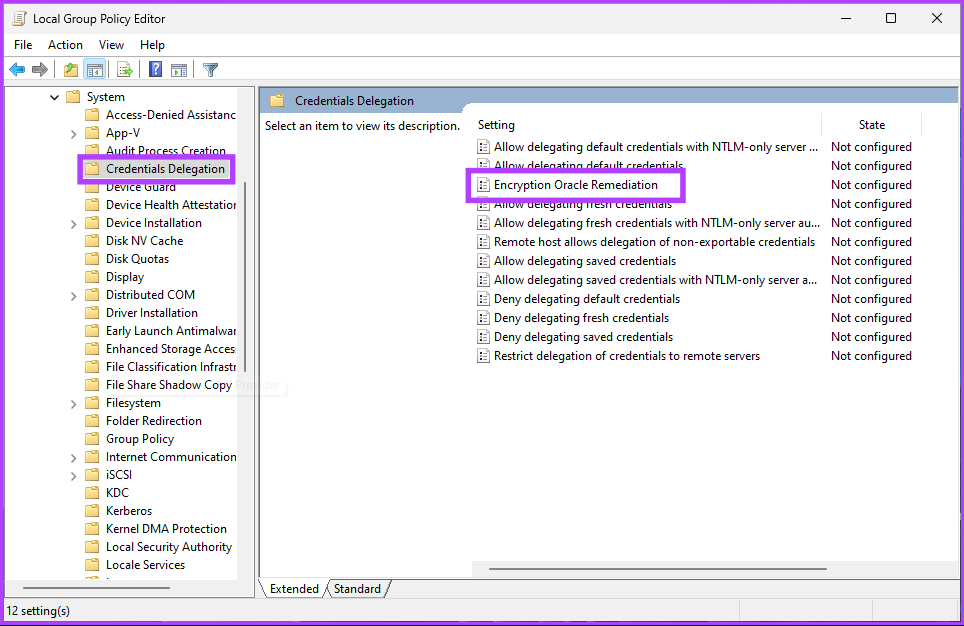
Step 7: Under the Encryption Oracle Remediation window, select Enabled. Finally, click on Apply > OK.

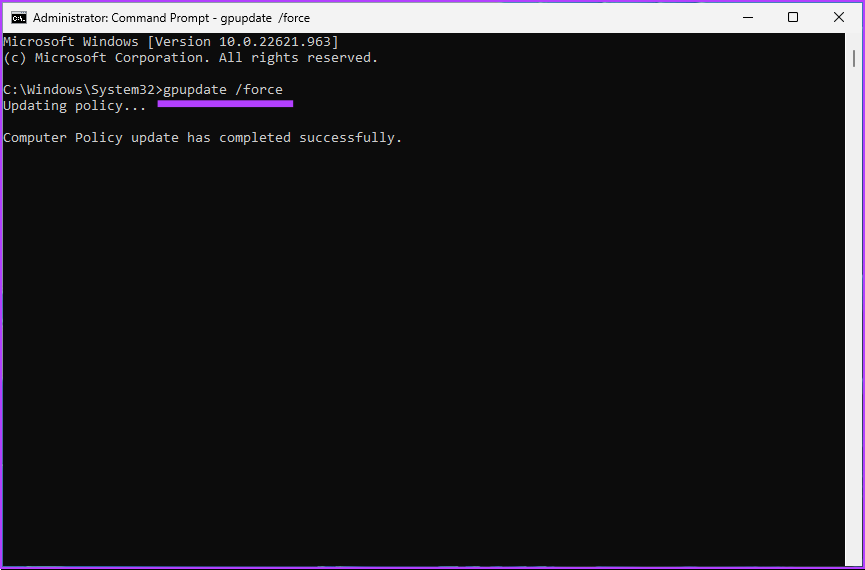
Step 8: Close all the open Windows. Press the Windows key on your keyboard > type Command Prompt > click Run as administrator.
Step 8: Type the below command and press Enter.
gpupdate /force
FAQs
Yes, the Remote Desktop Protocol (RDP) is compatible with Windows 11. RDP is a protocol made by Microsoft that lets users connect to and control a Windows computer from another device. It is included in all versions of Windows, including Windows 11.
Remote Desktop Protocol (RDP) uses password-based authentication to verify the identity of a user trying to connect to a remote computer. You are asked for the remote computer’s username and password.
Was this helpful?
Last updated on 01 August, 2024
Read Next
 4 Fixes if Chrome Remote Desktop Is Not Working on Windows 11
Fix 1: Disable PIN-Less Authentication Chrome Remote Desktop lets you pair your trusted devices with your computer.
4 Fixes if Chrome Remote Desktop Is Not Working on Windows 11
Fix 1: Disable PIN-Less Authentication Chrome Remote Desktop lets you pair your trusted devices with your computer.
 5 Fixes for Remote Desktop Copy-Paste Not Working on Windows
Fix 1: Configure Remote Desktop Connection Settings A common reason you may be unable to copy and paste data during a Remote Desktop session is if you have previously disabled
5 Fixes for Remote Desktop Copy-Paste Not Working on Windows
Fix 1: Configure Remote Desktop Connection Settings A common reason you may be unable to copy and paste data during a Remote Desktop session is if you have previously disabled
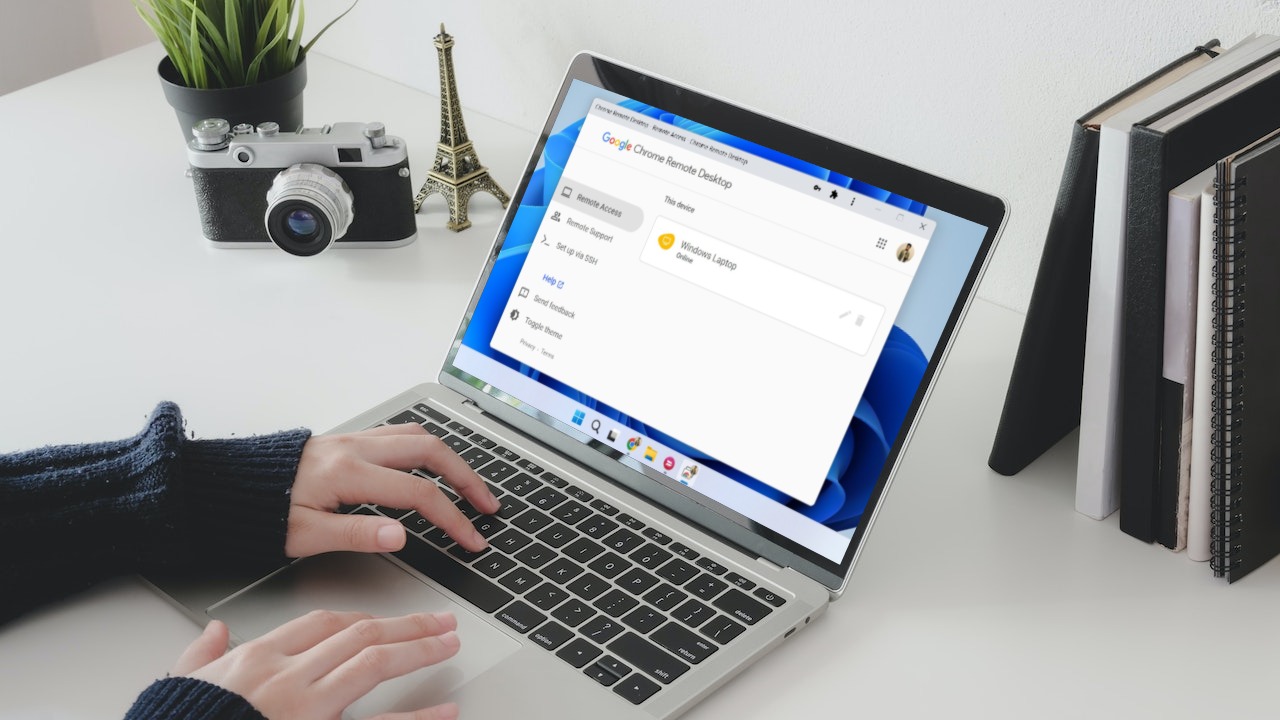 How to Set Up and Use Google Chrome Remote Desktop on Windows 11
How to Download and Set Up Chrome Remote Desktop To access your PC remotely, you'll need to download and set up the Chrome Remote Desktop extension on your PC first.
How to Set Up and Use Google Chrome Remote Desktop on Windows 11
How to Download and Set Up Chrome Remote Desktop To access your PC remotely, you'll need to download and set up the Chrome Remote Desktop extension on your PC first.
 7 Quick Ways to Open Remote Desktop Connection Tool in Windows 11
Method 1.
7 Quick Ways to Open Remote Desktop Connection Tool in Windows 11
Method 1.
 How to Ctrl + Alt + Del in Remote Desktop on Windows
Method 1: Use Ctrl + Alt + End on the Keyboard It's simple - you can use the Ctrl + Alt + End on your Windows Remote Desktop session instead
How to Ctrl + Alt + Del in Remote Desktop on Windows
Method 1: Use Ctrl + Alt + End on the Keyboard It's simple - you can use the Ctrl + Alt + End on your Windows Remote Desktop session instead
 How to Enable Two-Factor Authentication on Steam
 Step 1: Open Steam on your PC and ensure your account is in use.
How to Enable Two-Factor Authentication on Steam
How to Enable Two-Factor Authentication on Steam Step 1: Open Steam on your PC and ensure your account is in use.
 How To Enable Remote Desktop or RDP in VMware – Guiding Tech
There are multiple methods of connecting to a virtual machine in VMware.
How To Enable Remote Desktop or RDP in VMware – Guiding Tech
There are multiple methods of connecting to a virtual machine in VMware.
 Top 3 Windows 10 Apps to Generate 2-Factor Authentication Codes
Two-factor authentication (2FA) is a method of bumping up user account security by requiring two means of identity verification.Typically when you're logging into your account, you will have to provide
Top 3 Windows 10 Apps to Generate 2-Factor Authentication Codes
Two-factor authentication (2FA) is a method of bumping up user account security by requiring two means of identity verification.Typically when you're logging into your account, you will have to provide
The article above may contain affiliate links which help support Guiding Tech. The content remains unbiased and authentic and will never affect our editorial integrity.