


Fix 1: Change Routing Settings
The routing settings are set to use the default gateway as it is. The option should be unchecked to allow the adapter to use the default gateway settings specified for the TCP/IP.
Step 1: Open Windows settings using Win + I, and navigate to Network and Internet > VPN in the Windows settings.
Step 2: Find the VPN server for which you wish to change the routing settings. Click on the down arrow next to it to expand it.
Step 3: Click on the Advanced Options button.

Step 4: Click on Edit next to More VPN properties. It will open the Properties window.
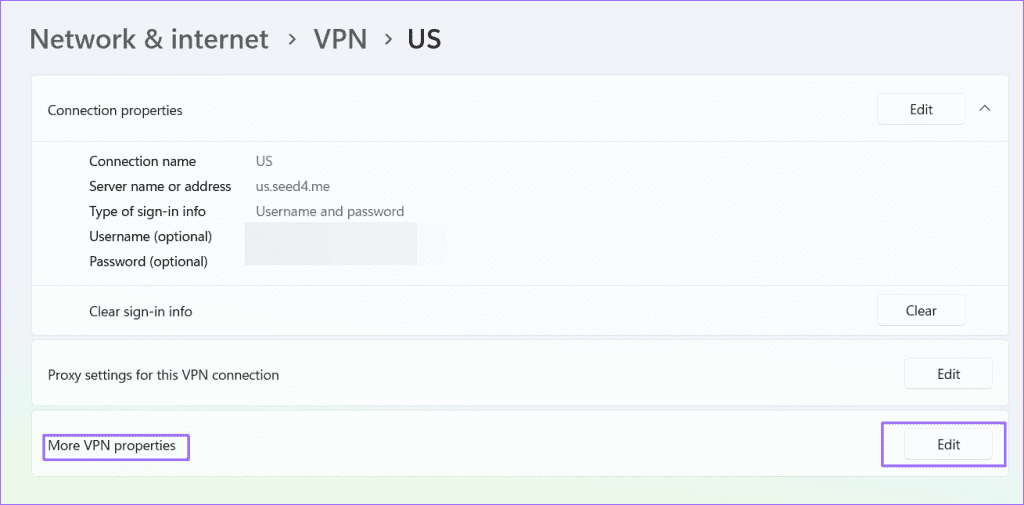
Step 5: Switch to the Networking tab in the US Properties window.
Step 6: Select Internet Protocol Version 4 (TCP/lPv4) and click on Properties.
Step 7: Uncheck Use default gateway on the remote network and click on OK to save.

Fix 2: Run Network and Internet Troubleshooter
Network and internet troubleshooter is a one-stop solution for diagnosing and fixing issues related to your internet. Once run, it will automatically try to identify and fix issues.
Step 1: Go to System > Troubleshoot > Other Troubleshooters in the Windows settings.
Step 2: Now, find the Network and Internet Troubleshooter and Click on Run.
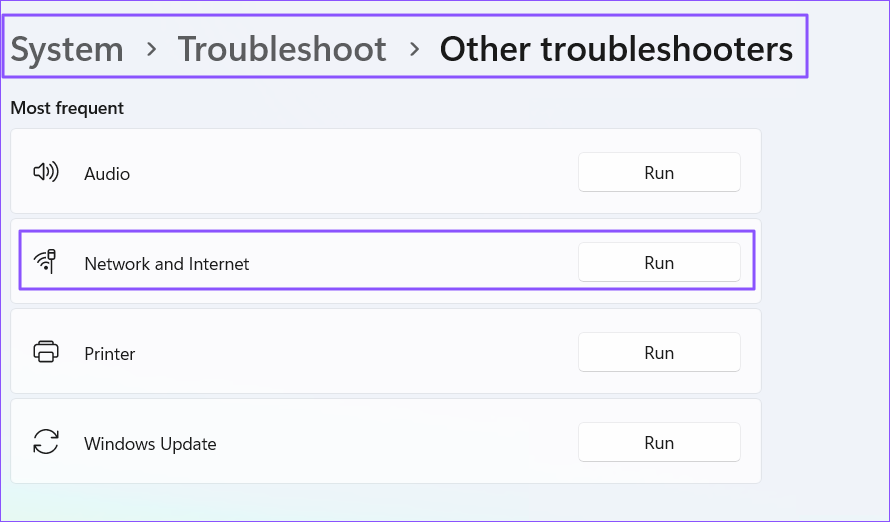
Let the wizard complete the job, which should help resolve the issue.
Fix 3: Change DNS configuration to Automatic
Some custom DNS can interfere with internet connectivity if the PC is connected to a VPN. This can be because they are configured that way. You can change the DNS configuration to automatic.
Step 1: In Windows Settings, go to the Network & internet > Wi-Fi > click on Hardware properties.
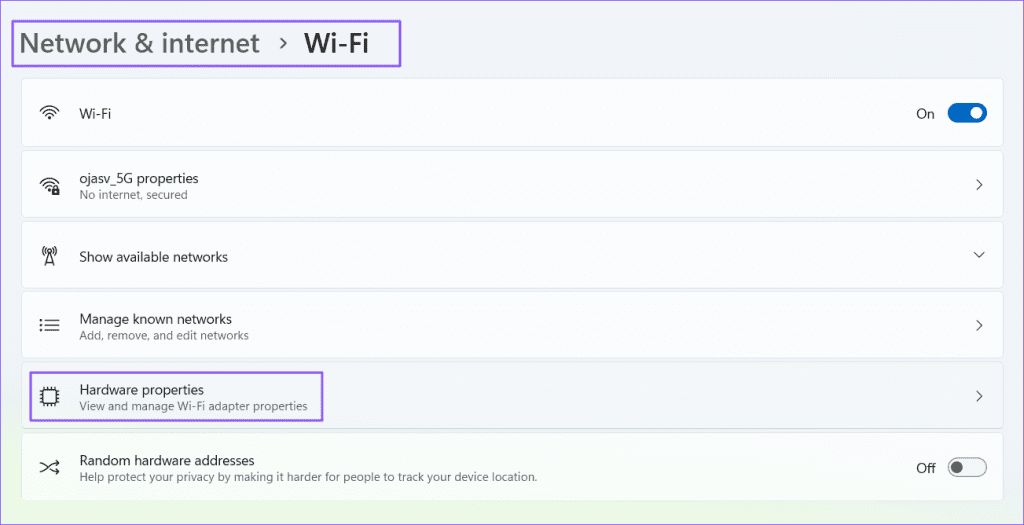
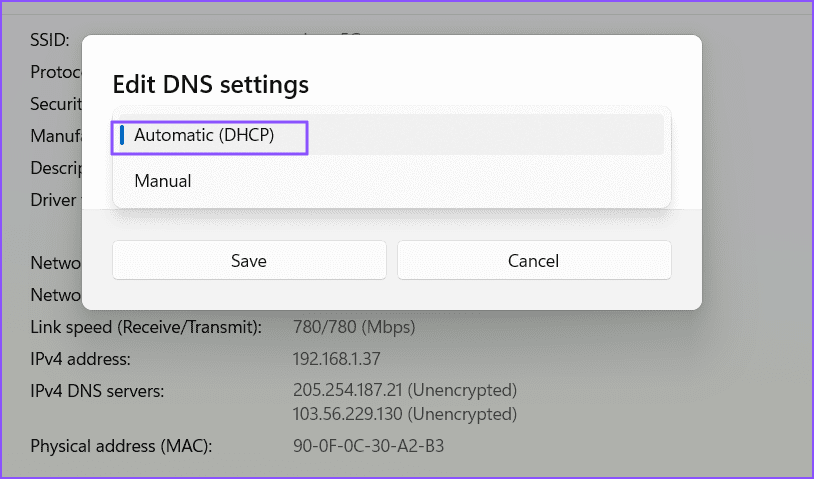
Step 2: Click on Edit to view the DNS settings confirmation. Here, change the server assignment from Manual to Automatic (DHCP).
Fix 4: Turn off the VPN Killswitch
The VPN killswitch disconnects the internet if the VPN is no longer active. Sometimes, this feature malfunctions and cuts off internet connectivity.
Step 1: Open the VPN Client application you use to connect to the VPN.
Step 2: Locate the VPN Killswitch settings.
Step 3: Toggle off the killswitch.

Note that the location of the VPN killswitch settings can vary from device to device.
FAQs
How Do I Stop a VPN From Blocking My Internet?
To stop a VPN from blocking your internet, ensure the VPN killswitch setting is off, as the feature can unexpectedly cut off the internet. Check the VPN settings to see if they are blocking specific websites or periods throughout the day. Lastly, check if your DNS is automatic or not.
Why Can’t I Access the Network When Connected to a VPN?
This can happen for multiple reasons. Several custom DNS bars access to the internet when using a VPN. It can also happen due to an overload of the VPN server or slow internet speeds in general. Most VPNs have slow speeds when connected, and if you are already on a slow network, you might not be able to access the internet properly when connected to a VPN.
Was this helpful?
Last updated on 05 July, 2024
1 Comment
Leave a Reply
Read Next
 How to Fix the Windows Sandbox No Internet Connection Issue
The Windows Sandbox lets you do just about anything.
How to Fix the Windows Sandbox No Internet Connection Issue
The Windows Sandbox lets you do just about anything.
 Top 12 Ways to Fix Steam Not Connecting to the Internet on Windows
Steam is one of the popular gaming apps on Windows.
Top 12 Ways to Fix Steam Not Connecting to the Internet on Windows
Steam is one of the popular gaming apps on Windows.
 3 Ways to Fix Spotify No Internet Connection Available Error on Android
Try Basic Fixes Toggle offline mode in Spotify: Sometimes, when you disable the offline mode in Spotify, the app may show the "No internet connection available" error and become stuck.
3 Ways to Fix Spotify No Internet Connection Available Error on Android
Try Basic Fixes Toggle offline mode in Spotify: Sometimes, when you disable the offline mode in Spotify, the app may show the "No internet connection available" error and become stuck.
 Top 9 Ways to Fix ‘No Internet Connection’ Error on TikTok
TikTok continues to enjoy its tremendous run in the social media space.
Top 9 Ways to Fix ‘No Internet Connection’ Error on TikTok
TikTok continues to enjoy its tremendous run in the social media space.
 3 Ways to Fix Facebook Messenger Not Connecting to the Internet on iPhone
Try Basic Fixes Check if Messenger is down: Facebook Messenger servers can occasionally experience problems.
3 Ways to Fix Facebook Messenger Not Connecting to the Internet on iPhone
Try Basic Fixes Check if Messenger is down: Facebook Messenger servers can occasionally experience problems.
 4 Ways to Fix iPad Not Connecting to the Internet
Basic Fixes: Restart your iPad: Restarting your iPad can help fix any temporary issues preventing it from connecting to the internet.
4 Ways to Fix iPad Not Connecting to the Internet
Basic Fixes: Restart your iPad: Restarting your iPad can help fix any temporary issues preventing it from connecting to the internet.
 4 Ways to Fix YouTube Not Connecting to the Internet on Android and iPhone
Try Basic Fixes Check if YouTube is down: You might not be the only one having problems with the YouTube app.
4 Ways to Fix YouTube Not Connecting to the Internet on Android and iPhone
Try Basic Fixes Check if YouTube is down: You might not be the only one having problems with the YouTube app.
 5 Fixes For “Setup Incomplete Because of a Metered Connection” Error in Windows 11
Fix 1: Enable Driver Downloads Over Metered Connections The "Setup incomplete because of a metered connection" error typically occurs when you pair a Bluetooth device, and Windows cannot download relevant
5 Fixes For “Setup Incomplete Because of a Metered Connection” Error in Windows 11
Fix 1: Enable Driver Downloads Over Metered Connections The "Setup incomplete because of a metered connection" error typically occurs when you pair a Bluetooth device, and Windows cannot download relevant
The article above may contain affiliate links which help support Guiding Tech. The content remains unbiased and authentic and will never affect our editorial integrity.
yes good need help me