


Why Does My iPhone Hotspot Keeps Disconnecting
Before we show you step-by-step instructions to fix the hotspot issue on your iPhone, let’s quickly go over some of the possible reasons behind such behavior.
- Network connection – An unstable speed or incorrect network settings can impact hotspot functionality. And while not often, an active data saver mode can also lead to hotspot disconnecting issues.
- Physical barriers – Your iPhone is far away, or there is a barrier between the phone and the device you are trying to connect. There could also be an issue when the iPhone is near Electromagnetic devices like a microwave.
- Inactivity – Your iPhone disconnects the hotspot after 90 seconds of inactivity on the connected device.
- Carrier issues – You may run out of mobile data on your active carrier plan.
Basic Fixes To iPhone Hotspot Keeps Disconnecting
- Check Data Usage – Check the personal hotspot data usage from the Settings > Mobile Data / Cellular Data menu. If it exceeds your monthly data limit, purchase another data plan. You can read our dedicated post to limit cellular data usage on an iPhone.
- Disable low data mode – To reduce mobile data usage, iOS can disable background tasks such as automatic updates, background tasks, hotspots, and more. Disable the setting and see if the connection stays stable.
- Disable power saver mode – The setting may suspend background activities like downloads, mail fetch, hotspot connection, etc. until you can fully charge your phone.
- Keep iPhone plugged in – Similar to the above situation, the idea is to avoid low battery and disruption in your hotspot connection.
- Update iOS – An outdated iOS version can be the main culprit behind the iPhone hotspot keeps disconnecting issue. Try updating to fix it.
Fix 1. Change the Hotspot Name and Password
The idea is to re-establish the hotspot connection between your devices. So, change your iPhone hotspot and password and try again.
Step 1: Open Settings on your iPhone. Head to General → About → Name menu.
Step 2: Tap the x mark beside the name and rename the phone (that reflects in the hotspot name).
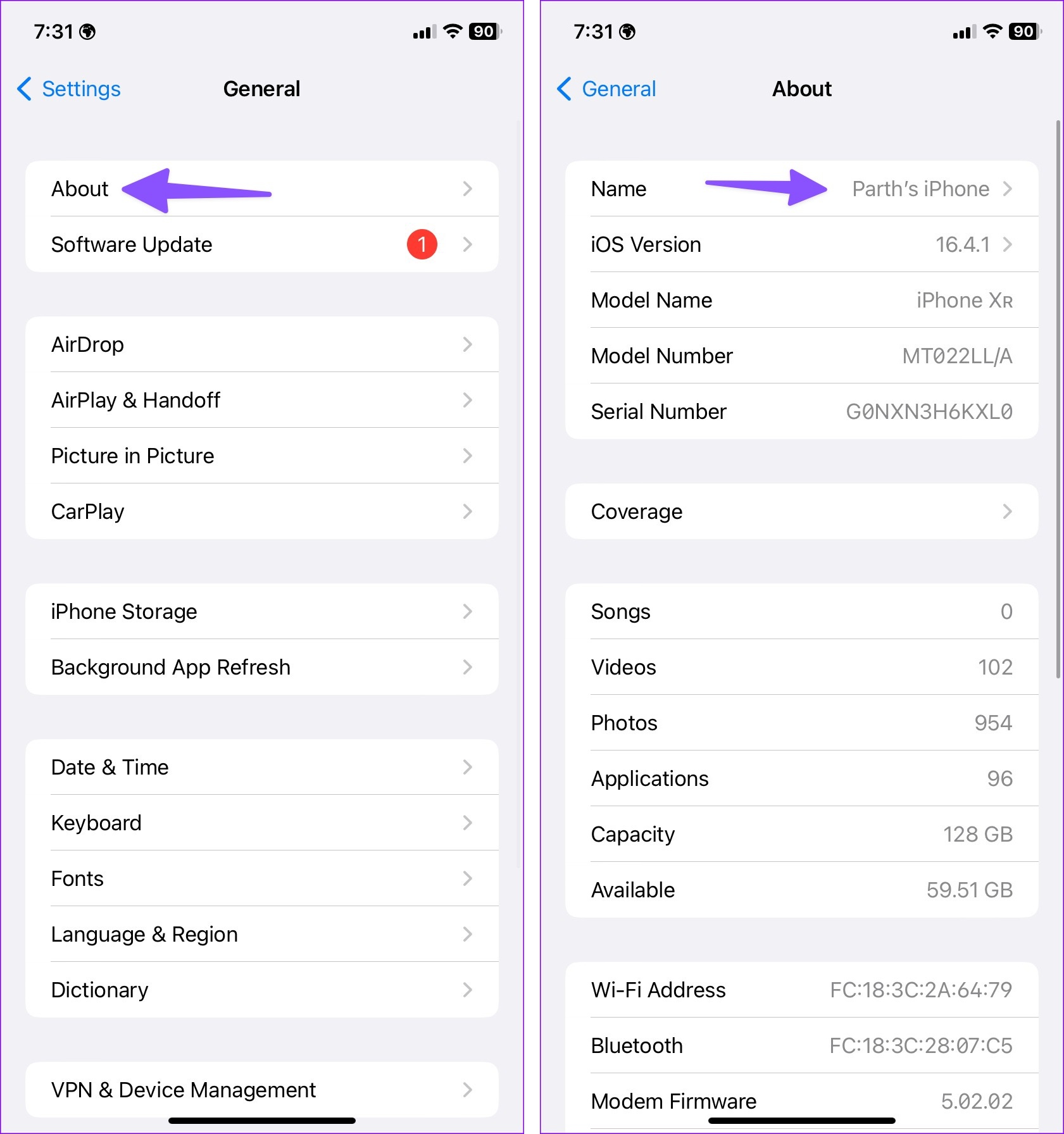
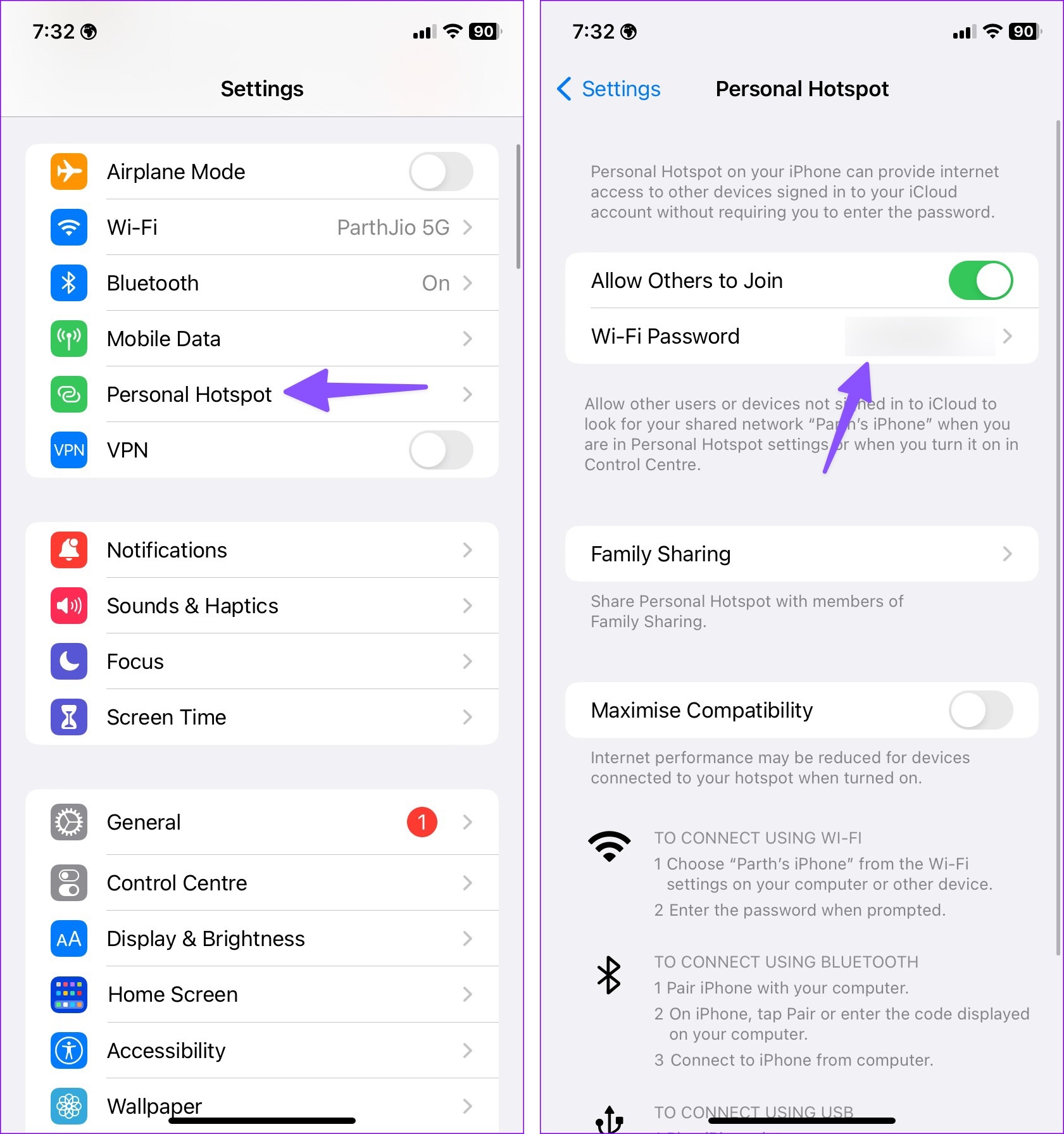
Step 3: Head back to Settings. This time open Personal Hotspot.
Step 4: Select Wi-Fi Password and enter a new one.
Fix 2. Temporary Disable Auto Lock
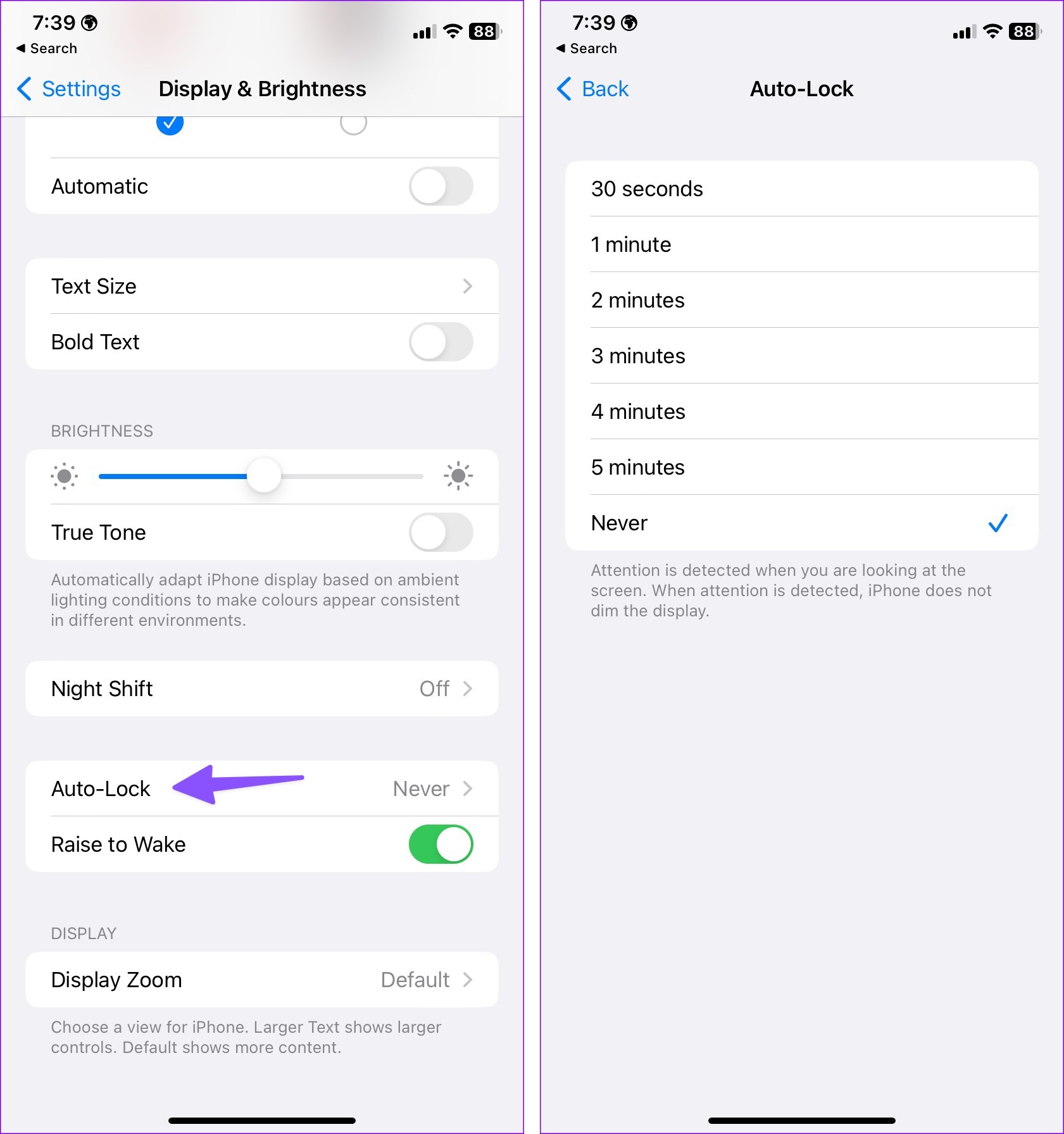
When your iPhone auto-locks after a set time, the system may disconnect the hotspot on the device. You should extend or disable auto-lock time from Settings.
Step 1: Launch Settings and navigate to Display & Brightness.
Step 2: Select Auto-Lock and increase screen time out.
Fix 3. Disable Maximize Compatibility
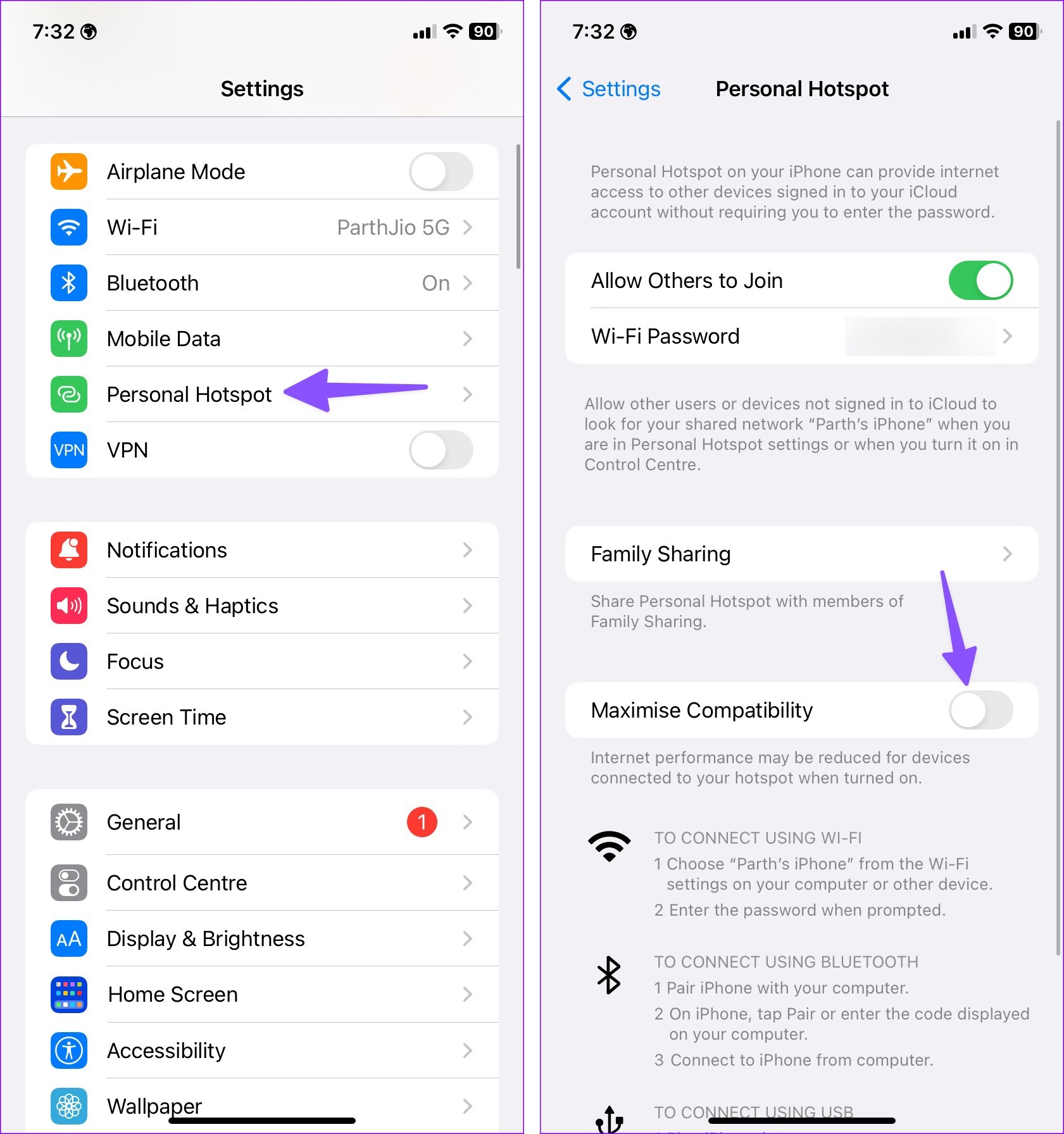
The maximize compatibility option reduces internet performance for devices connected to your iPhone hotspot.
Step 1: Head to iPhone Settings and open Personal Hotspot.
Step 2: Disable the Maximize Compatibility toggle.
Fix 4. Reconnect iPhone Hotspot
You can remove the current saved network on your Mac or Windows and try connecting your iPhone hotspot again.
Mac
Step 1: Click the Apple icon from the menu bar and select System Settings.
Step 2: Select Wi-Fi and find your iPhone hotspot under the Known Networks menu. Click the three-dot menu beside it and select ‘Forget This Network‘.

Windows
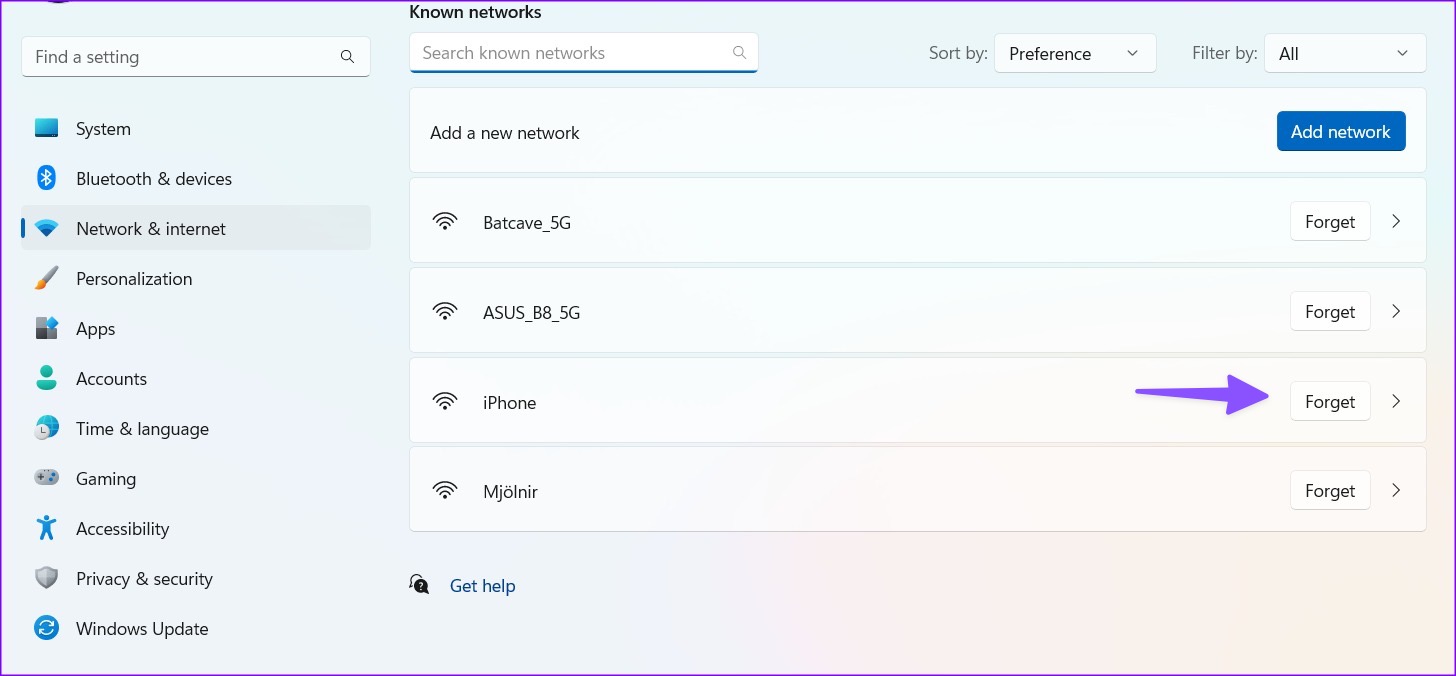
Step 1: Head to Windows Settings by pressing the Windows + I keys. Select Network & internet from the sidebar.
Step 2: Open Wi-Fi and head to Manage known networks.

Step 3: Click Forget beside your iPhone hotspot and try connecting it again.
Fix 5. Update Carrier Settings
Your local carrier regularly releases new updates to improve network connection and data speeds. These updates are automatically installed over the air. But in some cases, you might need to update carrier settings manually.
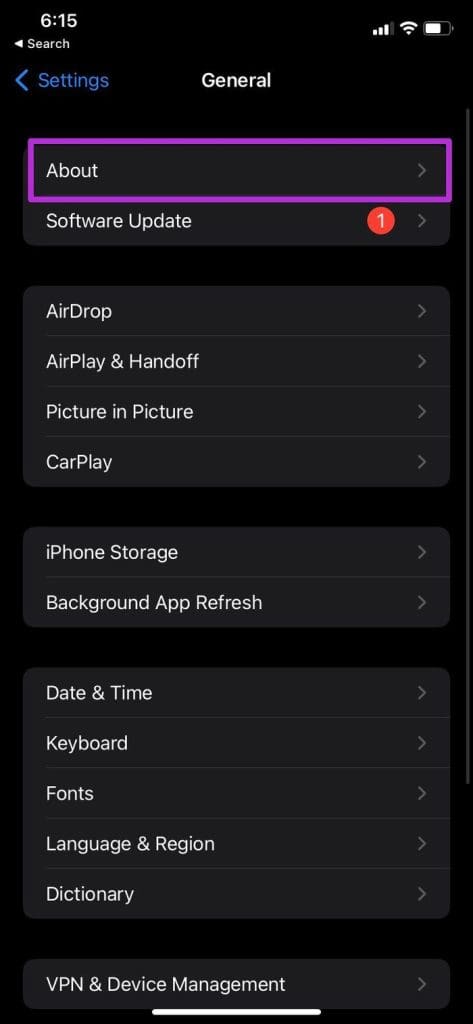
Step 1: Open the Settings app. Go to the General → About.
Step 2: Here, scroll down to SIM details.
Step 3: Check the Network Provider version. Tap it to fetch the latest version.

Fix 6. Disable Limit IP Address Tracking
While iCloud Private Relay is designed to keep your browsing private from prying eyes, it may sometimes interfere with hotspot capabilities. So if your iPhone hotspot keeps disconnecting, temporarily disable iCloud Private Relay for the Wi-Fi network.
To do so, go to Settings → Wi-Fi → Tap i next to your Wi-Fi → toggle off Limit IP Address Tracking.
Fix 7. Reset Network Settings
Incorrect network settings on your iPhone lead to frequent hotspot disconnection on a Windows laptop.
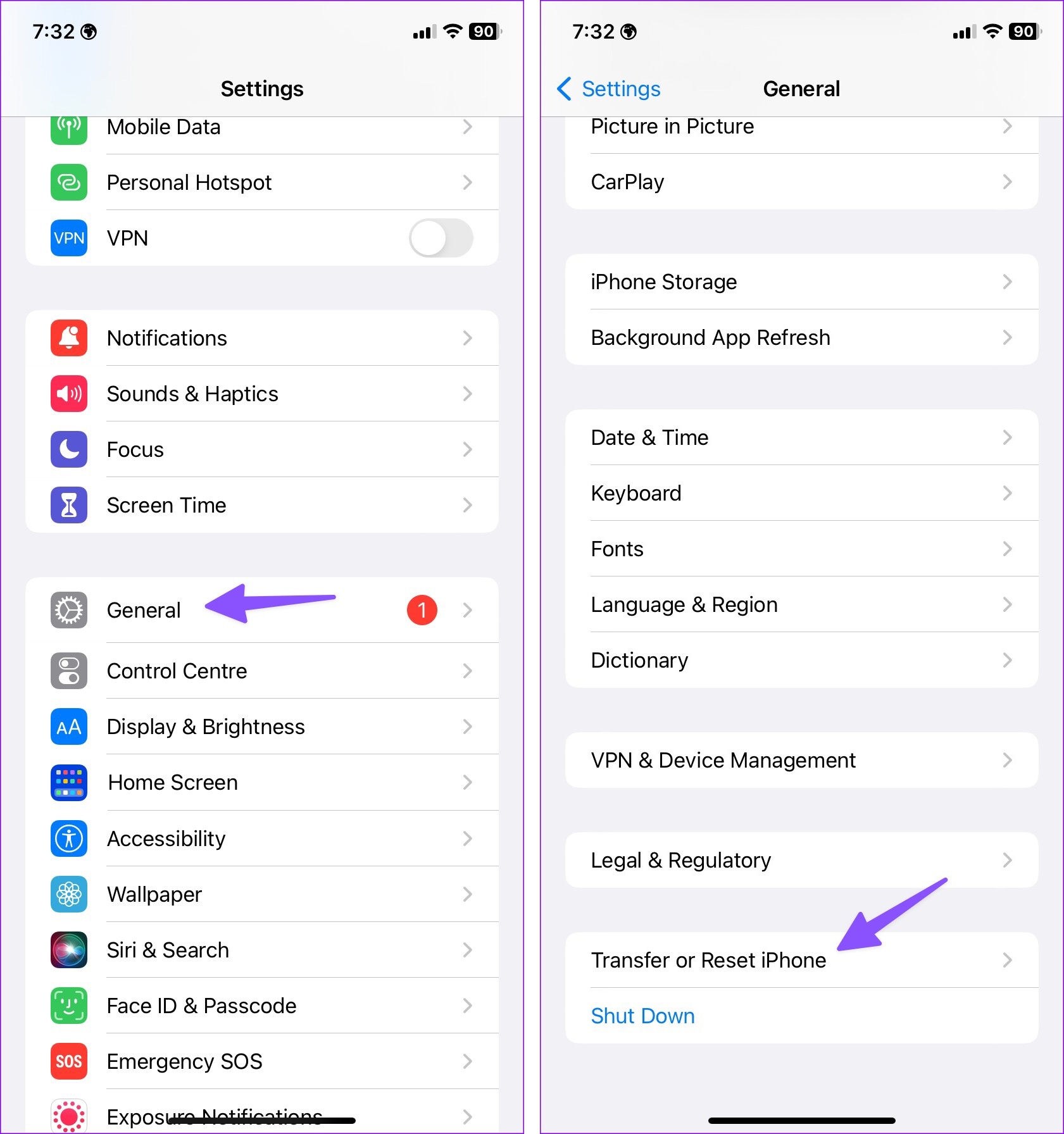
Step 1: Go to the Settings app on your iPhone.
Step 2: Open the General menu. Scroll down to Transfer or Reset at the bottom.
Step 3: Select Reset and tap Reset Network Settings.
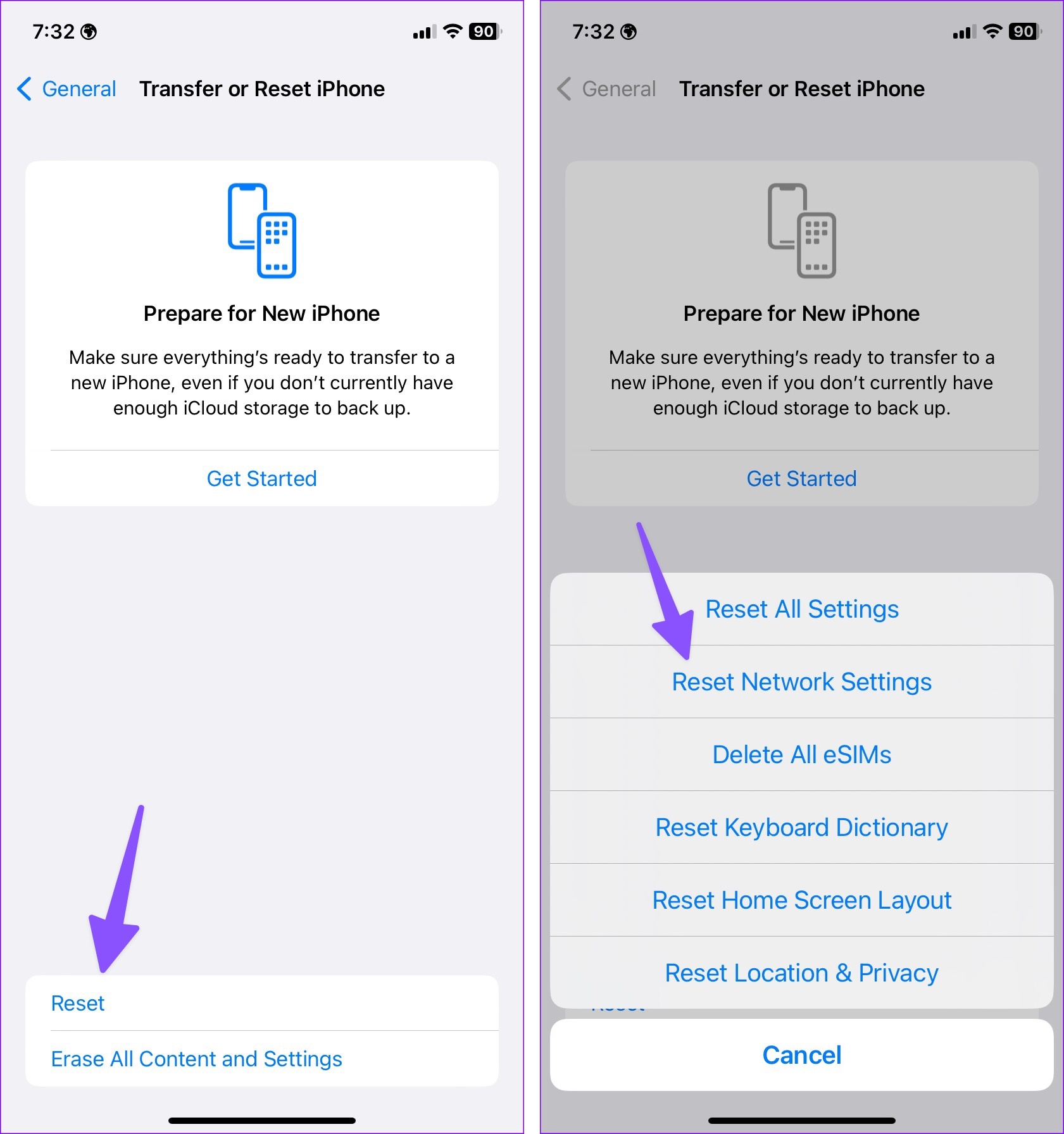
You can check our dedicated post to learn the implications of resetting network settings on iPhone and Android. If the trick doesn’t work, reset all settings from the same menu.
Was this helpful?
Last updated on 24 July, 2024
8 Comments
Leave a Reply
Read Next
 6 Ways to Fix Mac Wi-Fi Keeps Disconnecting
Fix 1: Run macOS Wireless Diagnostics macOS has a built-in diagnostic tool to diagnose and fix connectivity problems on your Mac.
6 Ways to Fix Mac Wi-Fi Keeps Disconnecting
Fix 1: Run macOS Wireless Diagnostics macOS has a built-in diagnostic tool to diagnose and fix connectivity problems on your Mac.
 Top 14 Ways to Fix Apple CarPlay Keeps Disconnecting
Apple CarPlay is quite helpful while driving.
Top 14 Ways to Fix Apple CarPlay Keeps Disconnecting
Apple CarPlay is quite helpful while driving.
 8 Best Ways to Fix Windows 10 Ethernet Keeps Disconnecting
On Windows 10 computers, both wired and wireless connections come with their respective problems.
8 Best Ways to Fix Windows 10 Ethernet Keeps Disconnecting
On Windows 10 computers, both wired and wireless connections come with their respective problems.
 2 Ways to Fix Android Phone Keeps Disconnecting From Wi-Fi
Try Basic Fixes Disable interfering apps: VPNs and Wi-Fi prioritizing apps can sometimes interfere with your phone's network.
2 Ways to Fix Android Phone Keeps Disconnecting From Wi-Fi
Try Basic Fixes Disable interfering apps: VPNs and Wi-Fi prioritizing apps can sometimes interfere with your phone's network.
 7 Best Ways to Fix Wear OS Smartwatch Keeps Disconnecting From Phone
A smartwatch is a great supplement to a smartphone.
7 Best Ways to Fix Wear OS Smartwatch Keeps Disconnecting From Phone
A smartwatch is a great supplement to a smartphone.
 4 Ways to Fix Android Auto Keeps Disconnecting
Basic Fixes Update the Android Auto app: Sometimes, the Android Auto interface may not support an old or outdated version of the app.
4 Ways to Fix Android Auto Keeps Disconnecting
Basic Fixes Update the Android Auto app: Sometimes, the Android Auto interface may not support an old or outdated version of the app.
 4 Ways to Fix Bluetooth Keeps Disconnecting on Android
Basic Fixes Use 5GHz Wi-Fi: Bluetooth uses a 2.4GHz frequency band, which can cause the signals to overlap and can cause problems by disconnecting the device.
4 Ways to Fix Bluetooth Keeps Disconnecting on Android
Basic Fixes Use 5GHz Wi-Fi: Bluetooth uses a 2.4GHz frequency band, which can cause the signals to overlap and can cause problems by disconnecting the device.
 4 Ways to Fix Windows Mobile Hotspot Keeps Turning off
Fix 1: Disable Mobile Hotspot Power Saving Disable the power saving feature to prevent Windows from automatically turning off the hotspot when not in use.
4 Ways to Fix Windows Mobile Hotspot Keeps Turning off
Fix 1: Disable Mobile Hotspot Power Saving Disable the power saving feature to prevent Windows from automatically turning off the hotspot when not in use.
The article above may contain affiliate links which help support Guiding Tech. The content remains unbiased and authentic and will never affect our editorial integrity.

fourth method worked for me
4. KEEP PERSONAL HOTSPOT SCREEN ON
I have used the 3rd one, it worked well. No further disconnections.
Keeping the Personal Hotspot screen is something that I found works but this has been an ongoing issue forever. I don’t need to use this feature too often (thankfully) but it never maintains the connection unless I constantly keep both laptop and phone active.
This isn’t unique to my laptop or my iPhone since it’s been a constant problem regardless of upgrades/replacements of both. I also hear from colleagues and friends that this effects them too. Interestingly – Android users do not complain about this.
That doesn’t surprise me sadly, since Apple have fallen very very far from their tree.
mijn probleem is niet opgelost.
als ik mijn laptop verbind met de hotspot van mijn telefoon werkt het prima maar zodra ik ga bellen of gebeld wordt, verbreekt de verbinding en kan ik dus niks meer opzoeken op mijn laptop.
heeft iemand een idee??
I tried all the tips above. Nothing fixed the problem. Very frustrating. Finally I did find the solution though. It’s Samsung Galaxy. My first Android device ever. Hotspot works amazingly. I am truly sorry for saying this. 11 years after Steve Jobs’s demise, Apple seriously lags behind 🙁
With great exceptions, I got the Iphone 12. It is a nightmare. don’t Understand why people pay so much for this piece of shit. The hotspot is not working. every time, I need to fiddle with the setting, need to turn on and turn the personal hotspot couple of times. All of sudden the hotspot turns on. I have asked my sim provider, but no help. I never had this kind of hotspot issue, in last 15 yrs using any android phone. Feel pity on iphone users. I have asked few iphone users regarding this hotspot issues. They say this hotspot issues is normal and is see in all older iphones also.
Feel like throwing this iphone12.
In the end I didn’t get the iphone to work smoothy. Sometimes I get disconnected every 5 minute – no joke – sometimes every hour.
Now I switched to a mobile phone with Android and I get disconneted about once a day.
It wasn’t my plan to buy a new phone within 2 years, but 2 years continous problems with tethering…
Extremely disappointed in iPhone 14 Plus that I purchased for over $1000 USD, the hot spot keep turning off when no wifi clients available, checked all the solutions above and nothing applies.
The funny thing is that my trusted old phone Redme 9 Note pro mobile phone that is worth $50 as we speak, does not have this problem, and has an option in the hotspot settings that says Stay ON even when no wifi clients available. I would say Redme phone are more superiors, and I talking about 3 years old phone that I purchase back then at $220 and now worth no more than $50