Basic Fixes:
- Check your iPhone’s speaker: If your iPhone’s speaker grill is damaged, it might not play notification sounds. To check this, try using an app or playing a video at high volumes. If there is still no sound, we recommend getting your device checked at an authorized Apple service center.
- Ensure iPhone volume is set to max: You can’t hear notification sounds if your iPhone’s volume is low. So, open the Control Center and use the volume slider to increase iPhone volume to max.
- Check for software and app updates: Bugs or glitches in your app or device’s software can cause notification issues. To fix this, first install the latest software updates for your iPhone. Then, open the App Store and install all the available app updates. Once done, check again.
Fix 1: Turn off DND or Any Other Focus Mode
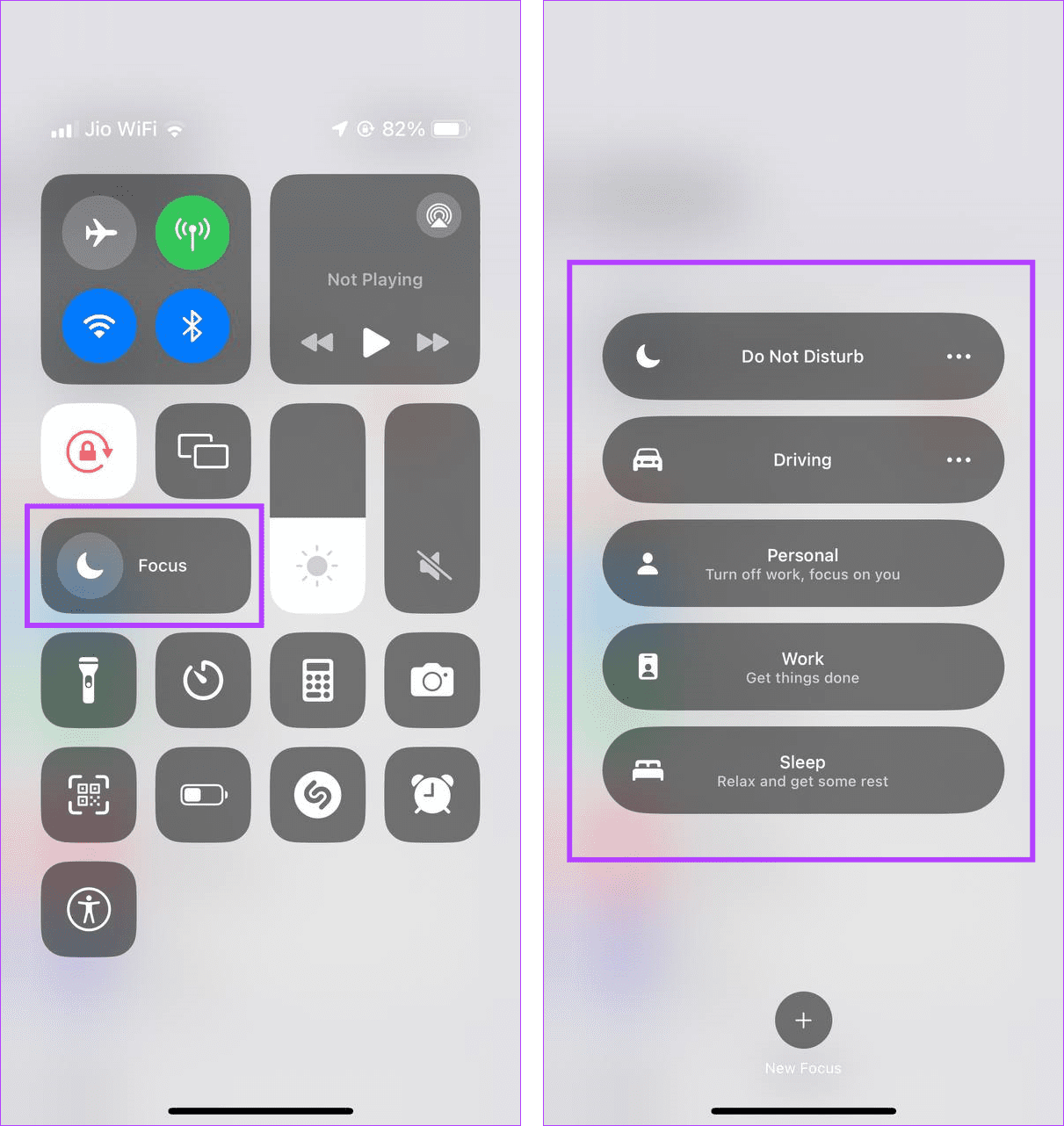
As the name suggests, Do Not Disturb and Focus Modes help reduce device distractions by muting app notifications, calls, etc. This will block any notification sounds for all apps, as long as they’re not in the exception list. So, you can turn off DND or any other Focus Mode on your iPhone. Here’s how.
Step 1: Pull down from the top-left corner of the screen to open Control Center. Here, long-press on Focus.
Step 2: From the options, disable DND or the relevant Focus Mode.
Fix 2: Enable Sound Notifications
If app notifications or notification sounds are disabled from the settings menu, you will not get an audible alert whenever that app receives a notification. To ensure this is not the case, check the app’s notification settings and enable sound notifications. Here’s how.
Step 1: Open Settings and tap on the relevant app. Here, tap on Notifications.
Step 2: First, ensure the Allow Notifications toggle is on. Then, turn on the toggle for Sounds.


You can also scroll through this page and enable all notification settings visible for the selected app.
Fix 3: Change App Notification Sound
If you still can’t hear app notifications, you can potentially change the notification sound if your device is running iOS 17.2 and above. This will help you set a louder alert tone for all your installed apps and ensure you never miss another notification. Follow the below steps to do it.
Step 1: Open Settings > tap on Sound & Haptics > Default Alerts.
Step 2: Scroll through the options and select another alert tone louder than the current one.


Fix 4: Reset All iPhone Settings
You can reset all iPhone settings if you’re still facing issues getting notification sound to work for multiple apps. Doing this will only reset your iPhone’s settings without impacting the device data. Here’s how to do it.
Step 1: Open Settings > tap on General > Transfer or Reset iPhone.

Step 2: Tap on Reset. From the options, tap on Reset All Settings.
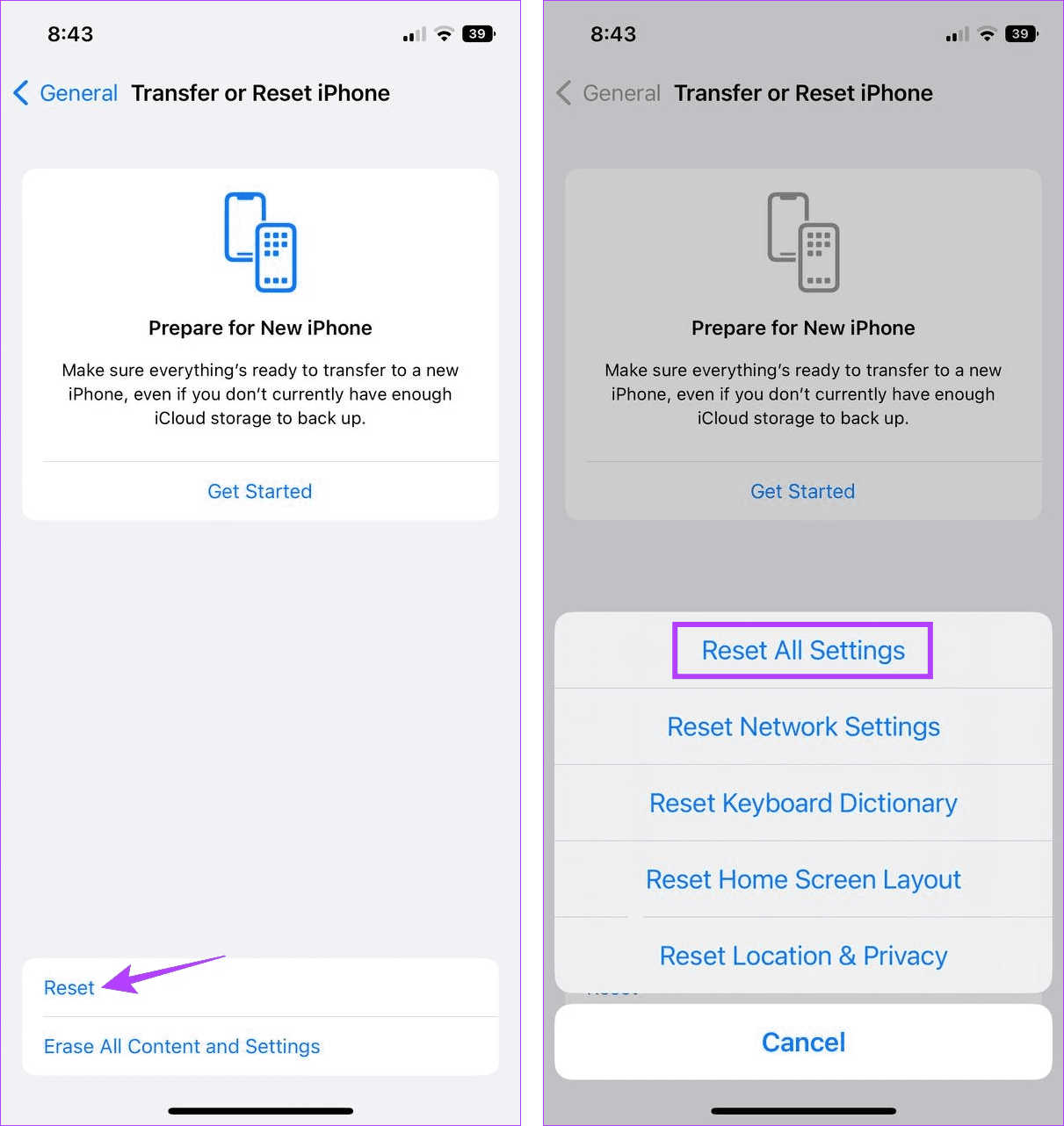
Now, follow the on-screen instructions to finish the reset process. Then, set up your phone again and wait a while to see if the app notification sounds are working as expected.
Was this helpful?
Last updated on 20 May, 2024
Read Next
 4 Ways to Fix Notification Sounds Not Working on iPad
Basic Fixes: Reboot iPad: Sometimes, a simple fix like rebooting the iPad will bring back the notification sound.
4 Ways to Fix Notification Sounds Not Working on iPad
Basic Fixes: Reboot iPad: Sometimes, a simple fix like rebooting the iPad will bring back the notification sound.
 How to Change or Disable Notification Sounds in Windows 11
How to Change the Default Notification Sound in Windows 11 If you’re going to hear the notification sound all day, you might as well change it to something you like.
How to Change or Disable Notification Sounds in Windows 11
How to Change the Default Notification Sound in Windows 11 If you’re going to hear the notification sound all day, you might as well change it to something you like.
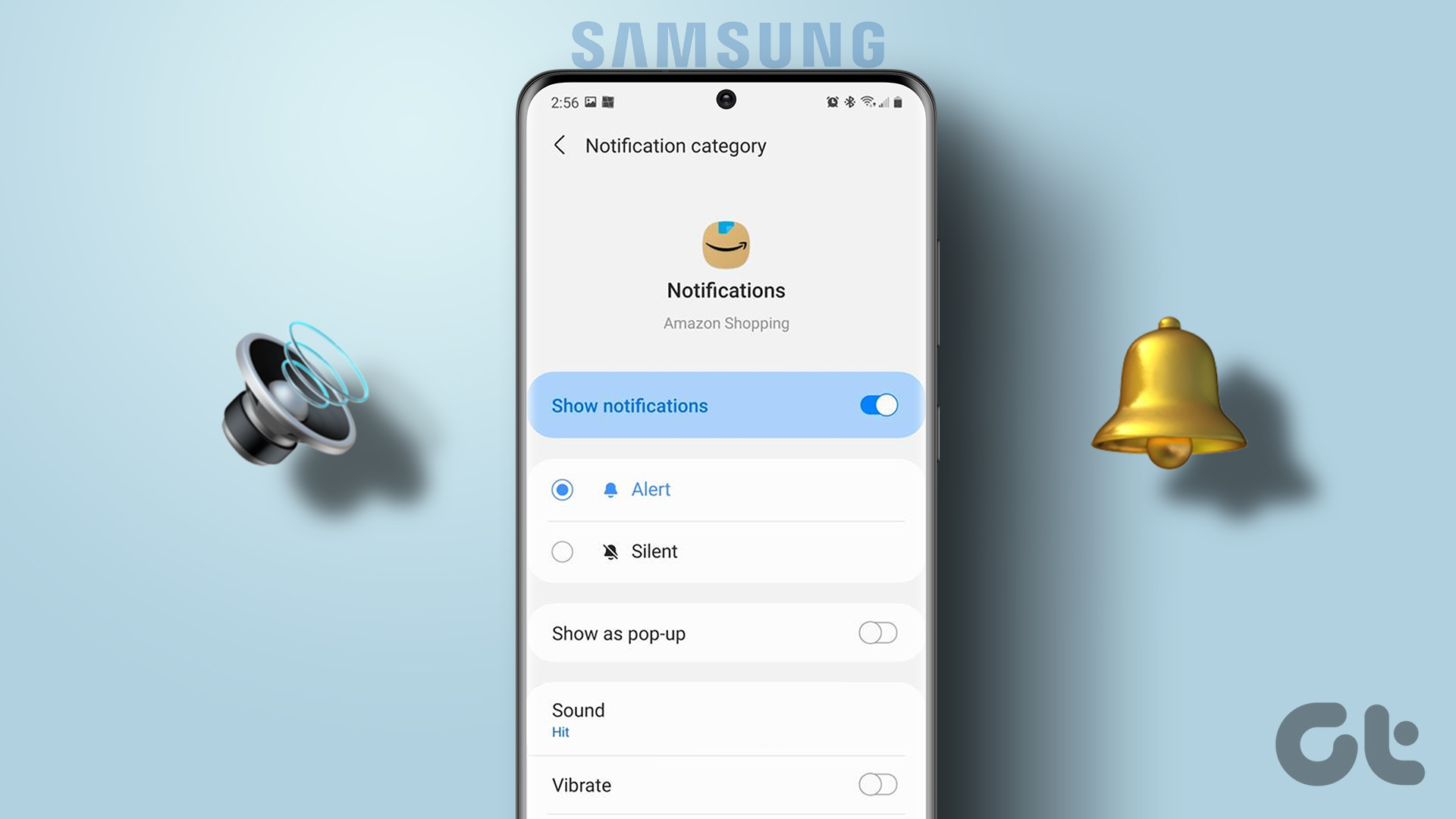 How to Set Custom Notification Sounds for Different Apps on Samsung Galaxy Phones
How to Set Different Notification Sounds for Different Apps You can change app sounds through the phone's Settings app.
How to Set Custom Notification Sounds for Different Apps on Samsung Galaxy Phones
How to Set Different Notification Sounds for Different Apps You can change app sounds through the phone's Settings app.
 How to Find and Fix Windows 10 Making Random Sounds
Recently, when I was working on my Windows 10 laptop, I heard some random ding sounds coming from the speaker.
How to Find and Fix Windows 10 Making Random Sounds
Recently, when I was working on my Windows 10 laptop, I heard some random ding sounds coming from the speaker.
 How to Set Different Notifications Sounds for Different Apps on Android Phones
With so many apps installed on our phones, a barrage of notifications is bound to confuse us.
How to Set Different Notifications Sounds for Different Apps on Android Phones
With so many apps installed on our phones, a barrage of notifications is bound to confuse us.
 How to Fix WhatsApp Notification Sound Not Working
Basic Fixes Ensure silent mode is turned off - The first thing you should do is to check and turn off Vibrate/Silent mode on your iPhone or Android.
How to Fix WhatsApp Notification Sound Not Working
Basic Fixes Ensure silent mode is turned off - The first thing you should do is to check and turn off Vibrate/Silent mode on your iPhone or Android.
 5 Ways to Fix Notification Badges Not Showing on iPhone
Basic Fixes: Restart your iPhone: It's a good idea to restart your iPhone, especially if you don't remember when you last did that.
5 Ways to Fix Notification Badges Not Showing on iPhone
Basic Fixes: Restart your iPhone: It's a good idea to restart your iPhone, especially if you don't remember when you last did that.
 3 Ways to Fix the Notification Sound Not Working on Windows 11
Basic Fixes: Unmute your Windows PC: You might have muted your Windows PC and forgotten to unmute it after an important meeting or work hours.
3 Ways to Fix the Notification Sound Not Working on Windows 11
Basic Fixes: Unmute your Windows PC: You might have muted your Windows PC and forgotten to unmute it after an important meeting or work hours.
The article above may contain affiliate links which help support Guiding Tech. The content remains unbiased and authentic and will never affect our editorial integrity.