Basic Fixes:
- Check iCloud Server Status: As a starting point, you should check whether iCloud’s servers are running normally. You can use either Apple’s System Status or DownDetector for the same.
- Sign Out, Reboot, and Sign In: This simple trick can also fix most users’ issues. Open iCloud and sign out of your account. The option is available at the bottom left of that window. Reboot your computer once and then sign back in.
- Use a Browser or Mobile App: It’s a temporary solution that you can use to complete the task at hand. You can then continue with the troubleshooting, which may take some time. Plus, this also helps you understand if the issue is on your end or the server’s end.
- Run as Administrator: It may be the case that iCloud on your PC doesn’t have admin rights, hence the repeated prompts. To do so, right-click on the iCloud icon or search for it in the Start menu and select Run as administrator.
Fix 1: Check for Conflicts with Outlook
The Outlook app on Windows is known to cause all sorts of problems with iCloud, including nagging for the password.
Step 1: If you are not using Outlook, uninstall it from the Start Menu by right-clicking on it.

Step 2: Alternatively, if you are using Outlook and iCloud on the same machine, you can also switch to a guest user account to check if iCloud still keeps asking for the password. A guest user account on Windows doesn’t have admin rights.
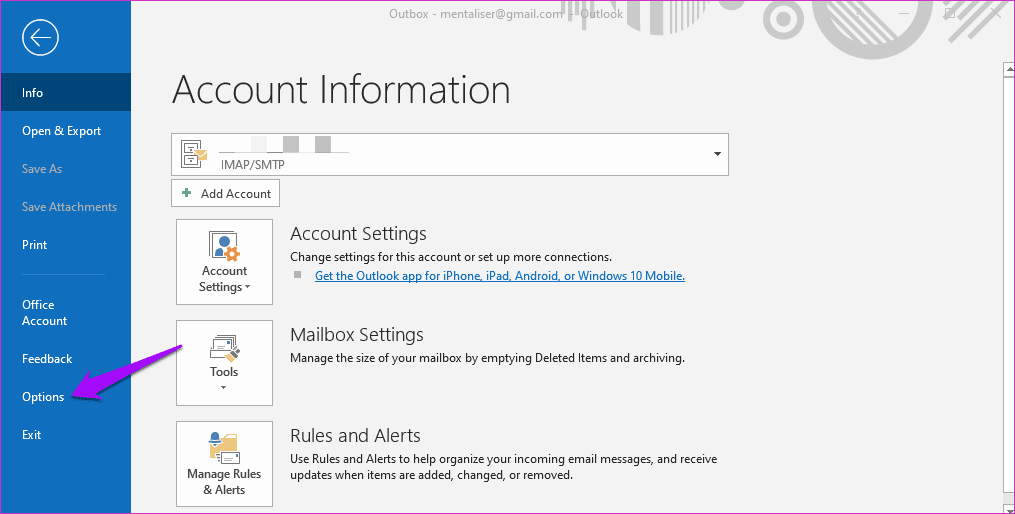
Step 3: Additionally, you should also disable the iCloud add-on in the Outlook app to get rid of the password dialogue. Open Outlook and go to File > Options.
Step 4: Now, check under the Add-ins tab whether the iCloud Outlook Add-in is present under the Active Application Add-ins. If yes, select the COM Add-ins option at the bottom and click Go.
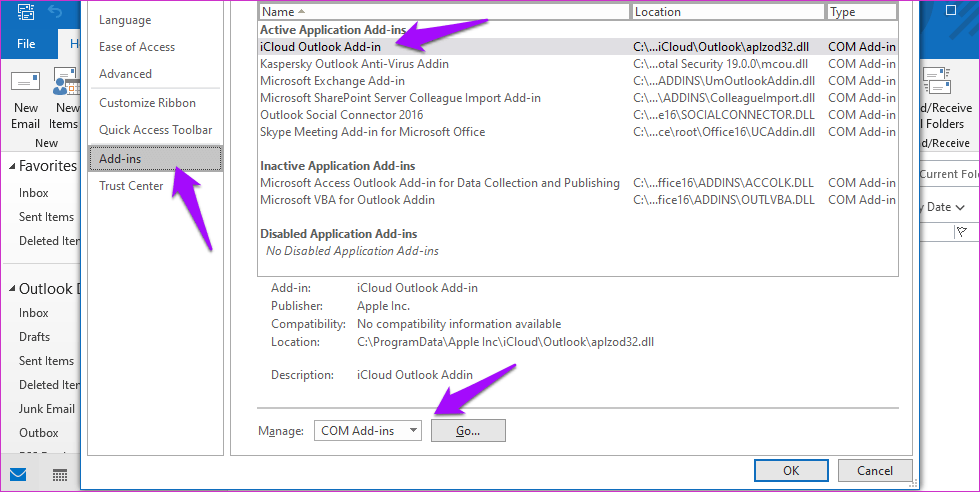
Step 5: Finally, uncheck the iCloud Outlook Add-in or even remove it completely from the right sidebar menu. It’s recommended that you turn it off and back on, and if that doesn’t work, only then remove it.

Read Also: How to Clear iCloud Storage That Is Full on iPhone and iPad
Fix 2: Change Apple Password
Step 1: To change your password on your iPhone, head over to Settings > [your name] > Sign-in & Security > Change Password.
Note: You can also change your password on the Apple website. You should see the password reset or forgot password option on the login page.
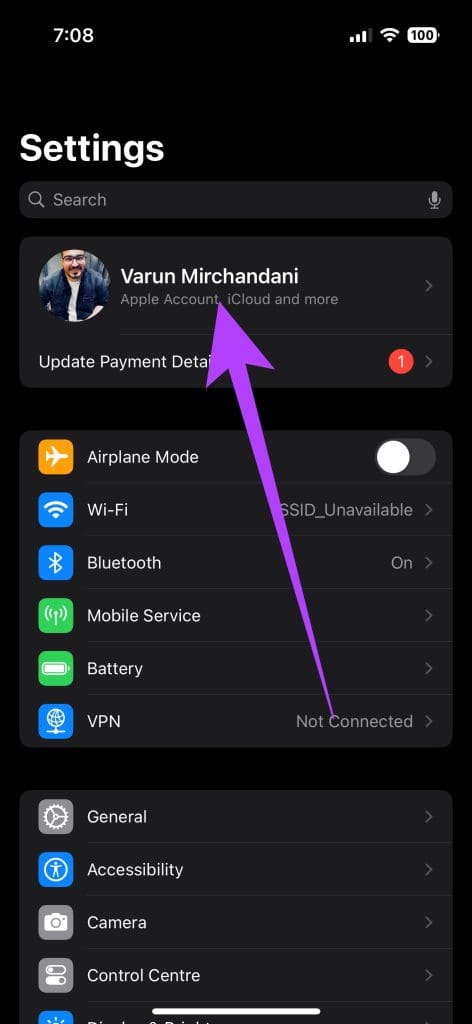
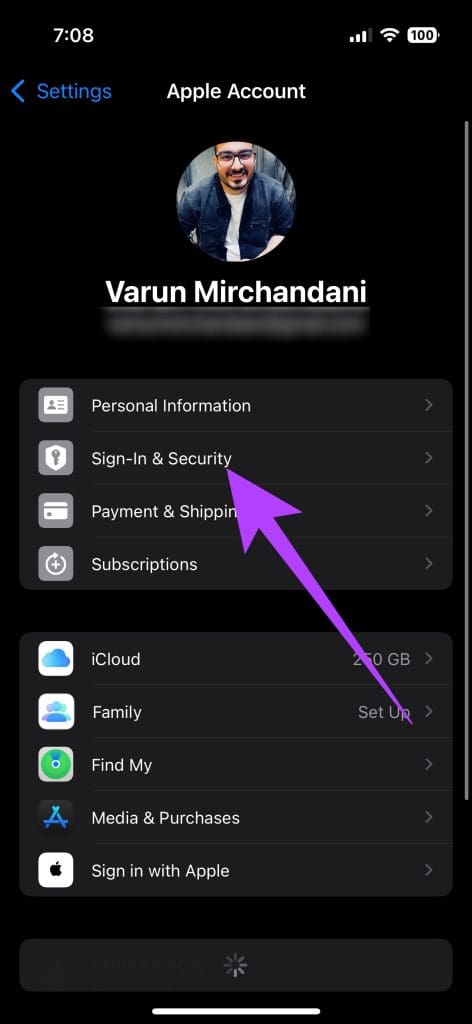
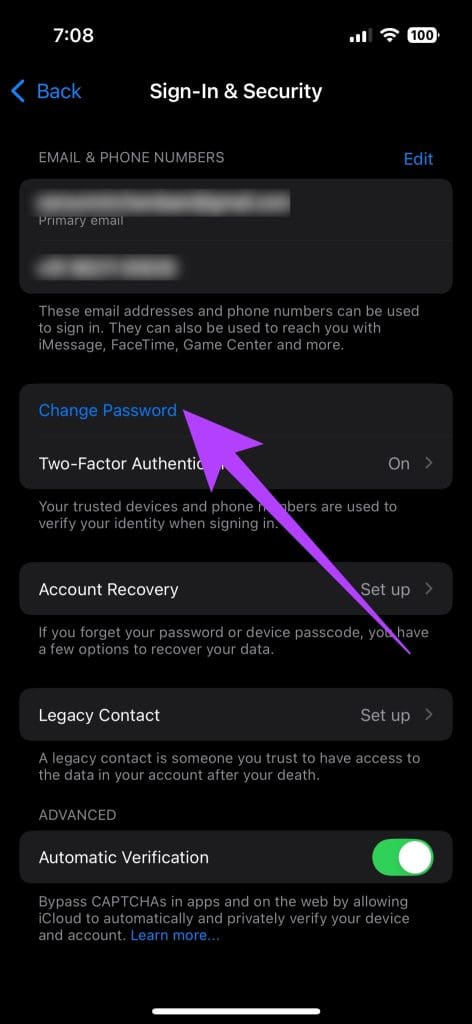
Step 2: Once you’ve changed your Apple ID password, try logging again to the iCloud account on your PC with the new credentials. That should do the trick.
Fix 3: Run in Windows 7 Compatibility Mode
Running an older version of iCloud or even the latest version in Windows 7 compatibility mode seems to be working for some users.
Step 1: Right-click on the iCloud icon in the Start menu and select Open file location.

Step 2: Now, right-click on the iCloud file to select Properties here.
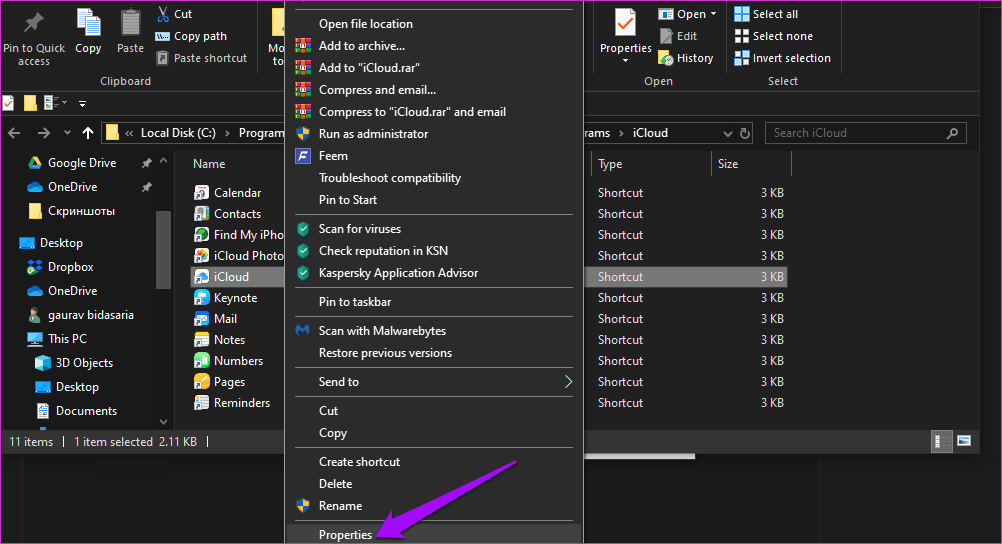
Step 3: Under the Compatibility tab, check Run this program in compatibility mode for and select Windows 7 from the drop-down menu.
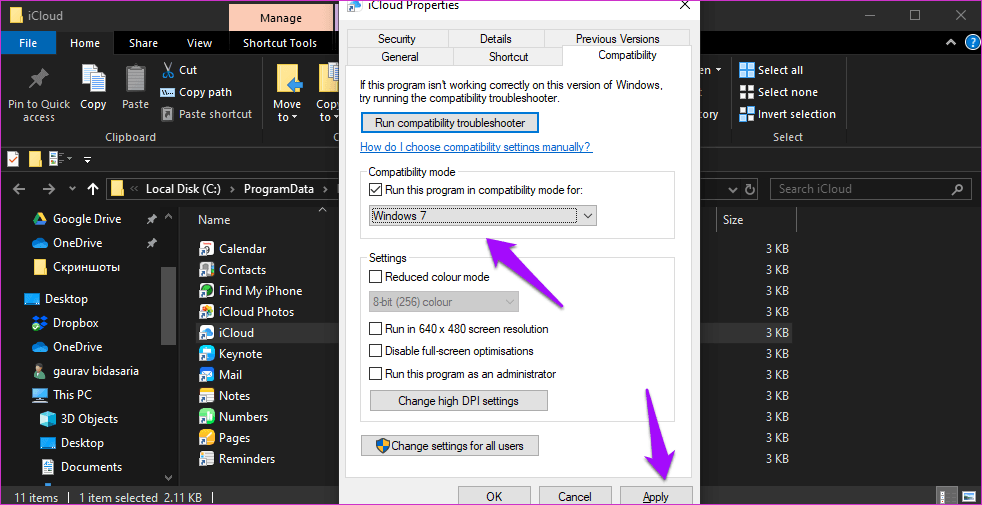
Now, click on Apply to save changes. Once done, try to see if that resolves your issue.
Fix 4: Fix Socket Error (Command Prompt)
A socket error could be responsible for the iCloud password error. This can be fixed with the help of cmd.
Step 1: Search for and open Command Prompt with admin rights.
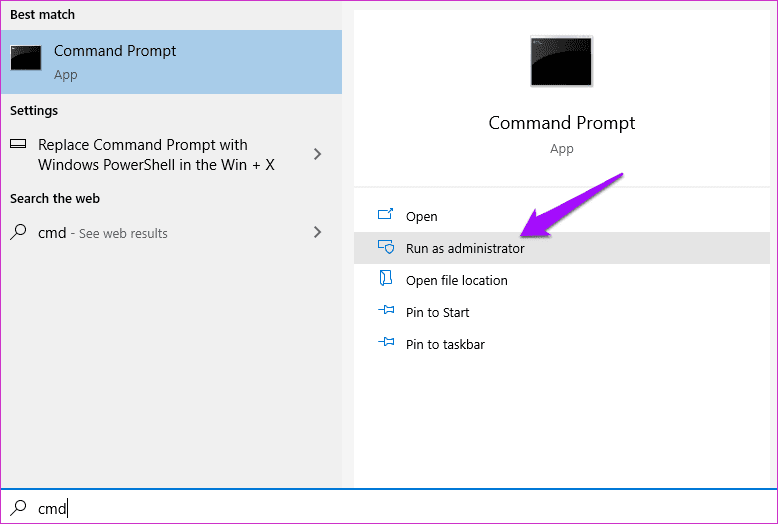
Step 2: Next, type the below command. You can also copy-paste it by right-clicking anywhere on the CMD window.
netsh winsock reset

Once the command runs, try relaunching the iCloud app to see if the password issue has been fixed or not.
Fix 5: Try Another Apple ID
Maybe it’s time to create a new Apple ID? I know this isn’t exactly the solution you were looking for, but if you have reached so far, there seems no other way. You can create a new Apple ID online, and then use that to try and login to the iCloud application.
Was this helpful?
Last updated on 09 July, 2024
Read Next
 5 Fixes if Outlook Keeps Asking For Password on Windows
Fix 1: Open Outlook in Safe Mode Opening Outlook in Safe Mode allows you to run the application without add-ins.
5 Fixes if Outlook Keeps Asking For Password on Windows
Fix 1: Open Outlook in Safe Mode Opening Outlook in Safe Mode allows you to run the application without add-ins.
 How to Fix iPhone Mail Keeps Asking for Email Password
Fix 1.
How to Fix iPhone Mail Keeps Asking for Email Password
Fix 1.
 4 Ways to Fix Microsoft Teams Keeps Asking to Sign in on Windows 10/11
Fix 1: Clear Teams Cache Microsoft Teams collects cache in the background to improve loading times and the overall app experience.
4 Ways to Fix Microsoft Teams Keeps Asking to Sign in on Windows 10/11
Fix 1: Clear Teams Cache Microsoft Teams collects cache in the background to improve loading times and the overall app experience.
 How to Fix Windows 10 Asking to Update and Shutdown Every Time Issue
If bandwidth isn't a factor, then Windows 10 offers a super-convenient way to stay updated with minimal involvement on your part.
How to Fix Windows 10 Asking to Update and Shutdown Every Time Issue
If bandwidth isn't a factor, then Windows 10 offers a super-convenient way to stay updated with minimal involvement on your part.
 4 Ways to Fix Google Keeps Asking to Fill Image Captcha
Fix 1: Disable Active VPN The Google search algorithm knows common VPN servers used by bots.
4 Ways to Fix Google Keeps Asking to Fill Image Captcha
Fix 1: Disable Active VPN The Google search algorithm knows common VPN servers used by bots.
 4 Ways to Fix Wi-Fi Not Asking for Passwords on Windows 11
Common Fixes Update and reboot your router: Open the router admin page (e.g., 192.168.1.1 or 192.168.0.1) in your browser to update its firmware.
4 Ways to Fix Wi-Fi Not Asking for Passwords on Windows 11
Common Fixes Update and reboot your router: Open the router admin page (e.g., 192.168.1.1 or 192.168.0.1) in your browser to update its firmware.
 5 Ways to Fix Spotify Keeps Crashing Issue on Windows
Basic Fixes Restart Spotify: Open the Task Manager, right-click on Spotify, and select End Task.
5 Ways to Fix Spotify Keeps Crashing Issue on Windows
Basic Fixes Restart Spotify: Open the Task Manager, right-click on Spotify, and select End Task.
 3 Ways to Fix Microsoft Edge Keeps Running in Background Issue
Basic Fixes: Stop Edge using Task Manager: You can use Task Manager to check Edge's resource usage and stop it from running in the background if it is using too
3 Ways to Fix Microsoft Edge Keeps Running in Background Issue
Basic Fixes: Stop Edge using Task Manager: You can use Task Manager to check Edge's resource usage and stop it from running in the background if it is using too
The article above may contain affiliate links which help support Guiding Tech. The content remains unbiased and authentic and will never affect our editorial integrity.