Fix 1: Enable Camera Permission for Messenger
Like any other app, Messenger needs permission to access your phone’s camera. So, ensure you haven’t disabled this permission for the Messenger app on your Android or iPhone.
On Android
Step 1: Long-press the Messenger app icon and tap the info icon from the menu that opens.
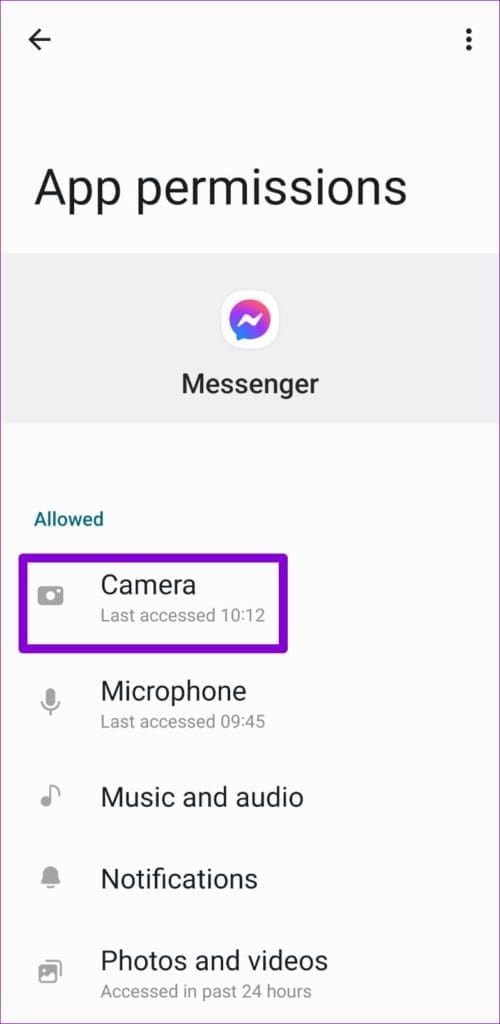
Step 2: Go to Permissions.


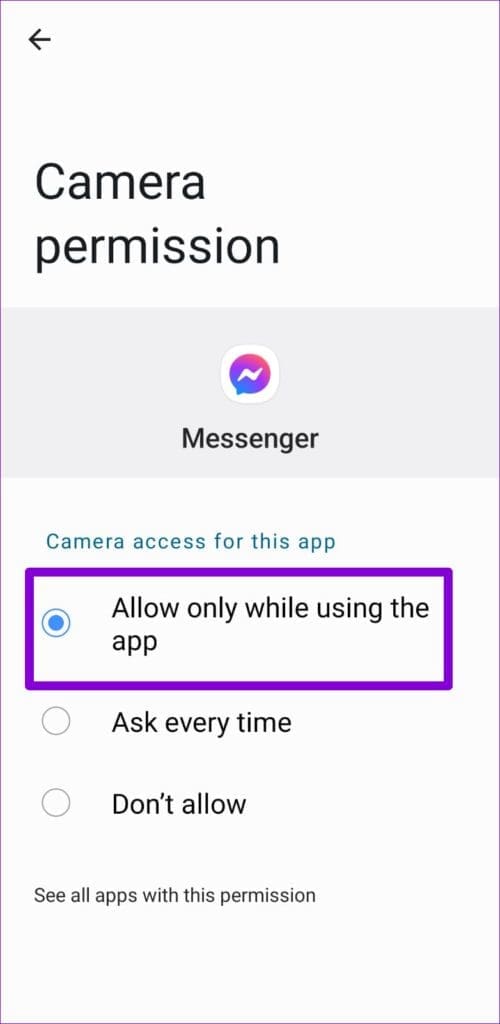
Step 3: Tap Camera and select Allow only while using the app.
On iPhone
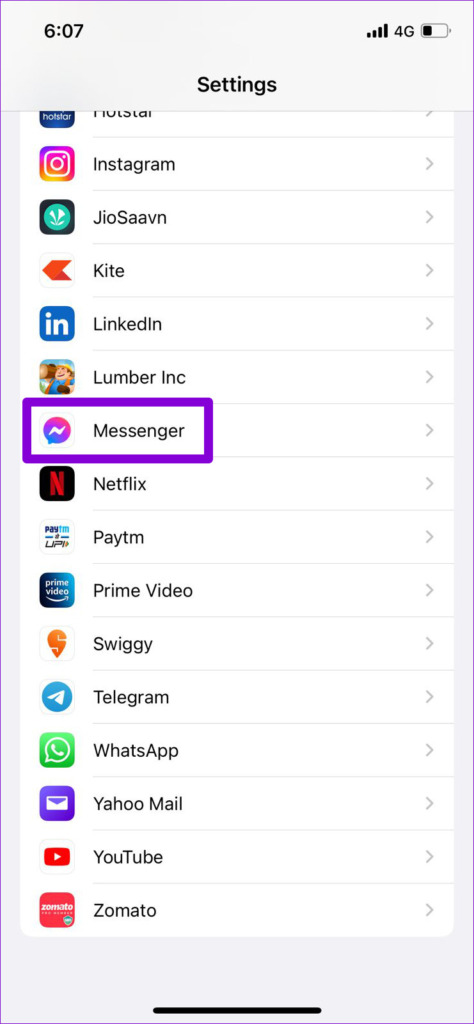
Step 1: Launch the Settings app on your iPhone and scroll down to tap Messenger.
Step 2: Enable the toggle for Camera.

After enabling the camera permission, force-stop the Messenger app on your phone and reopen it. Then, try using the Messenger camera again.
Fix 2: Enable Camera Access From Privacy Settings (Android)
If your phone is running Android 12 or higher, ensure that you haven’t disabled camera access from the privacy menu. If you have, Messenger can’t use the camera despite having the necessary permission. Here’s how to change that.
Step 1: Open the Settings app on your phone and navigate to Privacy.
Step 2: Under Controls and alerts, enable the toggle for Camera access.


Fix 3: Reinstall the App
If nothing works, reinstall the Messenger app on your phone. This will force the app to recreate its core files from scratch, resolving any issues along the way.
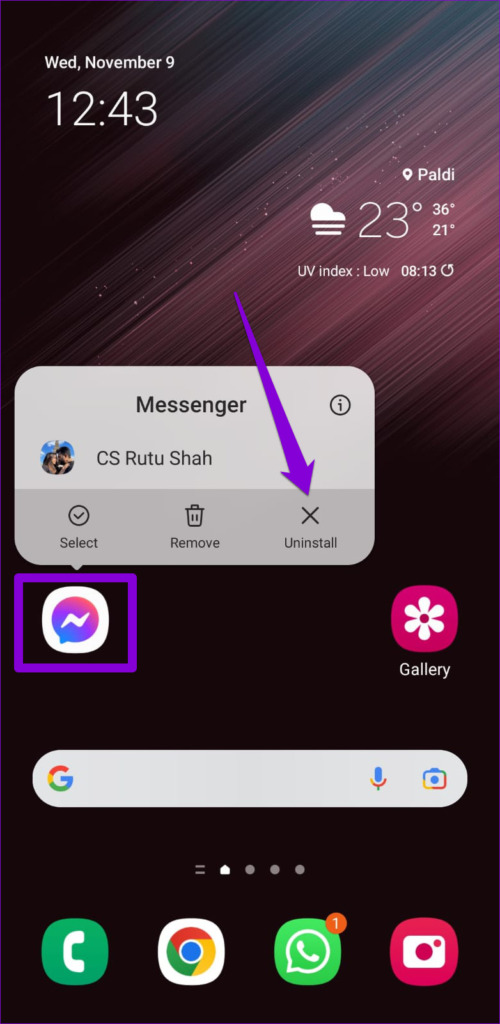
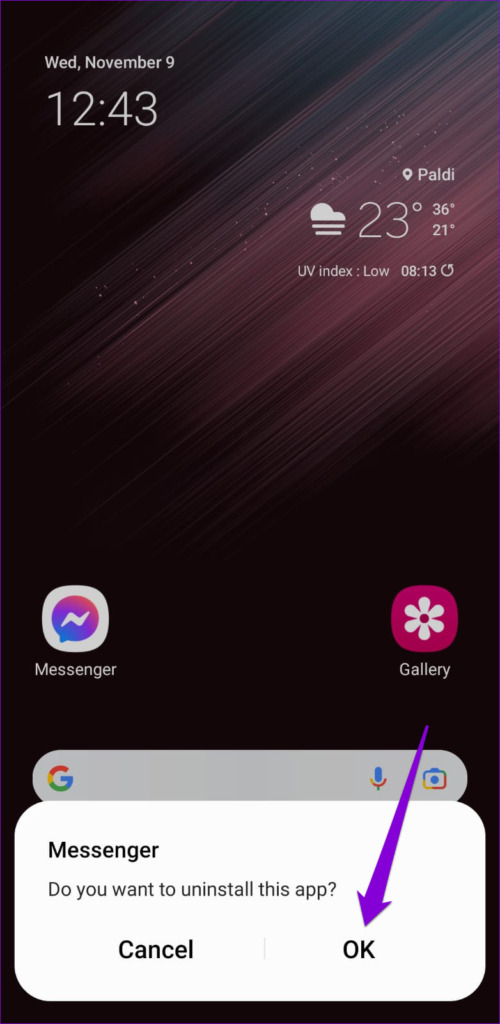
To remove Messenger from your Android, long-press on its app icon > select Uninstall > tap OK to confirm.
If you use Messenger on your iPhone, press and hold the app icon and select Remove App. When prompted, select Delete App.


Go to the Play Store or App Store to download the Messenger app. Then, try using the app’s camera again.
Was this helpful?
Last updated on 30 July, 2024
Read Next
 Top 5 Ways to Fix Facebook Messenger Calls Not Working (iPhone and Android)
Preliminary Fixes Check the Network Connection: A stable internet connection is crucial for Messenger calls.
Top 5 Ways to Fix Facebook Messenger Calls Not Working (iPhone and Android)
Preliminary Fixes Check the Network Connection: A stable internet connection is crucial for Messenger calls.
 2 Ways to Fix Facebook Messenger Won’t Let Me Log In on Android and iPhone
Try Basic Fixes Update the Messenger app: The Messenger app may not let you sign in if you’re using an outdated version of the app.
2 Ways to Fix Facebook Messenger Won’t Let Me Log In on Android and iPhone
Try Basic Fixes Update the Messenger app: The Messenger app may not let you sign in if you’re using an outdated version of the app.
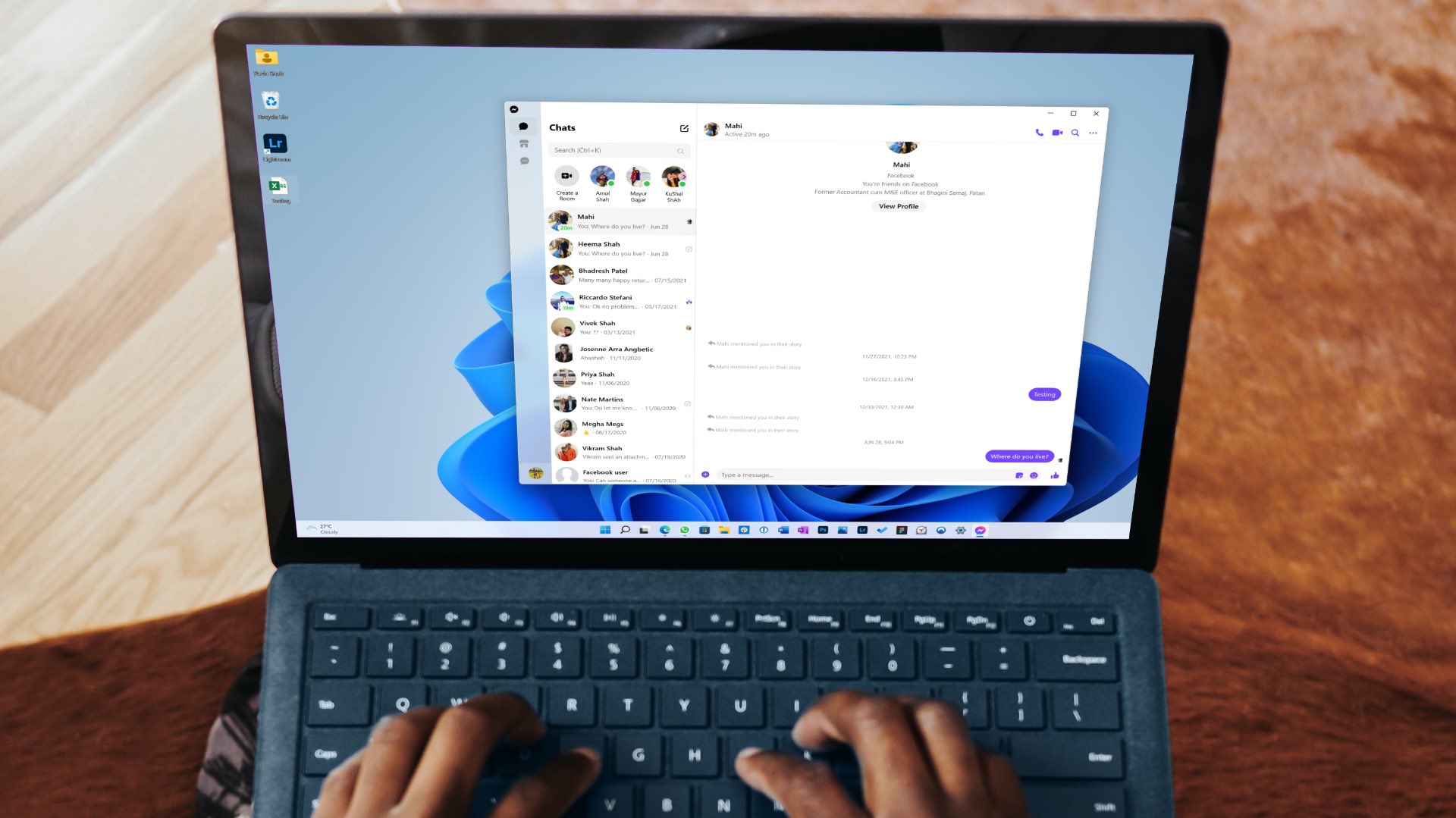 4 Ways to Fix Facebook Messenger Not Working on the Desktop
Basic Fixes Run Messenger app as an Admin: Search for the Messenger app on your PC and select Run as Administrator.
4 Ways to Fix Facebook Messenger Not Working on the Desktop
Basic Fixes Run Messenger app as an Admin: Search for the Messenger app on your PC and select Run as Administrator.
 4 Ways to Fix Facebook Messenger Notification Sound Not Working
Try Basic Fixes Close the Messenger app on your computer: If you have the Messenger app open on your computer, notifications may appear there instead of on your phone, and
4 Ways to Fix Facebook Messenger Notification Sound Not Working
Try Basic Fixes Close the Messenger app on your computer: If you have the Messenger app open on your computer, notifications may appear there instead of on your phone, and
 3 Ways to Fix Picture-In-Picture Not Working in Facebook Messenger
Common Fixes Restart device - Long-press the physical Power button and tap Reboot to restart Android.
3 Ways to Fix Picture-In-Picture Not Working in Facebook Messenger
Common Fixes Restart device - Long-press the physical Power button and tap Reboot to restart Android.
 How to Fix Facebook Messenger Not Working on iPad or iPhone
Basic Fixes Check internet connection: Check the stability or speed of your internet connection.
How to Fix Facebook Messenger Not Working on iPad or iPhone
Basic Fixes Check internet connection: Check the stability or speed of your internet connection.
 How to Fix Facebook Messenger Story Not Showing on iPhone and Android
Why Can't I See Stories on Facebook Messenger Several factors can affect your story experience in Facebook Messenger.
How to Fix Facebook Messenger Story Not Showing on iPhone and Android
Why Can't I See Stories on Facebook Messenger Several factors can affect your story experience in Facebook Messenger.
 How to Fix Microphone Not Working on Facebook Messenger
Basic Troubleshoot Remove the phone case: If your phone case blocks the microphone, you may notice muffled audio during video recording and calls.
How to Fix Microphone Not Working on Facebook Messenger
Basic Troubleshoot Remove the phone case: If your phone case blocks the microphone, you may notice muffled audio during video recording and calls.
The article above may contain affiliate links which help support Guiding Tech. The content remains unbiased and authentic and will never affect our editorial integrity.