

Fix 1: Allow the Phone App to Access Call Logs
The Phone app may not show any call history if it does not have the necessary permissions to access and save your call logs. Here’s how to check.
Step 1: Long-press on the Phone app icon and tap the info icon from the menu that appears. Then, go to Permissions.


Step 2: Tap on Call logs and select Allow from the following screen.


Fix 2: Clear Cache for System Apps
On Android, several system apps support the functioning of the default Phone app. If one of those apps is experiencing problems, Android may fail to display your call history. Here’s what you can do to fix your system apps.
Step 1: Open the Settings app and go to Apps.
Step 2: Tap the filter and sort icon and enable the toggle for Show system apps.

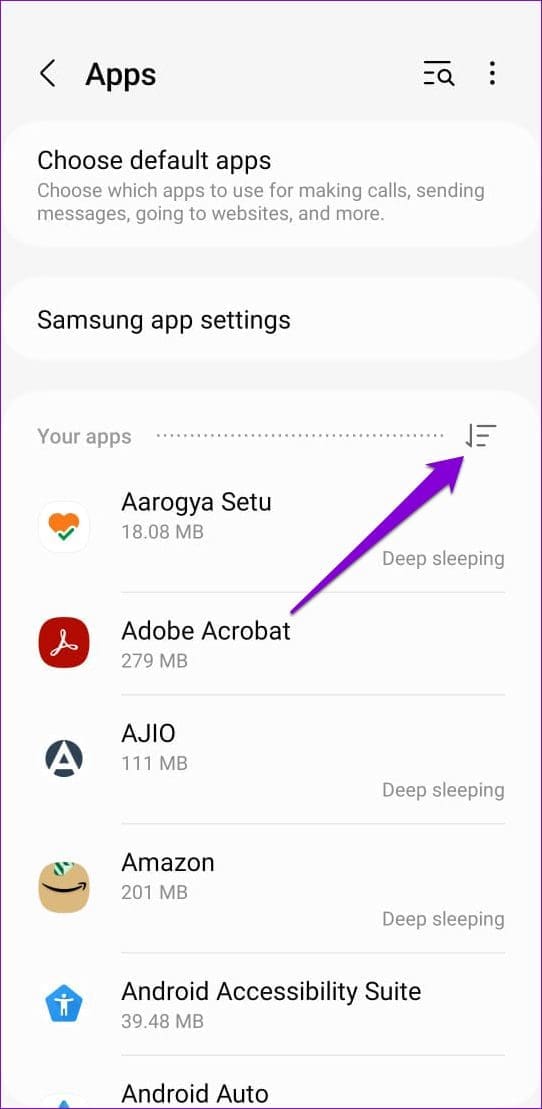

Step 3: Use the search tool to locate the Call Log Backup/Restore app.
Step 4: Go to Storage and tap the Clear cache option at the bottom.


Step 5: Clear the cache data for the Phone services and Call Management apps.


Fix 3: Clear Phone App Cache
The default Phone app, like system apps, collects temporary data. If that data becomes inaccessible, the Phone app may fail to show your call logs. You can try clearing the Phone app’s cache data to see if that helps.
Step 1: Long-press on the Phone app icon and tap the info icon from the resulting menu.
Step 2: Go to Storage and tap the Clear cache option.


Fix 4: Change the Default Phone App
The call history not showing issue may not have anything to do with Android, but rather with the Phone app you use. If you’ve recently switched to a third-party phone app, you should switch back to the system default app.
Step 1: Open the Settings app and navigate to Apps > Choose default apps.
Step 2: Tap the Phone app and select the system default option from the following menu.


Fix 5: Enable Automatic Date and Time
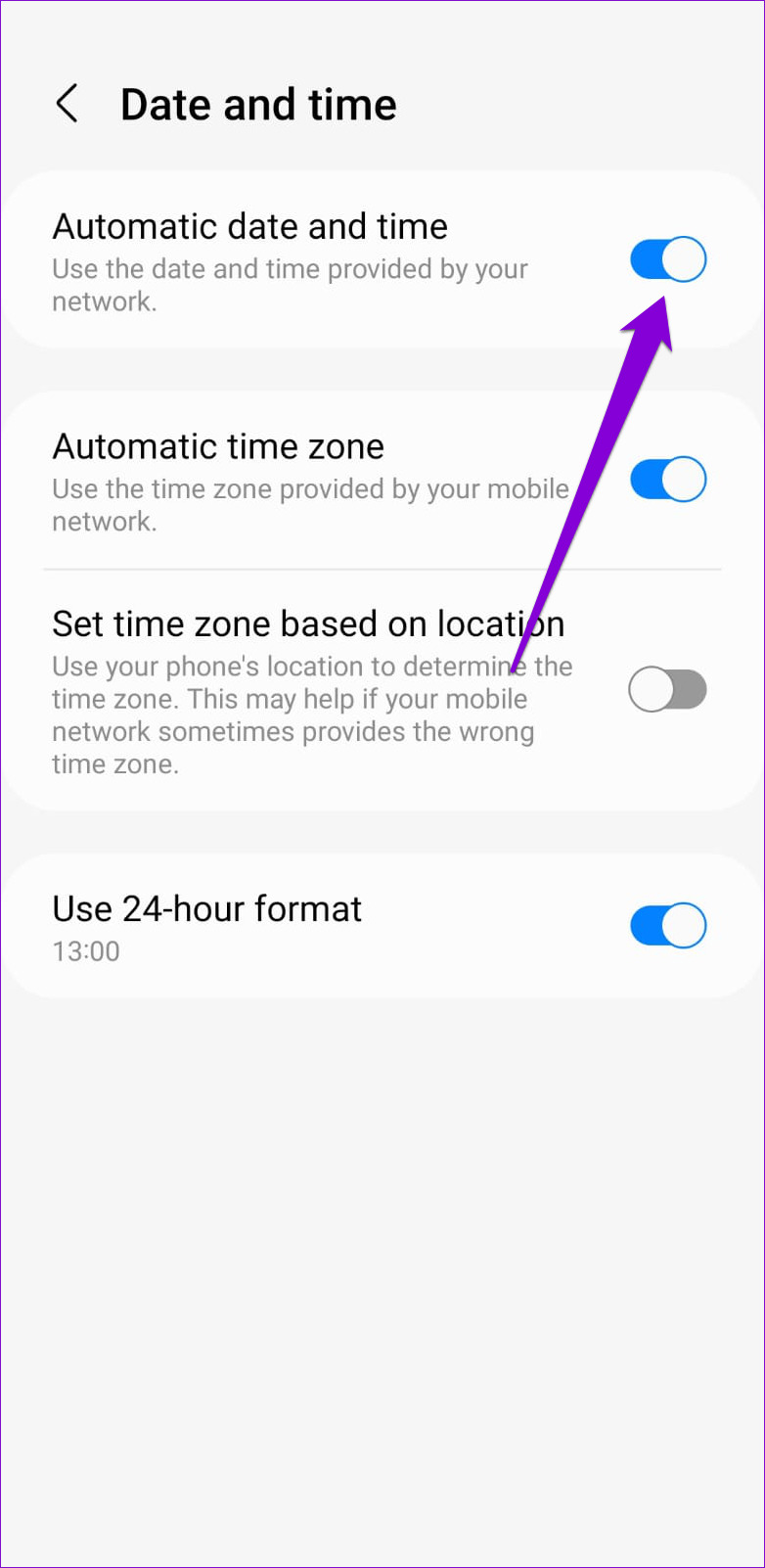
When your phone is set to an incorrect date or time, apps may fail to save or sync data and cause problems. To ensure that Android has the correct date and time, you should enable the “Automatic date and time” option in the Settings app.
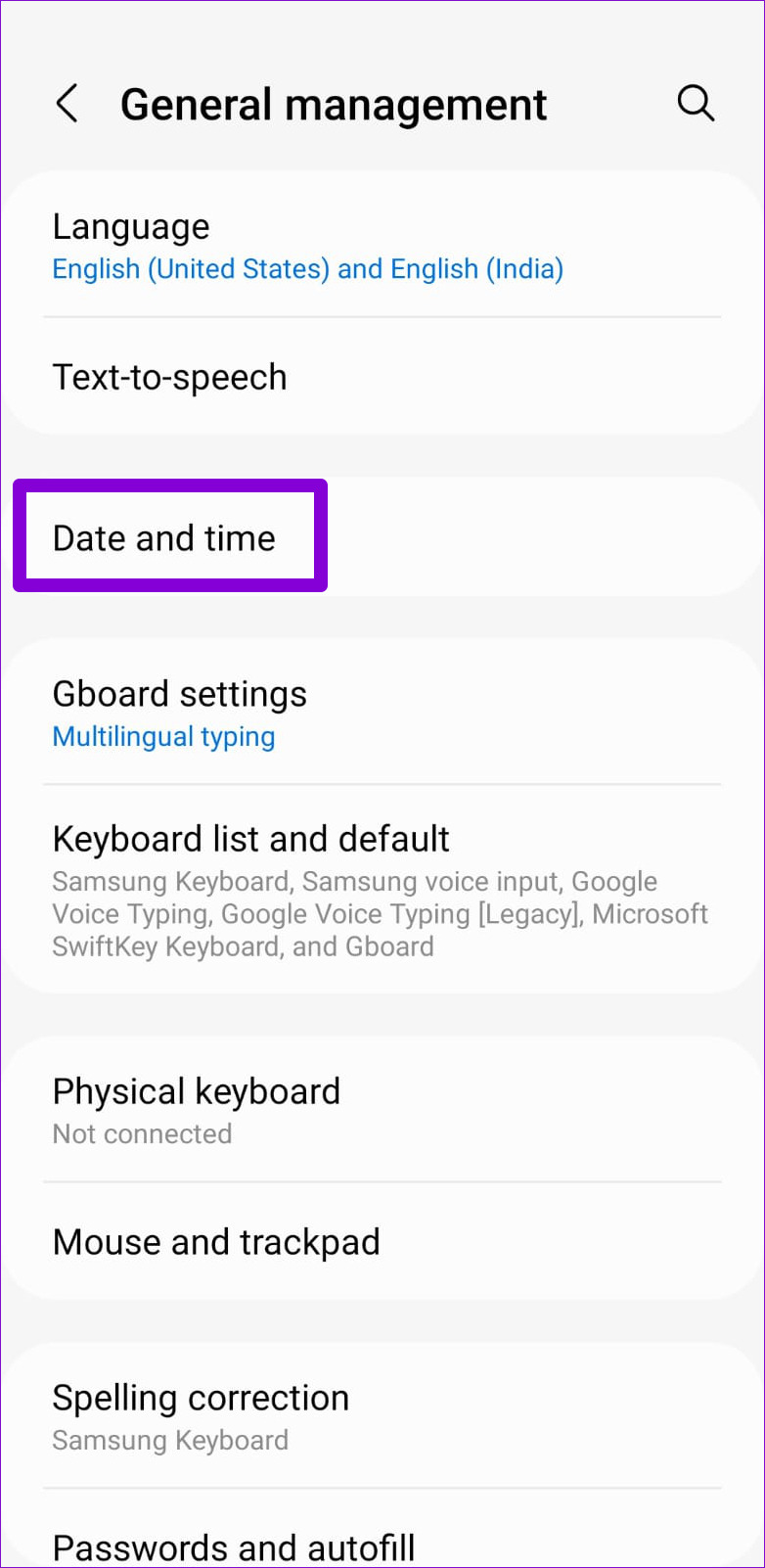
Step 1: Open the Settings app and tap on General Management.
Step 2: Tap on Date and time and enable the toggle next to Automatic date and time.

Fix 6: Reset App Preferences
If the problem persists, you can reset your app preferences. This will re-enable all system apps and remove any app restrictions you may have set. Don’t worry, your app data won’t be affected by this.
Step 1: In the Settings app, navigate to the Apps menu.
Step 2: Tap the three-dot menu icon in the top right corner and select Reset app preferences.


Was this helpful?
Last updated on 23 July, 2024
1 Comment
Leave a Reply
Read Next
 6 Ways to Stop Call History From Showing on Another iPhone
Basic Ways: Use a different Apple ID on both devices: A sure-shot way of ensuring your call history doesn’t appear on another iPhone is by switching to a different Apple
6 Ways to Stop Call History From Showing on Another iPhone
Basic Ways: Use a different Apple ID on both devices: A sure-shot way of ensuring your call history doesn’t appear on another iPhone is by switching to a different Apple
 Top 8 Fixes for Call History Not Showing on iPhone
Your iPhone keeps a log of incoming, outgoing, and missed calls as Call History.
Top 8 Fixes for Call History Not Showing on iPhone
Your iPhone keeps a log of incoming, outgoing, and missed calls as Call History.
 How to Check Call History of a Number on Android
How to Check Call History and Duration in Google Phone App Most Android phone manufacturers use Google’s Phone app by default.
How to Check Call History of a Number on Android
How to Check Call History and Duration in Google Phone App Most Android phone manufacturers use Google’s Phone app by default.
 How to Fix Missed Call Notification Not Showing on Android
Basic Fixes: Disable DND: If your Android phone is currently on DND, you will not be able to receive any missed call notifications as your device actively blocks any distractions.
How to Fix Missed Call Notification Not Showing on Android
Basic Fixes: Disable DND: If your Android phone is currently on DND, you will not be able to receive any missed call notifications as your device actively blocks any distractions.
 How to Delete WhatsApp Call History on Android and iOS Devices
How to Clear All WhatsApp Call History If you wish to permanently find and delete all WhatsApp call history and start as a clean slate, WhatsApp lets you do so
How to Delete WhatsApp Call History on Android and iOS Devices
How to Clear All WhatsApp Call History If you wish to permanently find and delete all WhatsApp call history and start as a clean slate, WhatsApp lets you do so
 5 Ways to Retrieve Deleted Call History on iPhone
Method 1: Using iCloud Backup Your iPhone takes a regular backup of your data.
5 Ways to Retrieve Deleted Call History on iPhone
Method 1: Using iCloud Backup Your iPhone takes a regular backup of your data.
 2 Ways to Fix Missed Call Notifications Not Showing on iPhone
Fix 1: Review Notification Settings for the Phone App Missed call notifications may not show up on your iPhone if you've accidentally disabled notification access for the Phone app.
2 Ways to Fix Missed Call Notifications Not Showing on iPhone
Fix 1: Review Notification Settings for the Phone App Missed call notifications may not show up on your iPhone if you've accidentally disabled notification access for the Phone app.
 How to See and Delete Call History on iPhone
How to Check Call History on iPhone If you're looking for any particular contact or just want to know who last called you, you can do it by checking your
How to See and Delete Call History on iPhone
How to Check Call History on iPhone If you're looking for any particular contact or just want to know who last called you, you can do it by checking your
The article above may contain affiliate links which help support Guiding Tech. The content remains unbiased and authentic and will never affect our editorial integrity.


My mobile phone has outgoing call are automatically these calls are only isd calls and also these numbers only not showing in my phone and these calls when I screen off the mobile and should continuesly going outgoing call so please solve problem