Before you begin, restart your Apple Watch and update it to the latest version of watchOS.
Can I Use My Apple Watch Without the Crown
The Apple Watch will still work if the Crown doesn’t work – but there isn’t much you can do. You may use the touchscreen instead of the Crown to scroll up or down. But for actions that require pressing the Crown button (like opening the App Library or the app switcher tray or even taking screenshots on the Apple Watch), there is no alternative, and you are dependent on the Crown.
Fix 1: Clean the Crown
Apple Watch Series 7 and above have protection against the ingress of dust. However, dirt and debris might stick between the Crown and the casing.
You can gently clean the area around the Crown using a soft brush or lint-free cloth to remove these particles. We recommend doing it slowly and not letting the brush contact the screen to prevent scratching.
Fix 2: Remove the Case
While cases are essential for protecting your Apple Watch, sometimes they might be tight and restrict the Crown from pressing. Or, a few particles might be stuck in between the layer of the case and the Crown.
Fix 3: Check Siri Settings
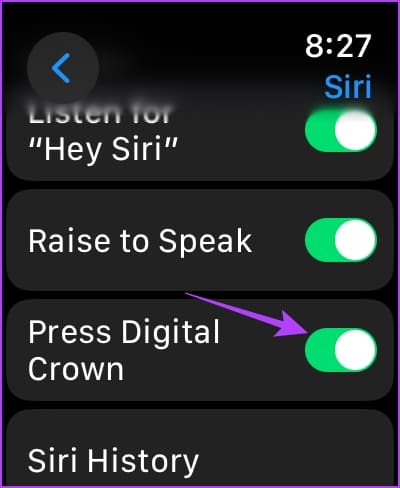
If you cannot launch Siri by pressing the Digital Crown on your Apple Watch, you may not have enabled the option to do so.
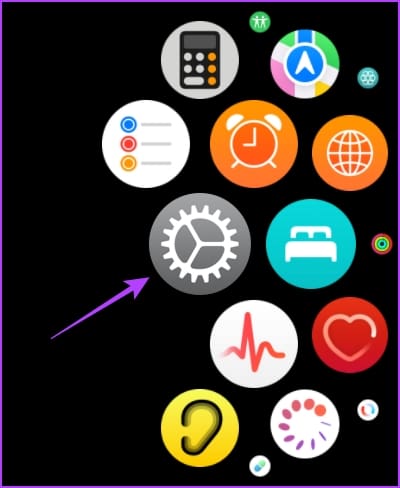
Step 1: Press the Digital Crown to open the home screen on the Apple Watch.
Step 2: Now, tap on the Settings app and select Siri.
Step 3: Ensure to turn on the toggle for Press Digital Crown.

Fix 4: Contact Apple Customer Care
If none of the above methods work, contact Apple’s customer support to guide you further. The Crown on your Apple Watch may be physically damaged and must be replaced or repaired. The Apple customer support team can certainly help resolve the problem.
Also Read: How to track sleep with Apple Watch: A complete guide
Was this helpful?
Last updated on 29 August, 2024
Read Next
 How to Change Apple Watch Face from iPhone or Watch
Traditional watches had the problem that you couldn't change their clock face.
How to Change Apple Watch Face from iPhone or Watch
Traditional watches had the problem that you couldn't change their clock face.
 2 Ways to Fix Apple Watch Swipe Up Not Working
Try Basic Fixes Force restart the Apple Watch: Press and hold the side button along with the Apple Watch digital crown simultaneously for 10 seconds.
2 Ways to Fix Apple Watch Swipe Up Not Working
Try Basic Fixes Force restart the Apple Watch: Press and hold the side button along with the Apple Watch digital crown simultaneously for 10 seconds.
 3 Ways to Fix Apple Watch Always On Display Not Working
Basic Fixes Check if your Apple Watch supports Always On: Always On display is available on the Apple Watch Series 5,6,7,8,9 and Apple Watch Ultra 1st and 2nd gen.
3 Ways to Fix Apple Watch Always On Display Not Working
Basic Fixes Check if your Apple Watch supports Always On: Always On display is available on the Apple Watch Series 5,6,7,8,9 and Apple Watch Ultra 1st and 2nd gen.
 3 Ways to Fix Spotify Not Working on Apple Watch
Basic Fixes Ensure Apple Watch is connected: Make sure your Apple Watch is connected to your iPhone with an active internet connection.
3 Ways to Fix Spotify Not Working on Apple Watch
Basic Fixes Ensure Apple Watch is connected: Make sure your Apple Watch is connected to your iPhone with an active internet connection.
 6 Ways to Fix Apple Watch Wrist Detection Not Working
Basic Fixes: Tighten the Apple Watch band: If your Apple Watch keeps losing contact with your wrist, it might think you've taken the watch off.
6 Ways to Fix Apple Watch Wrist Detection Not Working
Basic Fixes: Tighten the Apple Watch band: If your Apple Watch keeps losing contact with your wrist, it might think you've taken the watch off.
 6 Ways to Fix Microphone Not Working on Apple Watch
Basic Fixes Restart Apple Watch: Restart your Apple Watch to fix temporary bugs and glitches.
6 Ways to Fix Microphone Not Working on Apple Watch
Basic Fixes Restart Apple Watch: Restart your Apple Watch to fix temporary bugs and glitches.
 3 Ways to Fix Speaker Not Working on Apple Watch
Basic Fixes Restart Your Mac: The go-to fix for any issue is the good old restart.
3 Ways to Fix Speaker Not Working on Apple Watch
Basic Fixes Restart Your Mac: The go-to fix for any issue is the good old restart.
 5 Ways to Fix Call Failed Error on Apple Watch
Try Basic Fixes Contact network carrier: Issues on your network carrier's end can sometimes cause calls from your Apple Watch to fail.
5 Ways to Fix Call Failed Error on Apple Watch
Try Basic Fixes Contact network carrier: Issues on your network carrier's end can sometimes cause calls from your Apple Watch to fail.
The article above may contain affiliate links which help support Guiding Tech. The content remains unbiased and authentic and will never affect our editorial integrity.