


With Screen Time you can schedule downtime or set up app limits to stop access to all or certain apps. But due to work or personal reasons, you have to exclude certain apps from Screen Time, allowing you unhindered access.
Now, there are two ways to do so, you can choose any of the following methods to get your important apps excluded from Screen Time
Method 1. Allow the App To Be Connected at All Times
As the name suggests, the said app will be allowed to access the internet and send you notifications at all times, irrespective of whether downtime or app limits are enabled or disabled.
Step 1: Open Settings. Go to Screen Time.
Step 2: Here, select Always Allowed.
Step 3: Under the Choose Apps section, tap + next to the app you want to add.


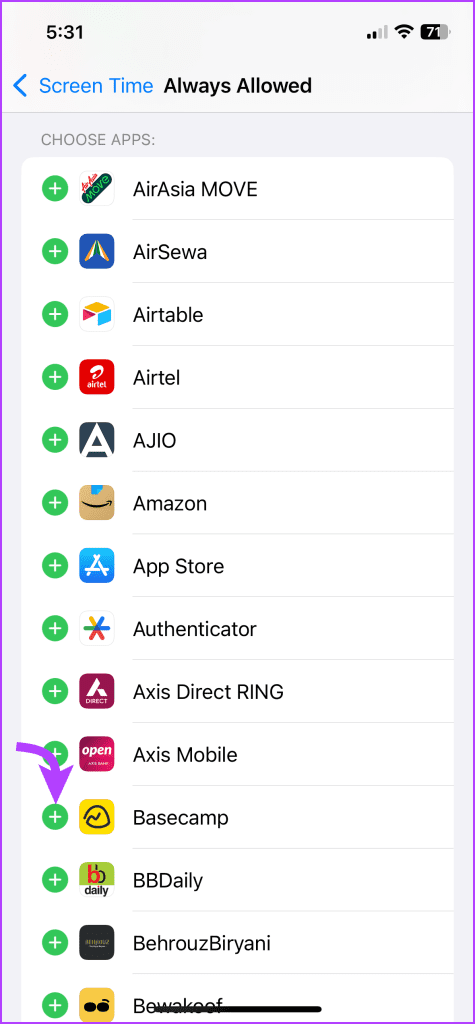
And just like that, the app will excluded from any Screen Time limit you’ve added now or may add later.
Note: You can also add contacts that can communicate with you at all times from this menu. Simply, tap Contacts and add them to the list.
Method 2. Exclude Apps From the App Limit
As mentioned above, the previous method excludes the app from both downtime and app limits. However, if you want the app to follow downtime but not app limits, this method is more suitable.
Moreover, say you’ve set a limit for social media apps, but you don’t want the time spent on WhatsApp and Messages to be counted in that time limit. For that, you’ll have to specifically exclude these apps from app limits.
Step 1: Go to Settings > Screen Time.
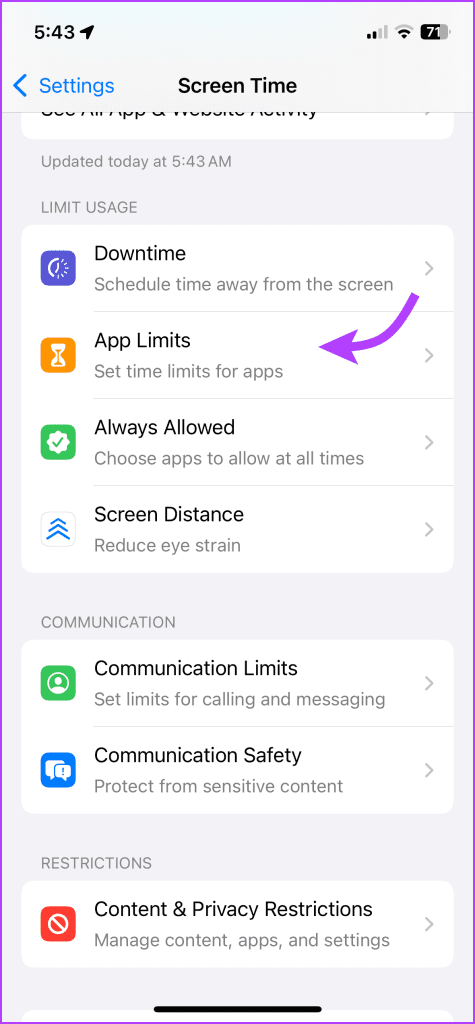
Step 2: Tap App Limits. Select the app bunch you want to exclude the app from.
Step 3: Here, select Edit List.
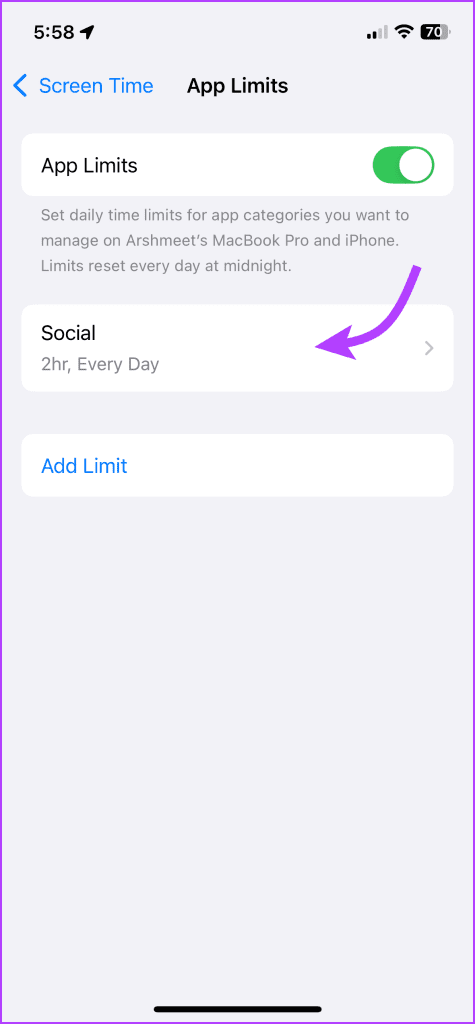

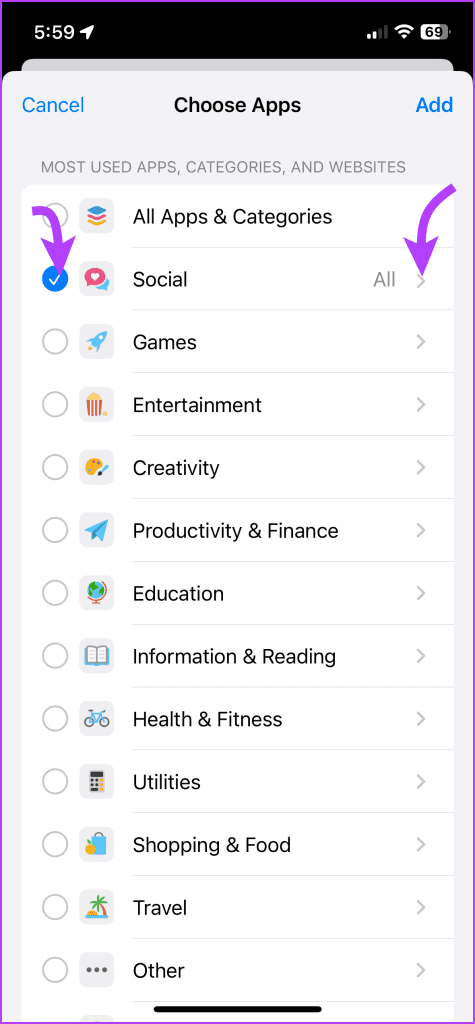
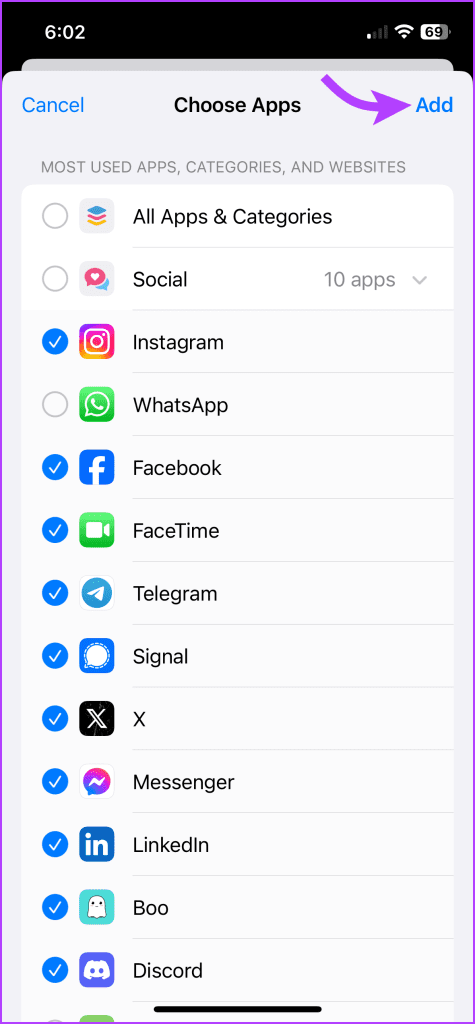
Step 4: Uncheck the box next to the app bunch (for example Social). Tap the > arrow next to it.
Step 5: Now, select all the apps you want to include. Keep the apps you want to exclude unchecked.
Step 6: Tap Add to save the changes.
Note: If you’re using Screen Time for a child’s device, the changes have to be done from the parent’s device, plus, you’ll have to enter the Screen Time passcode before proceeding.
Was this helpful?
Last updated on 23 August, 2024
Read Next
 5 Ways to Block YouTube on iPhone and iPad
Method 1: Enable Age Rating Restrictions YouTube is rated for 17 years and older on the App Store.
5 Ways to Block YouTube on iPhone and iPad
Method 1: Enable Age Rating Restrictions YouTube is rated for 17 years and older on the App Store.
 3 Ways to Fix Screen Recording Not Working on iPhone and iPad
Basic Fixes Restart iPhone: Restarting your iPhone may resolve any software glitches preventing screen recording.
3 Ways to Fix Screen Recording Not Working on iPhone and iPad
Basic Fixes Restart iPhone: Restarting your iPhone may resolve any software glitches preventing screen recording.
 How to Share Your Screen in Google Meet on iPhone and iPad
How to Share Screen on Google Meet You can begin sharing your screen before you enter the meeting - use the Share screen option.
How to Share Your Screen in Google Meet on iPhone and iPad
How to Share Screen on Google Meet You can begin sharing your screen before you enter the meeting - use the Share screen option.
 6 Best File Manager Apps for iPhone and iPad
Apple offers the default Files app on iPhone and iPad.
6 Best File Manager Apps for iPhone and iPad
Apple offers the default Files app on iPhone and iPad.
 5 Ways to Convert Photo to PDF on iPhone or iPad (Without Third-Party Apps)
iOS offers multiple ways to convert pictures to PDF on iPhone quickly, efficiently, and without an app.
5 Ways to Convert Photo to PDF on iPhone or iPad (Without Third-Party Apps)
iOS offers multiple ways to convert pictures to PDF on iPhone quickly, efficiently, and without an app.
 How to Offload Unused Apps on iPhone or iPad
We all are guilty of downloading some apps for temporary use and not deleting them later.
How to Offload Unused Apps on iPhone or iPad
We all are guilty of downloading some apps for temporary use and not deleting them later.
 5 Best Free Graphic Design Apps for iPhone and iPad
A picture is worth a thousand words, sure.
5 Best Free Graphic Design Apps for iPhone and iPad
A picture is worth a thousand words, sure.
 How to Bulk Delete Multiple Apps on iPhone or iPad
Note: While you can delete multiple apps on your iPhone, you can't select all and delete them in one go.
How to Bulk Delete Multiple Apps on iPhone or iPad
Note: While you can delete multiple apps on your iPhone, you can't select all and delete them in one go.
The article above may contain affiliate links which help support Guiding Tech. The content remains unbiased and authentic and will never affect our editorial integrity.

