


Disable Chrome Incognito Mode on Windows
If you have Windows Pro and above, you can use Group Policy; else, use the Command prompt to update the Windows Registry.
Group Policy
Step 1: Type gpedit.msc in the Run prompt (Win +R), and press the Enter key to open the Group Policy Editor.
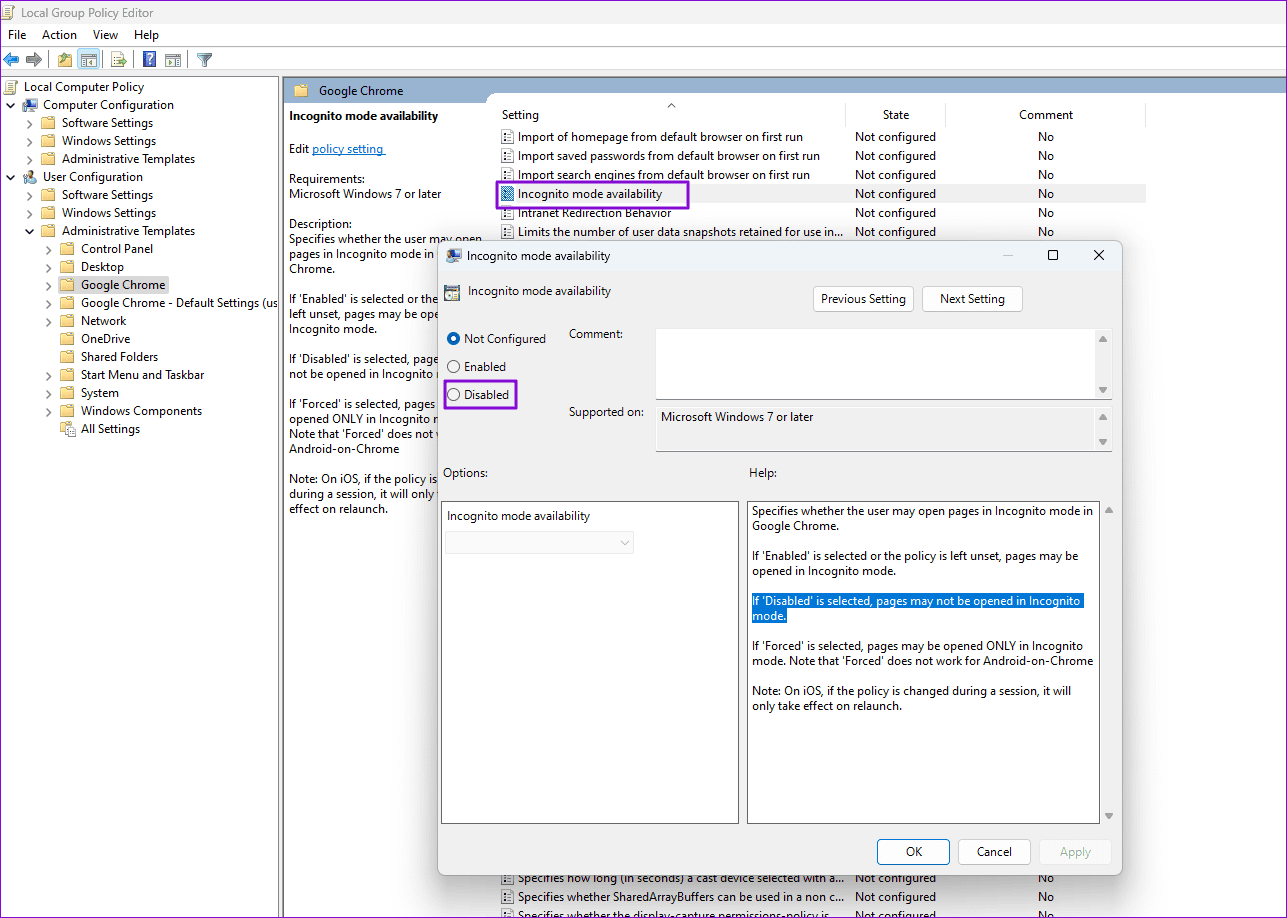
Step 2: Navigate to Use Configuration > Administrative Templates > Google Chrome. Locate and double-click to open the Incognito mode availability policy.
Step 3: Choose Disabled and click the Ok button to save the changes.
Update Registry using Command Prompt
Step 1: Open the Run prompt, and type cmd to launch Command Prompt.
Step 2: Copy and paste the following path into the Command Prompt console and press Enter.
REG ADD HKLM\SOFTWARE\Policies\Google\Chrome /v IncognitoModeAvailability /t REG_DWORD /d 1
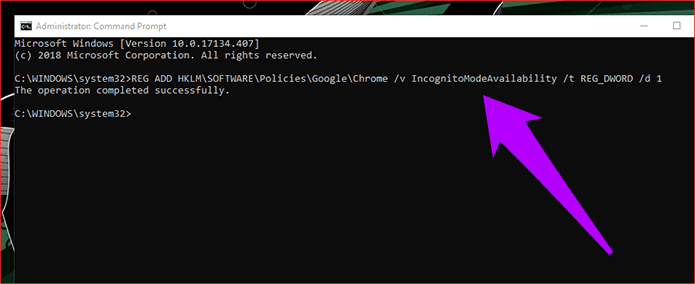
Step 3: Once The operation completed successfully message appears on the screen, exit the Command Prompt console. Restart Chrome, and you should find Incognito mode disabled.
Note: If you want to undo your action, use the following command on an elevated Command Prompt console: REG DELETE HKLM\SOFTWARE\Policies\Google\Chrome /v IncognitoModeAvailability /f
Disable Chrome Incognito Mode on macOS
On a Mac, disabling Chrome’s Incognito mode is much easier when compared to Windows.
Step 1: Load up a Terminal window (search for Terminal using Spotlight Search), type in the command line below, and then press Enter:
defaults write com.google.chrome IncognitoModeAvailability -integer 1
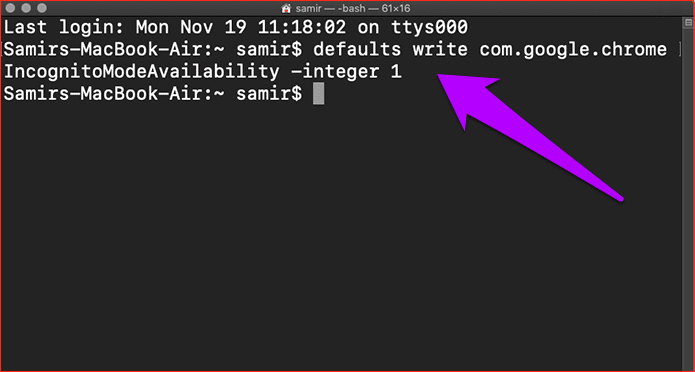
Step 2: Exit the Terminal and restart your Mac after running the command line. To confirm, open Chrome and bring up the Chrome menu—you won’t see the New Incognito Window option anymore.
Disable Chrome Incognito Mode on Android
Android doesn’t have a built-in feature that allows one to disable the Incognito mode in the mobile version of Chrome. However, if you need to disable it for your Kid, use the Google Family Link. Once configured, kids cannot use the Incognito mode on their smartphones.
Note: Ensure you can access the Kids’ mobile phone, Gmail email ID and password, and the internet. Also, remember if you have any other account on your kid’s phone, it will be removed.
Step 1: Download the Google Family Link app on both devices.
Step 2: Open the Family Link app on the parent’s device and follow the on-screen steps. When asked, choose your Google account. Confirm that you’re a parent.
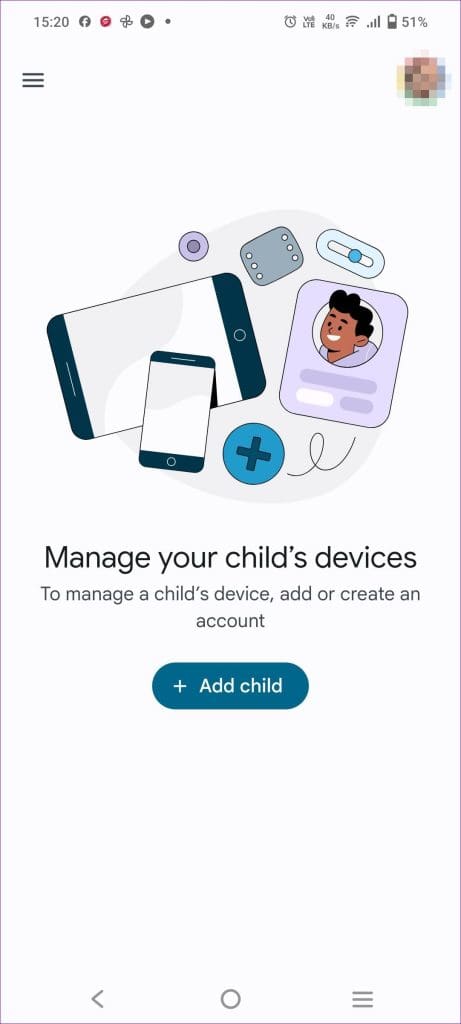
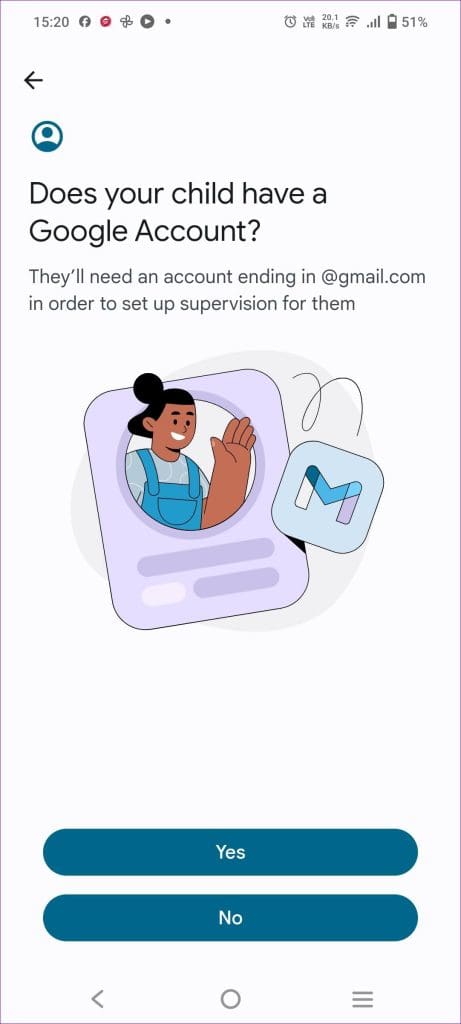

Step 3: You must also add the child’s Google account to supervise. Doing so will automatically add that account to the Family account.
Step 4: Open the Family Link app on the child’s device and follow the on-screen steps. When prompted, enter the link code from the parent’s device.
Step 5: On the child’s device: Verify your child’s Google account if necessary
Was this helpful?
Last updated on 30 July, 2024
Read Next
 macOS Sonoma vs macOS Ventura: What’s the Difference
As of writing this post, Apple has released the macOS Sonoma Public Beta for all users who want to try out the new Mac software upgrade.
macOS Sonoma vs macOS Ventura: What’s the Difference
As of writing this post, Apple has released the macOS Sonoma Public Beta for all users who want to try out the new Mac software upgrade.
 How to Disable Dark Mode in Windows 10, macOS, Android, and iOS
Disable Dark Mode in Windows 11 The system-level color scheme is customizable so that it can display darker tones on menus and backgrounds, making it easier on your eyes.
How to Disable Dark Mode in Windows 10, macOS, Android, and iOS
Disable Dark Mode in Windows 11 The system-level color scheme is customizable so that it can display darker tones on menus and backgrounds, making it easier on your eyes.
 How to Create Incognito Mode Shortcut on Windows Desktop
Create a Shortcut to Open Incognito Tab on Desktop Nearly all browsers offer Incognito/Private mode, but the feature is named differently on every browser.
How to Create Incognito Mode Shortcut on Windows Desktop
Create a Shortcut to Open Incognito Tab on Desktop Nearly all browsers offer Incognito/Private mode, but the feature is named differently on every browser.
 How to Take Screenshots in Incognito Mode on Android
How to Take Screenshots in Chrome Incognito Mode Step 1: Open the Google Chrome browser on your Android phone.
How to Take Screenshots in Incognito Mode on Android
How to Take Screenshots in Chrome Incognito Mode Step 1: Open the Google Chrome browser on your Android phone.
 Best Ways to Capture Scrolling Screenshots on macOS
When you want to capture an entire webpage, document, or any content that extends beyond the visible screen, a scrolling screenshot is the best route.
Best Ways to Capture Scrolling Screenshots on macOS
When you want to capture an entire webpage, document, or any content that extends beyond the visible screen, a scrolling screenshot is the best route.
 A Guide to Fixing Mac Not Connecting to Wi-Fi in macOS Recovery
If your Mac acts up or keeps crashing, the built-in Recovery mode can be useful.
A Guide to Fixing Mac Not Connecting to Wi-Fi in macOS Recovery
If your Mac acts up or keeps crashing, the built-in Recovery mode can be useful.
 Download Official macOS Sonoma Wallpapers (4K)
Official macOS Sonoma Wallpapers 1.
Download Official macOS Sonoma Wallpapers (4K)
Official macOS Sonoma Wallpapers 1.
 Download Official macOS Sequoia (4K) Wallpapers Here
It’s that time of year again—Apple has just concluded its WWDC 2024 keynote, unveiling a range of new platform announcements surrounding macOS Sequoia, iOS 18, WatchOS 11, visionOS 2, and
Download Official macOS Sequoia (4K) Wallpapers Here
It’s that time of year again—Apple has just concluded its WWDC 2024 keynote, unveiling a range of new platform announcements surrounding macOS Sequoia, iOS 18, WatchOS 11, visionOS 2, and
The article above may contain affiliate links which help support Guiding Tech. The content remains unbiased and authentic and will never affect our editorial integrity.

