The Windows 11 25H2 update wasn’t nearly as traumatic for most users as its far bigger predecessor 24H2, but there are still a few issues that have popped up, many of which have been resolved. In this article, we’ll be looking at common issues in 25H2 and how to fix them.
Fixes to Common Issues in 25H2
Let’s dive right in and look at some 25H2 common bugs that you can easily squash.
IIS Websites Failing to Load
IIS websites rely on HTTP.sys, and 25H2 might cause a server-side issue that renders these sites unable to connect, often popping up with browser messages like “ERR_CONNECTION_RESET” or the like. This issue has no workaround besides updating your machine, as the update KB5067036 patches this issue. To check for updates for this and any other of these issues:
Step 1. Open Settings (Win + I) and click “Windows Update” in the sidebar.
Step 2. Click “Check for Updates” to see if there are any new ones to download and install.
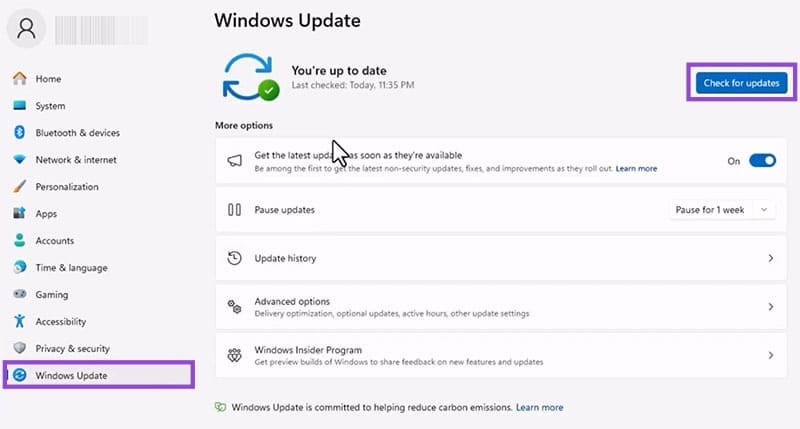
Step 3. If new ones appear, download and install them, restarting your PC afterwards.
The Recurring Task Manager
This is a known issue where the Task Manager doesn’t really close when you tell it to, replicating and draining resources. This bug arose with update KB5067036. While Microsoft has patched this out in subsequent updates, if this is still haunting you, you can do the following:
Step 1. Open Task Manager directly by pressing (Ctrl + Shift + Esc).
Step 2. In the “Processes” tab, scroll down until you find “Task Manager” and give it a click.
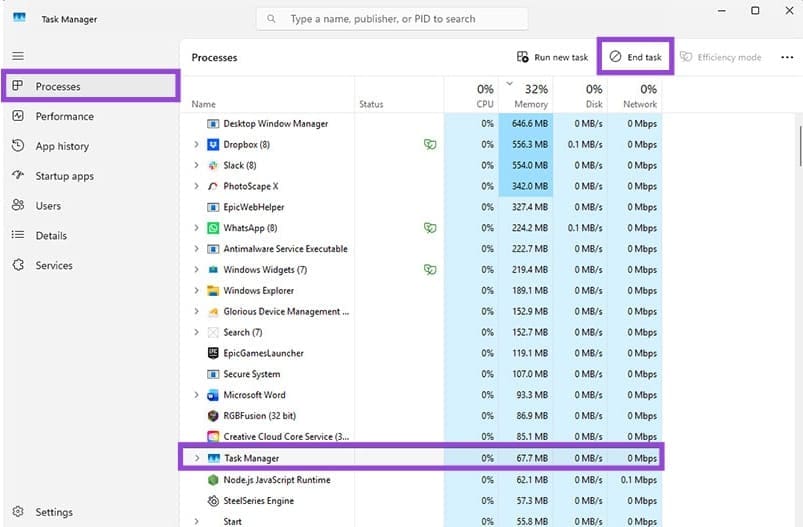
Step 3. Click the “End Task” button, and Task Manager should close correctly.
The Mouse and Keyboard in Recovery Mode
Update KB5066835 introduced an error whereby USB devices like keyboards and mice wouldn’t work when entering recovery mode. Again, this has been patched, but if you’re still stuck, here’s what to do:
- If you have an older PS2 mouse and keyboard and a slot to place them in, use these to recover your PC, then revert to normal.
- If you have a touchscreen PC, you can use finger input instead as a temporary workaround.
- If you have a recovery drive, you can input this and skip the recovery mode step entirely.
Windows Update Fails on Shared Network
If you’re on a shared network, updating your machine through a shared Windows Update Standalone Installer (WUSA) using a “.msu” file can fail, particularly when there are multiple versions. The workaround to this is quite simple: ensure the “.msu” file you’re updating from is installed locally on your machine, and not accessed on the network. Once restarting, wait 15 minutes and check Settings to see if it was successful.
The Smart Card Error
Certain smart cards are also affected by 25H2 and run into authentication and certificate issues. If this happens to one of yours, you can override things through the Registry:
Step 1. Open the Run dialogue box (Win + R) and type “regedit” and hit (Ctrl + Shift + Enter) to run as Admin.
Step 2. In the Registry, navigate to “HKEY_LOCAL_MACHINE\SOFTWARE\Microsoft\Cryptography\Calais.”
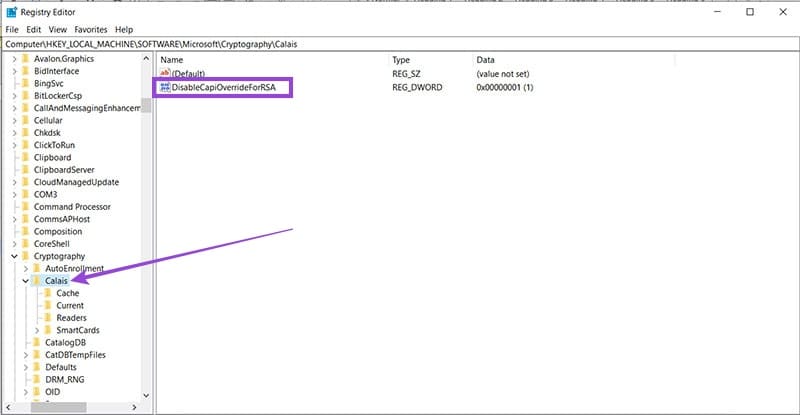
Step 3. Double-click “DisableCapOverrideForRSA” and change the key value to “0,” then hit “OK” to finalize.
Step 4. Reboot your machine.
Was this helpful?
Last updated on 18 December, 2025
Read Next
 Windows 11 25H2 Won’t Install – Common Fixes
Just when it seems you’re over the hurdle of installing Windows 11 24H2, along comes its successor a year later to make your life difficult all over again.
Windows 11 25H2 Won’t Install – Common Fixes
Just when it seems you’re over the hurdle of installing Windows 11 24H2, along comes its successor a year later to make your life difficult all over again.
 How to Solve Windows 10 Game Bar Not Working and Other Common Issues
With the recent Windows 10 version 1809 update, Microsoft pushed a bunch of improvements to the Xbox Game Bar.
How to Solve Windows 10 Game Bar Not Working and Other Common Issues
With the recent Windows 10 version 1809 update, Microsoft pushed a bunch of improvements to the Xbox Game Bar.
 4 Common Issues With Nothing Ear (1) and How to Fix Them
1.
4 Common Issues With Nothing Ear (1) and How to Fix Them
1.
 How to Get Windows 11 25H2 if It Doesn’t Show in Windows Update
Windows 11 hasn’t had the best track record with major software updates.
How to Get Windows 11 25H2 if It Doesn’t Show in Windows Update
Windows 11 hasn’t had the best track record with major software updates.
 Five Common Office API Error Codes and What They Mean
Office Add-ins allow you to extend your standard Microsoft Office solution into something more.
Five Common Office API Error Codes and What They Mean
Office Add-ins allow you to extend your standard Microsoft Office solution into something more.
 Instagram Block vs Mute vs Hide: Common Terms Explained
What Does Blocking on Instagram Mean Similar to other social networks, blocking on Instagram completely restricts your profile from the other person.
Instagram Block vs Mute vs Hide: Common Terms Explained
What Does Blocking on Instagram Mean Similar to other social networks, blocking on Instagram completely restricts your profile from the other person.
 10 Common Facebook Marketplace Scams and How to Avoid Them
Besides being a popular social media platform, Facebook is also a great place to buy and sell things, thanks to Facebook Marketplace.
10 Common Facebook Marketplace Scams and How to Avoid Them
Besides being a popular social media platform, Facebook is also a great place to buy and sell things, thanks to Facebook Marketplace.
 5 Ways to Fix Intel Wi-Fi 6 AX201 Adapter Driver or Hardware Issues
Fix 1: Update or Reinstall Driver The software drivers for the Intel Wi-Fi 6 AX201 on your Windows PC may be outdated and are due for an update.
5 Ways to Fix Intel Wi-Fi 6 AX201 Adapter Driver or Hardware Issues
Fix 1: Update or Reinstall Driver The software drivers for the Intel Wi-Fi 6 AX201 on your Windows PC may be outdated and are due for an update.
The article above may contain affiliate links which help support Guiding Tech. The content remains unbiased and authentic and will never affect our editorial integrity.