Basic Troubleshooting
- Unmute the audio – This isn’t a solution to the problem but a step that can verify whether there is a problem in the first place. It could be possible that the video you’re trying to play has proper audio, but you have not unmuted it in the Photos app.
- Don’t block the mic when holding the phone – A common cause of no audio when recording videos on an iPhone is people accidentally blocking the microphones. This can also lead to low or muffled audio when recording videos.
- Disconnect Bluetooth or wired headphones – The iPhone supports audio capture via an external mic. So, it’s possible that the mic of external headphones will be employed. Disconnect them and record again.
- Force quit Camera – The Camera app may have a glitch that prevents audio from being captured when recording videos. Restarting the app might do the trick.
- Force restart iPhone – A force restart can sometimes fix common issues on your iPhone. Hopefully, it can resolve the bug or setting-related issue causing the no audio when recording on iPhone issue.
Fix 1. Check Mic With Voice Memo
The idea is simple: check whether the mic is working fine. To do so, open the Voice Memos app and record something. If it plays perfectly, the issue is with the Camera app.
However, if you encounter issues while recording the memo, your iPhone’s mic is not working. Try cleaning the microphone/speaker with a microfiber cloth. If nothing works, contact Apple Support for assistance.
Fix 2: Reset All Settings on iPhone
When your Camera app is the troubling party, this is the last resort. However, when you reset all settings, you might lose stored passwords, Wi-Fi connections, etc., so be mindful.
Step 1: Go to the Settings app > tap General.
Step 2: Scroll and select Transfer or Reset iPhone.
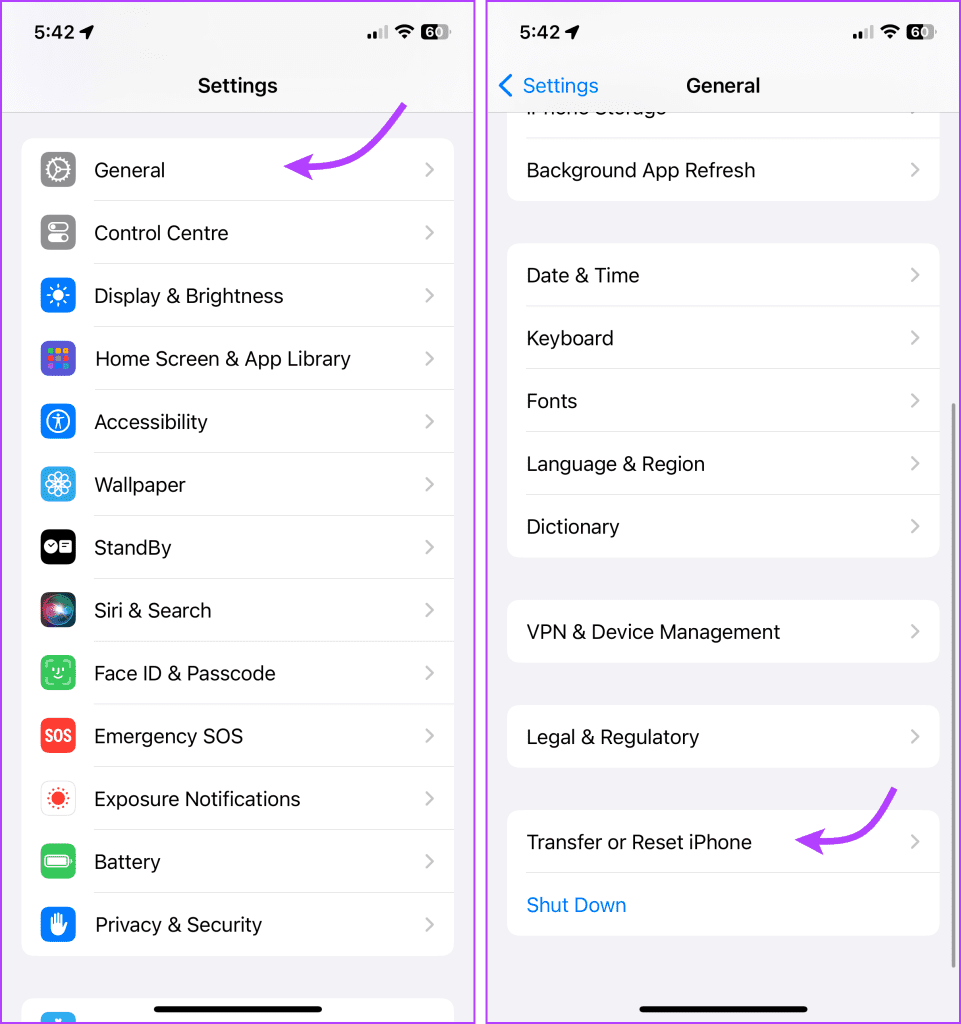
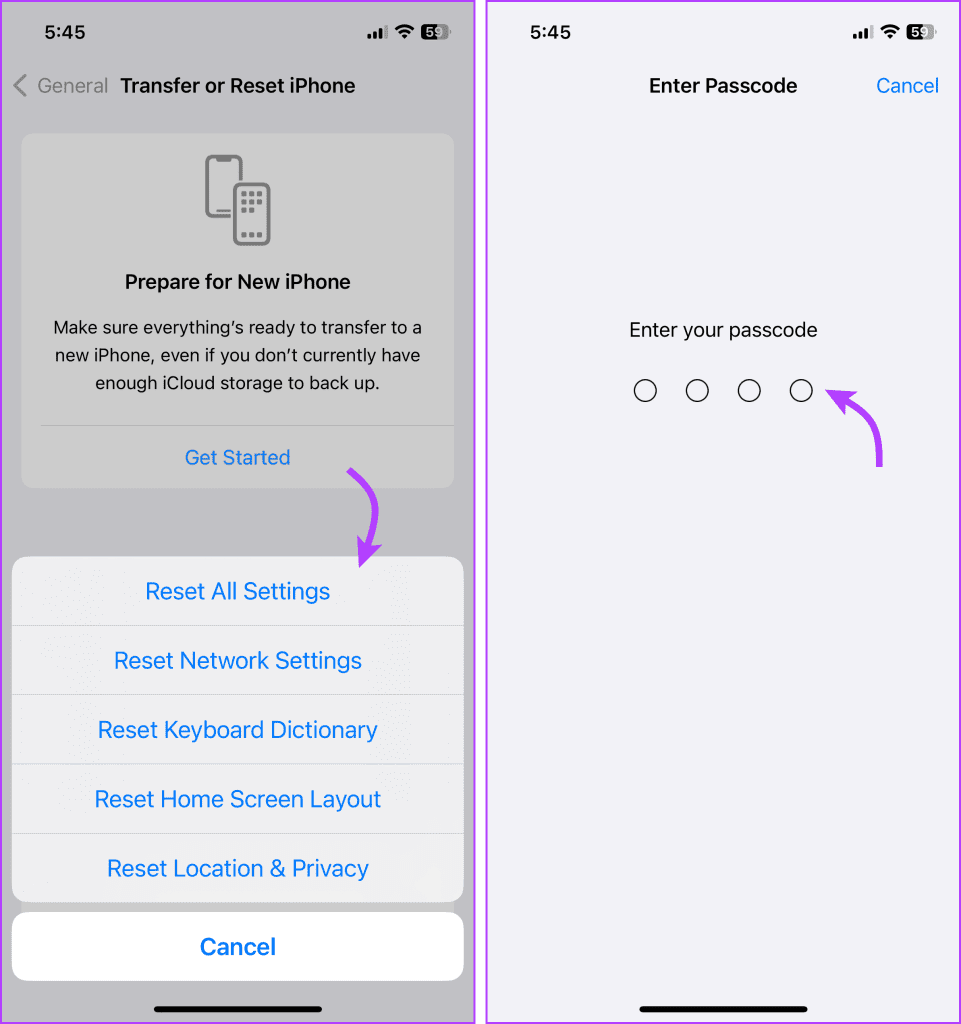
Step 3: Next, select Reset > choose Reset All Settings from the option.
Step 4: Enter your device passcode to confirm.
If the problem persists after trying the above solutions, the mic on the iPhone might have a hardware defect. It’s best to visit a service center to have your iPhone checked.
Was this helpful?
Last updated on 16 July, 2024
Read Next
 3 Fixes for Voice Memos Not Recording Audio on iPhone
Basic Fixes Check Microphone permissions for the Voice Memos app: Open Settings > Voice Memos > enable Microphone access.
3 Fixes for Voice Memos Not Recording Audio on iPhone
Basic Fixes Check Microphone permissions for the Voice Memos app: Open Settings > Voice Memos > enable Microphone access.
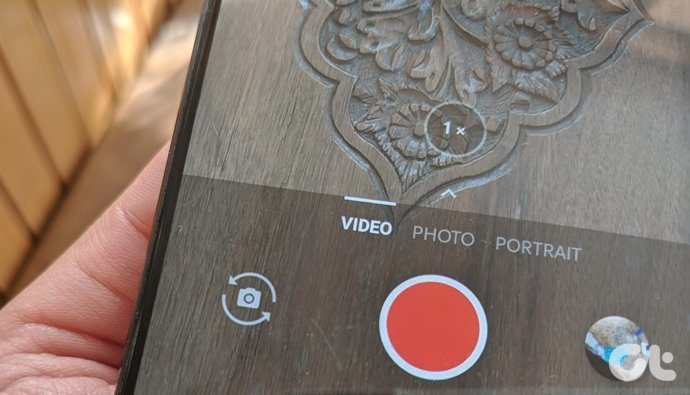 How to Flip Camera While Recording Videos on Android or iPhone
Why Can't I Flip Camera While Recording Videos For most iOS and Android devices (except for Samsung Galaxy), you can't flip the camera while you are recording a video.
How to Flip Camera While Recording Videos on Android or iPhone
Why Can't I Flip Camera While Recording Videos For most iOS and Android devices (except for Samsung Galaxy), you can't flip the camera while you are recording a video.
 3 Fixes if GeForce Experience Not Recording Game Audio in Windows 11
Common Fixes Close and restart GeForce Experience - Click the Arrow button in the system tray notifications area and right-click the NVIDIA icon to select Exit.
3 Fixes if GeForce Experience Not Recording Game Audio in Windows 11
Common Fixes Close and restart GeForce Experience - Click the Arrow button in the system tray notifications area and right-click the NVIDIA icon to select Exit.
 3 Ways to Fix Screen Recording Not Working on iPhone and iPad
Basic Fixes Restart iPhone: Restarting your iPhone may resolve any software glitches preventing screen recording.
3 Ways to Fix Screen Recording Not Working on iPhone and iPad
Basic Fixes Restart iPhone: Restarting your iPhone may resolve any software glitches preventing screen recording.
 How to Blur a Video or Screen Recording on iPhone
https://youtu.be/iSiDI3GPpKM Method 1: Use WhatsApp to Blur a Part of Video on iPhone If you don’t want to install a dedicated app to blur something in video on an iPhone,
How to Blur a Video or Screen Recording on iPhone
https://youtu.be/iSiDI3GPpKM Method 1: Use WhatsApp to Blur a Part of Video on iPhone If you don’t want to install a dedicated app to blur something in video on an iPhone,
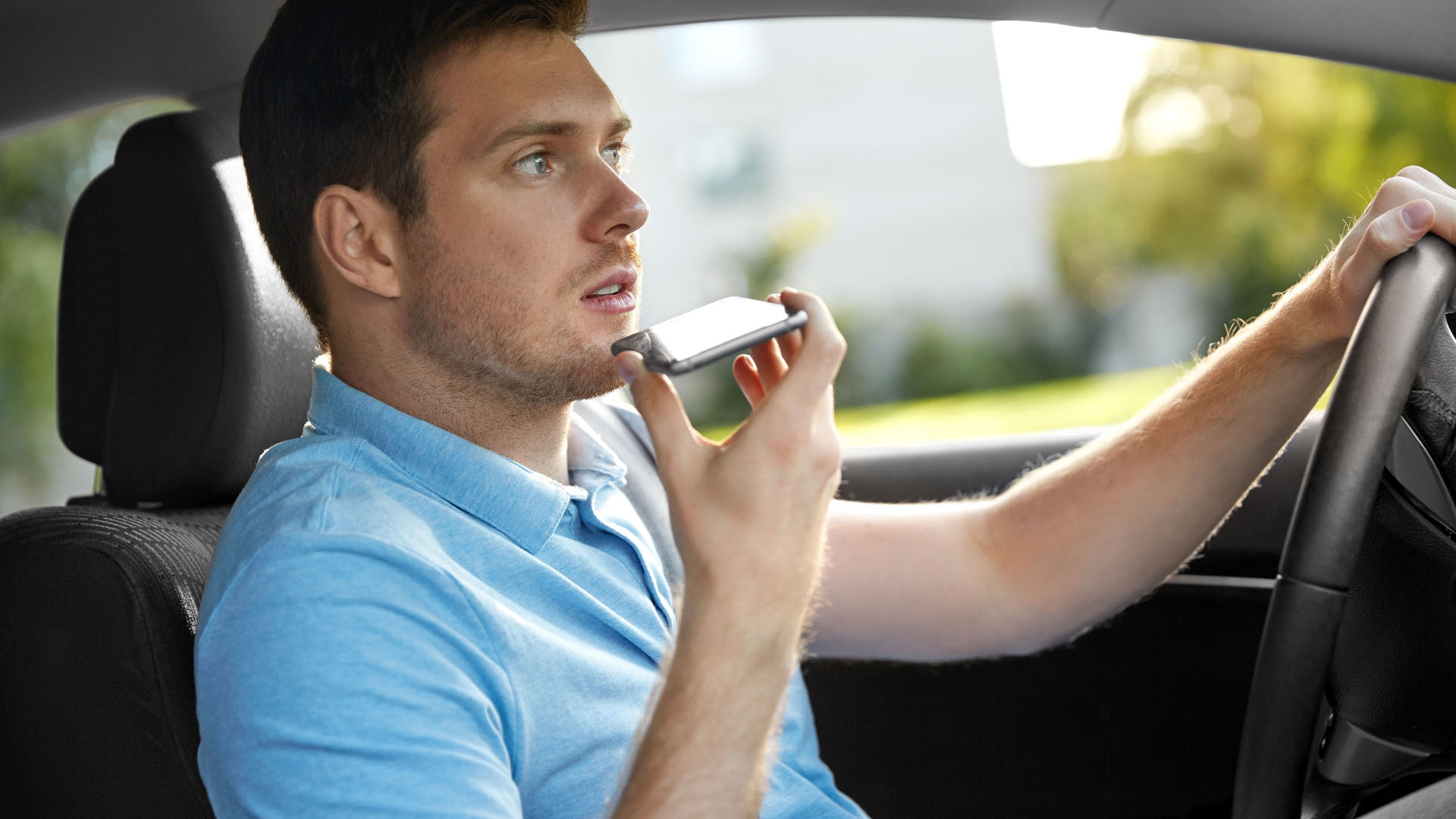 4 Ways to Fix Call Recorder Not Recording Incoming Voice on Android
Basic Fixes: Check the Android version: To use call recording features, your Android phone must run Android version 9 and above.
4 Ways to Fix Call Recorder Not Recording Incoming Voice on Android
Basic Fixes: Check the Android version: To use call recording features, your Android phone must run Android version 9 and above.
 3 Ways to Fix the “Recording Stopped” Error in Snipping Tool for Windows 11
Try Basic Fixes Disable screen projection: The Snipping Tool may sometimes have trouble recording the screen if you are using multiple displays.
3 Ways to Fix the “Recording Stopped” Error in Snipping Tool for Windows 11
Try Basic Fixes Disable screen projection: The Snipping Tool may sometimes have trouble recording the screen if you are using multiple displays.
 Top 7 Ways to Fix Samsung Galaxy Watch Not Recording Sleep
Samsung’s Galaxy Watch lineup is feature-packed with useful health-tracking functions.
Top 7 Ways to Fix Samsung Galaxy Watch Not Recording Sleep
Samsung’s Galaxy Watch lineup is feature-packed with useful health-tracking functions.
The article above may contain affiliate links which help support Guiding Tech. The content remains unbiased and authentic and will never affect our editorial integrity.