Basic Fixes
- Check your charger connection with the power source: If the adapter is loose or the wall socket doesn’t have proper grounding, we recommend you to plug the charger into a different power source.
- Check battery cycle count: A Cycle Count on your Mac is when you use 100% of its battery’s power, regardless of the number of times you charge your MacBook.
- Clean the charging cable port end: You can use cotton buds and alcohol to clean the end of your charging cable.
- Use a higher-voltage charger: A higher-voltage charger will charge your MacBook at a faster speed.
- Update macOS: Open Settings > General > Software Update.
- Visit Apple Store: You can get help from the official Apple support teams regarding the battery of your MacBook.
Why Isn’t Your MacBook Charging
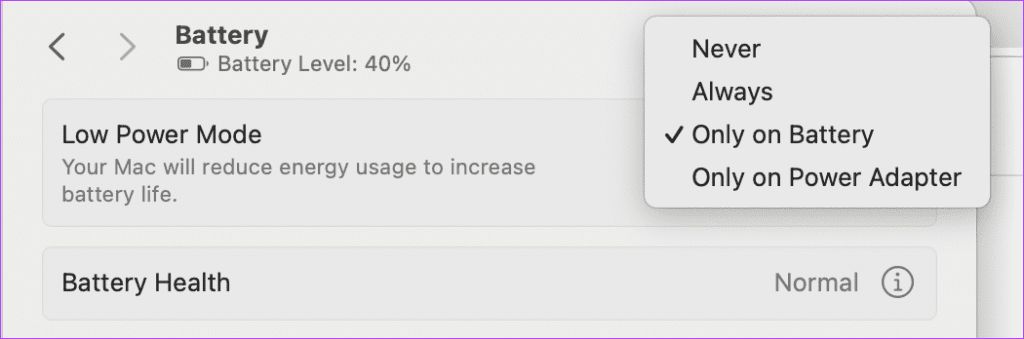
- Enabling Low Power Mode can prevent your MacBook from charging.
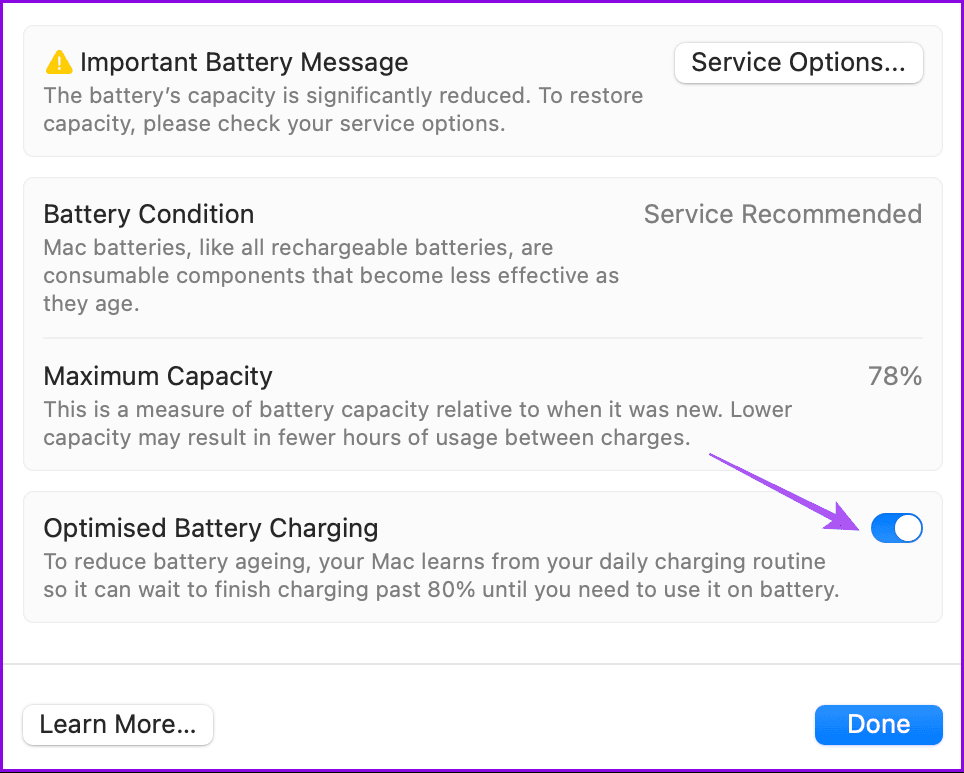
- Optimized Battery Charging can take a lot more time than usual to fully charge your Mac.
- Reset SMC if you have a Mac running on Intel chipset.
- Reset NVRAM to prevent its corruption that can stop the charging process stop altogether.
- Check the Battery Health of your MacBook. It might need a replacement.
Fix 1: Disable Low Power Mode
Enabling it reduces energy consumption since it lowers screen brightness and reduces the processor’s clock speed.
Open Settings > Battery > Disable Low Power Mode.
Fix 2: Disable Optimized Battery Charging
This works exactly like how it works for iPhones. But then you can face the same issue of reduced charging speeds after 80%.
Open Settings > Battery > Info icon > Turn off Optimized Battery Charging.
Fix 3: Check Battery Health
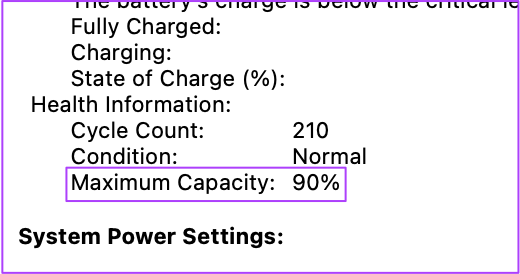
The battery inside your MacBook has a specific life cycle. It will eventually end up losing its charging capabilities with time. If you have been using your system for two to three years or more, you must check the Battery Health Status.
Open Settings > General > About > System Report > Power > Check the battery health.
Fix 4: Reset SMC
The System Management Controller or SMC is a chip that controls different hardware functions on Intel-based Macs. These functions include cooling fans, system performance, and power supply. The battery charging process will be affected if the SMC somehow has incorrect data about the charger or the battery. Do note that this step applies only to Intel Mac users.
Step 1: Shut down your Mac.
Step 2: Press and hold the right Shift + left Option + left Control key. Then press and hold the Power button as well.
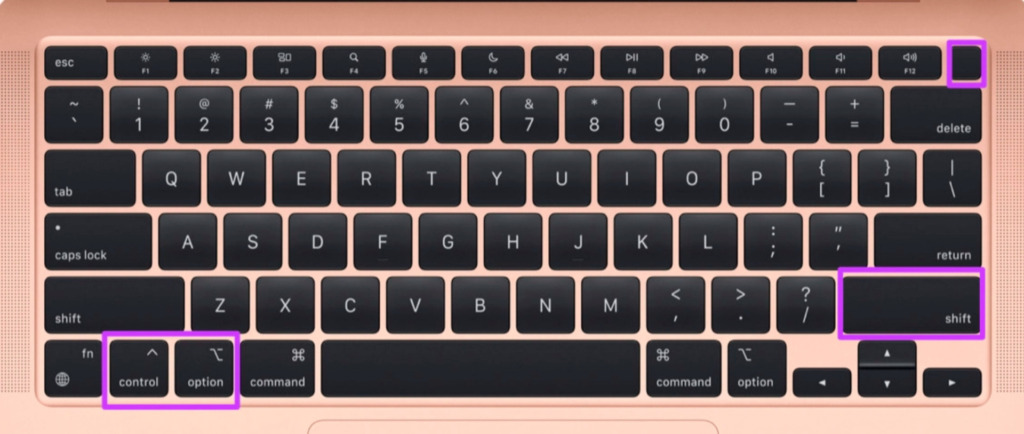
Step 3: Keep pressing all the four keys together for another 7 seconds. If your MacBook has turned on, it will turn off again while you hold the keys.
Step 4: Release all four keys and restart your system again.
Fix 5: Reset NVRAM
Non-Volatile Random Access Memory or NVRAM stores settings related to sound volume, startup disk selection, and time zone. If this data gets corrupted, the charging process might work slowly or stop altogether.
You can try resetting NVRAM to avoid charging issues on your MacBook. After following this process, you will have to adjust these settings again on your MacBook Air by opening System Preferences.
Step 1: Shut Down your Mac.
Step 2: Turn it on again.
Step 3: Press and hold Option + Command + P + R for 20 seconds when it switches on.

Step 4: Release the keys after the Apple logo appears and then disappears for the second time.
Tip: Refer to our post if your MacBook battery drains even after closing it.
Was this helpful?
Last updated on 20 August, 2024
Read Next
 2 Ways to Fix Windows 11 Battery Time Remaining Issues
Try These Things First Restart your computer: The first thing you should try is restarting your computer.
2 Ways to Fix Windows 11 Battery Time Remaining Issues
Try These Things First Restart your computer: The first thing you should try is restarting your computer.
 7 Best Multi-Charging Cables for Charging Multiple Devices
Most of us nowadays have multiple devices to charge.
7 Best Multi-Charging Cables for Charging Multiple Devices
Most of us nowadays have multiple devices to charge.
 Top 8 Fixes for OneDrive Sync Issues on Mac
Microsoft OneDrive is one of the best cloud storage solutions for everyone.
Top 8 Fixes for OneDrive Sync Issues on Mac
Microsoft OneDrive is one of the best cloud storage solutions for everyone.
 3 Ways to Limit Battery Charge on a MacBook
Method 1: Use Optimized Battery Charging Most MacBook Air and MacBook Pro models come with 1000 charging cycles.
3 Ways to Limit Battery Charge on a MacBook
Method 1: Use Optimized Battery Charging Most MacBook Air and MacBook Pro models come with 1000 charging cycles.
 4 Ways to Fix MacBook Draining Battery When Closed
https://youtu.be/fkXYhA950FQ Preliminary Fixes Disable the background process: If you are downloading a large file or installing an app from the Mac App Store, pause the process first and close the
4 Ways to Fix MacBook Draining Battery When Closed
https://youtu.be/fkXYhA950FQ Preliminary Fixes Disable the background process: If you are downloading a large file or installing an app from the Mac App Store, pause the process first and close the
 4 Ways to Fix Optimised Battery Charging Not Working on iPhone
Basic Fixes Force restart your iPhone: Press and quickly release the Volume Up button followed by Volume Down.
4 Ways to Fix Optimised Battery Charging Not Working on iPhone
Basic Fixes Force restart your iPhone: Press and quickly release the Volume Up button followed by Volume Down.
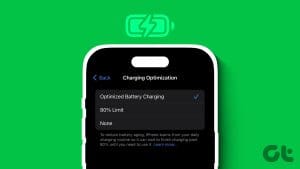 How to Restrict Battery Charging at 80% on iPhone
On iPhone 15 Series The iPhone 15 series has a new feature called 80% Limit that allows you to restrict battery charging to 80%.
How to Restrict Battery Charging at 80% on iPhone
On iPhone 15 Series The iPhone 15 series has a new feature called 80% Limit that allows you to restrict battery charging to 80%.
 5 Ways to Fix Android Phone Draining Battery While Charging
Why Is Your Phone Losing Battery While Charging Your Android phone may quickly lose battery while charging due to software or hardware issues, such as: You're charging your phone with
5 Ways to Fix Android Phone Draining Battery While Charging
Why Is Your Phone Losing Battery While Charging Your Android phone may quickly lose battery while charging due to software or hardware issues, such as: You're charging your phone with
The article above may contain affiliate links which help support Guiding Tech. The content remains unbiased and authentic and will never affect our editorial integrity.