

Fix 1: Add the Device From the Remotes & Accessories Section
With the recent update to the Google TV interface, settings are different on various Android TVs. Owing to this, you must check the Remotes & Accessories section to pair a new Bluetooth device. Here’s how to do it.
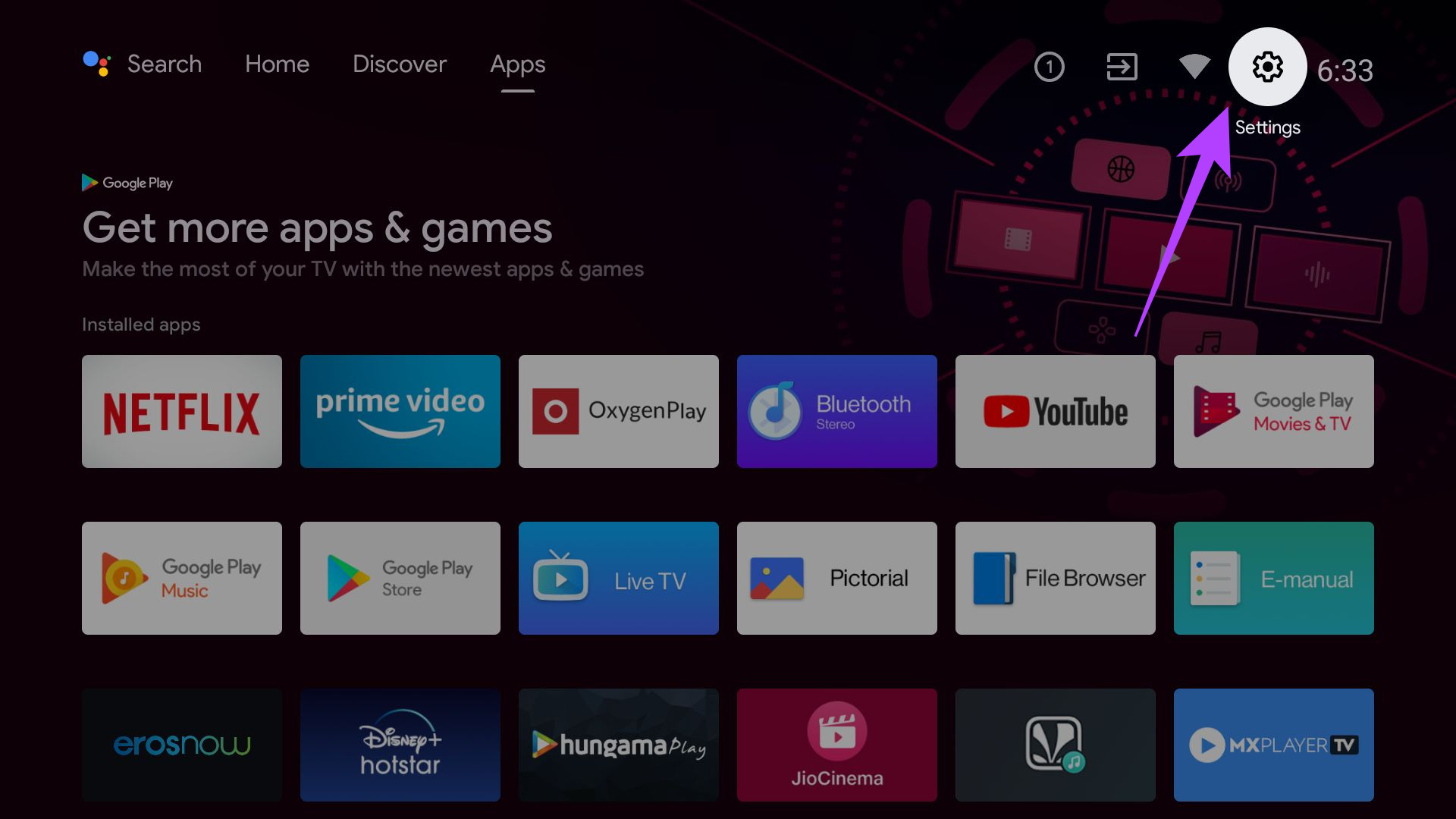
Step 1: Open the Settings app on your Android TV by selecting the gear icon at the top of the home screen.
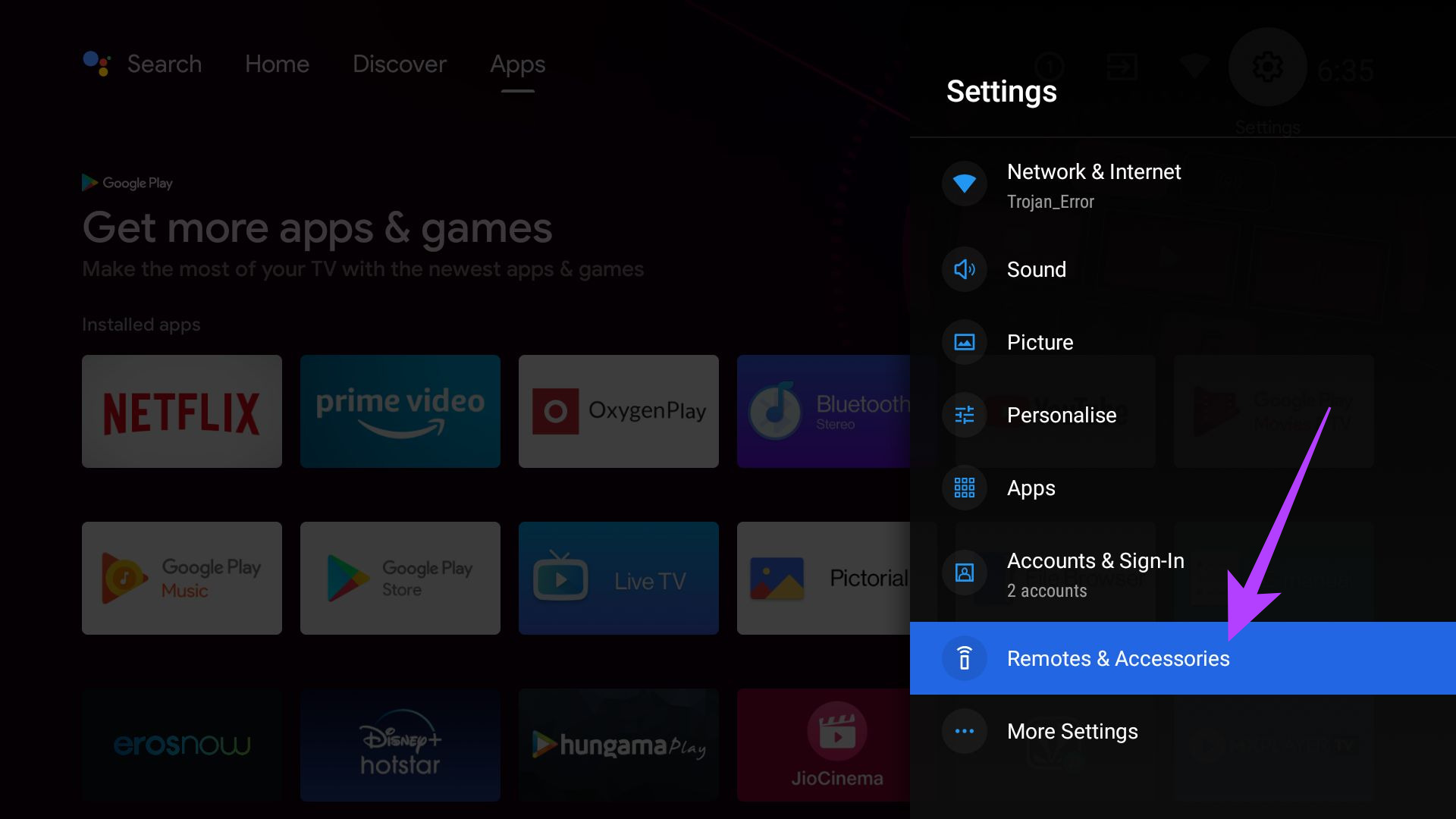
Step 2: Find and click on Remotes & Accessories.
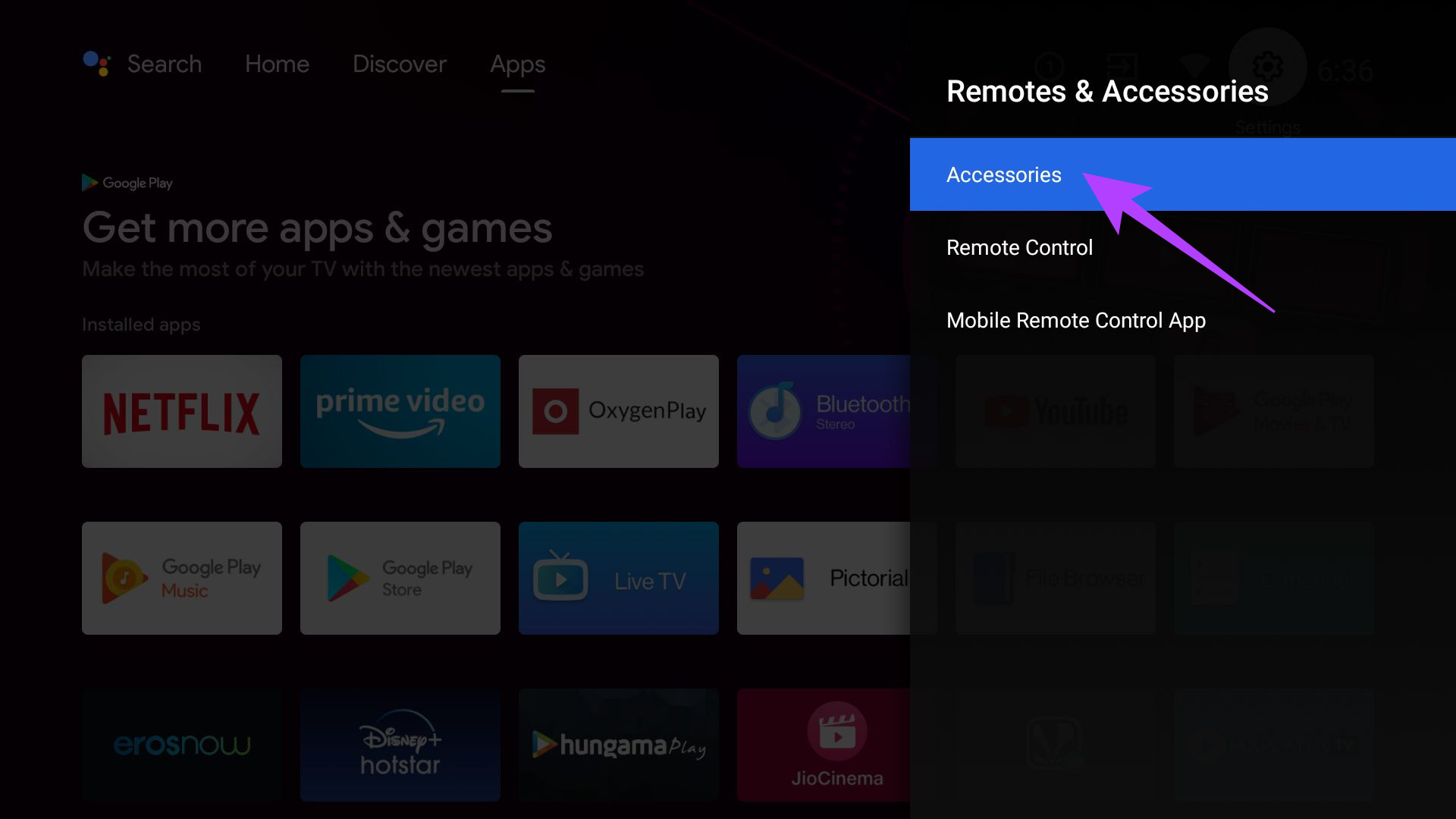
Step 3: Select the Accessories tab. The TV will now look for compatible Bluetooth devices to connect to.
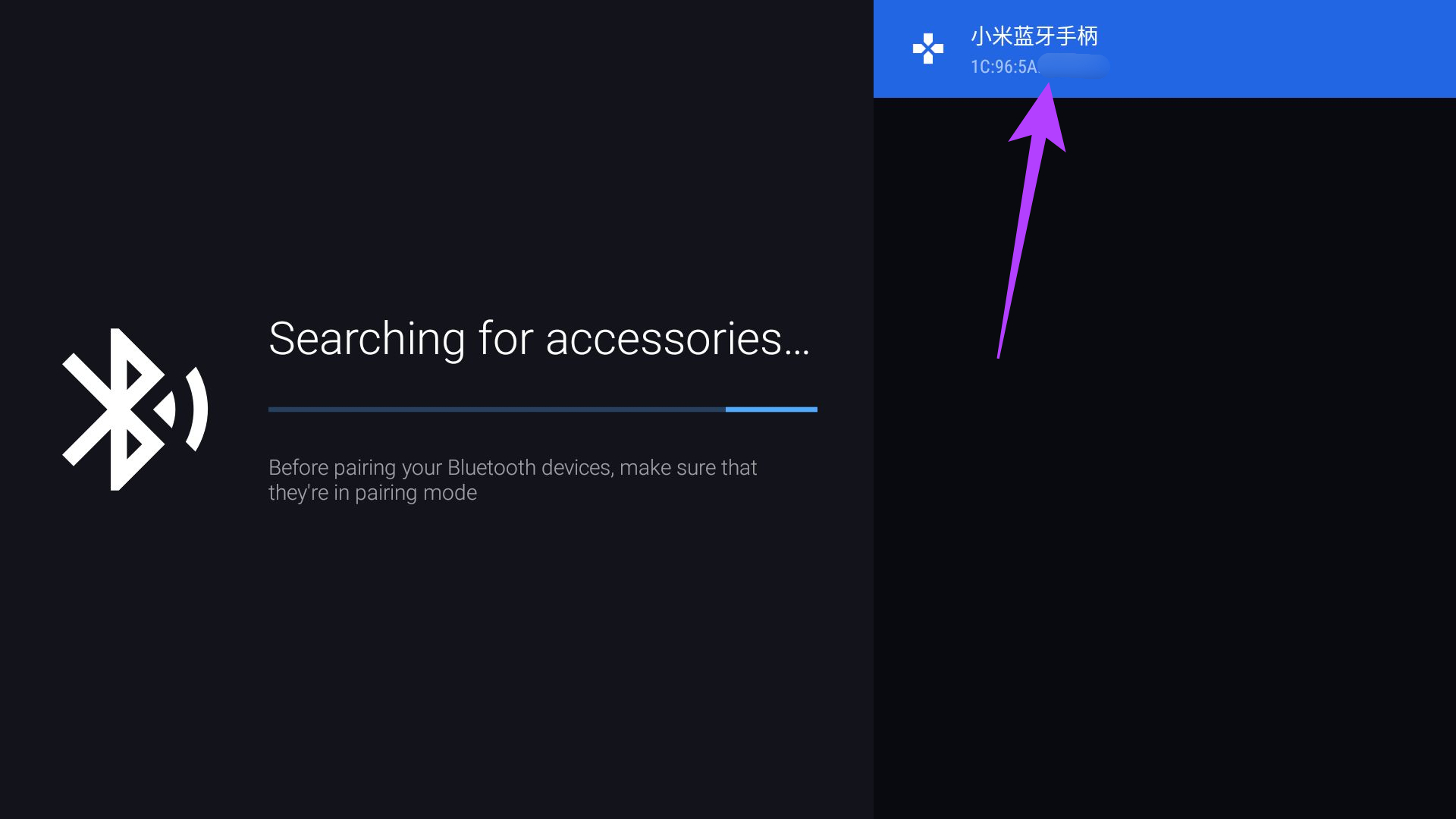
Step 4: Once the device has been discovered, select it to start the pairing process. You can do so by clicking on it.
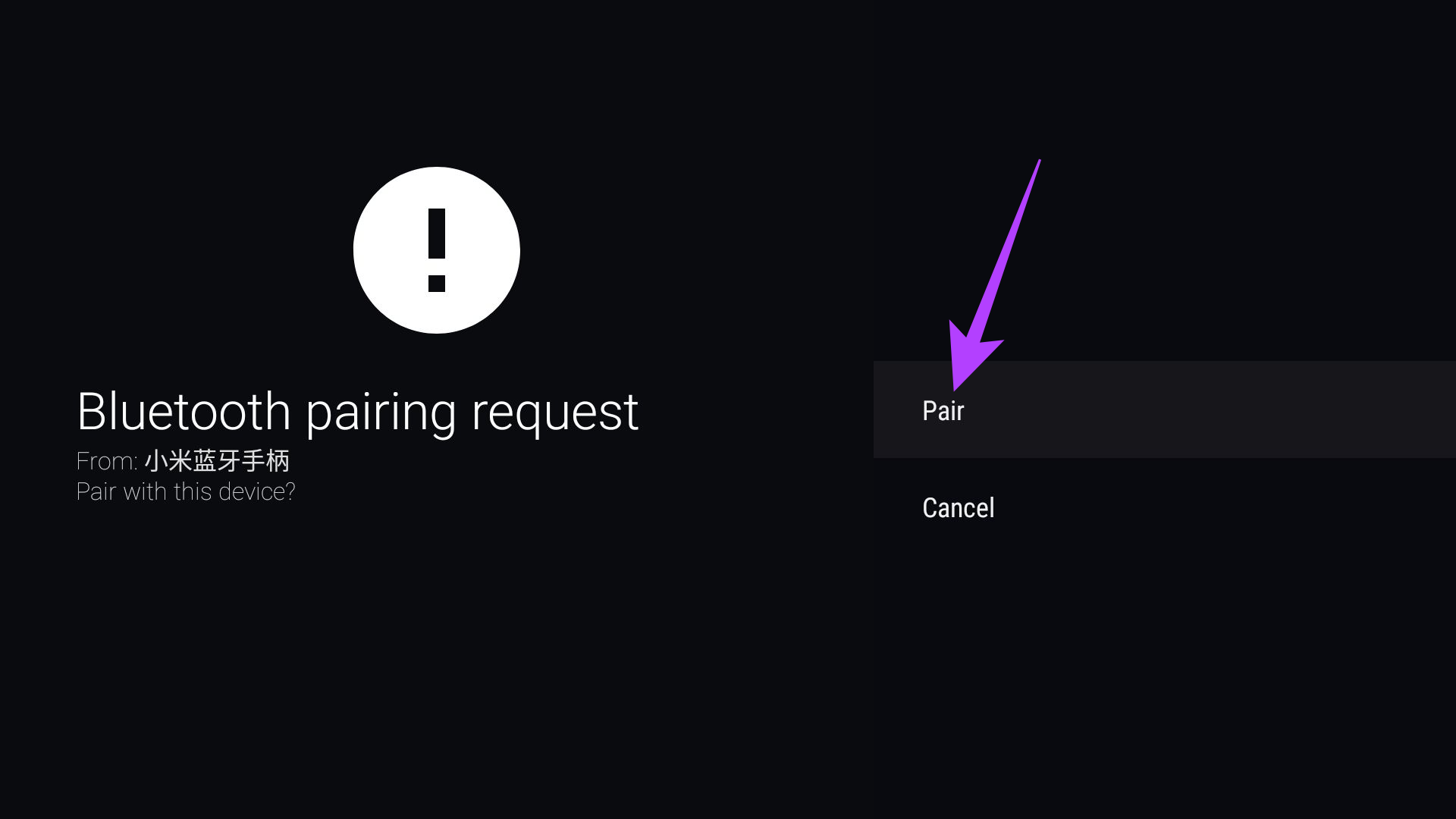
Step 5: Allow the Bluetooth pairing request by selecting Pair.
Fix 2: Unpair the Accessory if It’s Connected to a Different Device
If you’re trying to pair a Bluetooth accessory connected to another device, like a smartphone or laptop, first unpair it.
This will allow the accessory to be detected by your TV as a new device and appear in the available devices list for pairing. Once you’ve unpaired the accessory with your old device, put it in pairing mode before trying to connect it to the TV.
Fix 3: Try Pairing a Compatible Device
Android TVs support Bluetooth connections with limited sets of devices and accessories. For example, you can connect headphones, keyboards, mice, game controllers, pointer devices, etc. Any accessory that you can use to control the input on the TV.
You cannot link other Bluetooth devices like a smartphone, laptop, or another Android TV. It’s also possible that some accessories are incompatible with an Android TV. To check for compatibility, you can check the device’s user manual.
Fix 4: Unpair and Re-Add Devices
There are times when a device you’ve already paired with the TV won’t connect or will frequently disconnect from it. If this is the case, remove the connected device and pair it again. Here’s how to do it.
Step 1: Open the Settings app on your Android TV by selecting the gear icon at the top right.
Step 2: Find and select Remotes & Accessories.
Step 3: Select the Accessories tab.
Step 4: You will see a list of paired devices. Choose the paired device that you want to forget.
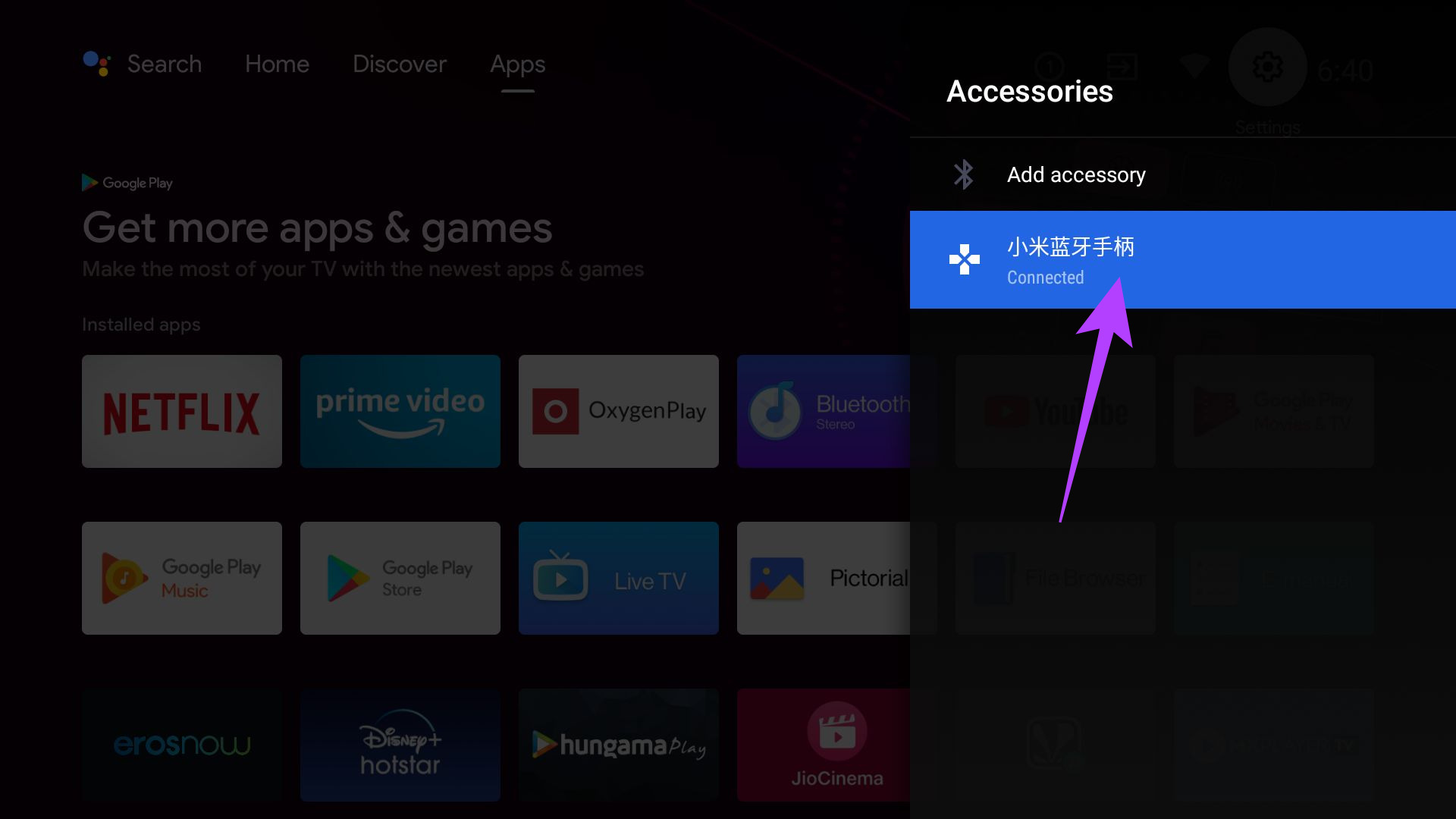
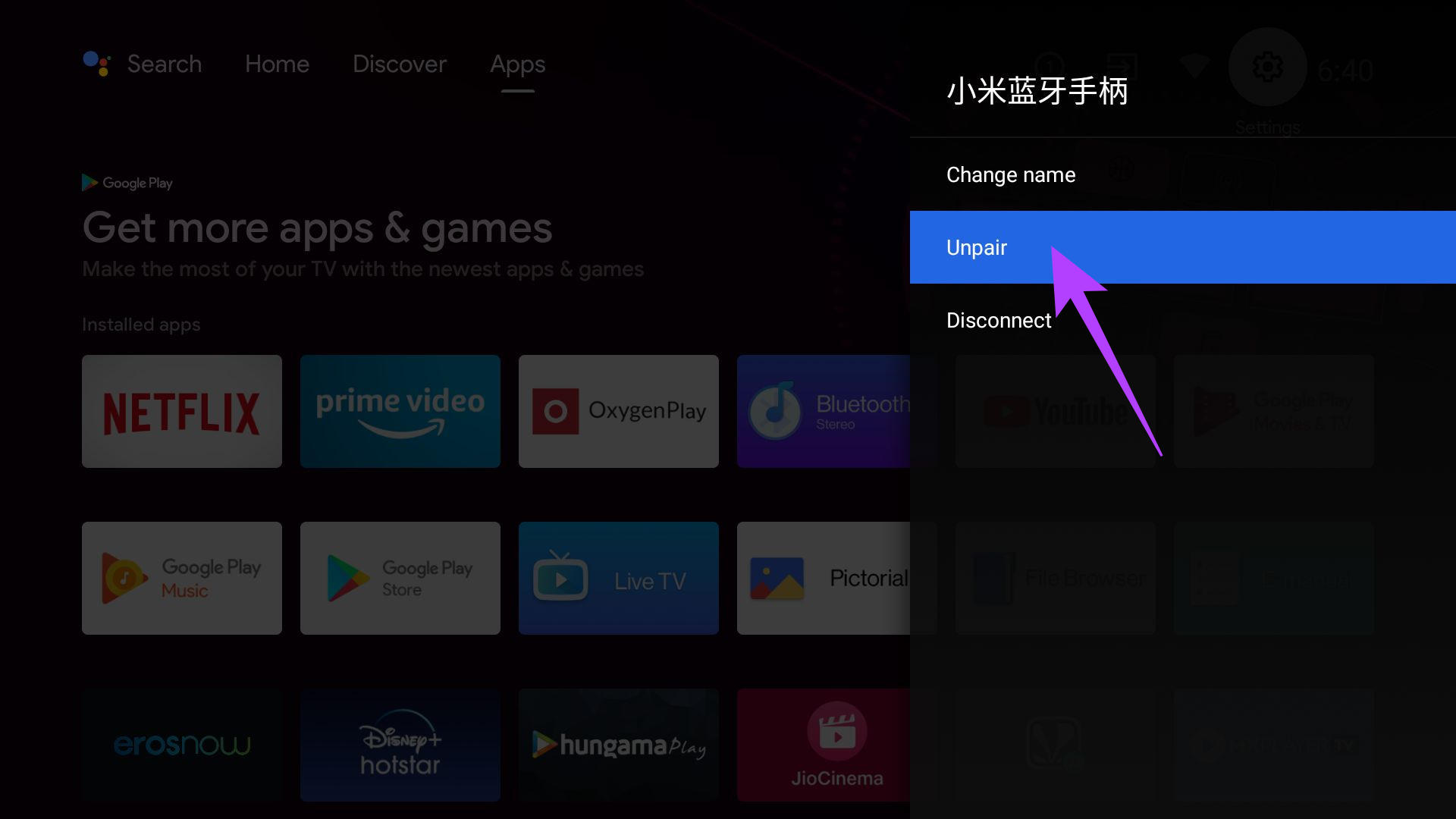
Step 5: You will find two options – Disconnect and Unpair. Select Unpair.
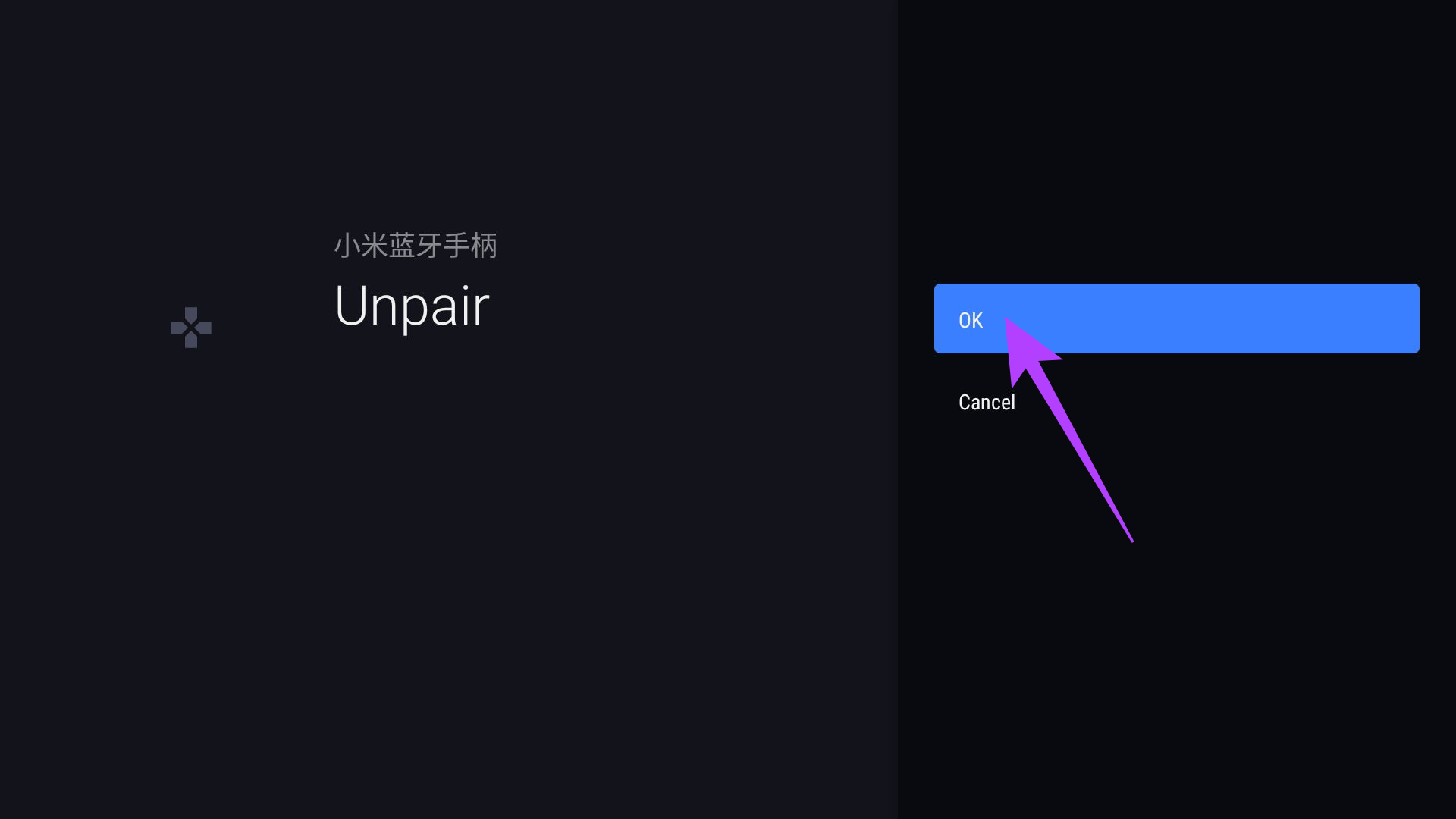
Step 6: When asked for confirmation, select OK.
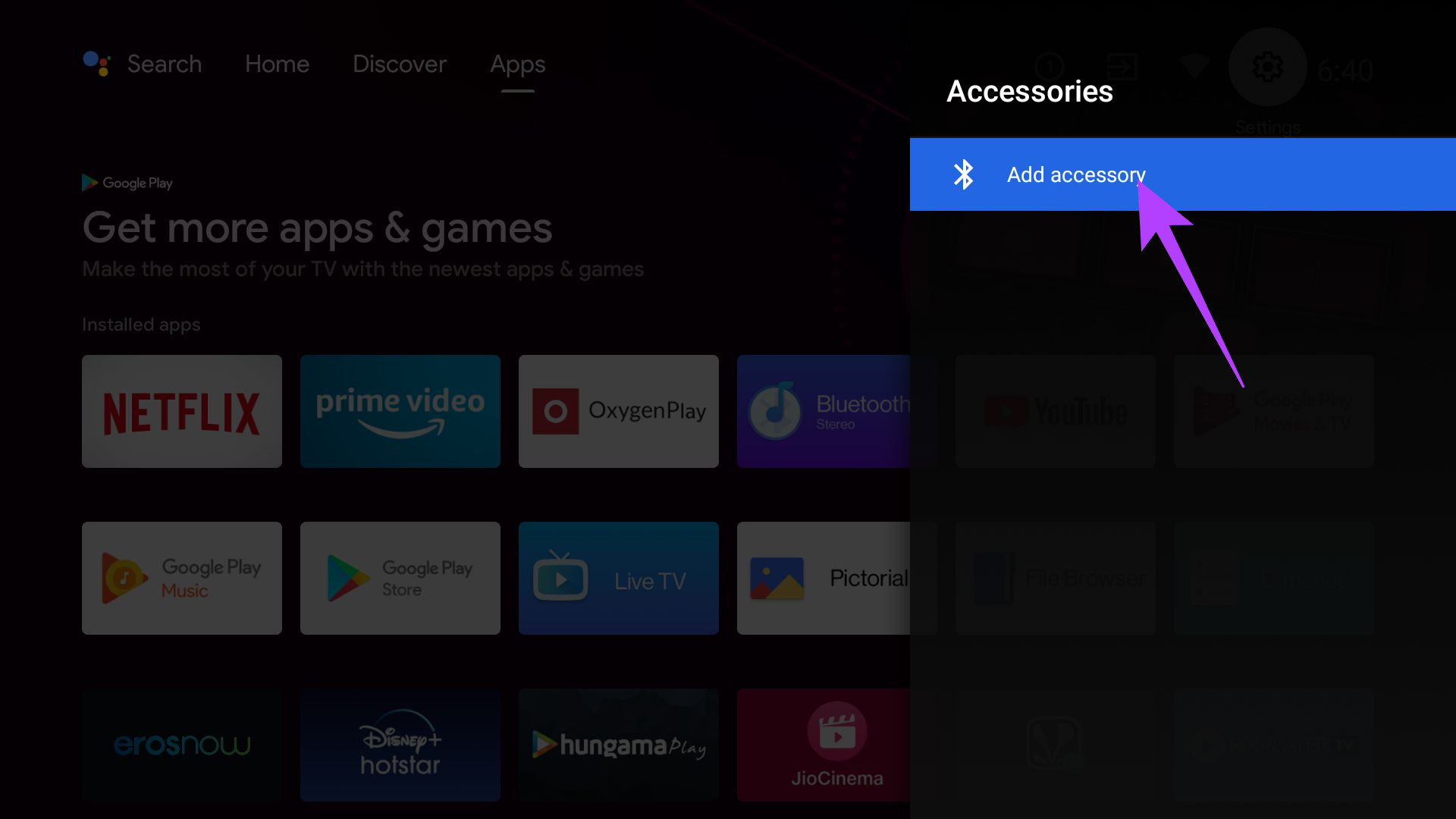
Select the Add accessory button and start the pairing process again by putting the accessory in pairing mode.
Was this helpful?
Last updated on 29 August, 2024
2 Comments
Leave a Reply
Read Next
 Bluetooth 5.1 vs Bluetooth 4.2: The 4 Key Differences
Bluetooth is one of the most common means of wireless connectivity.
Bluetooth 5.1 vs Bluetooth 4.2: The 4 Key Differences
Bluetooth is one of the most common means of wireless connectivity.
 3 Ways to Fix Android Not Connecting to Bluetooth Devices
Basic Fixes Use 5GHz Wi-Fi: Bluetooth uses a 2.4GHz frequency band, which can overlap the signals and cause problems.
3 Ways to Fix Android Not Connecting to Bluetooth Devices
Basic Fixes Use 5GHz Wi-Fi: Bluetooth uses a 2.4GHz frequency band, which can overlap the signals and cause problems.
 3 Ways to Fix Bluetooth Draining Battery on Android
Fix 1: Turn off Bluetooth Scanning When you enable Bluetooth, your Android device continuously runs Bluetooth scanning in the background, leading to unnecessary battery drain.
3 Ways to Fix Bluetooth Draining Battery on Android
Fix 1: Turn off Bluetooth Scanning When you enable Bluetooth, your Android device continuously runs Bluetooth scanning in the background, leading to unnecessary battery drain.
 4 Ways to Fix Bluetooth Audio Delay on iPhone and Android
How to Fix Bluetooth Audio Lag on Your Smartphones Minimize interference: If you notice an audio delay only when other wireless devices are around, turn off the device that is
4 Ways to Fix Bluetooth Audio Delay on iPhone and Android
How to Fix Bluetooth Audio Lag on Your Smartphones Minimize interference: If you notice an audio delay only when other wireless devices are around, turn off the device that is
 3 Ways to Fix Android Can’t Find Nearby Bluetooth Devices
Try Basic Fixes Restart your phone and the Bluetooth device: Sometimes, OS-related glitches can prevent your Android from detecting nearby Bluetooth devices.
3 Ways to Fix Android Can’t Find Nearby Bluetooth Devices
Try Basic Fixes Restart your phone and the Bluetooth device: Sometimes, OS-related glitches can prevent your Android from detecting nearby Bluetooth devices.
 4 Ways to Fix Bluetooth Keeps Disconnecting on Android
Basic Fixes Use 5GHz Wi-Fi: Bluetooth uses a 2.4GHz frequency band, which can cause the signals to overlap and can cause problems by disconnecting the device.
4 Ways to Fix Bluetooth Keeps Disconnecting on Android
Basic Fixes Use 5GHz Wi-Fi: Bluetooth uses a 2.4GHz frequency band, which can cause the signals to overlap and can cause problems by disconnecting the device.
 4 Ways to Fix Bluetooth Mouse Not Working with Windows 11
Basic Fixes: Ensure Bluetooth is turned on for both devices: A Bluetooth mouse has a physical switch to turn on or off the device.
4 Ways to Fix Bluetooth Mouse Not Working with Windows 11
Basic Fixes: Ensure Bluetooth is turned on for both devices: A Bluetooth mouse has a physical switch to turn on or off the device.
 8 Ways to Fix Bluetooth Not Working On iPhone and iPad
Connecting your iPhone or iPad to other devices, such as headphones, wireless mouse, speakers, etc., is easy, thanks to Bluetooth.
8 Ways to Fix Bluetooth Not Working On iPhone and iPad
Connecting your iPhone or iPad to other devices, such as headphones, wireless mouse, speakers, etc., is easy, thanks to Bluetooth.
The article above may contain affiliate links which help support Guiding Tech. The content remains unbiased and authentic and will never affect our editorial integrity.

My tv doesn’t show the settings in that order
Mine has:
Network
Application
Picture
Sound
Channel
Accessibility
Advanced
General
System
I did all that but when the accessory is discovered it wont pair, it says “pairing” for about 3 minutes then states wont pair