1. Microsoft Swiftkey AI Keyboard – Snippet Support
Microsoft Swiftkey is arguably the best keyboard alternative to Google’s Gboard on Android. It offers various functionalities, customization features, and a clipboard feature. Clipboard feature allows you to copy and paste text snippets easily and saves frequently used phrases for quick access.
How to Use the Clipboard
Step 1: Tap the notebook icon next to the GIF icon in the keyboard toolbar.
Step 2: Tap on any of the copied text from the clipboard to paste it into the textbox.


Pros
- Sync clipboard history across Android and Windows devices.
- Show the last copied item as a quick paste on the prediction bar.
- It lets you search within your clipboard to find what you want quickly.
Cons
- There is no support for images or any other media.
- You cannot share saved clips with another user.
Price: Free
2. Gboard – The Google Keyboard – Organized Clipboard
The Gboard clipboard feature lets you copy and store multiple text snippets for quick reuse. It organizes copied content, pins essential items, and efficiently manages clipboard history.
How to Use the Clipboard
Step 1: Tap the four-box (all apps) icon in the top left corner of the keyboard toolbar.
Step 2: Tap on Clipboard. Any text you copy will be saved here and used with a tap.


Pros
- It lets you pin and unpin a clip for easier access.
- Share your saved clips using Nearby Share to another device.
- It lets you save screenshots to the clipboard for easier pasting.
Cons
Does not have the search option within the clipboard.
Price: Free
3. ai.type Keyboard & Emoji 2022 – Store Clipboard Data To Reuse
The AI.Type clipboard feature enables you to save and manage multiple copied texts for easier access. It enables text management by storing copied items for future use. The clipboard feature is very similar to Gboard’s but lacks organizational features.
How to Use the Clipboard
Step 1: Tap the Hamburger menu icon at the top left corner of the keyboard.
Step 2: Tap on Clipboard to access your saved clips.


Pros
- Share your saved clips using Nearby Share to another device.
- It lets you search within your clipboard to help you quickly find what you are looking for.
- Supports a wide variety of fonts.
Cons
- It does not support saving images or screenshots to the clipboard.
- Limited options to organize your saved clips.
Price: Free; $2.88 per month.
4. Yandex Keyboard – Slick Auto Correct Feature
Yandex keyboard adds some zest to your messaging experience with an innovative and slick auto-correct feature, smooth swiping, a dedicated translator, and a fully functional clipboard feature.
How to Use the Clipboard
Step 1: Tap the notebook next to the Y (Yandex) icon on the keyboard.
Step 2: Tap on any of the copied text in the clipboard to paste it into the textbox.


Pros
- Share your saved clips using Nearby Share to another device.
- It supports various functions, such as searching and translating quickly from the toolbar.
- Does not have ads.
Cons
- It does not support saving images or screenshots to the clipboard.
- It does not support editing the pins saved on the clipboard.
Price: Free
5. Ginger Keyboard – Emoji, Gifs – Grammar And Spell Check Proofreader
Ginger keyboard provides a clipboard feature where multiple items can be saved, organized, and reused. It allows users to pin essential snippets for quick access boasts. It also boasts a feature that checks your whole sentences using a unique contextual grammar and spell check proofreader.
How to Use the Clipboard
Step 1: Tap the notebook icon in the top right corner of the keyboard.
Step 2: Tap on your saved clips to paste them into the textbox.


Pros
- Provides spell check and proofreader built-in.
- Share your saved clips using Nearby Share to another device.
- No advertisement.
Cons
- It does not let you search within your saved clips.
- There is no option to edit or organize your saved clips.
Price: Free
Was this helpful?
Last updated on 11 July, 2024
Read Next
 5 Best Apps to Sync Clipboard Between PC and Android
When Pushbullet moved its amazing universal clipboard feature to the premium version, I was devastated.
5 Best Apps to Sync Clipboard Between PC and Android
When Pushbullet moved its amazing universal clipboard feature to the premium version, I was devastated.
 How to Check and Recover Clipboard History on Android
Method 1: Check and Recover Clipboard History Using Gboard One of the easiest ways to view and recover your clipboard history on an Android device is by using Gboard, the
How to Check and Recover Clipboard History on Android
Method 1: Check and Recover Clipboard History Using Gboard One of the easiest ways to view and recover your clipboard history on an Android device is by using Gboard, the
 4 Android Keyboards With Arrow Keys
1.
4 Android Keyboards With Arrow Keys
1.
 How to Put a Picture on Android Keyboards Including Samsung
Steps for Gboard Step 1: Open Gboard in any app and tap the toolbar's Settings icon.
How to Put a Picture on Android Keyboards Including Samsung
Steps for Gboard Step 1: Open Gboard in any app and tap the toolbar's Settings icon.
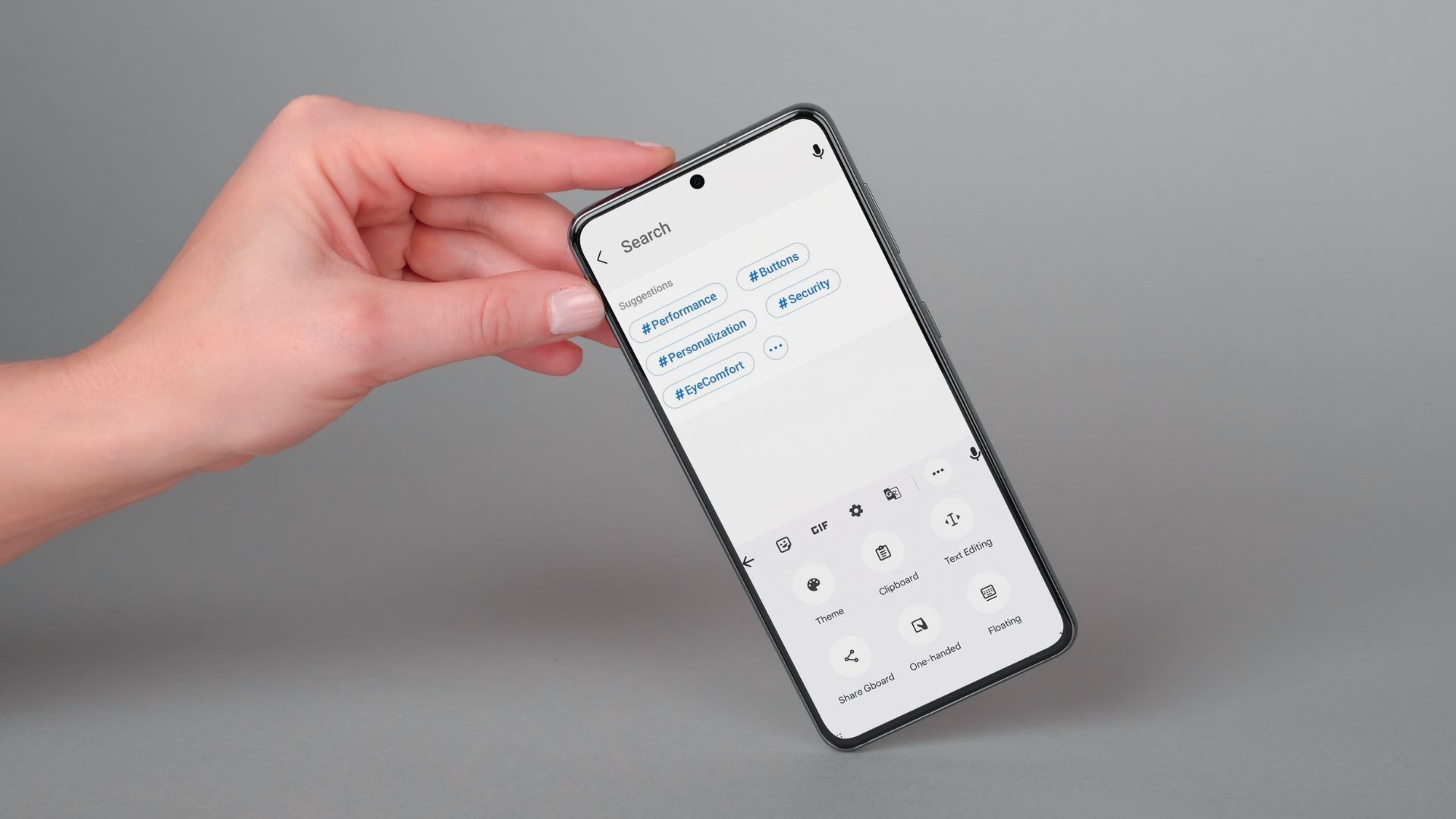 How to Use Clipboard on Samsung Galaxy Phones
Use Clipboard in Samsung Keyboard You can use One UI's native clipboard if Samsung Keyboard is your default keyboard app.
How to Use Clipboard on Samsung Galaxy Phones
Use Clipboard in Samsung Keyboard You can use One UI's native clipboard if Samsung Keyboard is your default keyboard app.
 How to Fix Windows Clipboard Not Working on Windows 10
Basic Fixes Update Windows: Before starting, make sure that you're running the latest version of Windows.
How to Fix Windows Clipboard Not Working on Windows 10
Basic Fixes Update Windows: Before starting, make sure that you're running the latest version of Windows.
 3 Ways to Access the Clipboard on Your iPhone
Method 1: Use the Notes App to See Clipboard Using the Notes app is a great way to not only access but also store the copied contents from a clipboard.
3 Ways to Access the Clipboard on Your iPhone
Method 1: Use the Notes App to See Clipboard Using the Notes app is a great way to not only access but also store the copied contents from a clipboard.
 3 Ways to Clear the Clipboard History in Windows 11
Method 1: Using the Clipboard Tab The easiest and quickest way to empty clipboard history in Windows is through the Clipboard tab.
3 Ways to Clear the Clipboard History in Windows 11
Method 1: Using the Clipboard Tab The easiest and quickest way to empty clipboard history in Windows is through the Clipboard tab.
The article above may contain affiliate links which help support Guiding Tech. The content remains unbiased and authentic and will never affect our editorial integrity.