Check Shared Photos on the Web
Messaging is an important part of our lives and each platform that is offering IM services is trying to one-up the other.
Step 1: Open Facebook on the web and then log in to your account.
Step 2: Click the Messenger icon > Contact name > Open in Messenger > Media and Files > Media.

This will give you access to all the pictures you had shared with that person.
Tip: Learn how to hide active status from someone on Facebook Messenger.
Check Shared Photos on Mobile
The steps remain the same for both iPhone and Android users.
Open the Messenger app > Contact name > View media, files, and links.

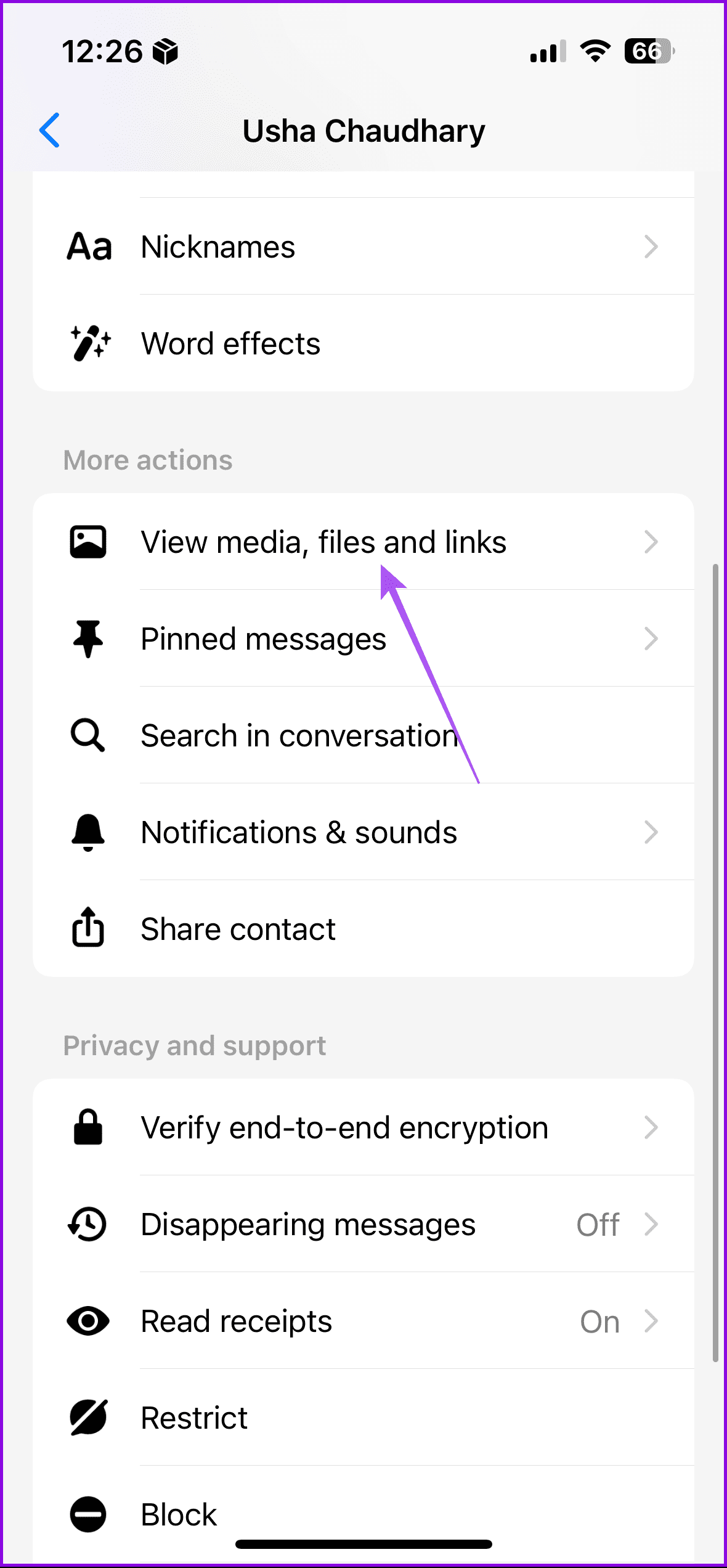
Tip: Refer to our post if links are not opening in Facebook Messenger.
Was this helpful?
Last updated on 16 August, 2024
Read Next
 How to Add Multiple Photos to Facebook and Messenger Story
Add Multiple Photos From Android and Ios Devices Step 1: Tap on Create Story on the home screen and tap on Select Multiple.
How to Add Multiple Photos to Facebook and Messenger Story
Add Multiple Photos From Android and Ios Devices Step 1: Tap on Create Story on the home screen and tap on Select Multiple.
 2 Ways to Fix Apple Photos Not Showing Shared Albums
Basic Fixes Check Apple server status: You can visit Apple's official System Status support page to check if the Photos app is facing any issues in the backend.
2 Ways to Fix Apple Photos Not Showing Shared Albums
Basic Fixes Check Apple server status: You can visit Apple's official System Status support page to check if the Photos app is facing any issues in the backend.
 3 Ways to Fix Photos and Videos Not Loading on Facebook Messenger
Try Basic Fixes Update the Messenger app: Using an outdated version of the Facebook app on your Android or iPhone can trigger the "This media is no longer available" error
3 Ways to Fix Photos and Videos Not Loading on Facebook Messenger
Try Basic Fixes Update the Messenger app: Using an outdated version of the Facebook app on your Android or iPhone can trigger the "This media is no longer available" error
 How to Add New Contacts via WhatsApp Web
Use InTouch App to Add New Contacts Using WhatsApp Web InTouchApp is a contacts manager app that lets you add contacts directly via WhatsApp Web.
How to Add New Contacts via WhatsApp Web
Use InTouch App to Add New Contacts Using WhatsApp Web InTouchApp is a contacts manager app that lets you add contacts directly via WhatsApp Web.
 How to Remove Shared Files from Google Drive
Remove Shared Files on Google Drive You may remove shared files on Google Drive from the web service or the mobile application.
How to Remove Shared Files from Google Drive
Remove Shared Files on Google Drive You may remove shared files on Google Drive from the web service or the mobile application.
 How to Save Shared Files on Google Drive for Web and Mobile
Method 1: Use Shared With Me in Google Drive for Web Step 1: Open the browser, go to Google Drive, and click on the Shared with me link in the sidebar.
How to Save Shared Files on Google Drive for Web and Mobile
Method 1: Use Shared With Me in Google Drive for Web Step 1: Open the browser, go to Google Drive, and click on the Shared with me link in the sidebar.
 How to Add Special Effects to Words on Facebook Messenger
You can add effects to words or phrases on Facebook Messenger -- to make them look cool.
How to Add Special Effects to Words on Facebook Messenger
You can add effects to words or phrases on Facebook Messenger -- to make them look cool.
 How to Fix Facebook Messenger Not Working on iPad or iPhone
Basic Fixes Check internet connection: Check the stability or speed of your internet connection.
How to Fix Facebook Messenger Not Working on iPad or iPhone
Basic Fixes Check internet connection: Check the stability or speed of your internet connection.
The article above may contain affiliate links which help support Guiding Tech. The content remains unbiased and authentic and will never affect our editorial integrity.